




- sales/support
Google Chat:---
- sales
+86-0755-88291180
- sales01
sales@spotpear.com
- sales02
dragon_manager@163.com
- support
tech-support@spotpear.com
- CEO-Complaints
zhoujie@spotpear.com
- Only Tech-Support
WhatsApp:13246739196
- Purchase/Shipping/Refund
WhatsApp:13424403025
WAVEGO-Development Environment Configuration
Development Environment Setup
Introduction
- This chapter mainly introduces the development environment setup for WAVEGO on the Arduino IDE. By studying this chapter, you can begin your development journey for the WAVEGO slave ESP32.
Install Arduino IDE
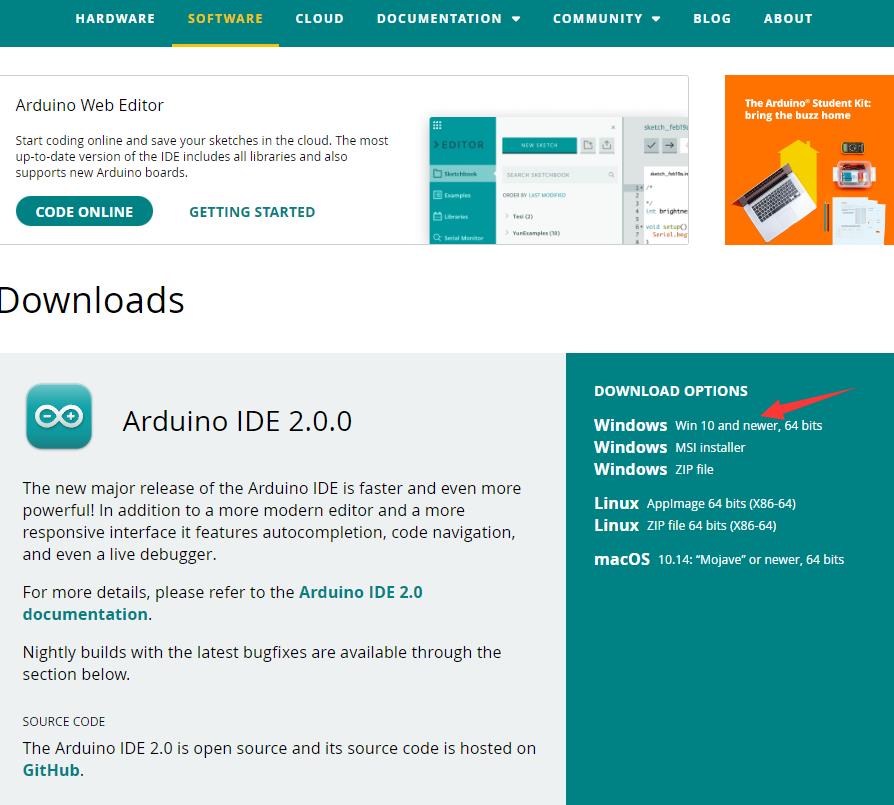
- First, go to Arduino official website to download the installation package of the Arduino IDE.
- Once the download is complete, click Install.
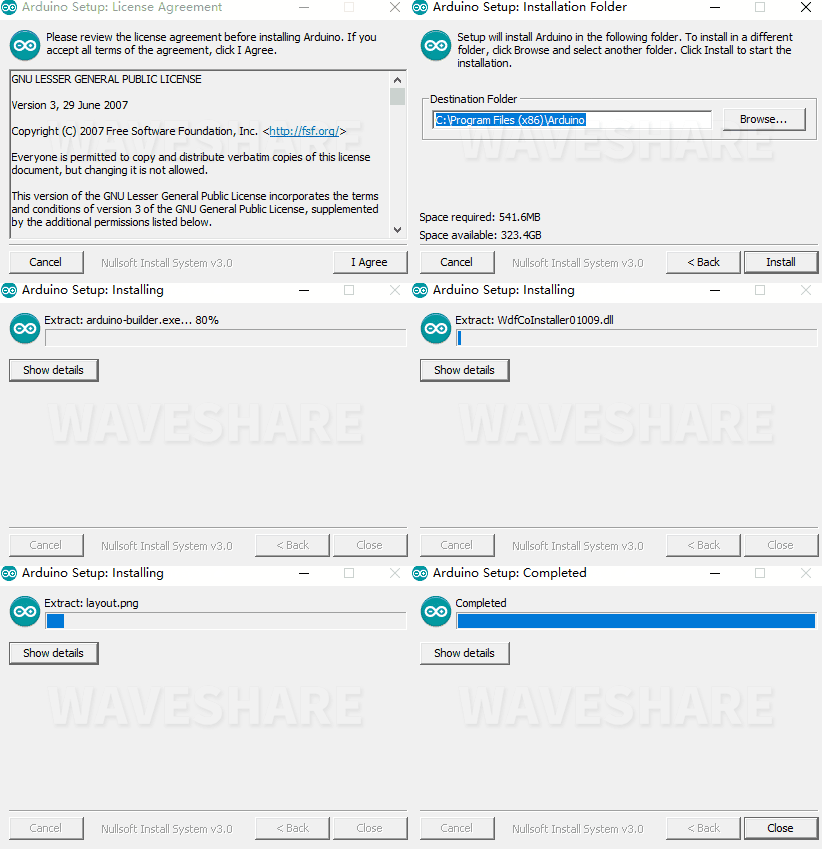
Notice: During the installation process, it will prompt you to install the driver, just click Install
Arduino IDE Interface
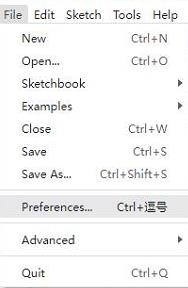
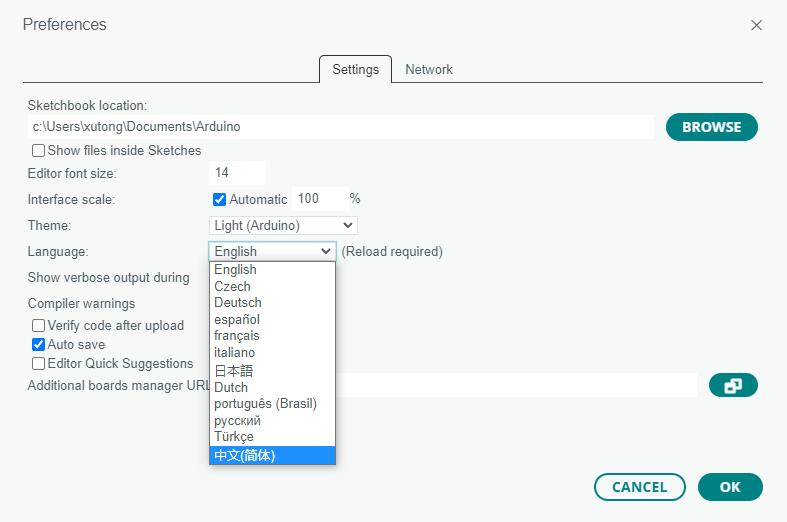
- After the first installation, when you open the Arduino IDE, it will be in English. You can switch to other languages in File --> Preferences, or continue using the English interface.
- In the Language field, select the language you want to switch to, and click OK.
Installing ESP32 Plugin in Arduino IDE
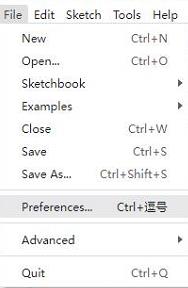
- Open the Arduino IDE, click on the file in the top left corner, and select Preferences
- Add the following link to the attached board manager URL, and then click OK
https://dl.espressif.com/dl/package_esp32_index.json
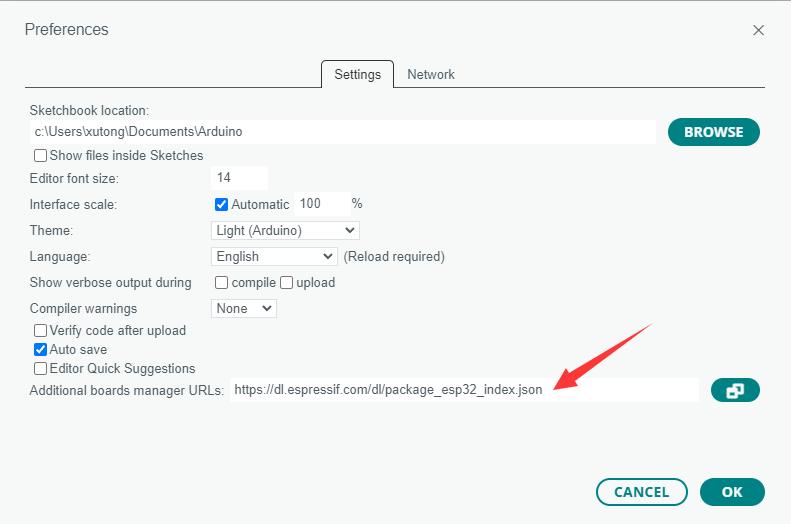
Note: If you already have an ESP32 board URL, you can use a comma to separate the URLs as follows:https://dl.espressif.com/dl/package_esp32_index.json,http://arduino.esp8266.com/stable/package_esp8266com_index.json
- Download packages package, and copy the extracted packages folder to the following path
C:\Users\xutong\AppData\Local\Arduino15
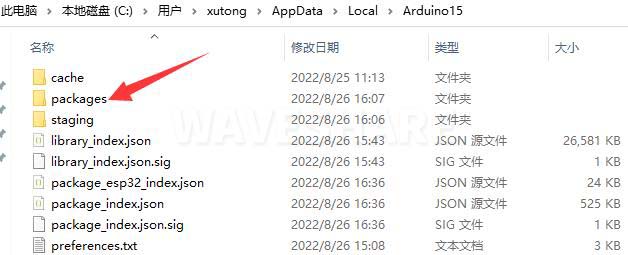
Note: Replace the username: xutong with your own username
Install Dependency Libraries
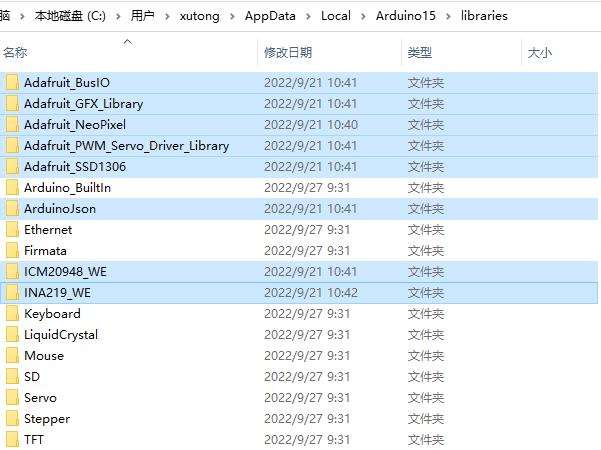
- Download and extract the Libraries dependency library. Open the default Arduino installation location C:\Users\xutong\AppData\Local\Arduino15\libraries (based on your actual location), and then copy these folders to Libraries
Upload Demo
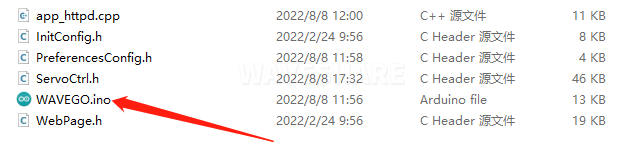
- Download WAVEGO open-source demo (Arduino), double-click Arduino\WAVEGO\WAVEGO.ino
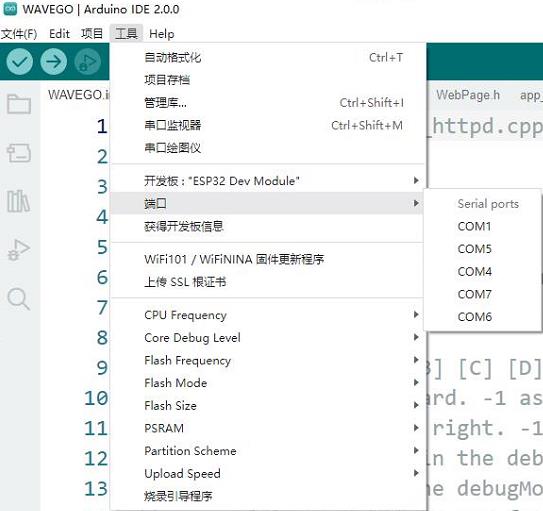
- Click Tools --> Port, remember the existing COM, do not click this COM (the COM displayed is different on different computers, remember the COM on your own computer)
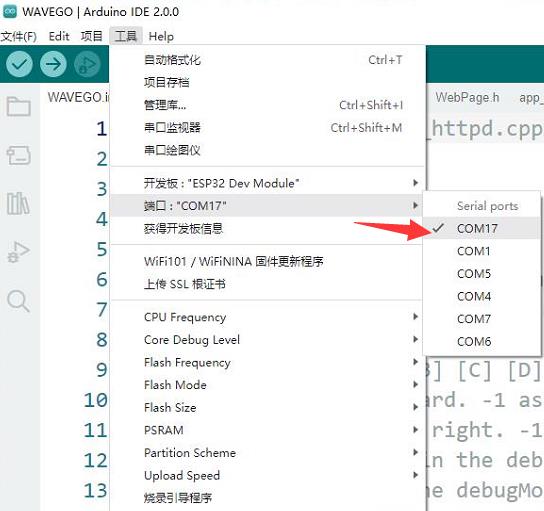
- Connect the driver board to the computer using a USB cable. Then, go to Tools > Port, and click the newly appeared COM
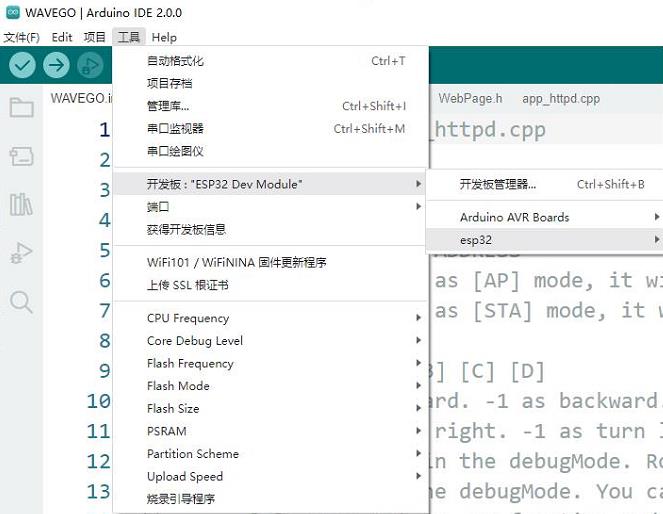
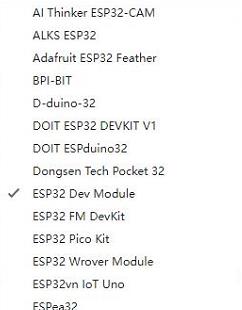
- Click Tools > Development Board > ESP32 Arduino > ESP32 Dev Module
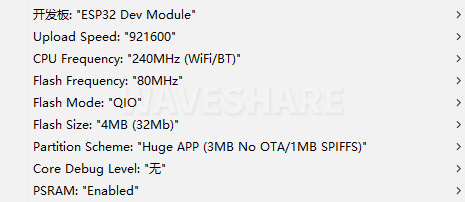
- Click Tools, and the other settings are as follows (it is best to set Partition Scheme as Huge APP, and PSRAM must be set to Enabled, otherwise the camera will flash black):
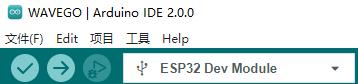
- Once all settings are configured, click "Upload" to upload the demo to the device
- If issues arise during this period, and if you need to reinstall or update the Arduino IDE version, it is necessary to uninstall the Arduino IDE completely. After uninstalling the software, you need to manually delete all contents within the C:\Users\[name]\AppData\Local\Arduino15 folder (you need to show hidden files to see this folder). Then, proceed with a fresh installation.
All Tutorials
- WAVEGO-Development Environment Configuration
- WAVEGO-GPIO Control
- WAVEGO-WAS2812 RGB_LED
- WAVEGO-PCA9685 Servo Control
Resources
Robot Diagram
Open Source Resources
Raspberry Pi Learning Resources
TAG:
1.47 inch LCD AXS5106L TouchScreen JD9853 Display 172x320 For Arduino/Raspberry Pi/Pico/ESP32
Luckfox Pico Zero RV1106G3 SD WiFi6 Audio eMMC-8G RAM-256MB
Core3566004000
ESP32 S3 AI 0.85inch Development Board 0.85 inch DeepSeek RGB surround light
Jetson Nano Module
DeepSeek AI Voice Chat ESP32 S3 Development Board 1.8 inch AMOLED Display 368×448 1.8inch TouchScreen Programmable Watch QMI8658 /MIC /Audio /Battery
ESP32-S3 Nano ESP32-S3R8 development board compatible with Arduino Nano ESP32
Raspberry Pi Pico Display
Raspberry Pi Display Driver Board
X1015 Raspberry Pi 5 PCIe to M.2 Key-M NVMe SSD Board Pi5 2280
Raspberry Pi 5 PCIe to M.2
Supports 6V~24V Solar Panel
PCIe M.2 NVMe Dual SSD
Gyroscope
Industrial
Raspberry Pi Pico W
Raspberry Pi 5 / 4B UPS With PD Trigger Activation Uninterruptible Power Bank Supply 9600mAh 5V/5A 25W Also For Phone/Mini Computer PC
Magnetic Encoder Servo Motor 45KG.CM 24V 360° RS485 High Precision And Large Torque
Omni-Directional Lidar
Raspberry Pi 5 PCIe to M.2 Mini NVMe SSD Board (E) With Customized Active Cooler Together
TAG:
UNO R4 Minima
Ra
Raspber Pi 5 Power
USB To RS232 485 FT232RNL
Raspberry Pi 5 PCIe
ESP32 MLX90640
ESP32 C3
Raspberry Pi 5 CSI Cable
Raspberry Pi 23.8/27 inch FHD Monitor LCD TouchScreen Type-C Display 1080P Capacitive 23.8/27inch HDMI For Computer PC
Luckfox Pico Ultra B RV1106G2
ESP32 C6 Development board 1.9 inch LCD display 1.9inch Screen 172×320 With SD slot RGB LED QMI8658 6-Axis-Sensor ST7789 CST816
Raspberry Pi 5 ICE Tower Higher RGB Fan Pi5 CPU Cooler U-Shaped Copper Tube Fins
Desktop Trinket
Raspberry Pi 13.3 inch FHD Monitor LCD 1080P Capacitive TouchScreen Display Type-C/HDMI For Computer PC
Raspberry Pi Pico Camera
R7FA4 PLUS B Development Board Based on R7FA4M1AB3CFM Compatible with Arduino UNO R4 WiFi
ESP32‑S3 LoRa Development Board with LR1121 3rd Generation RF Chip USB Stamp Hole
Bus Servo ESP32 UART USB ST RSBL Raspberry PI Robot
Jetson
MINI linux board