




- sales/support
Google Chat:---
- sales
+86-0755-88291180
- sales01
sales@spotpear.com
- sales02
dragon_manager@163.com
- support
tech-support@spotpear.com
- CEO-Complaints
zhoujie@spotpear.com
- Only Tech-Support
WhatsApp:13246739196
- Purchase/Shipping/Refund
WhatsApp:13424403025
Modbus POE ETH Relay MQTT User Guide
Hardware Connection
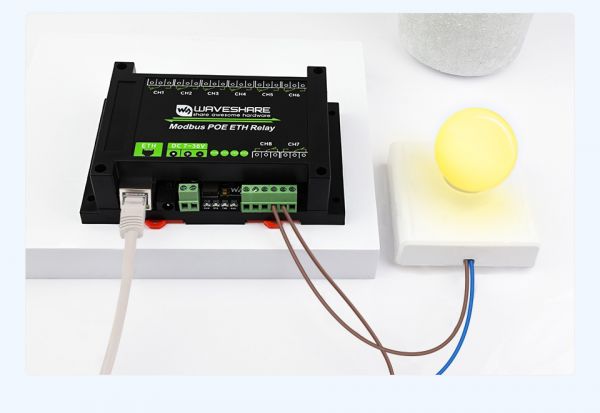
- Connect the Modbus POE ETH Relay to the LAN via a network cable and power it through the power port or through POE.
Software Preparation
Get Started to Communicate
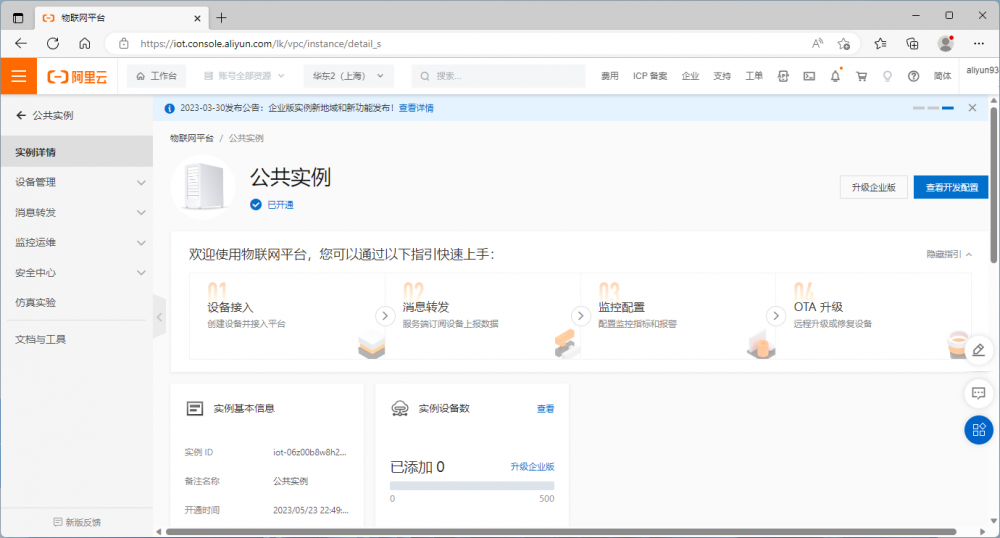
- Register an account to access the Alibaba Cloud IoT Platform and activate a public instance.
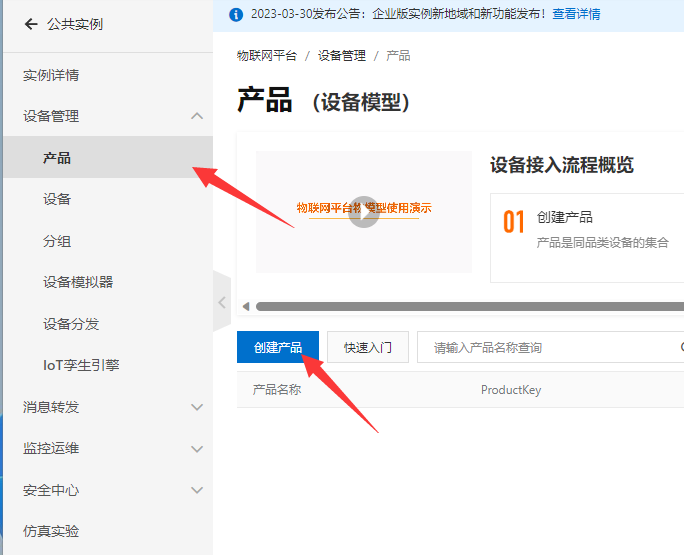
- Click Device Management -> Products -> Create a product, enter the product name, the example name is Waveshare, and choose a custom category to belong to. Other defaults are available.
- After creating the product, click View Product Details below to enter the product page and select the Topic category list to go to the Topic page to add a custom topic.
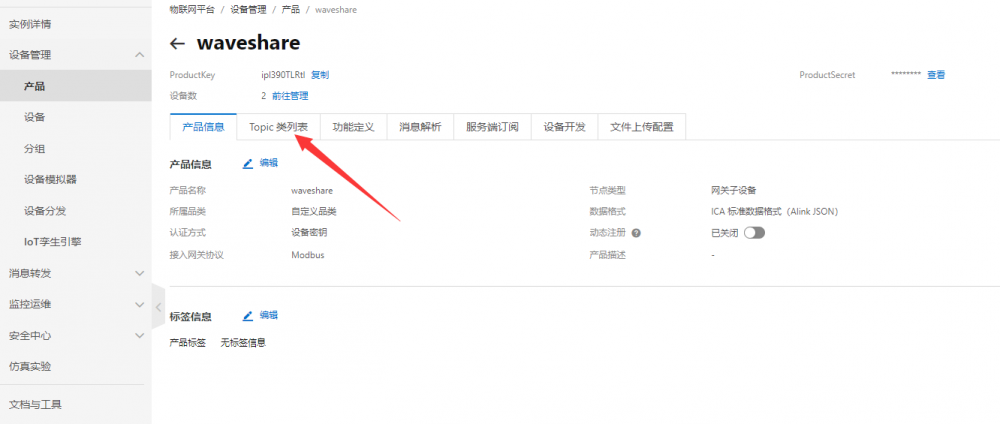
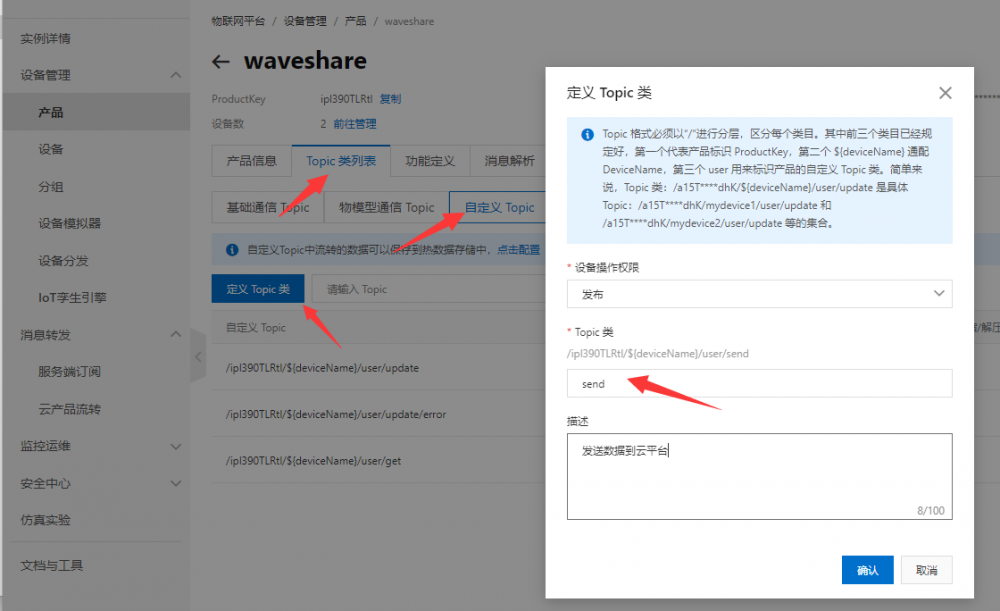
- Select Topic class list -> Custom Topic -> Define Topic class, create a publish topic send to send data.
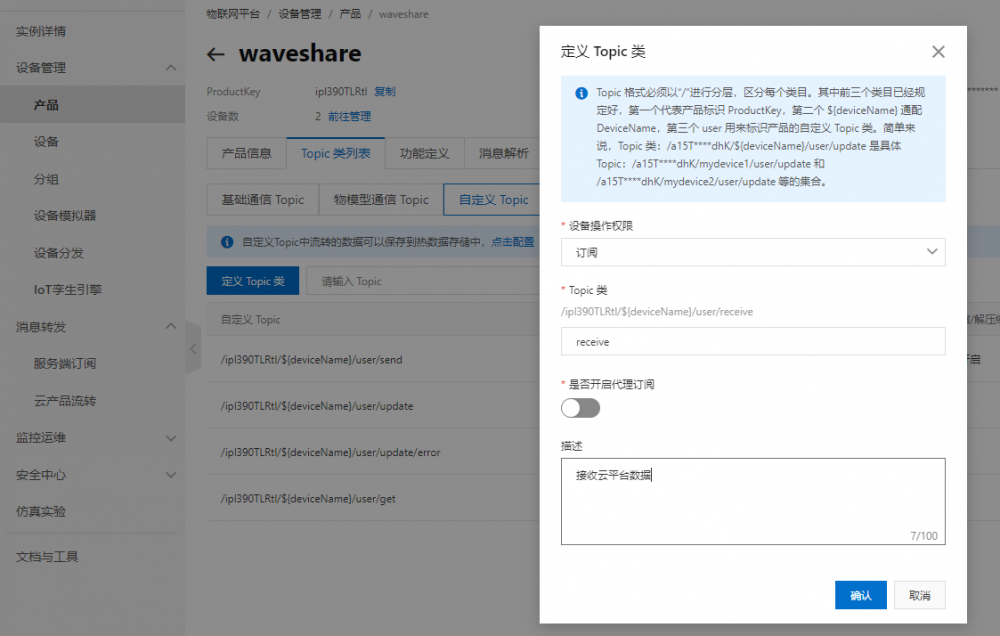
- To subscribe to a topic and receive data.
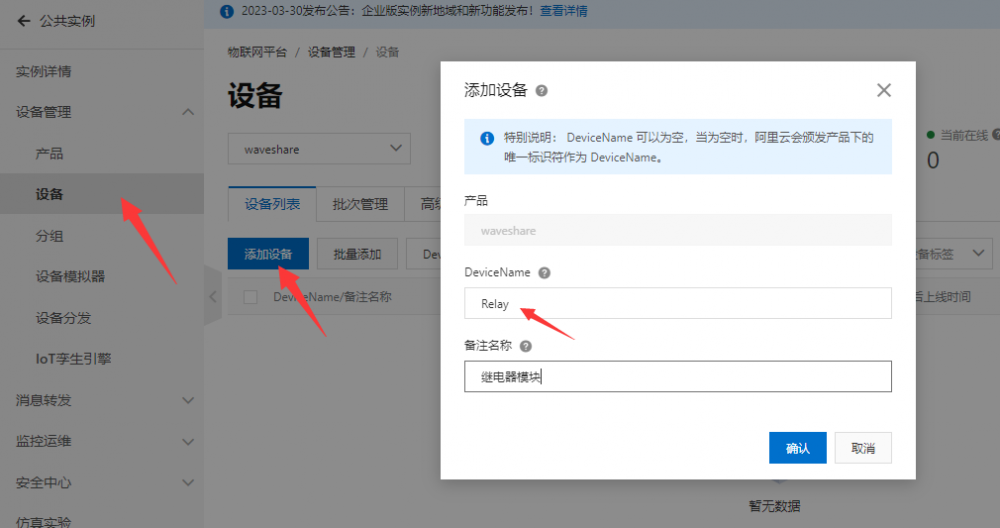
- Select Device Management -> Devices -> Add Device. Add a device named 'Relay', which is a relay module.
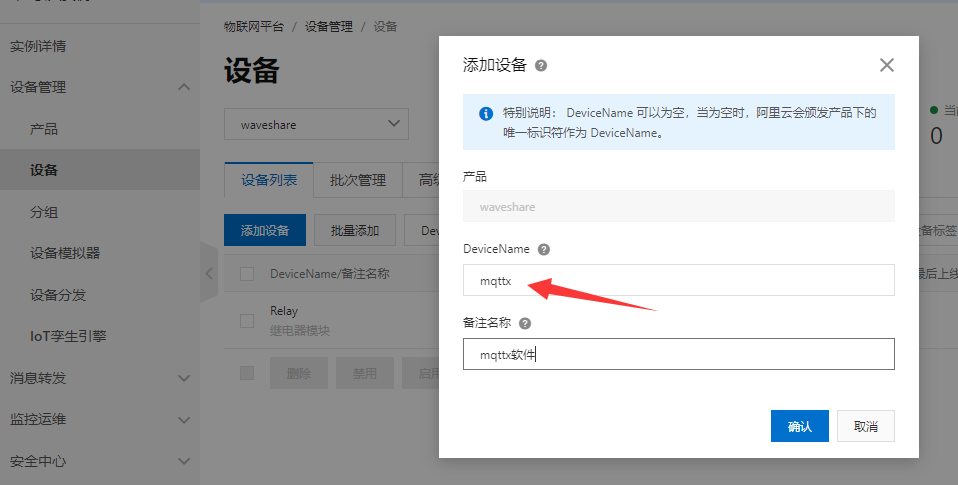
- For testing, you can add a device named mqttx device, the Ali cloud web page can only send text data and can not send binary data, so use mqttx software to facilitate debugging.
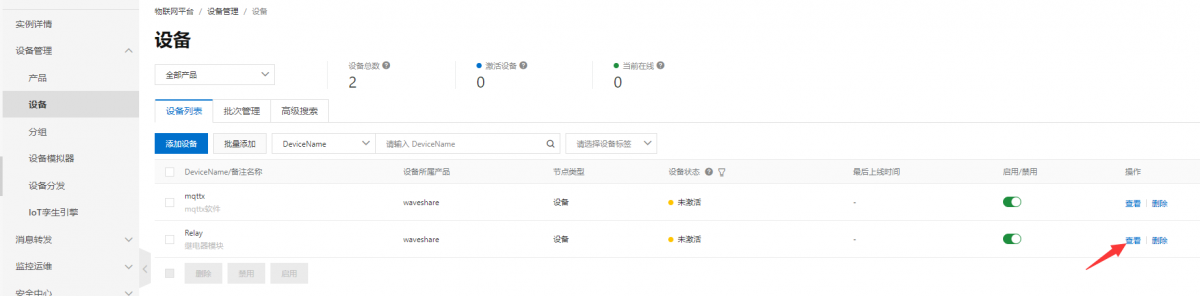
- After adding the devices, you can view two devices named "mqttx" and "relay" in the device list. Click on "View" to enter the page for the "Relay" device.
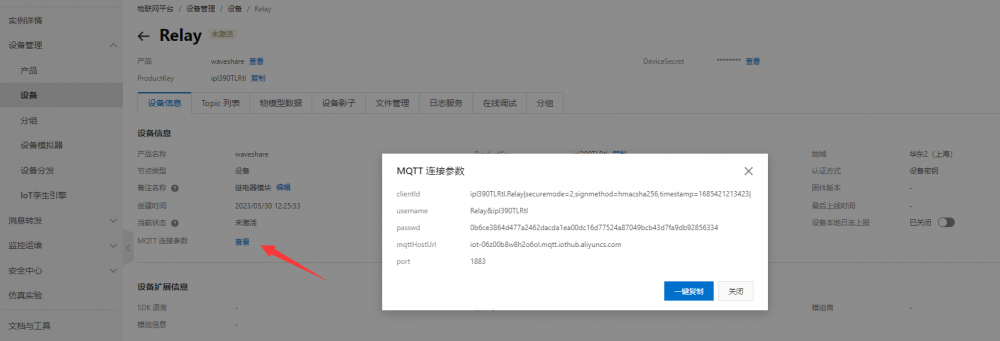
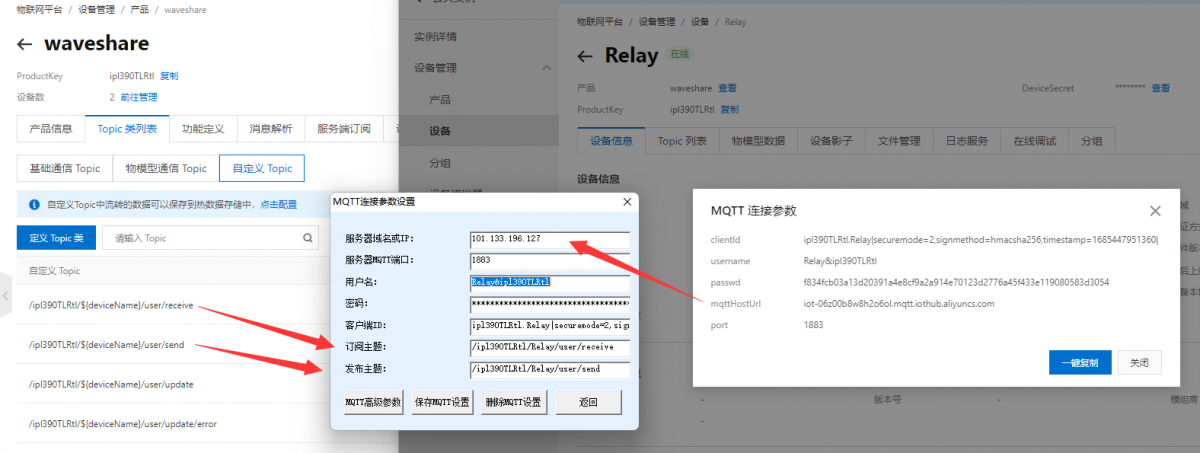
- Select "Device Information" -> "MQTT Connection Parameters" to view the MQTT connection parameters.
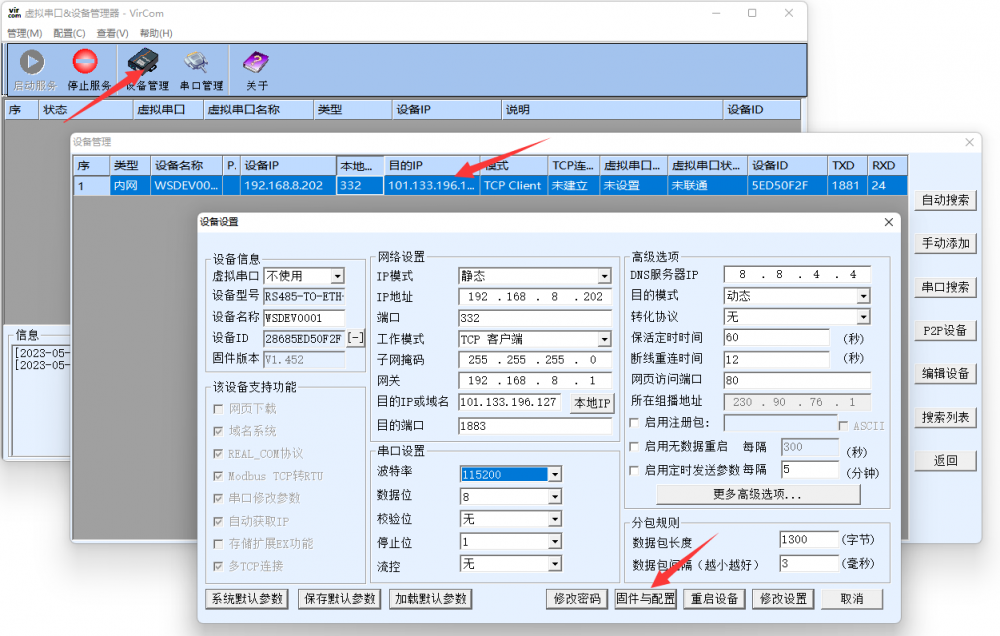
- Open Vircom -> Device Management -> left mouse click on the corresponding device -> Firmware and Configuration -> MQTT Configuration and enter the configuration page.
- Configure the connection parameters based on the Relay device MQTT connection information. When the configuration is complete, select Save MQTT Settings and click Download again.
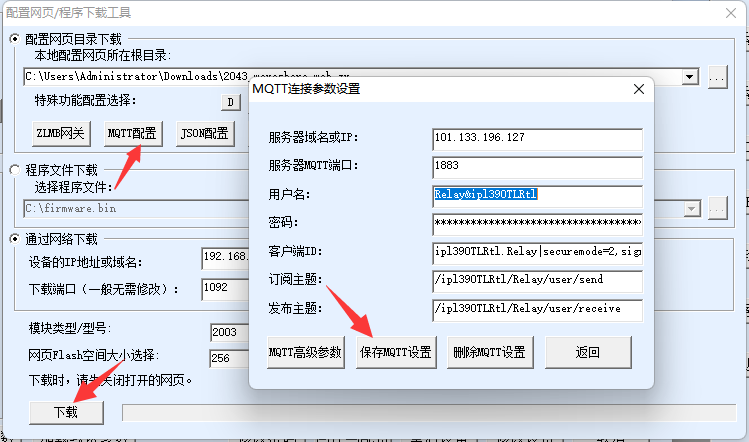
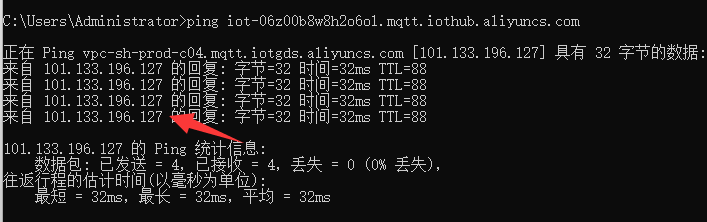
- Note: You can get the AliCloud IP address by pinging mqttHostUrl.
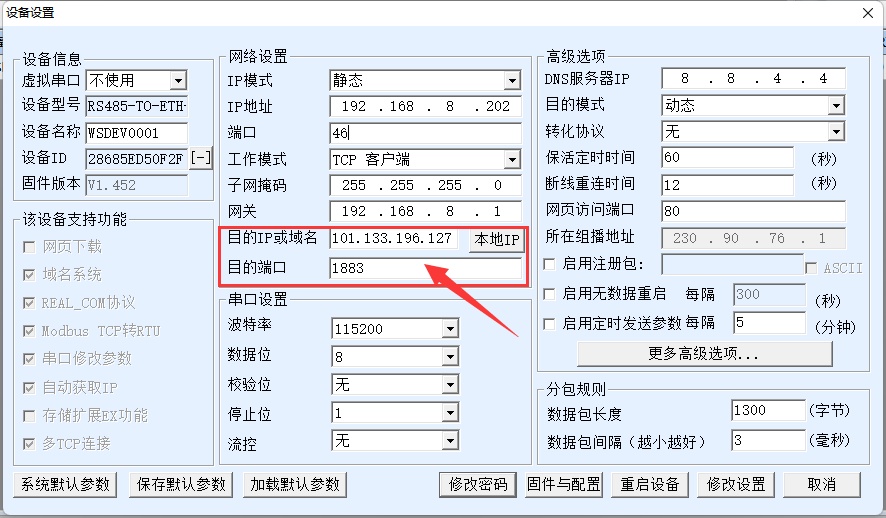
- Set the target IP and target port, and click Modify Settings to save. Note: If the local port is 0 then you need to modify a non-zero port, otherwise you cannot connect.
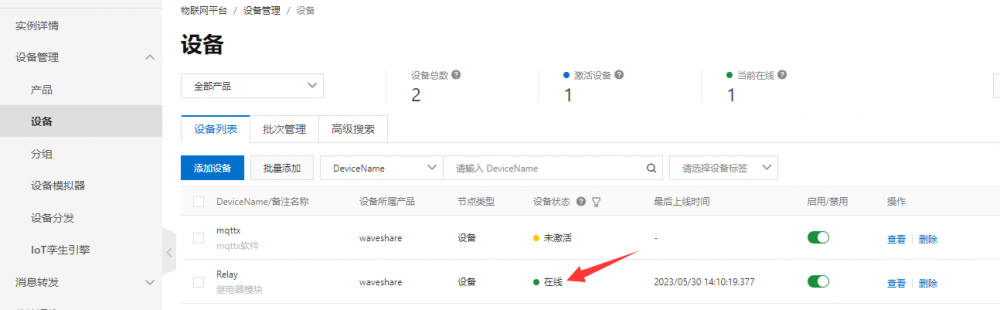
- After a successful connection, you can see that the Relay device has gone from inactive to online.
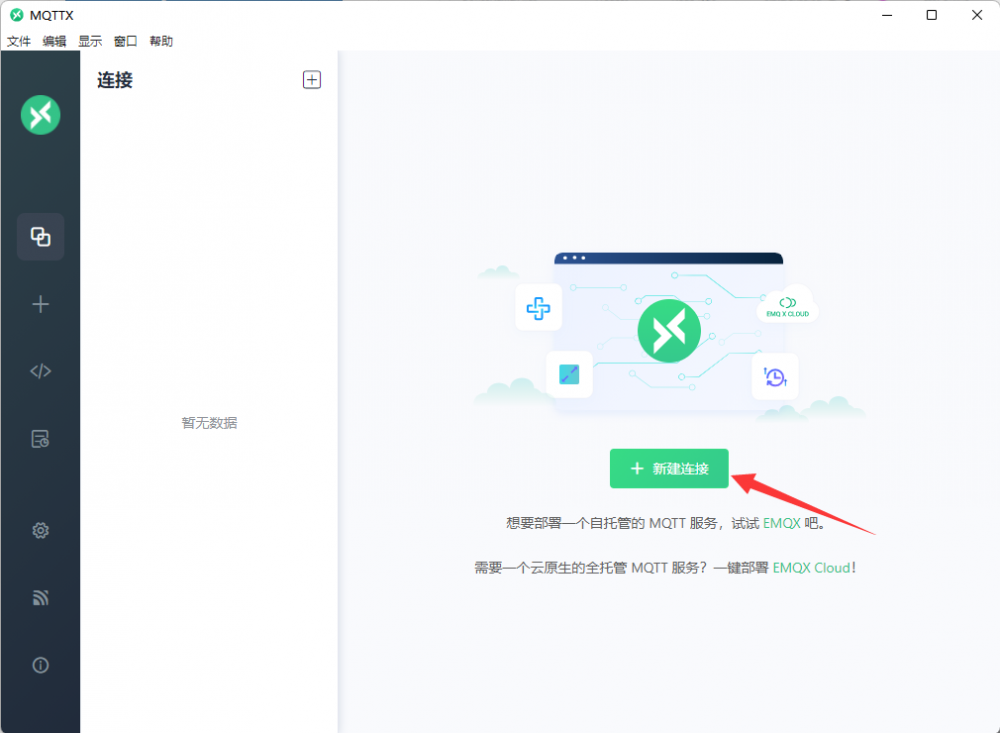
- Download the MQTTX software and install it, creat a new connection after successful installation.
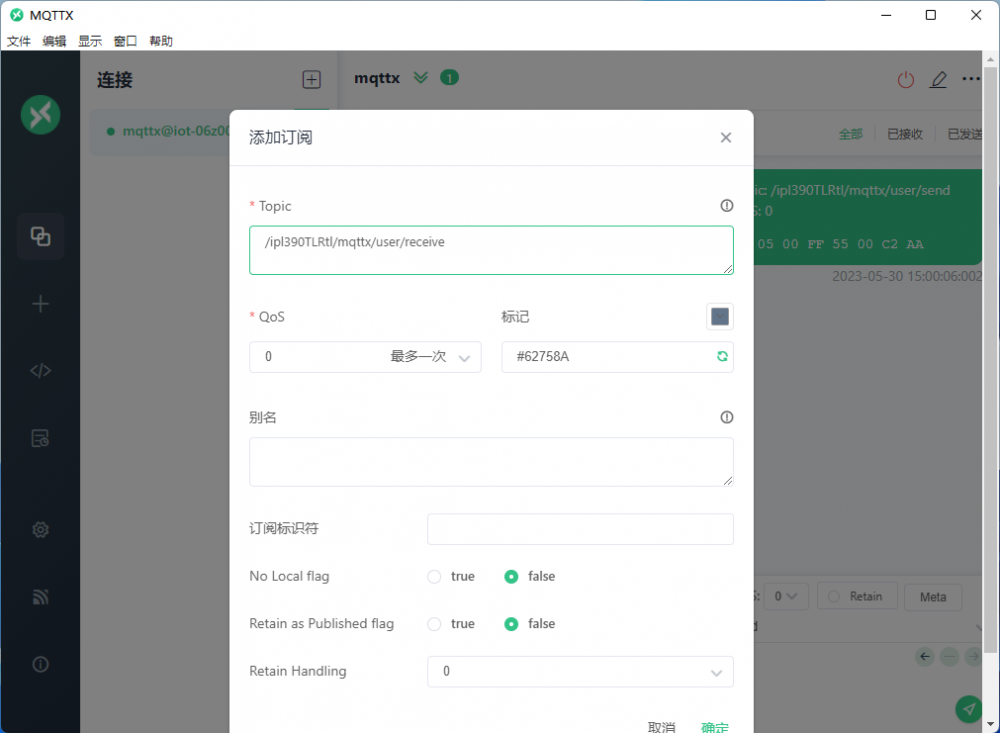
- Create a new connection based on the mqttx device MQTT connection parameters.

- Add a subscription after a successful connection.
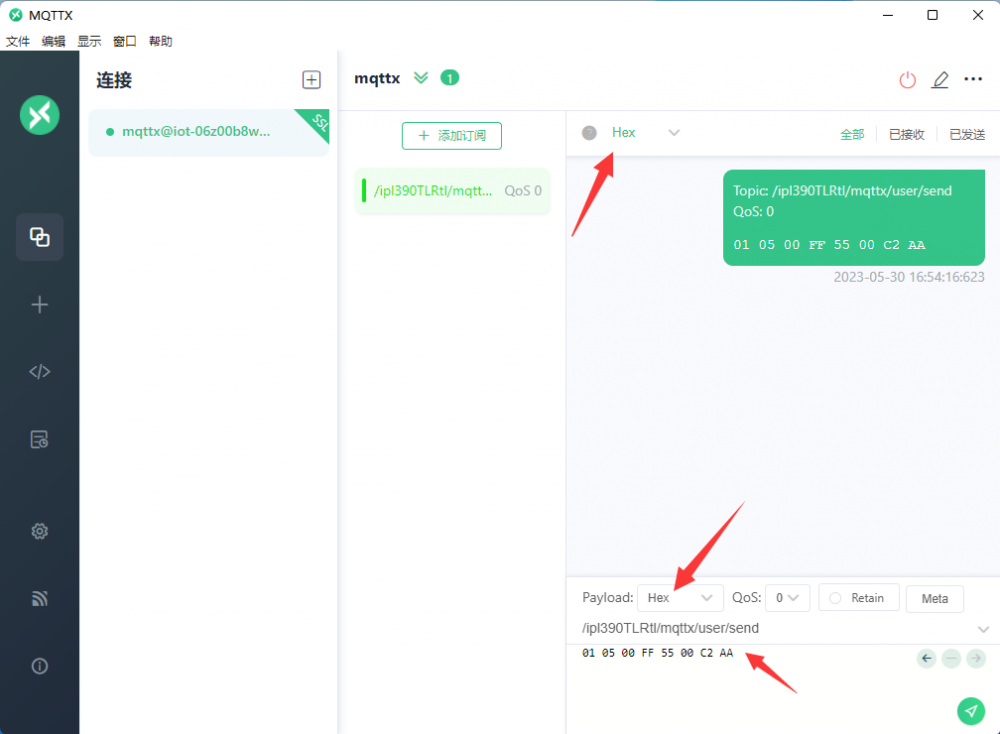
- Enter the sent topic, select hex to send and hex display, and send the data.
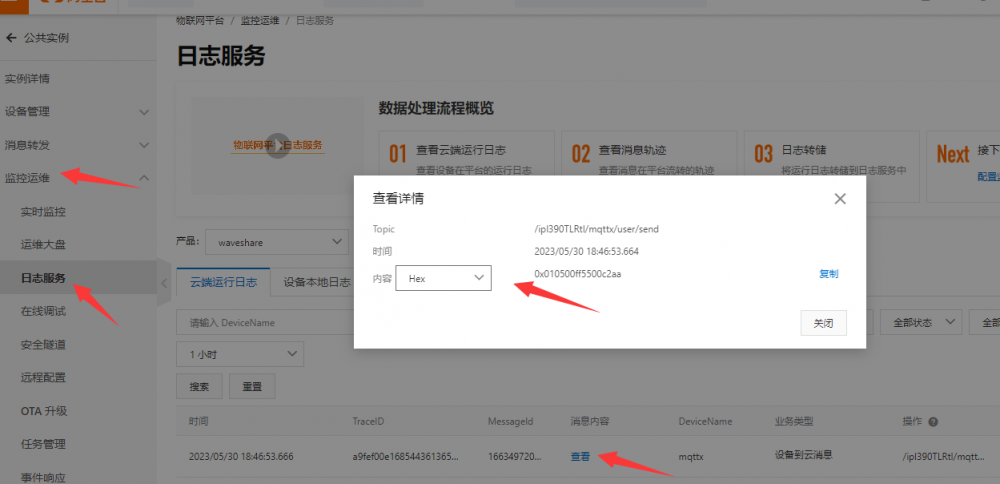
- Select Monitor Ops -> Log Services -> Cloud Operation Log to check the information received from the cloud and select hex to display.
- At this point, both the Relay device and the mqttx device have been connected to the cloud platform, but it is not yet possible to control the relays through the mqttx software, and finally, message forwarding needs to be added.
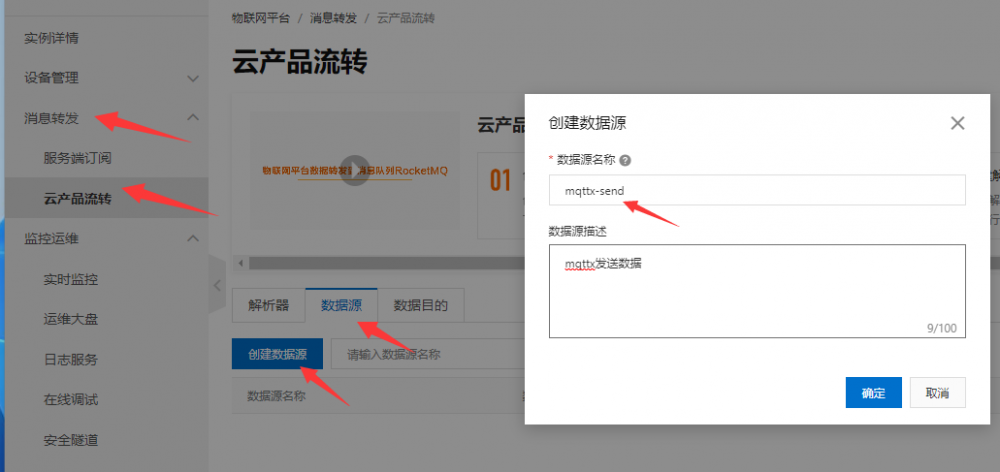
- Select Message Forwarding -> Cloud Product Flow -> Data Source -> Create Data Source, the data source name is mqttx-send.
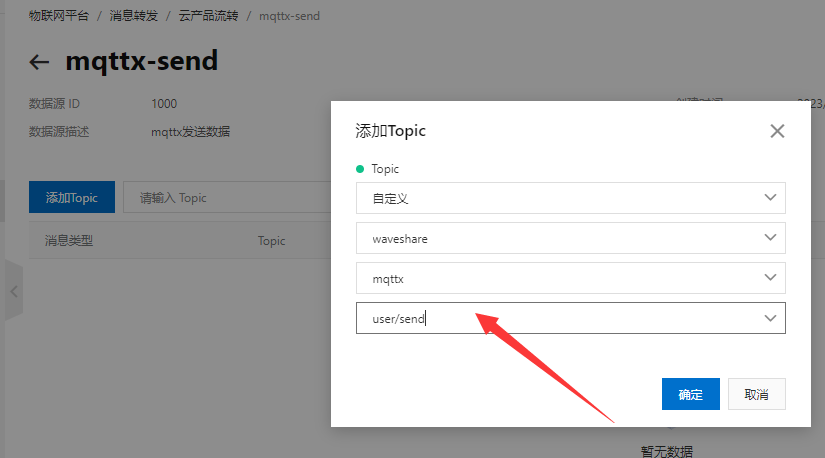
- Go to edit page, add Topic, select custom, waveshare product, mqttx device, user/send topic.
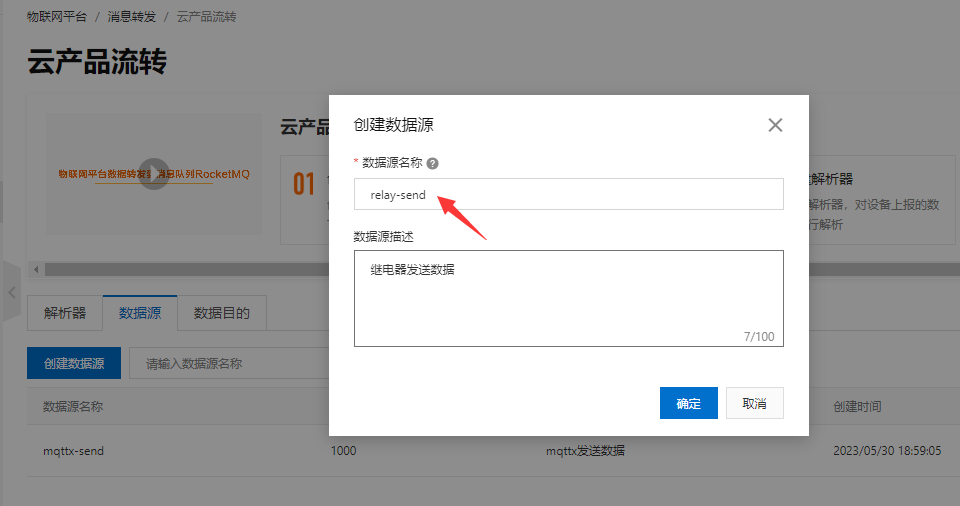
- Select Message Forwarding -> Cloud Product Flow -> Data Source -> Create Data Source and then add a data source with the name of relay-send.
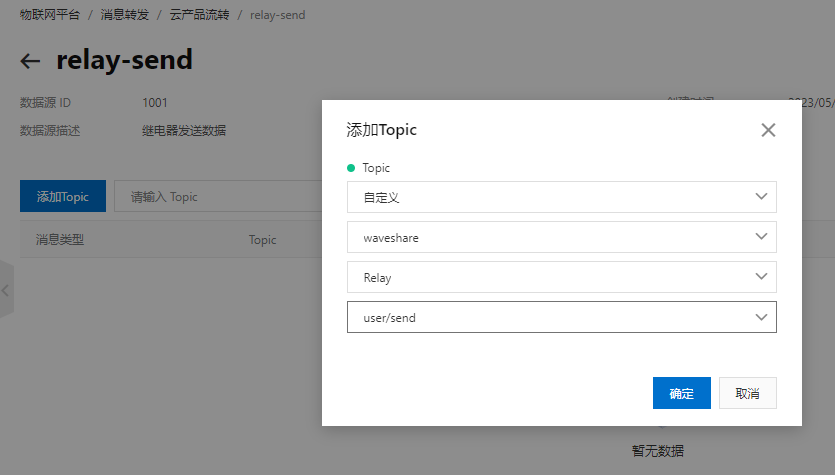
- Go to edit page, add Topic, select custom, waveshare product, relay device, user/send topic.
- Select Message Forwarding -> Cloud Product Flow -> Data Destination -> Create Data Destination, the data destination name is mqttx-receive.
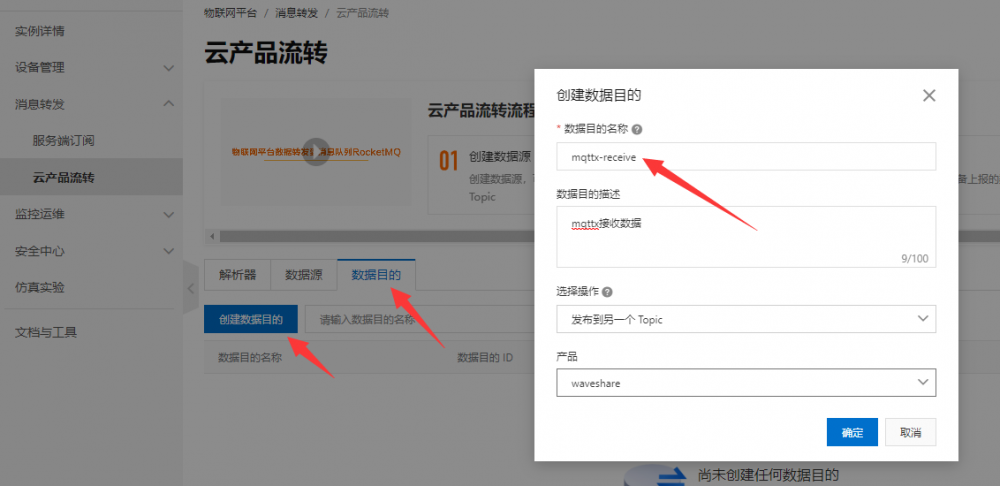
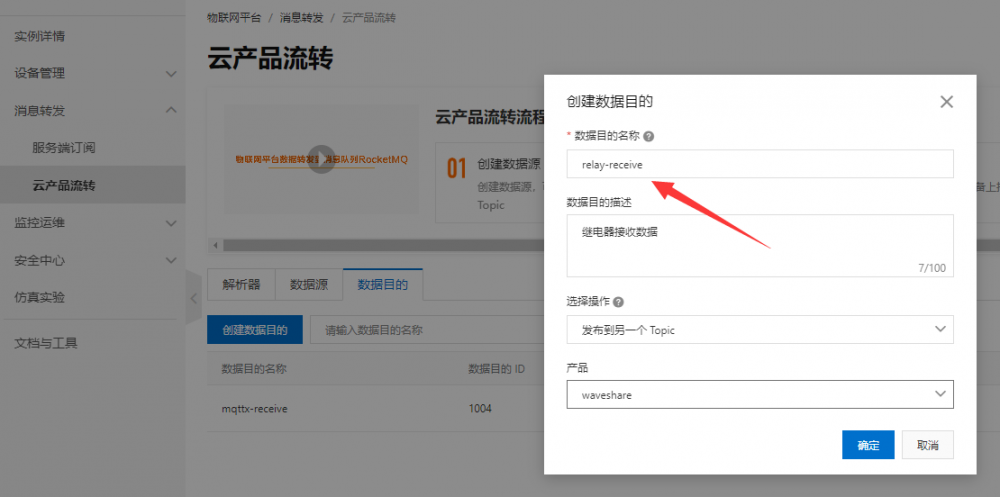
- Select Message Forwarding -> Cloud Product Flow -> Data Source -> Create a data source and then add a data destination with the name of relay-receive.
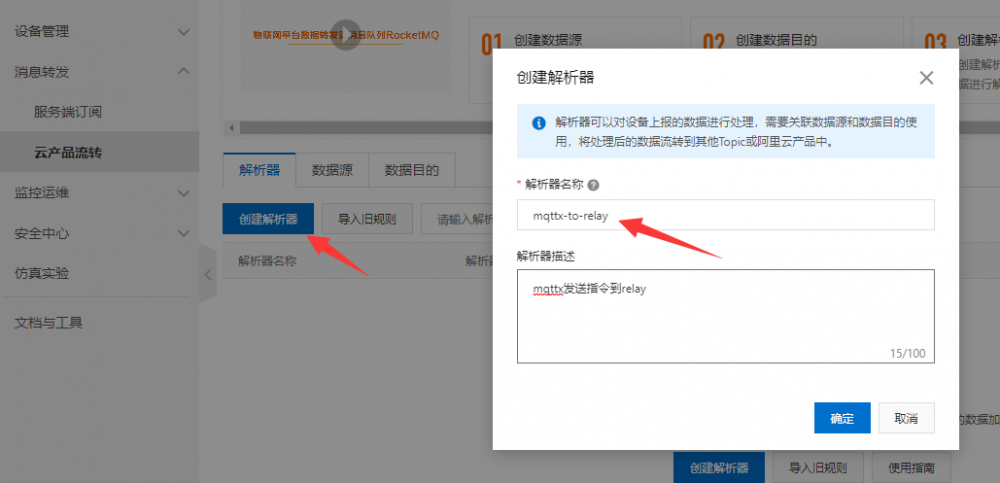
- Select Message Forwarding -> Cloud Product Flow -> Parser -> Create a parser with the name mqttx-to-relay.
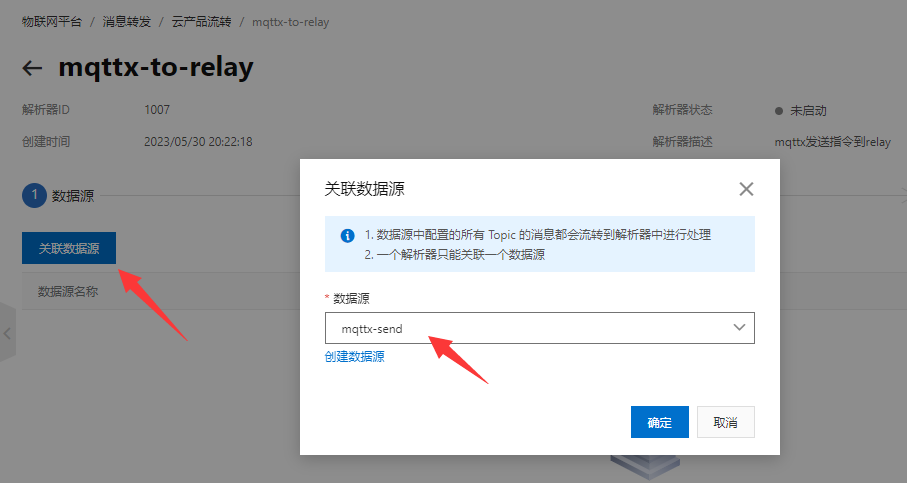
- Open mqttx-to-relay edit page -> Data Source -> Associated Data Source,Data Source select mqttx-send
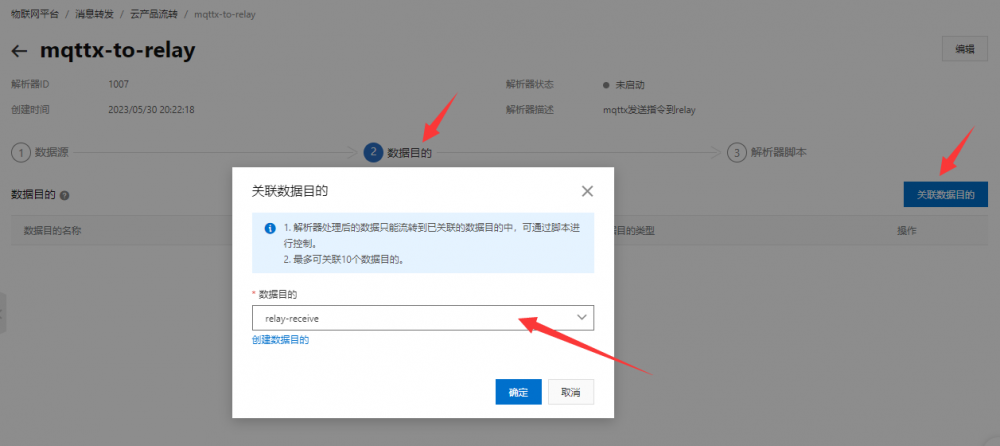
- Data destination -> associate data destination->data destination selection relay-receive
- Parser script, add the following code and publish, where 1005 is the relay-receive data destination ID, /ipl390TLRtl/Relay/user/receive is the relay receive topic, needs to be more practical to modify.
//Through the payload function, get the message content reported by the device and convert the payload data into binary variables for pass-through
var data = payload("binary");
//Forwarding data to relays
writeIotTopic(1005, "/ipl390TLRtl/Relay/user/receive", data);
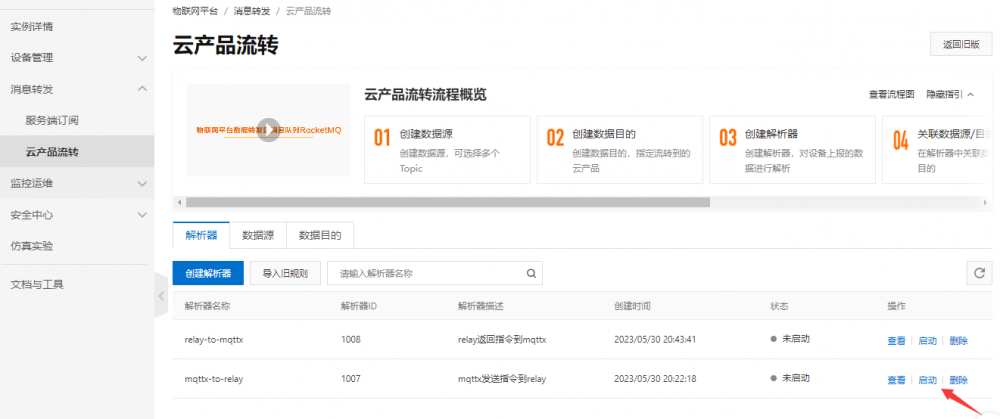
- Select Message Forwarding -> Cloud Product Flow -> Parser -> Create Parser then create a parser with the name relay-to-mqttx.

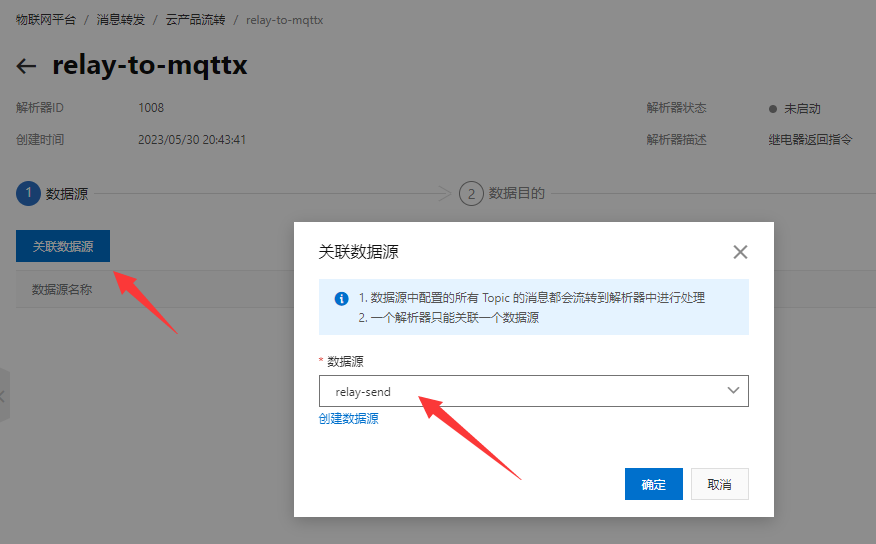
- Open mqttx-to-relay edit page -> data source -> associate data source, data source select relay-send.
- Data Destination -> Associate Data Destination -> Data Destination Select mqttx-receive.
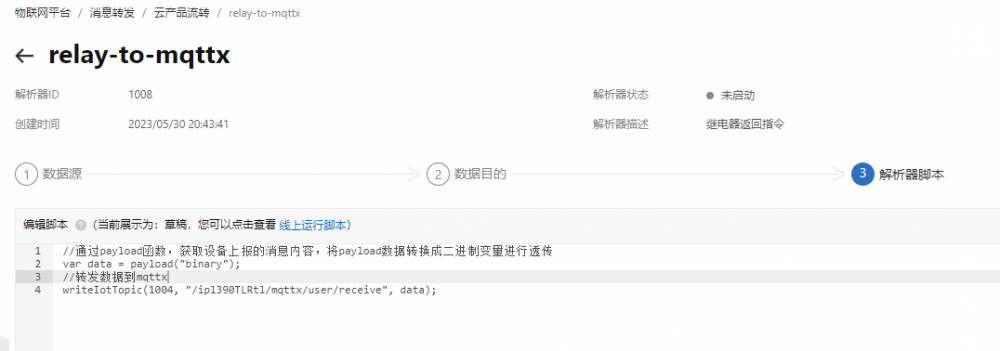
- Parser script, add the following code and publish, where 1004 is the mqttx-receive data destination ID, /ipl390TLRtl/mqttx/user/receive is the mqttx receive topic, need to be more practical to modify.
//Through the payload function, get the message content reported by the device and convert the payload data into binary variables for pass-through
var data = payload("binary");
//Forwarding data to relays
writeIotTopic(1004, "/ipl390TLRtl/mqttx/user/receive", data);
- Finally, select Start Parser to implement data forwarding. Message forwarding is configured and enabled.
- At this point, you can send commands to control the relays via MQTTX. Send the relay flip command as shown below. Under normal circumstances, the relay will be flipped and the command data will be returned.
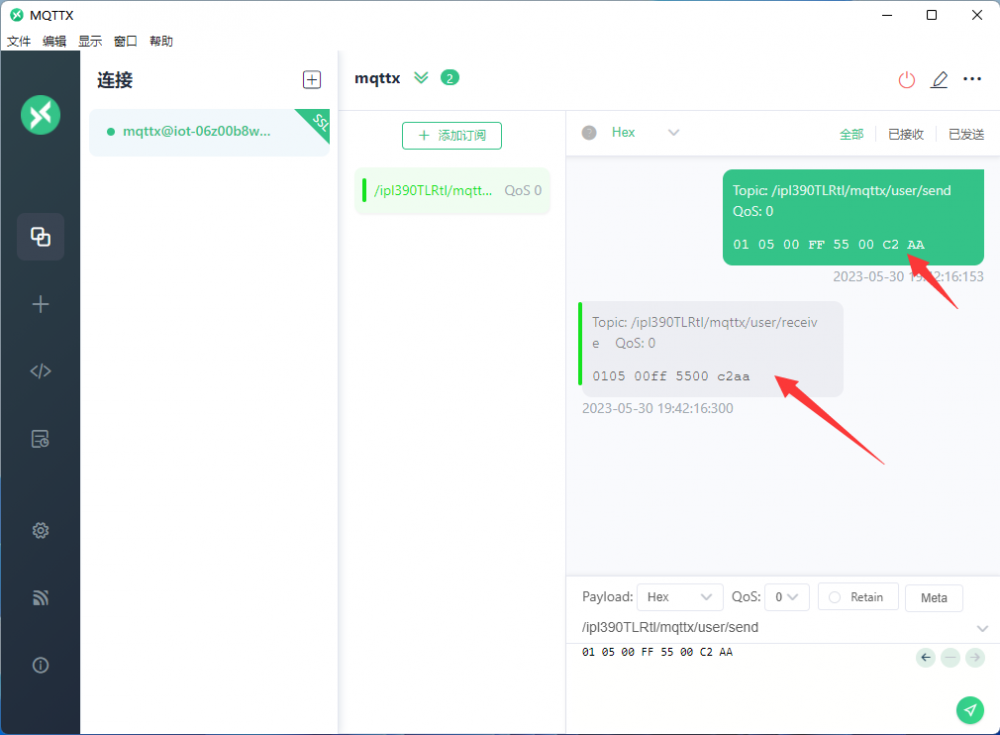
- The operation is now complete. You can try to send more Modbus commands to test. The data flow is shown below.
- MQTTX sends the command -> AliCloud receives the data and forwards it to relay -> relay receives the data to execute the action and return the data to AliCloud -> Ali cloud receives data and forwards to mqttx -> MQTTX receives the return data.
TAG:
ESP32 S3 AI 0.85inch mini tiny Development Board 0.85 inch DeepSeek RGB LED
Raspberry Pi 11 inch HDMI LCD Captive TouchScreen Display 11inch 1920x1200 For Jetson Series/Computer PC
Pi5 Fan
Robotic Arm Control
RV1106
Raspberry Pi UPS
ESP32-S3 LCD Driver Board RGB/SPI N8R8 For 2.1/2.8/4inch Captive TouchScreen Display Round
Raspberry Pi Pico RP2040 1.69 inch TouchScreen Round LCD Display With QMI8658/Buzzer/RTC For Arduino
UNO Minima RA4M1 ZERO Tiny SuperMini R7FA4M1 Board Compatible With R4 For Arduino
Tang Nano Series FPGA FAQ
LuckFox Pico
ESP32 S3 N16R8 Development board 1.9 inch LCD Display 1.9inch TouchScreen 170×320 SD-Port RGB LED QMI8658 6-Axis ST7789 CST816
Spotpear
ESP32-S3-Zero
Raspberry pi Pico development board RP2040 Core A Based On Official RP2040 Dual Core Processor
1.3inch LCD RP2040-PiZero Game ST7789 Raspberry Pi Pico LCD Display Screen
Solar Charge Module
Sipeed NanoCluster Mini Cluster Board mini data center For Raspberry Pi CM45 / Computer /LM3H /M4N
Raspberry Pi 5 RTC charge
7inch Monitor LCD
ESP32-S3 1.69inch Touchscreen LCD Round Display WiFi Bluetooth With QST Attitude Gyro Sensor QMI8658
TAG:
JETSON NANO MINI
Computer USB Secondary Screen
Raspberry Pi 5 Fan
E-Ink
NVIDIA Jetson AGX Orin 32 64GB AI 275TOPS
Industrial Isolated 4CH RS485 TO POE ETH (B) RJ45 Converter UART For Modbus
SG90 Servo Micro Metal Gear High Torque 2kg 2.2kg Rotate 180Angle
Raspberry Pi Pico 1.28inch
Raspberry Pi 5
Raspberry Pi 5 PoE HAT
Pi5
Raspberry Pi 3.5 inch DSI Display MIPI LCD (H) Capacitive TouchScreen 480x800
Raspberry Pi 5 - 2GB RAM
SpeedyBee Bee35 3.5 inch Frame RC FPV Drone
Sipeed NanoKVM-Pro 4K IP-KVM Remote Control Operation and Maintenance Server
RS485 SeeedStudio-XIAO
ESP32-S3 N8R8 4寸LCD电容RGB显示触摸屏TV BOX 480x480
Raspberry Pi Display
Raspberry Pi 12.3 inch HDMI LCD Captive TouchScreen Display 1920x720 Jetson Series/Computer PC
ESP32-S3 1.28