- sales/support
Google Chat:---
- sales
+86-0755-88291180
- sales01
sales@spotpear.com
- sales02
dragon_manager@163.com
- support
tech-support@spotpear.com
- CEO-Complaints
zhoujie@spotpear.com
- Only Tech-Support
WhatsApp:13246739196
- Purchase/Shipping/Refund
WhatsApp:13424403025
Raspberry Pi 5inch HDMI AMOLED User Guide
Introduction
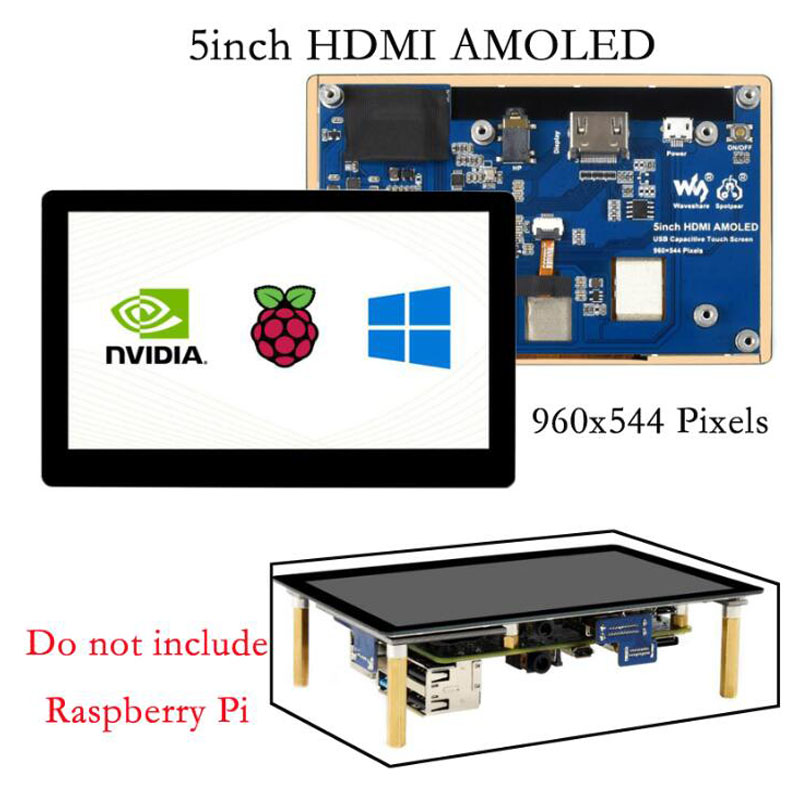
5inch AMOLED display, with a resolution of 960×544 and a capacitive touch panel, which supports Raspberry Pi and can also be used as a computer monitor.
Features
- 5inch AMOLED, 960×544 resolution.
- Toughened glass capacitive touch panel.
- Supports popular mini PCs such as Raspberry Pi, support Raspbian / Ubuntu / Kali, and Retropie system, as well as general desktop computers.
- When works with Raspberry Pi, supports Raspbian/Ubuntu/Kali/Retropie, driver free.
- When works as a computer monitor, supports Windows 10/8.1/8/7, five-points touch, and driver free.
- 3.5mm audio jack, supports HDMI audio output.
- M2.5 screw holes for easy mounting.
How to use
Working with Windows PC
When working with PC, 5inch HDMI AMOLED can support Windows 7/ 8/ 8.1 /10 OS
1. Connect the TOUCH interface of the LCD to the USB interface of the PC. Wait for a while, the windows will automatically recognize the touch function.
2. If you use HDMI, you need to connect the HDMI interface of LCD to the HDMI port of the PC. About 10s later, you can see the LCD display properly. If you need to output sound, you can insert a 3.5mm earphones to HP ports.
Note:
1) When the computer is connected to several different displays at the same time, only this LCD can be used to control the cursor on the main display, so we recommended to set this LCD as the main display.
2) Sometimes, USB ports of PC have not enough power to power 5inch HDMI AMOLED, in this case, you can connect external 5V/2A power adapter to DC interface of 5inch HDMI AMOLED.
3)If the LCD cannot display normally after connecting, please restart your PC and check again.
Working with Raspberry Pi
When working with Raspberry Pi, 5inch HDMI AMOLED can support various systems like Raspbian/Ubuntu Mate/Kail/Retropie/WIN10 IoT. Herein we take Raspbain as an example.
Raspberry Pi cannot recognized and adapted to the resolution of LCD plugged, therefore, we need to set the resolution of Raspbian manually.
Please download the latest version of the image on the https://www.raspberrypi.org/software/
1) Download the compressed file to the PC, and unzip it to get the .img file.
2) Connect the TF card to the PC, use SDFormatter.exe software to format the TF card.
3) Open the Win32DiskImager.exe software, select the system image downloaded in step 1, and click‘Write’ to write the system image.
4) After the image has finished writing, open the config.txt file in the root directory of the TF card. Add the following code at the end of config.txt, then save and quit the TF card safely.
disable_overscan=1
max_usb_current=1
hdmi_group=2
hdmi_mode=87
hdmi_timings=960 0 190 4 32 544 0 10 10 12 0 0 0 60 0 41000000 3
If you use the LCD with Raspberry Pi 4B,you need to remove line dtoverlay=vc4-fkms-V3D from config.txt file.
5) Save and eject the SD card. Plug the card to your Raspberry Pi
6) Connect Touch interface of LCD to one USB port of Raspberry Pi
7) Connect HDMI interface of LCD to HDMI interface of Raspberry Pi
8) Power on Raspberry Pi, and wait for a few seconds until the LCD displays normally.
Screen Saver
AMOLED screen has many advantages like high contrast, wide color range, wide view angle, and so on. However, it is easy to face a burn-in problem if displaying the same content for a long time. As we test, the AMOLED cannot be restored if it displays the same static image for more than 168 hours because of burn-in problem. In this case, we recommend you set a screen saver and do not let the AMOLED display the same static image for a long time (cannot longer than 1h).
You can install screen saver with the command below:
sudo apt-get install xscreensaver
Orientation Setting
1. To rotating the display, you can append this statement to the config file
display_rotate=1 #1: 90; 2: 180; 3: 270
2. Reboot the Raspberry Pi
sudo reboot
- Touch Rotating
With the operation above. The screen could rotate in display. However, the touch works improperly. To rotate the touch as display, you could do as below:
1. install libinput
sudo apt-get install xserver-xorg-input-libinput
If the system you installed is Ubuntu or Jetson Nano. The installation code is:
sudo apt install xserver-xorg-input-synaptics
2. Create the xorg.conf.d directory under /etc/X11/ (if the directory already exists, proceed directly to step 3).
sudo mkdir /etc/X11/xorg.conf.d
3.Copy the 40-libinput-conf file to the directory you created just now.
sudo cp /usr/share/X11/xorg.conf.d/40-libinput.conf /etc/X11/xorg.conf.d/
4.Edit this file.
sudo nano /etc/X11/xorg.conf.d/40-libinput.conf
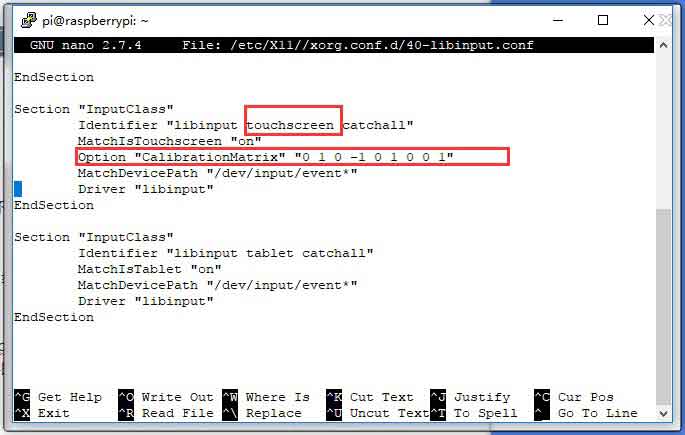
Find the part of the touchscreen, add the following statement inside, and then save the file.
Option "CalibrationMatrix" "0 1 0 -1 0 1 0 0 1"
Similar to the picture below:
sudo reboot
After completing these steps. The LCD could rotate 90 degrees both display and touch.
Note:
90 degree: Option "CalibrationMatrix" "0 1 0 -1 0 1 0 0 1"
180 degree: Option "CalibrationMatrix" "-1 0 1 0 -1 1 0 0 1"
270 degree: Option "CalibrationMatrix" "0 -1 1 1 0 0 0 0 1"