




- sales/support
Google Chat:---
- sales
+86-0755-88291180
- sales01
sales@spotpear.com
- sales02
dragon_manager@163.com
- support
tech-support@spotpear.com
- CEO-Complaints
zhoujie@spotpear.com
- Only Tech-Support
WhatsApp:13246739196
- Purchase/Shipping/Refund
WhatsApp:13424403025
- HOME
- >
- ARTICLES
- >
- Common Moudle
- >
- LCD
0.85inch ScreenKey LCD W User Guide
Specifications
| Parameter | Specification |
|---|---|
| Operating Voltage | 3.3V / 5V |
| Resolution | 128 × 128 pixels |
| Display Driver | ST7735 |
| Display Color | 65K |
| Display Interface | 4-wire SPI |
| Display Panel | IPS |
| Display Size | 15.21 × 15.21 (mm) |
| Pixel Size | 118.8 × 118.8 (μm) |
Mechanical Switch Specifications
| Parameter | Specification |
|---|---|
| Actuation Force | 50.00 ± 10.00 (gf) |
| Actuation Travel | 1.20 ± 0.30 (mm) |
| Spring Length | 15.50 (mm) |
| Bottoming Force | 55.00 ± 10.00 (gf) |
| Total Travel | 2.80 ± 0.25 (mm) |
| Lifespan | 50 million cycles |
LCD Interface Description
| Pin | Function | 9Pin Pin Number |
|---|---|---|
| GND | Power Ground | 1 |
| LEDK | LED Backlight Cathode (negative electrode) | 2 |
| LEDA | LED Backlight Anode (positive electrode) | 3 |
| VDD | Analog Power | 4 |
| GND | Power Ground | 5 |
| GND | Power Ground | 6 |
| DC | Data/Command: Low = command, High = data | 7 |
| CS | Chip Select, active low | 8 |
| SCLK | SPI Clock Input | 9 |
| DIN | SPI Data Input | 10 |
| RST | Reset, active low | 11 |
| GND | Power Ground | 12 |
SPI Control Interface Description
| Pin | Function | 9Pin Pin Number |
|---|---|---|
| KEY | Button | 1 |
| DC | Data/Command: Low = command, High = data | 2 |
| CS | Chip Select, active low | 3 |
| SCLK | SPI Clock Input | 4 |
| DIN | SPI Data Input | 5 |
| GND | Power Ground | 6 |
| VCC | 3.3V Power Input | 7 |
| PWM | LCD Backlight Pin | 8 |
| RST | Reset, active low | 9 |
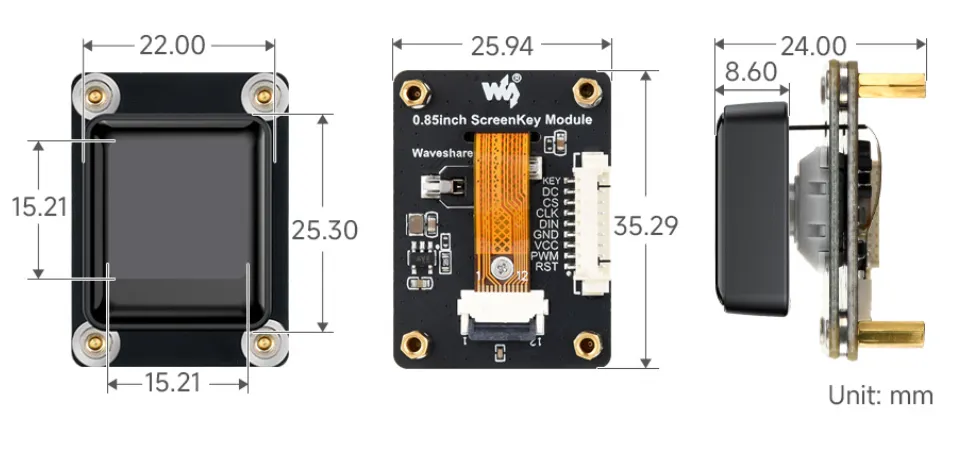
Key Dimensions
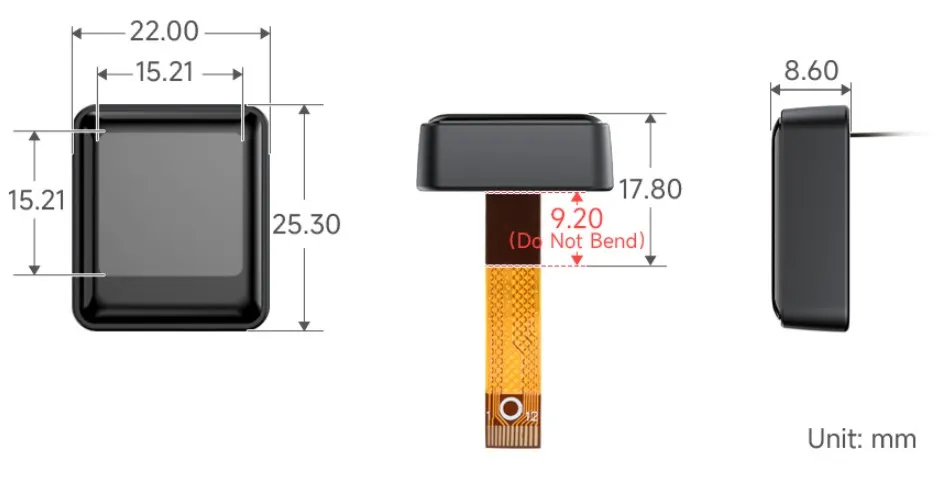
Key Module Dimensions
ESP-IDF
This chapter contains the following sections. Please read as needed:
ESP-IDF Getting Started
New to ESP32 ESP-IDF development and looking to get started quickly? We have prepared a general Getting Started Tutorial for you.
- Section 1: Environment Setup
- Section 2: Running Examples
- Section 3: Creating a Project
- Section 4: Using Components
- Section 5: Debugging
- Section 6: FreeRTOS
- Section 7: Peripherals
- Section 8: Wi-Fi Programming
- Section 9: BLE Programming
Please Note: This tutorial uses the ESP32-S3-Zero as a teaching example, and all hardware code is based on its pinout. Before you start, it is recommended that you check the pinout of your development board to ensure the pin configuration is correct.
Setting Up Development Environment
The following guide uses Windows as an example, demonstrating development using VS Code + the ESP-IDF extension. macOS and Linux users should refer to the official documentation.
Install the ESP-IDF Development Environment
Download the installation manager from the ESP-IDF Installation Manager page. This is Espressif's latest cross-platform installer. The following steps demonstrate how to use its offline installation feature.
Click the Offline Installer tab on the page, then select Windows as the operating system and choose your desired version from the filter bar.
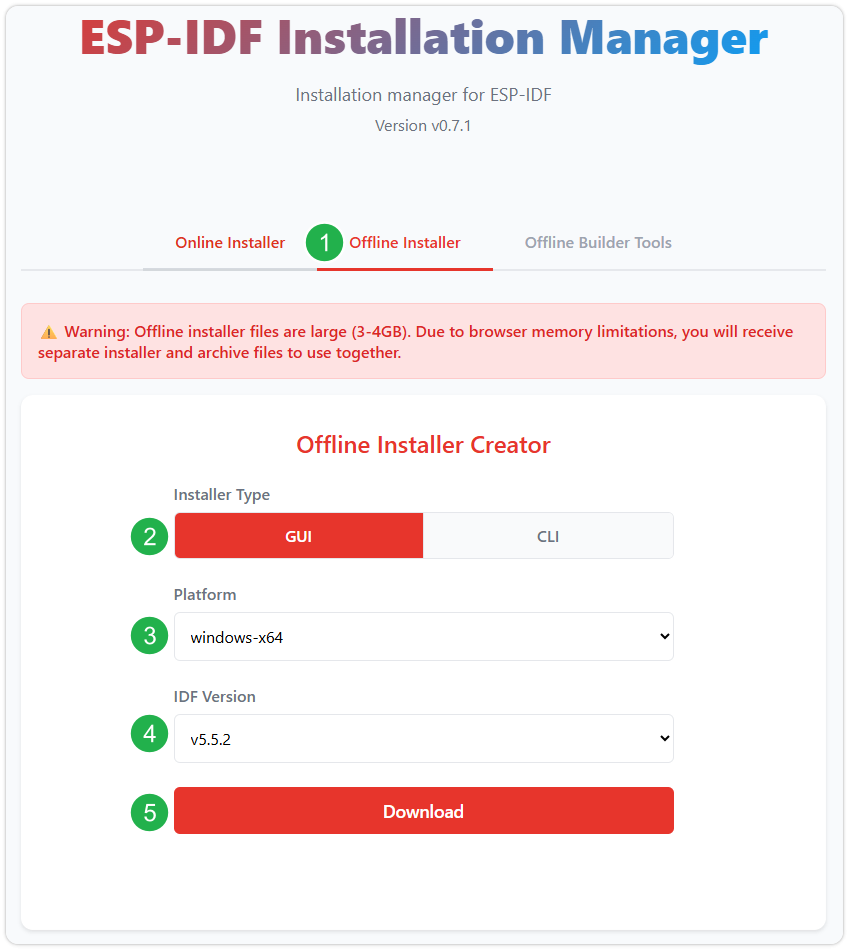
After confirming your selection, click the download button. The browser will automatically download two files: the ESP-IDF Offline Package (.zst) and the ESP-IDF Installer (.exe).
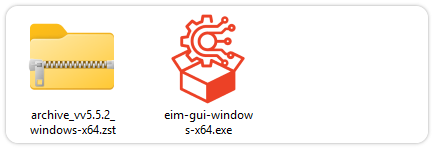
Please wait for both files to finish downloading.
Once the download is complete, double-click to run the ESP-IDF Installer (eim-gui-windows-x64.exe).
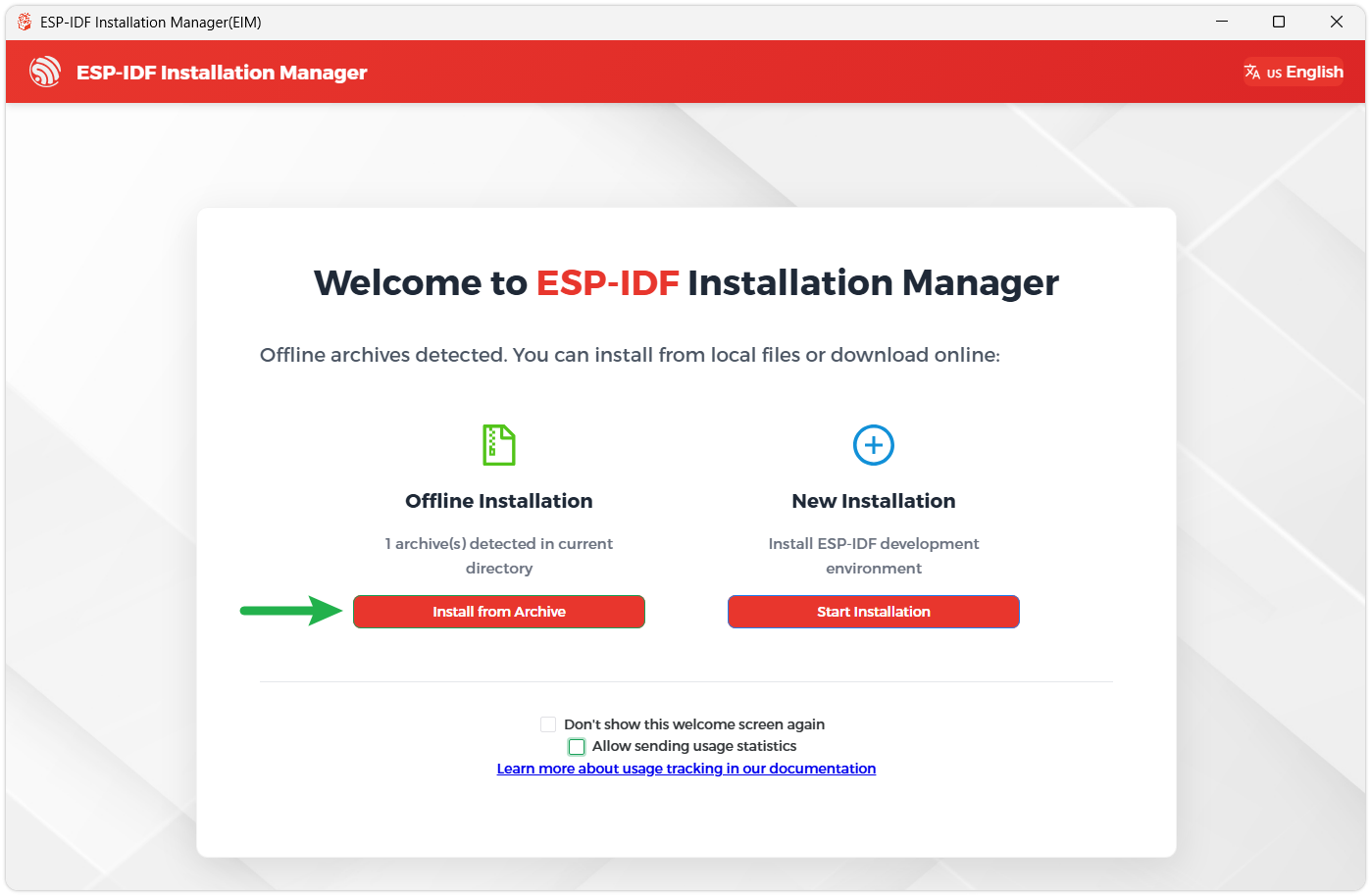
The installer will automatically detect if the offline package exists in the same directory. Click Install from archive.
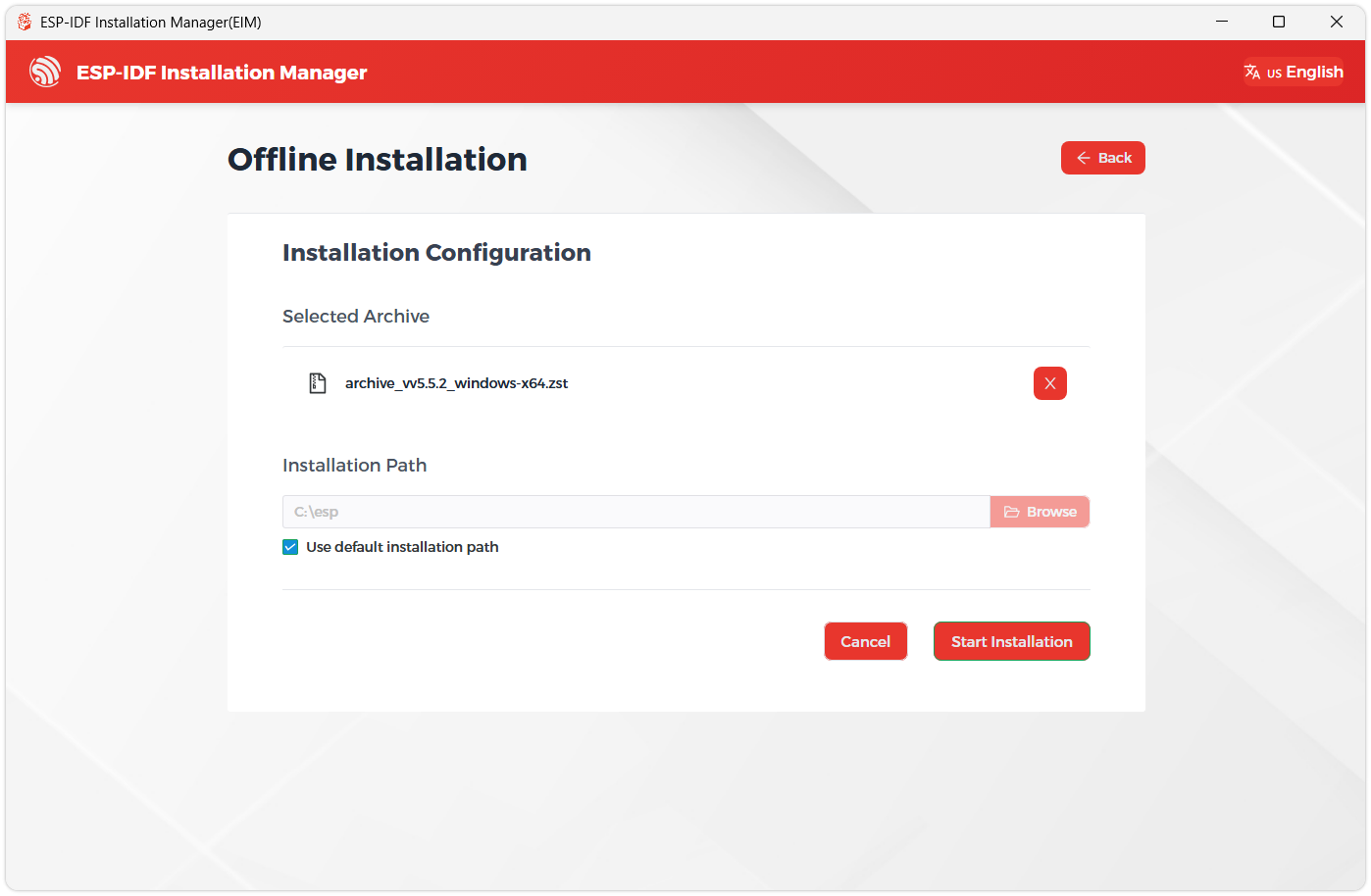
Next, select the installation path. We recommend using the default path. If you need to customize it, ensure the path does not contain Chinese characters or spaces. Click Start installation to proceed.
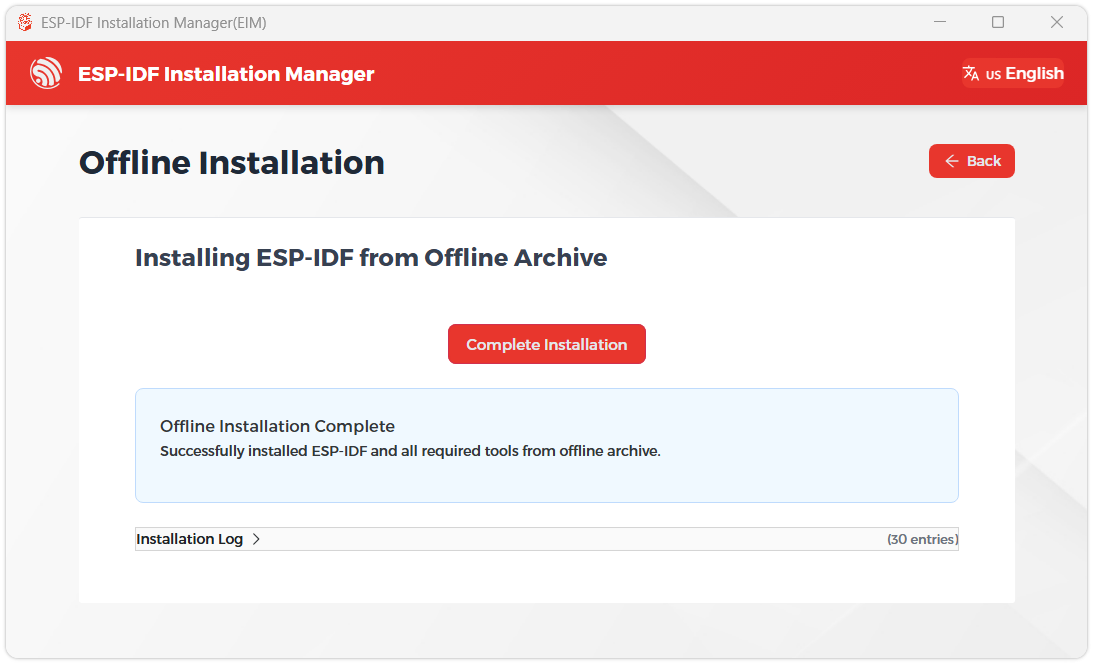
When you see the following screen, the ESP-IDF installation is successful.
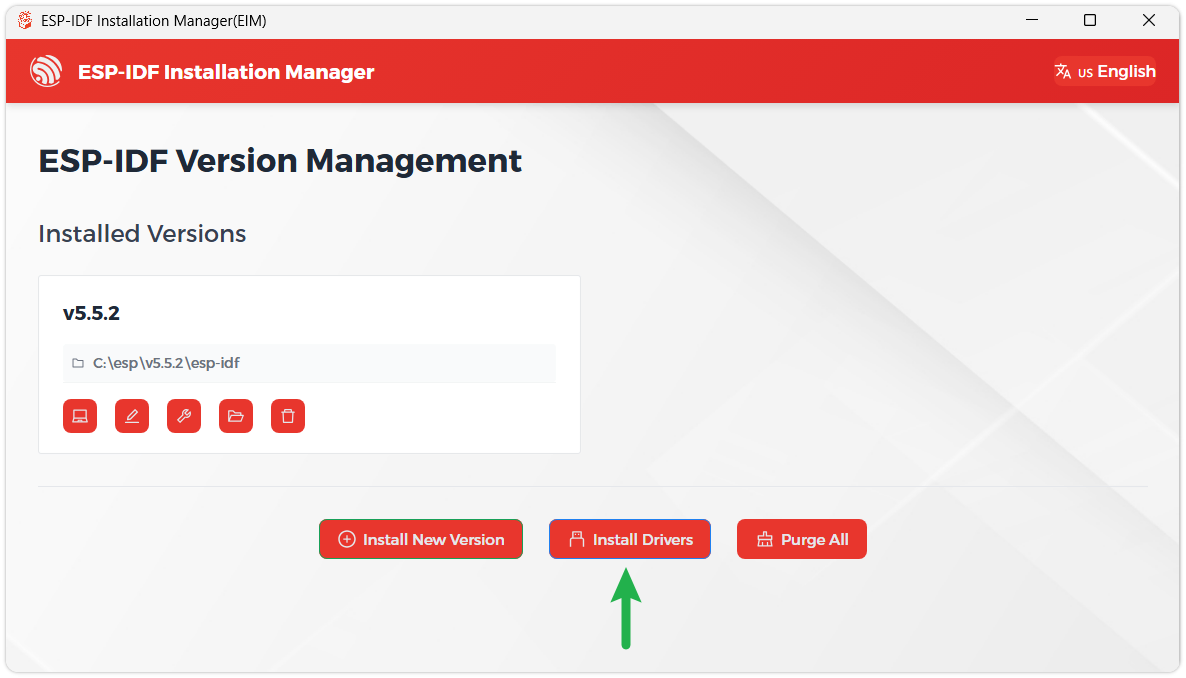
We recommend installing the drivers as well. Click Finish installation, then select Install driver.
Install Visual Studio Code and the ESP-IDF Extension
Download and install Visual Studio Code.
During installation, it is recommended to check Add "Open with Code" action to Windows Explorer file context menu to facilitate opening project folders quickly.
In VS Code, click the Extensions icon
 in the Activity Bar on the side (or use the shortcut Ctrl + Shift + X) to open the Extensions view.
Enter ESP-IDF in the search box, locate the ESP-IDF extension, and click Install.
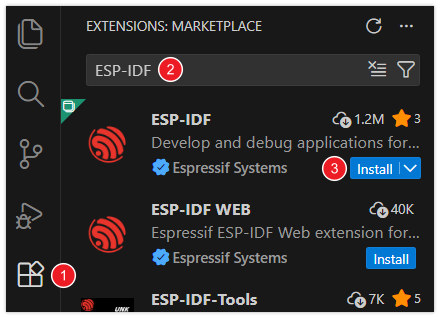
For ESP-IDF extension versions ≥ 2.0, the extension will automatically detect and recognize the ESP-IDF environment installed in the previous steps, requiring no manual configuration.
Hardware Connection
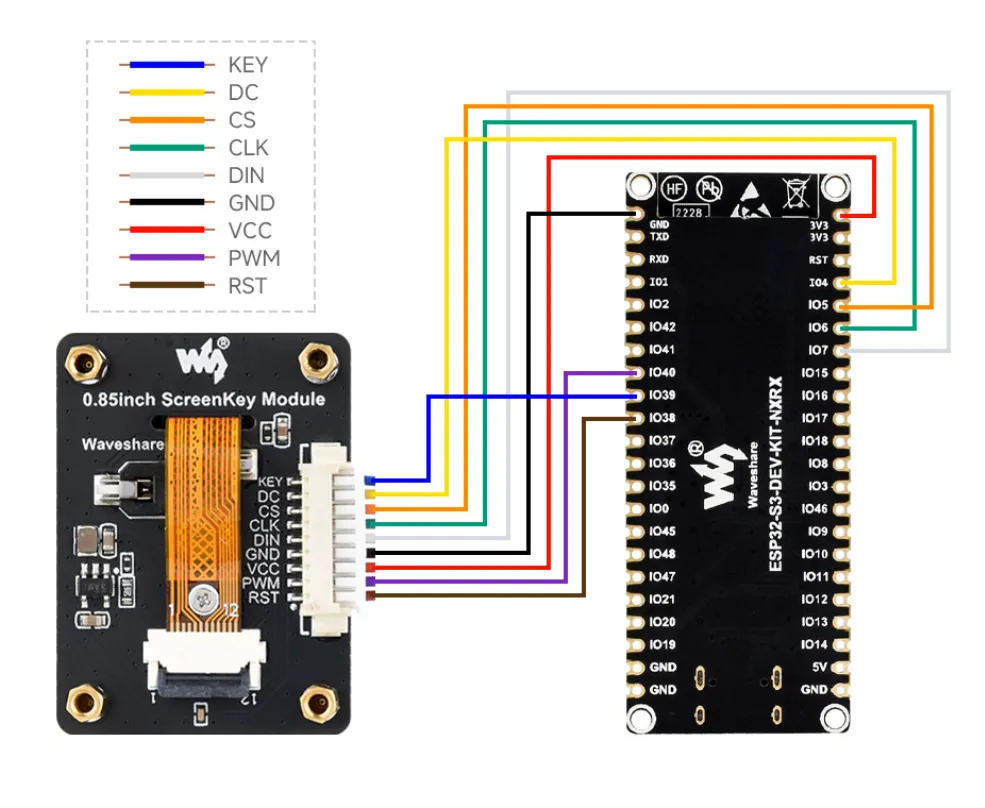
Example
The ESP-IDF examples are located in the ESP-IDF directory of the example package.
| Demo | Basic Description |
|---|---|
| 01_WoodenFish | Implements color cycling and a dynamic "wooden fish" knock effect |
| 02_phototest | Implements switching images on button press |
01_WoodenFish
Example Description
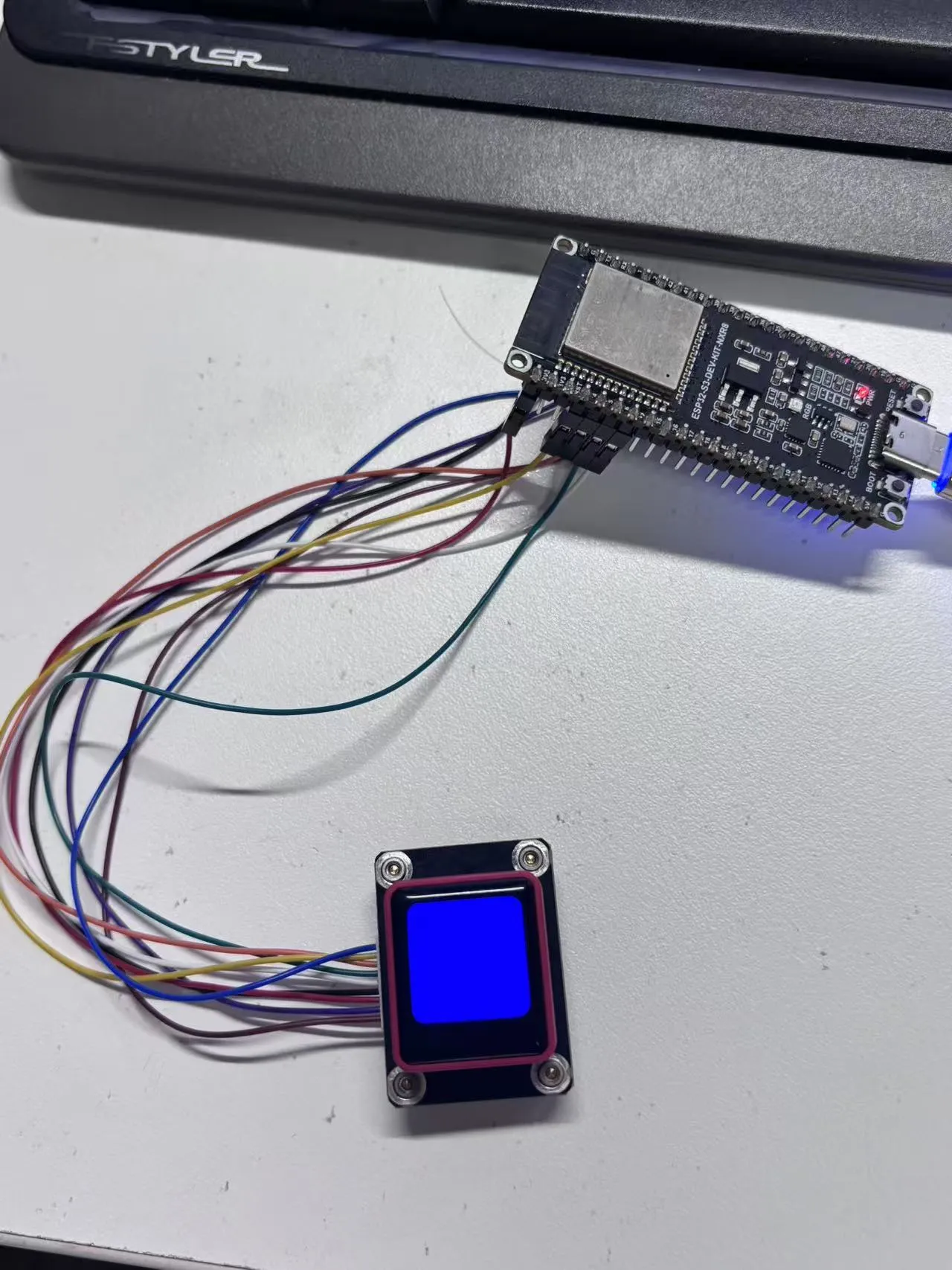
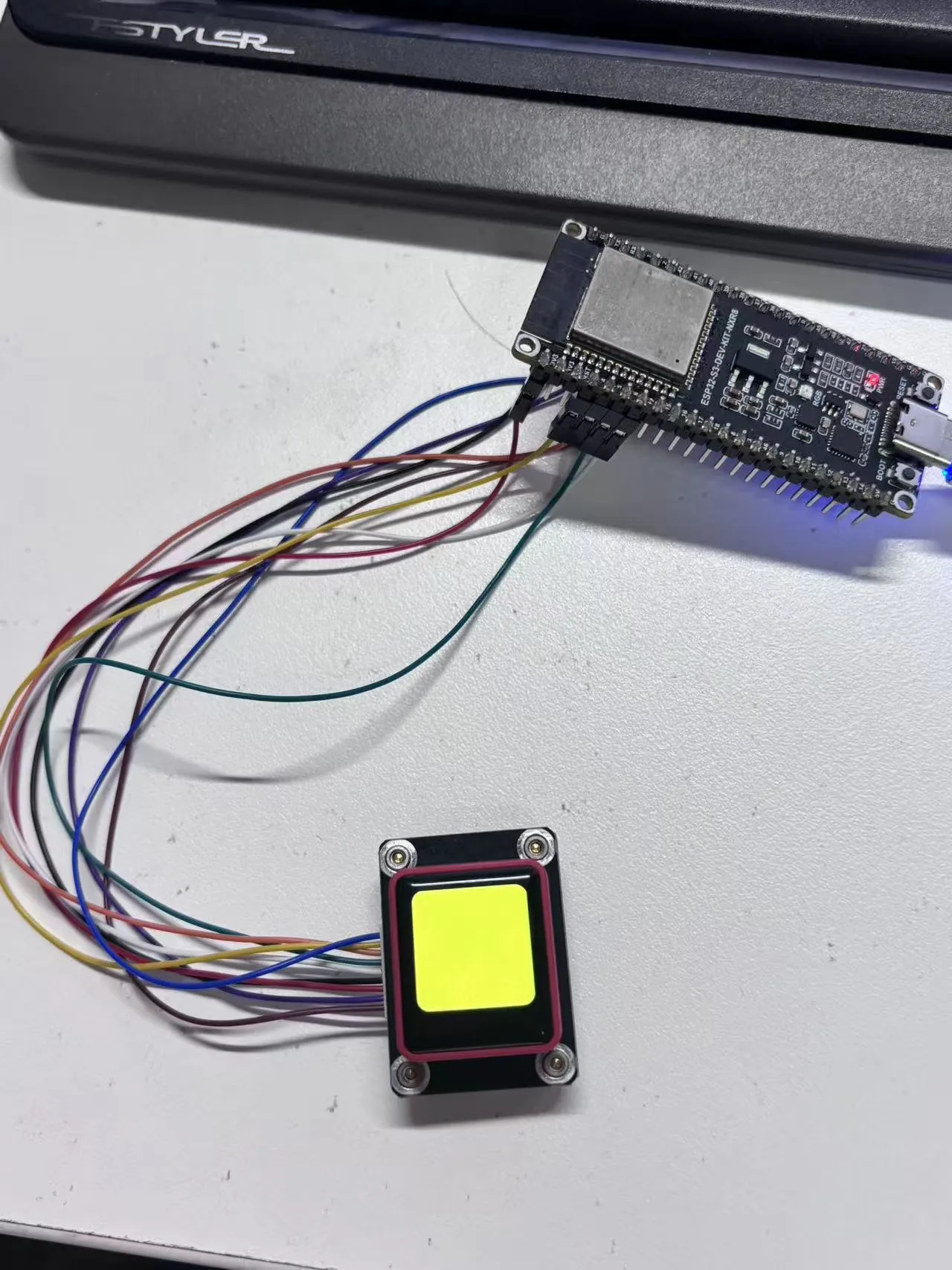
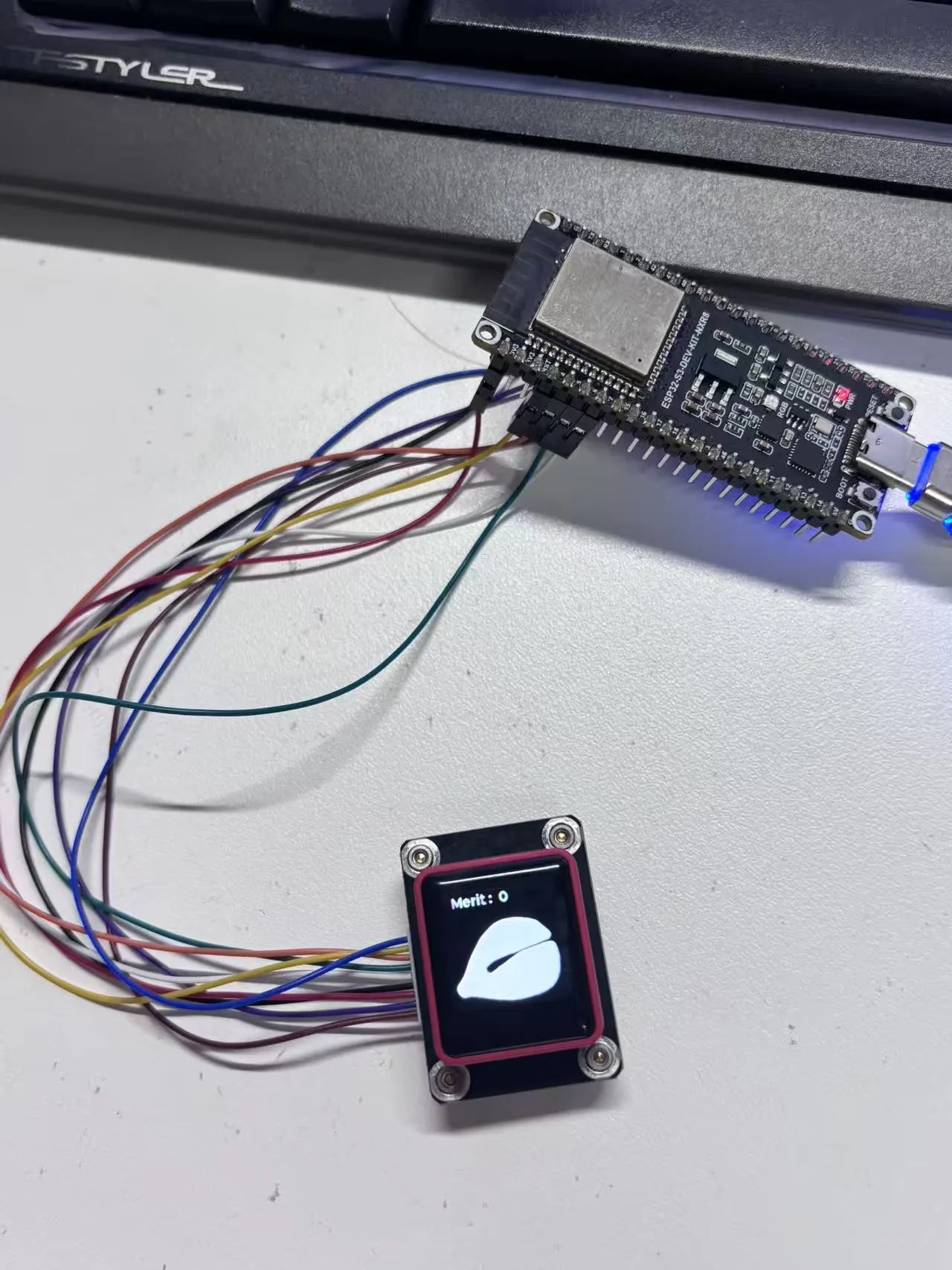
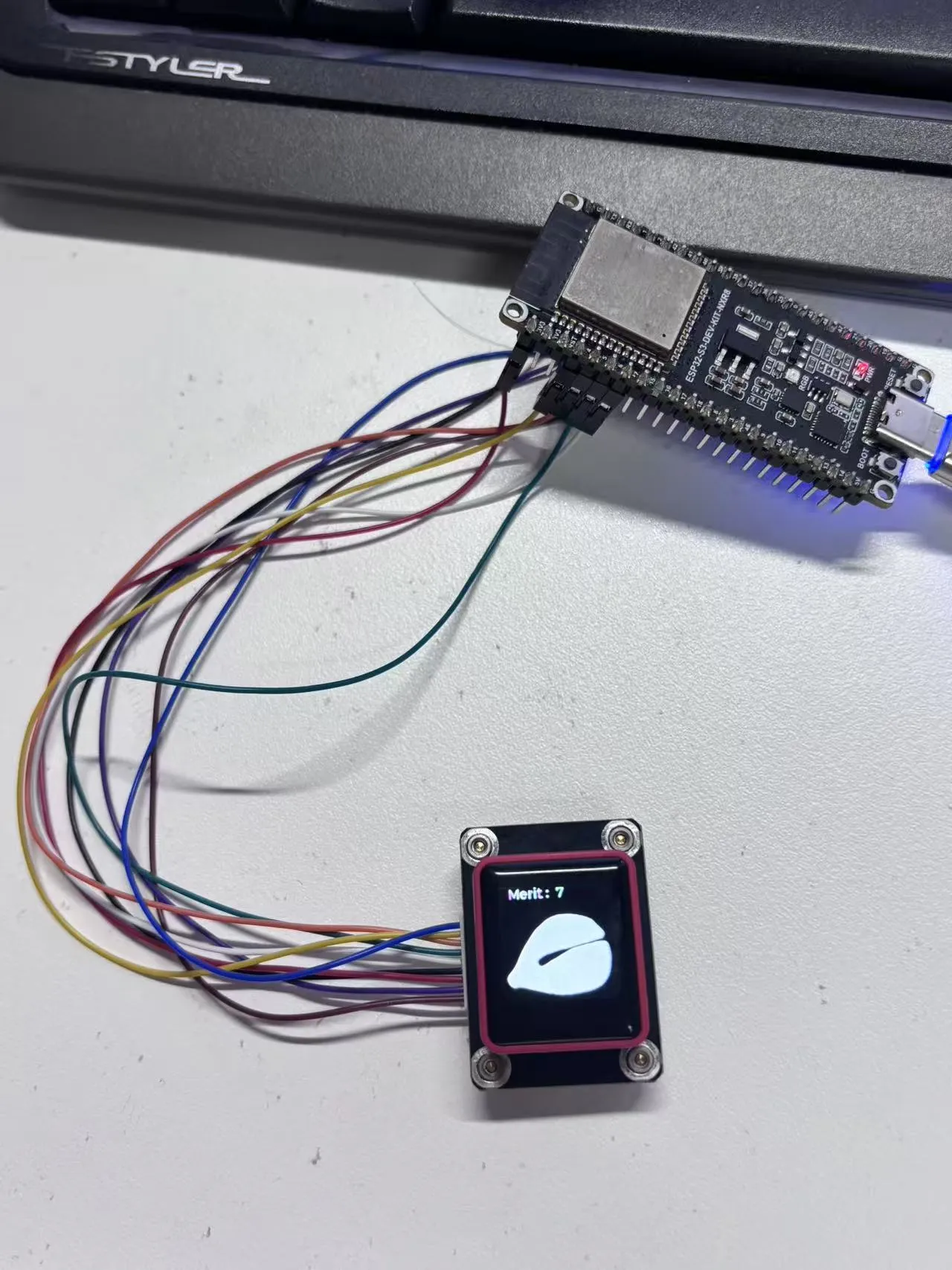
- This example demonstrates how to drive the 0.85inch ScreenKey Module with an ESP32‑S3 development board. It implements a color‑cycle test and button function test, while also providing image display capability based on the LVGL graphics library. The dynamic "wooden fish" knock effect can be triggered by single‑click, double‑click, or long‑press actions.
Hardware Connection
| 0.85inch ScreenKey Module | ESP32-S3-DEV-KIT-N16R8-M |
|---|---|
| VCC | 3.3V |
| GND | GND |
| LCD_DIN | GP7 |
| LCD_CLK | GP6 |
| LCD_CS | GP5 |
| LCD_DC | GP4 |
| LCD_RST | GP38 |
| LCD_BL | GP40 |
| LCD_KEY | GP39 |
- Connect the screen to the development board using a GH1.25 9PIN cable
- Connect the development board to the computer
Code Analysis
app_main():- Initializes the display, button, and LVGL graphics library, then implements the color‑cycle test and the "wooden fish" knock effect, laying the runtime foundation for subsequent graphical interactive applications.
Operation Result
LCD Color Cycle Test:
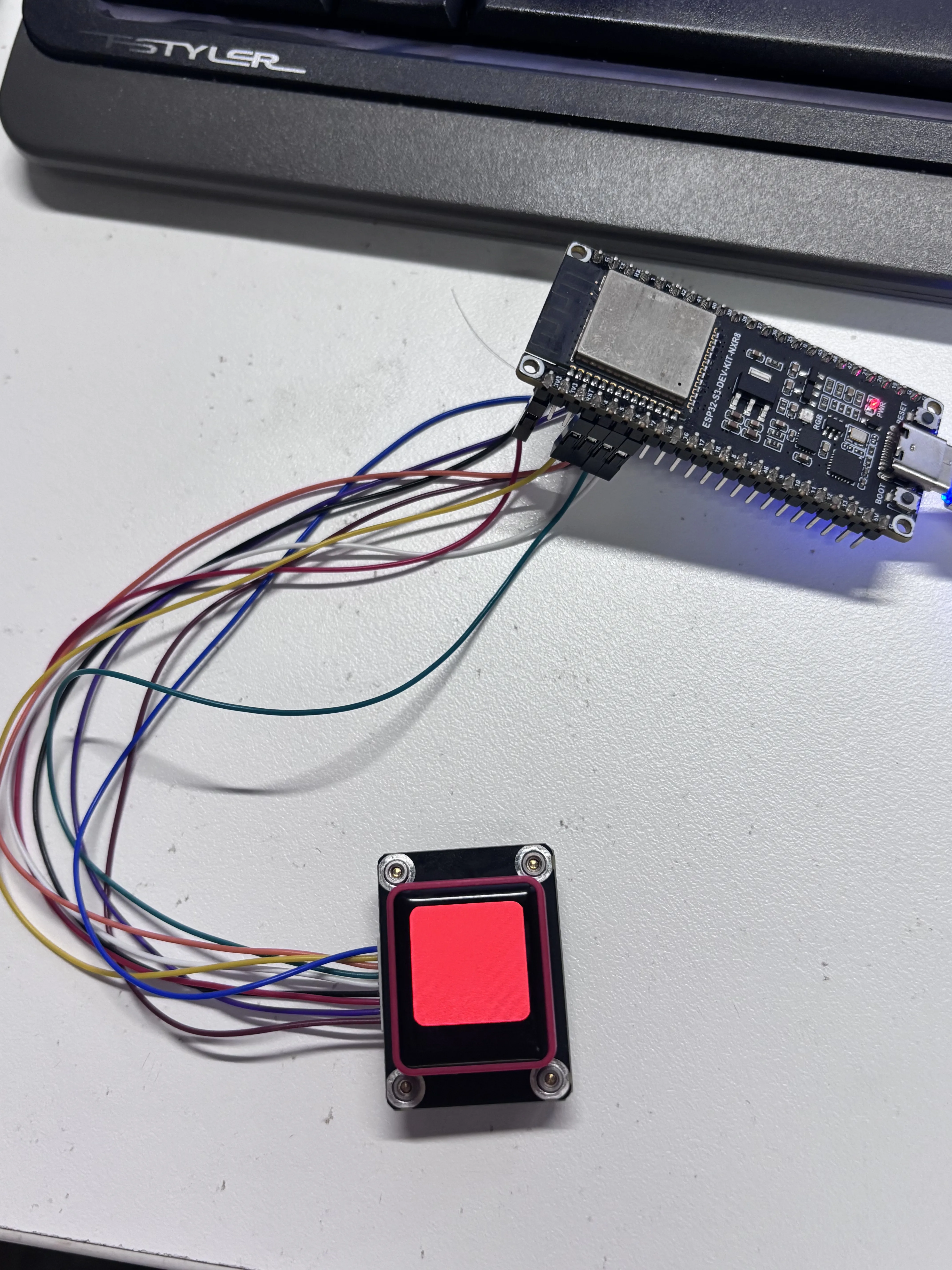
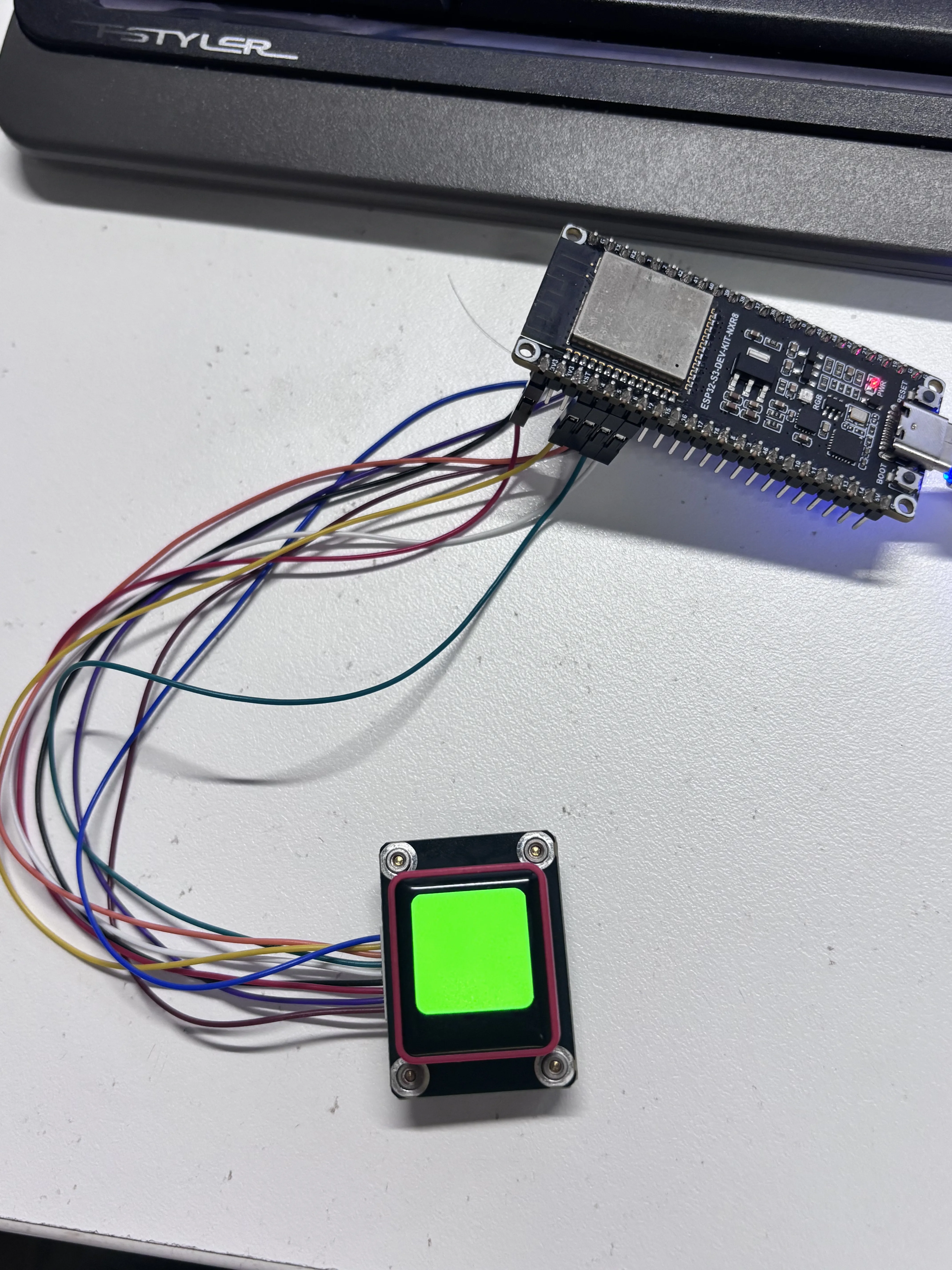
LVGL "Wooden Fish" effect:
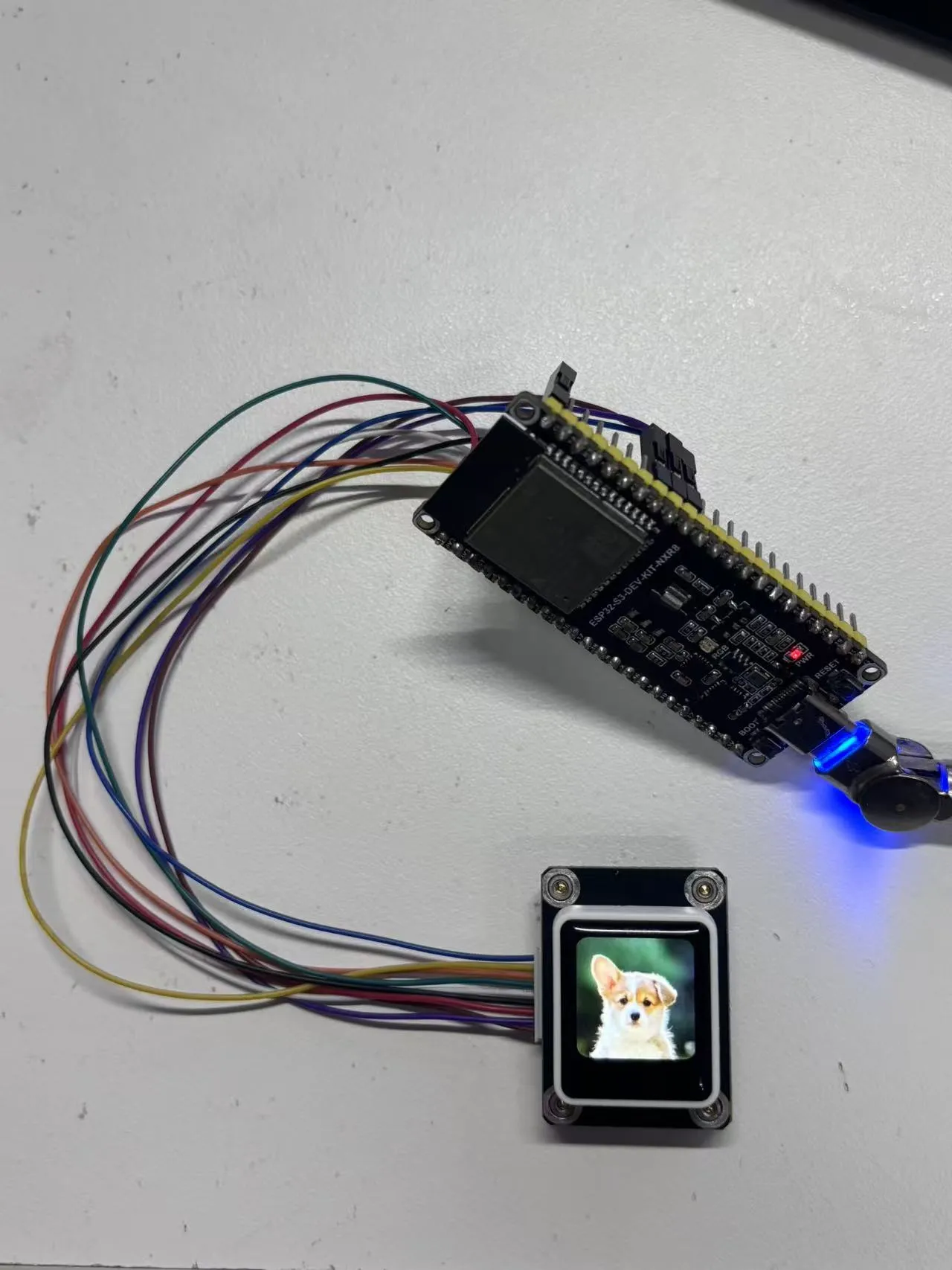
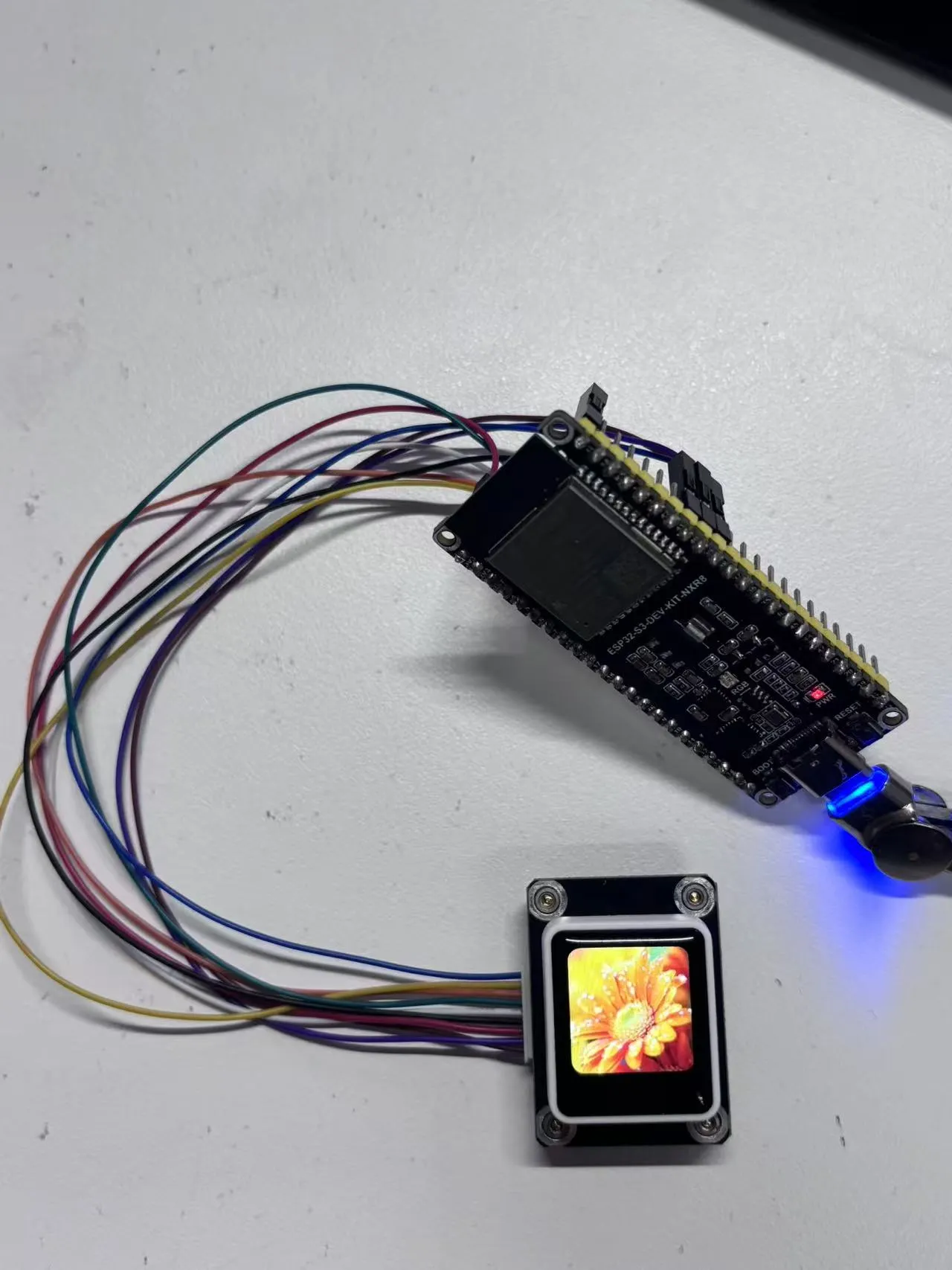
02_phototest
Example Description
- This example demonstrates how to drive the 0.85inch ScreenKey Module with an ESP32‑S3 development board, implementing image switching on button press.
Hardware Connection
| 0.85inch ScreenKey Module | ESP32-S3-DEV-KIT-N16R8-M |
|---|---|
| VCC | 3.3V |
| GND | GND |
| LCD_DIN | GP7 |
| LCD_CLK | GP6 |
| LCD_CS | GP5 |
| LCD_DC | GP4 |
| LCD_RST | GP38 |
| LCD_BL | GP40 |
| LCD_KEY | GP39 |
- Connect the screen to the development board using a GH1.25 9PIN cable
- Connect the development board to the computer
Code Analysis
app_main():- Initializes the display, button, and LVGL graphics library, implementing image switching on button press.
Operation Result
LCD Color Cycle Test:
Working with Arduino
This chapter contains the following sections. Please read as needed:
Arduino Getting Started
New to Arduino ESP32 development and looking for a quick start? We have prepared a comprehensive Getting Started Tutorial for you.
- Section 0: Getting to Know ESP32
- Section 1: Installing and Configuring Arduino IDE
- Section 2: Arduino Basics
- Section 3: Digital Output/Input
- Section 4: Analog Input
- Section 5: Pulse Width Modulation (PWM)
- Section 6: Serial Communication (UART)
- Section 7: I2C Communication
- Section 8: SPI Communication
- Section 9: Wi-Fi Basics
- Section 10: Web Server
- Section 11: Bluetooth
- Section 12: LVGL GUI Development
- Section 13: Comprehensive Project
Note: This tutorial uses the ESP32-S3-Zero as a reference example, and all hardware code is based on its pinout. Before you start, we recommend checking the pinout of your development board to ensure the pin configuration is correct.
Setting Up Development Environment
1. Installing and Configuring Arduino IDE
Please refer to the tutorial Installing and Configuring Arduino IDE to download and install the Arduino IDE and add ESP32 support.
2. Installing Libraries
- When installing Arduino libraries, there are typically two methods: Install Online and Install Offline. If the library installation requires Install Offline, you must use the provided library file.
- For most libraries, users can easily search for and install them via the Arduino IDE's online Library Manager. However, some open-source or custom libraries are not synchronized to the Arduino Library Manager and therefore cannot be found through online search. In this case, users can only install these libraries manually via offline methods.
Installation Steps:
Download the example package.
INFOThe path to the Arduino libraries folder is typically:
c:\Users\<username>\Documents\Arduino\libraries.You can also locate it in the Arduino IDE by going to File > Preferences and checking the "Sketchbook location". The libraries folder is the
librariessubfolder within this path.For other installation methods, please refer to: Arduino Library Management Tutorial.
Board Installation Instructions for 0.85inch ScreenKey Module
| Board Name | Board Installation Requirement | Version Requirement |
|---|---|---|
| Arduino AVR Boards | "Offline" / "Online" installation | v1.8.6 |
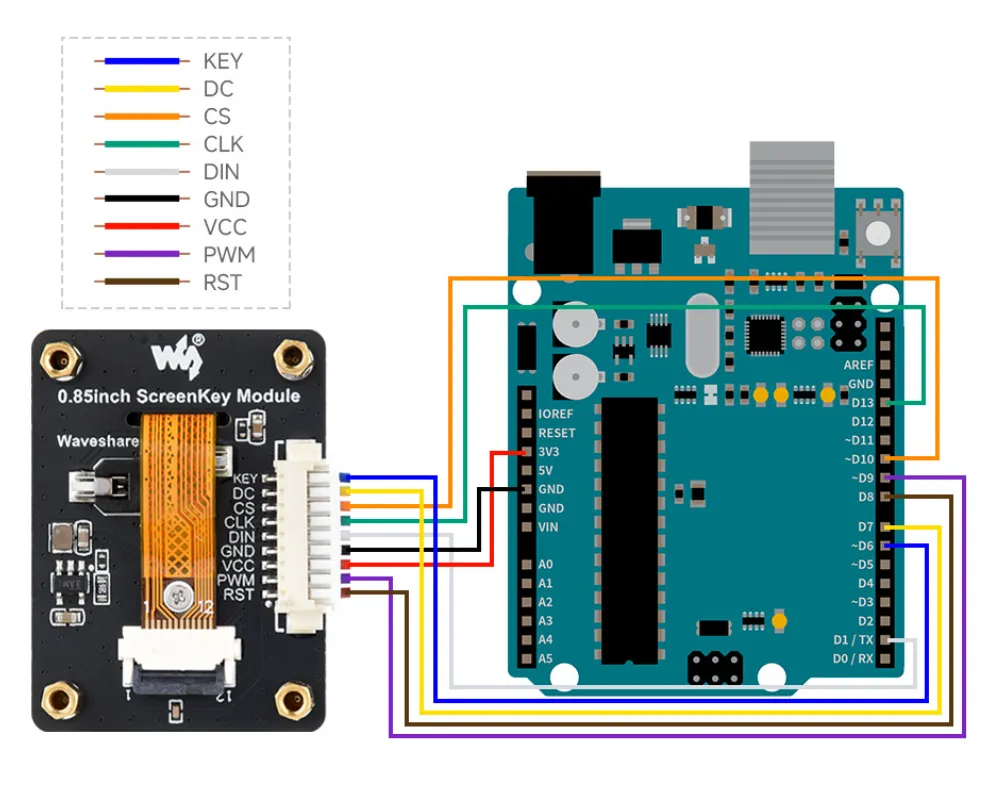
Hardware Connection
Example
The Arduino_Uno_test demo is located in the Arduino-uno directory of the example package.
01_Arduino_Uno_test
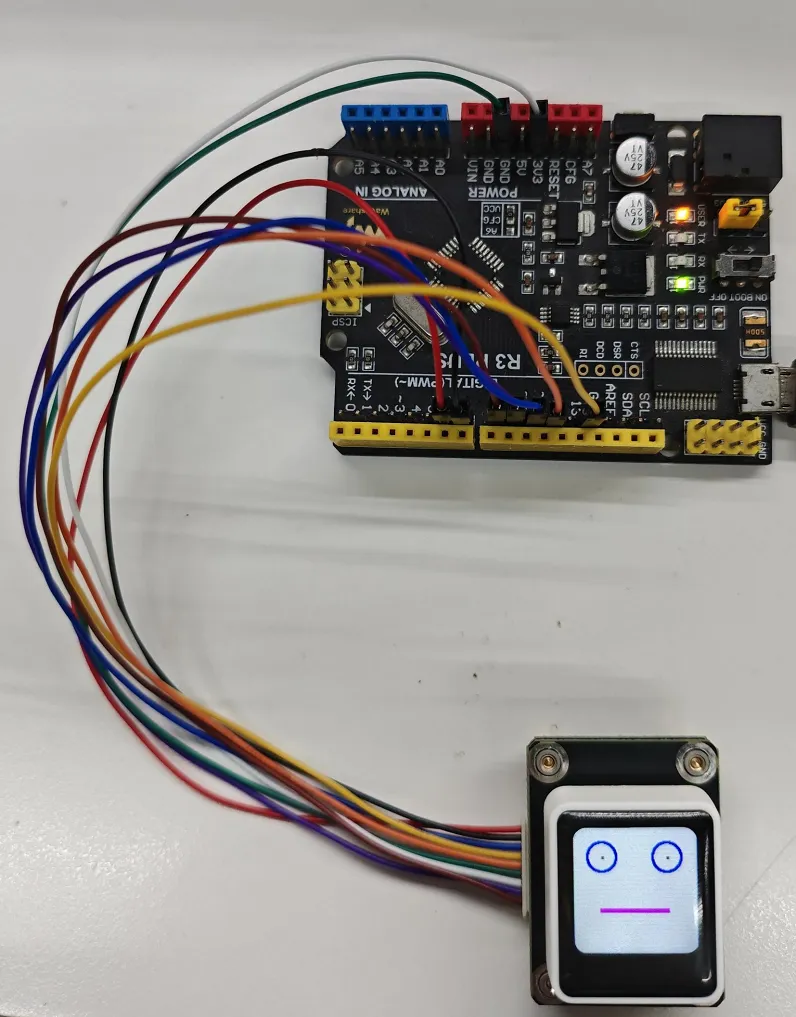
Example Description
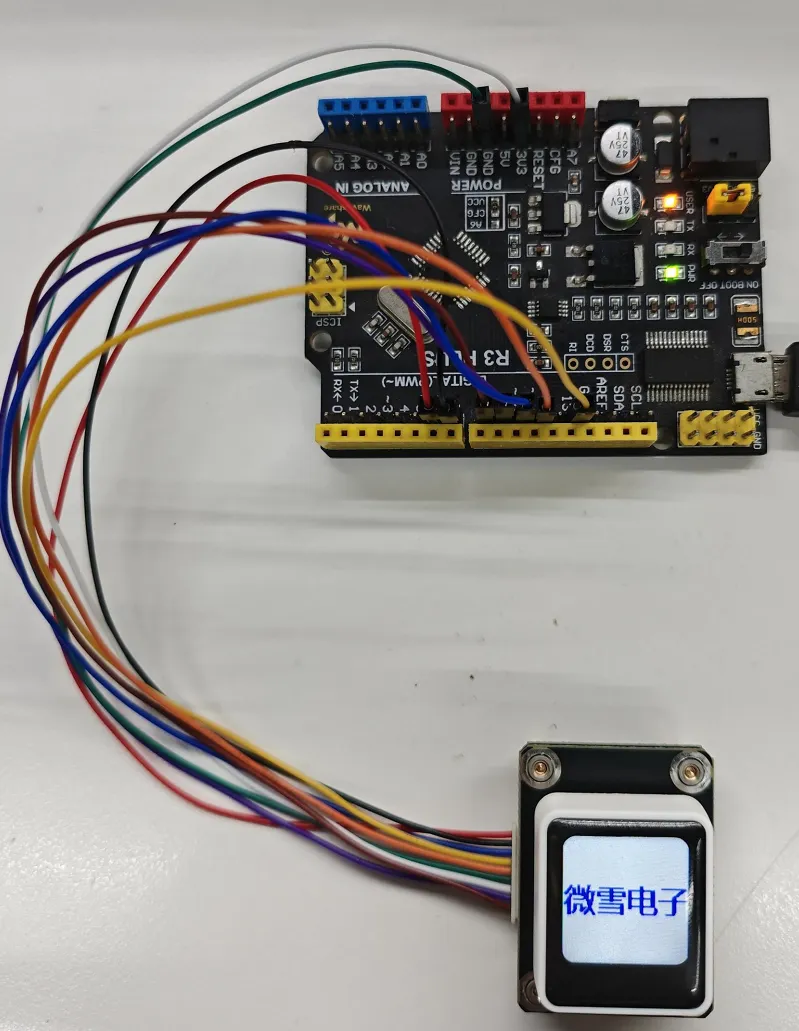
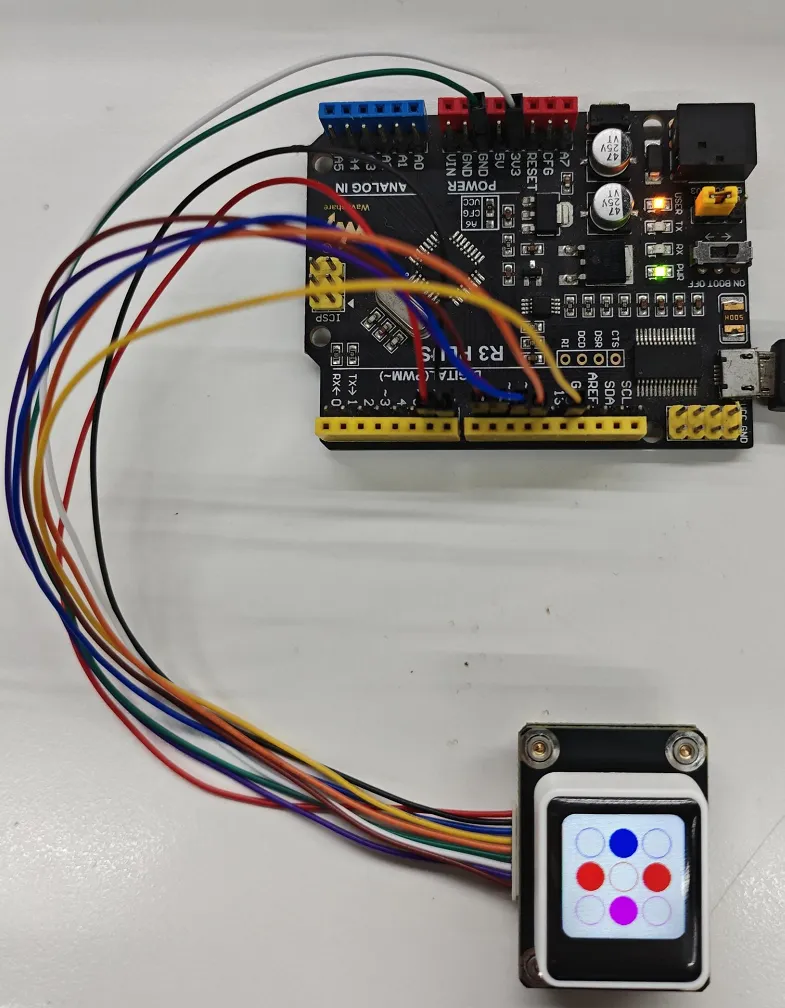
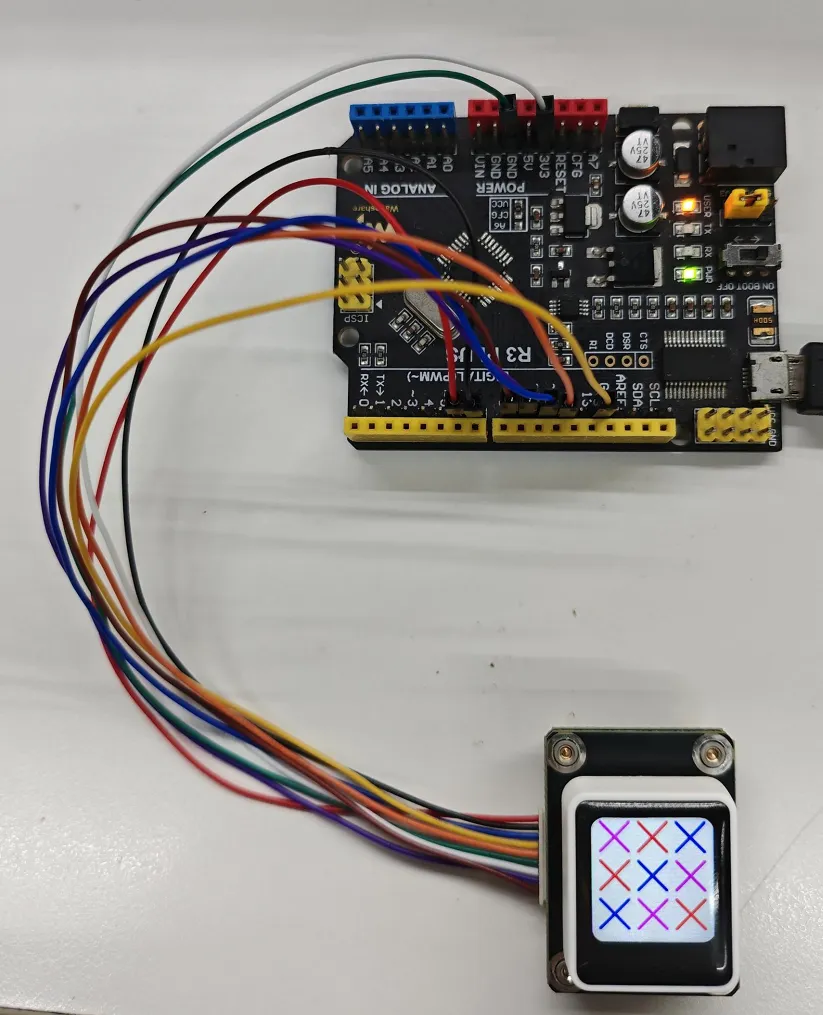
- This example implements automatic screen self-test on power‑up. The button can be used to cycle through 7 display effects (solid colors, images, Chinese/English text, graphic drawing), demonstrating the LCD display and button interaction functions.
Hardware Connection
| 0.85inch ScreenKey Module | Arduino-Uno |
|---|---|
| VCC | 3.3V |
| GND | GND |
| LCD_DIN | GP1 |
| LCD_CLK | GP13 |
| LCD_CS | GP10 |
| LCD_DC | GP7 |
| LCD_RST | GP8 |
| LCD_BL | GP9 |
| LCD_KEY | GP6 |
- Connect the screen to the development board using a GH1.25 9PIN cable
- Connect the development board to the computer
Code Analysis
setup():- Initializes hardware, LCD, and canvas; performs a startup display self‑test; initializes the button.
loop():- Main system loop, continuously calls the button detection function.
CheckKeyPress():- Debounced button detection; cycles through 7 LCD display modes according to the number of button presses.
Operation Result
Automatic screen self‑test on power‑up; pressing the button cycles through 7 display effects (solid colors, images, Chinese/English text, graphic drawing), demonstrating LCD display and button interaction.
Resources
1. Hardware Resources
2. Example
3. Software
4. Other Resource Links
- LVGL Online Image Converter
- LVGL Online Font Converter
- ESP32 Arduino Core's documentation
- arduino-esp32
- ESP-IDF
Support
Monday-Friday (9:30-6:30) Saturday (9:30-5:30)
Email: services01@spotpear.com
[Tutorial Navigation]
- Specifications
- Mechanical Switch Specifications
- LCD Interface Description
- SPI Control Interface Description
- Key Dimensions
- Key Module Dimensions
- ESP-IDF
- Working with Arduino
- Resources
- Support