- sales/support
Google Chat:---
- sales
+86-0755-88291180
- sales01
sales@spotpear.com
- sales02
dragon_manager@163.com
- support
tech-support@spotpear.com
- CEO-Complaints
zhoujie@spotpear.com
- Only Tech-Support
WhatsApp:13246739196
- Purchase/Shipping/Refund
WhatsApp:13424403025
RPi Tutorial Series: RTC User Guide
Raspberry Pi doesn't have RTC function so it cannot get the correct time without network. This problem can be solved by external RTC module and a DS3231 RTC module may be very helpful. For example, We will introduce how to use the DS3231 module on the Pioneer600 expansion board.
Setup
1. Raspberry Pi reads/writes time information from DS3231 via I2C interface, so the I2C interface should be enabled.
sudo raspi-config
Select Advaced Options -> I2C -> <Yes>
2. Edit the configuration file to add a new device.
sudo vi /boot/config.txt
Add a new RTC device DS3231 to the device tree
dtoverlay=i2c-rtc,ds3231
Reboot to take effect. About Device Tree, see: /boot/overlay/README
3. Read the Hardware Clock.
sudo hwclock –r
Read the system time:
date
4. Set the Hardware Clock to the time given by the --date option.
sudo hwclock --set --date="Aug-22-2016 18:00:00"
Here the date string can accept different date formats.
5. Set the System Time from the Hardware Clock.
sudo hwclock -s
6. Read the RTC and system times.
sudo hwclock -r;date
Programming
We can wirte a I2C program to read/write the RTC. First we should detect the I2C state using this command:
i2cdetect -y 1
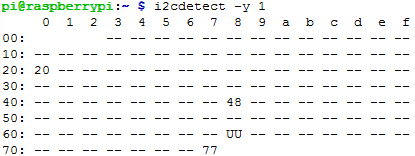
This is a command from I2C-Tools. For more details, please read the previous lesson Raspberry Pi Tutorial Series: I2C. If you have read the DS3231 datasheet, you knew this the I2C address of the chip is 0x68. But the "UU" here means probing was skipped, because this address is currently in use by a driver. We cannot control such a I2C device until we uncomment a certain line in the config.txt file.
sudo vi /boot/config.txt
Uncomment this line with a hash (#)
#dtoverlay=i2c-rtc,ds3231
Restart your Pi and check the I2C state again with i2cdetect -y 1. Now the 0x68 is not UU anymore.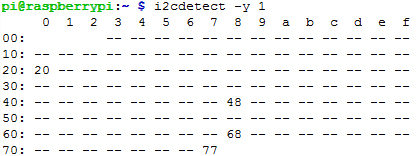
Some examples are given in this part to explain how to read/write time data to DS3231 via I2C bus using BCM2835 or Python Libraries.
You should install some specific libraries before using these examples, see: Libraries Installation for RPi
BCM2835
#include <bcm2835.h>
#include <stdio.h>
#include <unistd.h>

// regaddr, second, minute, hour, weekday, day, month, year.
// 0x16: year,             2016
// 0x08: month,            August
// 0x12: day of the month, 12
// 0x06: day of the week,  Friday
// 0x18: hour,             18
// 0x19: minute,           19
// 0x20: second,           20
char buf[]={0x00, 0x20, 0x19, 0x18, 0x06, 0x12, 0x08, 0x16};
char *str[]  ={"SUN", "MON", "TUES", "WED", "THUR", "FRI", "SAT"};
void pcf8563SetTime()
{
    bcm2835_i2c_write(buf, 8);
}

void pcf8563ReadTime()
{
    buf[0] = 0x00;
    bcm2835_i2c_write_read_rs(buf, 1, buf, 7);
}

int main(int argc, char **argv)
{
    if (!bcm2835_init())return 1;
    bcm2835_i2c_begin();
    bcm2835_i2c_setSlaveAddress(0x68);
    bcm2835_i2c_set_baudrate(10000);
    printf("start..........\n");

    pcf8563SetTime();
    while(1)
    {
        pcf8563ReadTime();
        buf[0] = buf[0] & 0x7F; //sec
        buf[1] = buf[1] & 0x7F; //min
        buf[2] = buf[2] & 0x3F; //hour
        buf[3] = buf[3] & 0x07; //day of the week
        buf[4] = buf[4] & 0x3F; //day of the month
        buf[5] = buf[5] & 0x1F; //month
        //year/month/day
        printf("20%02x/%02x/%02x  ", buf[6], buf[5], buf[4]);
        //hour:minute/second
        printf("%02x:%02x:%02x  ", buf[2], buf[1], buf[0]);
        //weekday
        printf("%s\n", str[(unsigned char)buf[3]-1]);
        bcm2835_delay(1000);
    }

    bcm2835_i2c_end();
    bcm2835_close();

    return 0;
}
Save the file as "ds3231.c". Compile and run with:
gcc -Wall ds3231.c -o ds3231 -lbcm2835
sudo ./ds3231
Python
#!/usr/bin/python
# -*- coding: utf-8 -*-
import smbus
import time

address = 0x68
register = 0x00
#sec min hour week day month year
NowTime = [0x00,0x00,0x18,0x04,0x12,0x08,0x15]
w  = ["SUN","Mon","Tues","Wed","Thur","Fri","Sat"];
#/dev/i2c-1
bus = smbus.SMBus(1)
def ds3231SetTime():
    bus.write_i2c_block_data(address,register,NowTime)

def ds3231ReadTime():
    return bus.read_i2c_block_data(address,register,7);

ds3231SetTime()
while 1:
    t = ds3231ReadTime()
    t[0] = t[0]&0x7F  #sec
    t[1] = t[1]&0x7F  #min
    t[2] = t[2]&0x3F  #hour
    t[3] = t[3]&0x07  #week
    t[4] = t[4]&0x3F  #day
    t[5] = t[5]&0x1F  #month
    print("20%x/%x/%x %x:%x:%x  %s" %(t[6],t[5],t[4],t[2],t[1],t[0],w[t[3]-1]))
time.sleep(1)
Save the file as "ds3231.py" and run with:
sudo python ds3231.py