

- sales/support
Google Chat:---
- sales
+86-0755-88291180
- sales01
sales@spotpear.com
- sales02
dragon_manager@163.com
- support
tech-support@spotpear.com
- CEO-Complaints
zhoujie@spotpear.com
- Only Tech-Support
WhatsApp:13246739196
- Purchase/Shipping/Refund
WhatsApp:13424403025
8.9inch 600x1600 LCD User Guide
Features
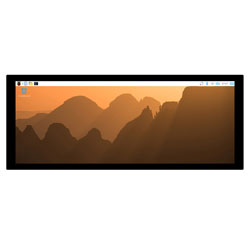
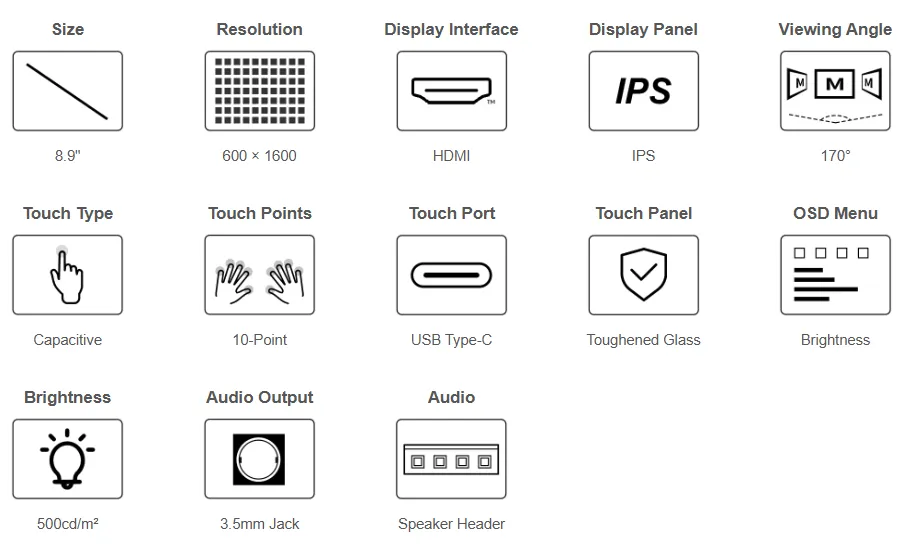
- 8.9inch IPS display, with a hardware resolution of 600 × 1600 and a viewing angle of 170°.
- Capacitive touch, supporting 10-point touch; the tempered glass panel has a hardness of 6H.
- Display signals are transmitted via HDMI, and touch data is transmitted via the USB Type-C interface.
- Supports the Ubuntu system on Jetson hosts with driver-free single-point touch. For the connection method, see Working with Windows / Jetson.
- Onboard switch and brightness adjustment buttons, and a touch rotation button.
- Provides a 3.5 mm headphone jack and an MX1.25 4PIN speaker interface.
This product displays in portrait orientation by default, with a resolution of 600 × 1600 (horizontal × vertical). When mounted in landscape orientation, you need to set the screen rotation in the host system and check whether the touch direction matches the screen.
Product Specifications
| Item | Parameter |
|---|---|
| Display Size | 8.9 inch |
| Display Panel | IPS |
| Hardware Resolution | 600 × 1600 |
| Contrast Ratio | 1:1500 |
| Refresh Rate | 60 Hz |
| Color Gamut | 68% NTSC |
| Viewing Angle | 170° |
| Max Brightness | 500 cd/m² |
| Touch Type | 10-point capacitive touch; the actual number of touch points depends on the system |
| Touch Panel | Tempered glass, hardness 6H |
| Display Interface | HDMI |
| Backlight Adjustment | Button backlight adjustment |
| Input Voltage | 5 V |
| Maximum Power Consumption | 3.75 W |
| Audio Output | 3.5 mm headphone jack, MX1.25 4PIN speaker interface |
| Overall Dimensions | 88.36(H) × 221.12(V) mm |
| Display Area | 76.36(H) × 203.62(V) mm |
In the table, H and V represent the horizontal and vertical dimensions in the default portrait orientation, respectively.
Interface Overview
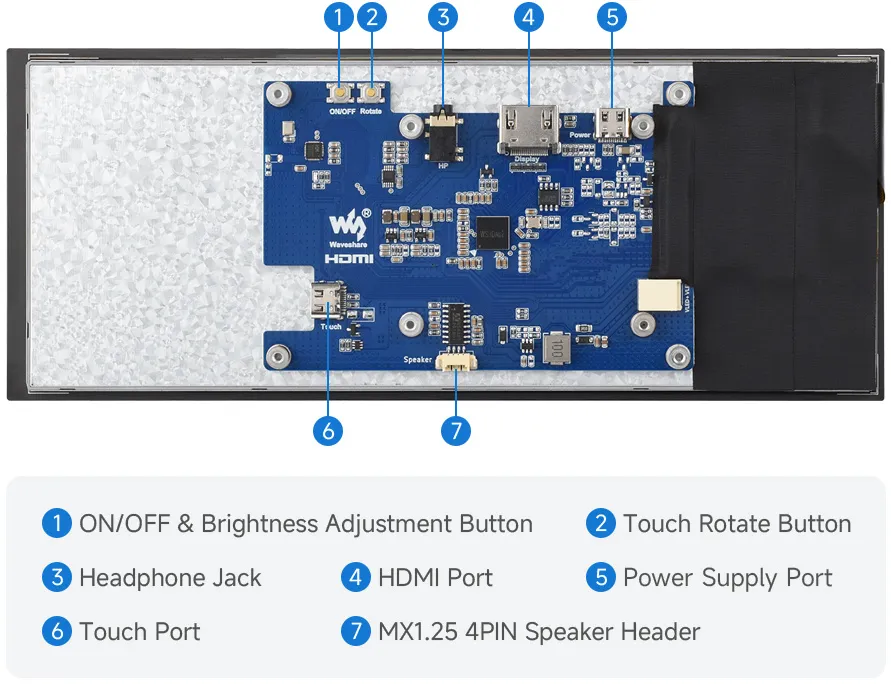
| Number | Interface or Button | Purpose |
|---|---|---|
| 1 | ON/OFF | Power switch and brightness adjustment |
| 2 | Rotate | Hold for 3–5 seconds to rotate the touch direction by 90° |
| 3 | HP | Connect headphones |
| 4 | Display | HDMI display input |
| 5 | Power | Screen power supply |
| 6 | Touch | Connect to the host USB interface to transmit touch data |
| 7 | Speaker | MX1.25 4PIN speaker interface |
EDID Timing Parameters
If the host system can automatically recognize the EDID for display, no additional timing parameter settings are required.
Otherwise, you can refer to the following display timing parameters:
| Pixel Clock | H Addressable | H Blanking | V Addressable | V Blanking | H Front Porch | H Sync Width | V Front Porch | V Sync Width | H Image Size | V Image Size | H Border | V Border |
|---|---|---|---|---|---|---|---|---|---|---|---|---|
| 74.59 | 600 | 160 | 1600 | 36 | 40 | 20 | 16 | 4 | - | - | 0 | 0 |
Appearance Dimensions
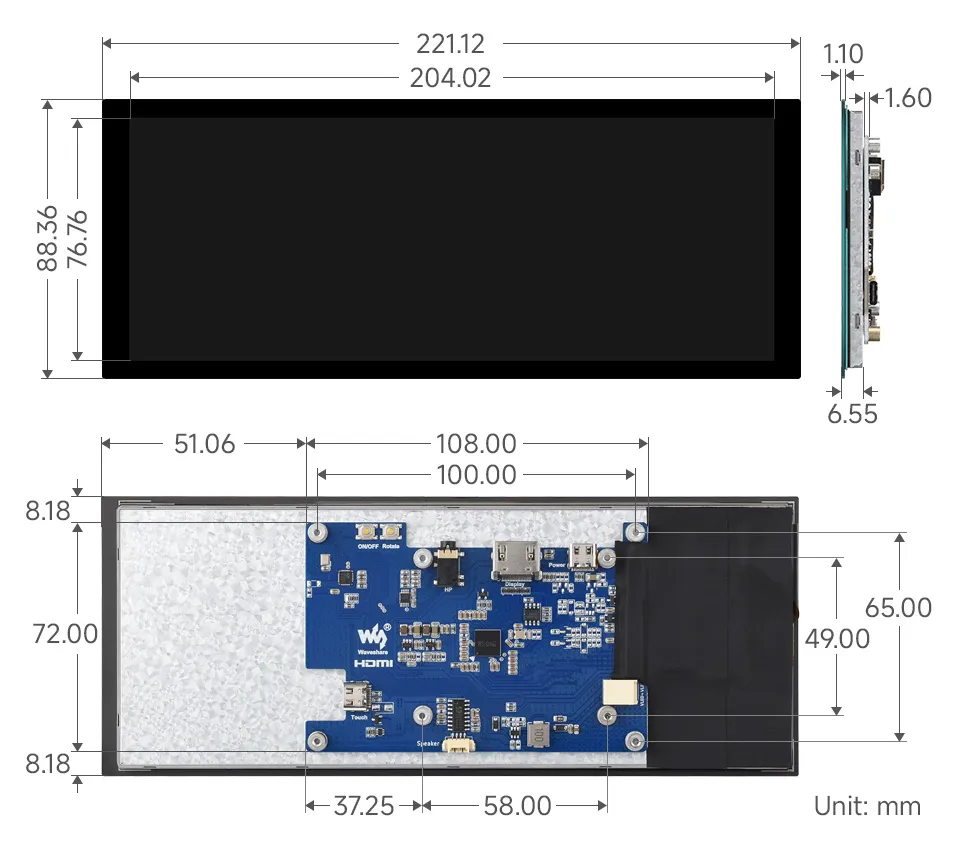
Working with Raspberry Pi
Hardware Connection
The following uses the Raspberry Pi 5 / 4B as an example. Disconnect power from the mainboard and the screen before connecting.
- Use an HDMI cable and a compatible Micro HDMI adapter to connect the screen's HDMI display interface to the Raspberry Pi's Micro HDMI interface.
- Use a USB Type-A to Type-C adapter or cable that supports data transfer to connect the screen's Touch interface to the Raspberry Pi's USB interface.
- Connect a 5 V power supply to the screen's Power supply interface.
- After checking the wiring, power on the screen and the Raspberry Pi.
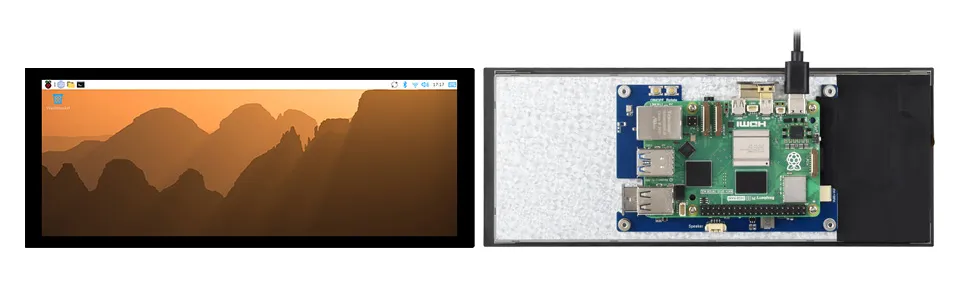
The touch cable should be connected to the Touch interface. The Power interface is for power supply and cannot replace the USB touch data connection.
Software Setup
Supports Raspberry Pi OS / Ubuntu / Kali and RetroPie on Raspberry Pi. When using the LCD with these Raspberry Pi systems, the resolution must be set manually; otherwise, incorrect display resolution may occur, affecting the user experience.
- Download the latest image from the Raspberry Pi official website
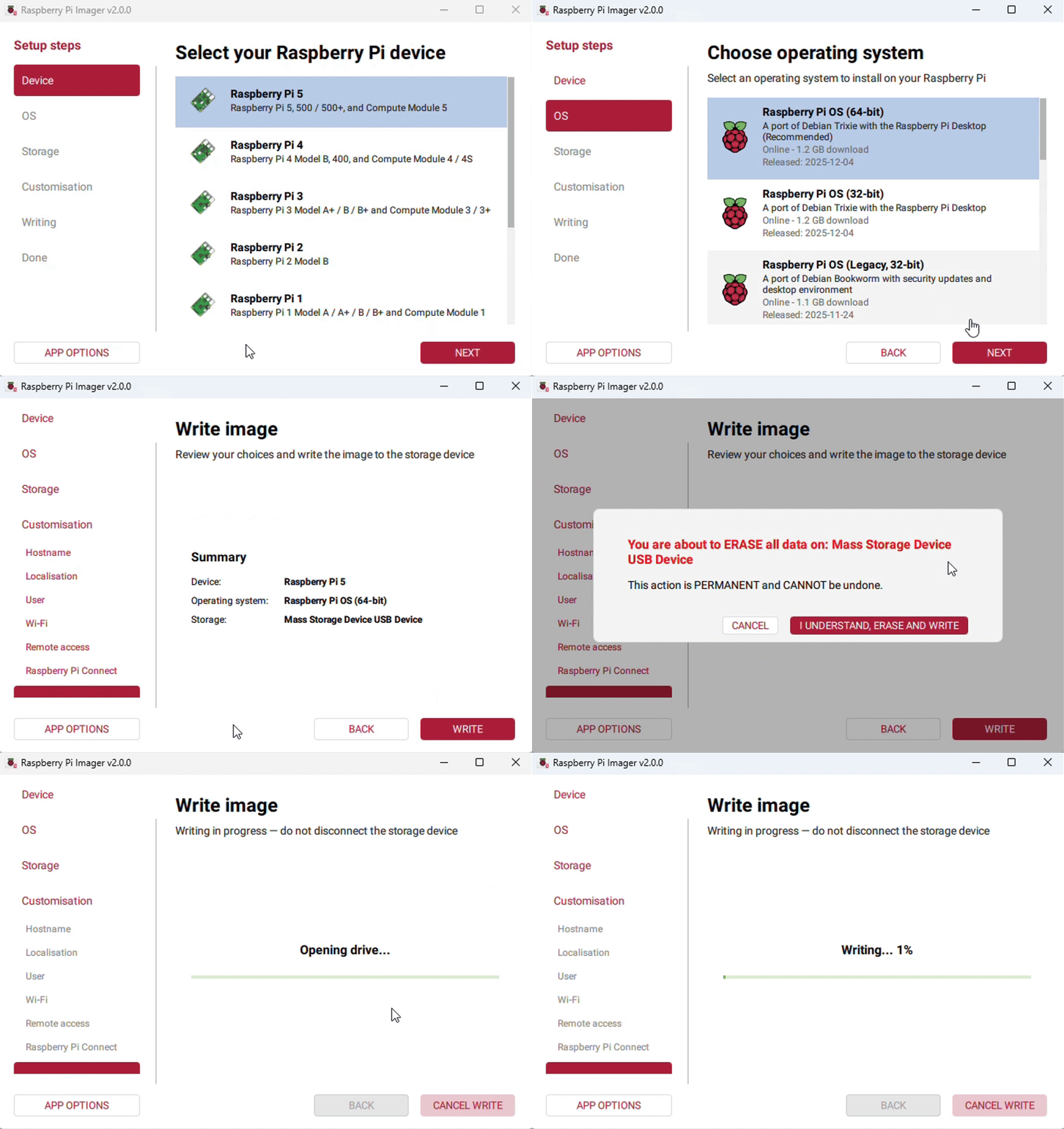
- Extract the downloaded archive to obtain the
.imgfile.
- Extract the downloaded archive to obtain the
- Connect the TF card to your PC and format it using SDFormatter software
- Open Win32DiskImager software, select the system image prepared in step 1, and click "Write" to flash the system image
- After flashing, open the config.txt file in the root directory of the TF card, add the following code to the end of the config.txt file, save the file, and safely eject the TF card
max_framebuffer_width=600max_framebuffer_height=1600hdmi_group=2hdmi_mode=87hdmi_timings=600 0 40 20 100 1600 0 16 4 16 0 0 0 60 0 74590000 3- Insert the TF card into the Raspberry Pi, power it on, and wait a few seconds for normal display
Display and Touch Rotation
The following steps use Raspberry Pi OS Trixie Desktop as an example to adjust this screen to landscape display and associate the corresponding USB touch device.
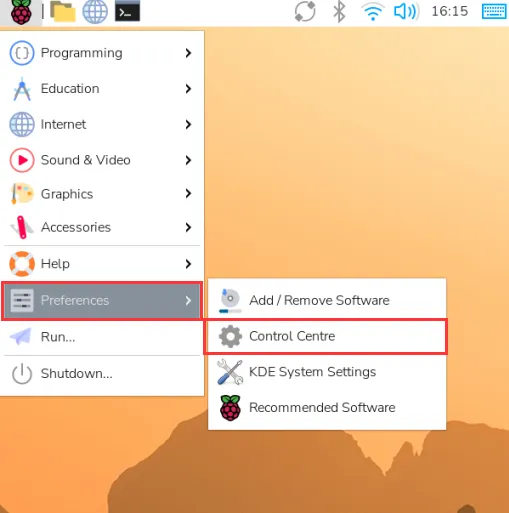
Click the menu in the upper left corner and go to "Preferences" > "Control Centre".
In the Control Centre, select "Screens" and go to "Screens" > "HDMI-A-1" > "Touchscreen", and check the USB touch device corresponding to this screen. In the figure, the device name is
Waveshare Waveshare -079-HD; the name actually recognized by the system shall prevail.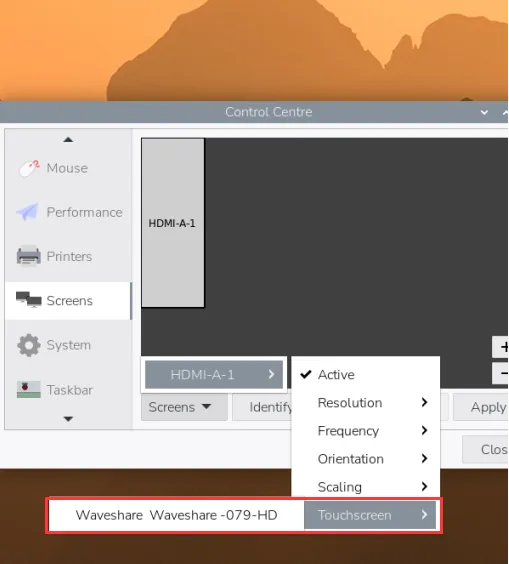
Go to "Screens" > "HDMI-A-1" > "Orientation" and select the desired orientation. In the figure, "Left" is selected to rotate the default portrait image to landscape.
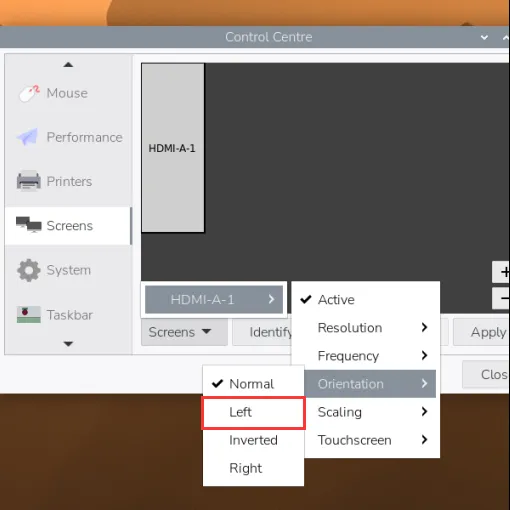
Click "Apply" to save the settings.
Tap the four corners and the center of the screen to check whether the touch positions match the display positions. If touch acts on another monitor, recheck the correspondence between the display output and the touch device in step 2.
The display output in the figure is HDMI-A-1. When using another HDMI interface or connecting multiple monitors, select the output that is actually connected to this screen.
Working with Windows / Jetson
Hardware Connection
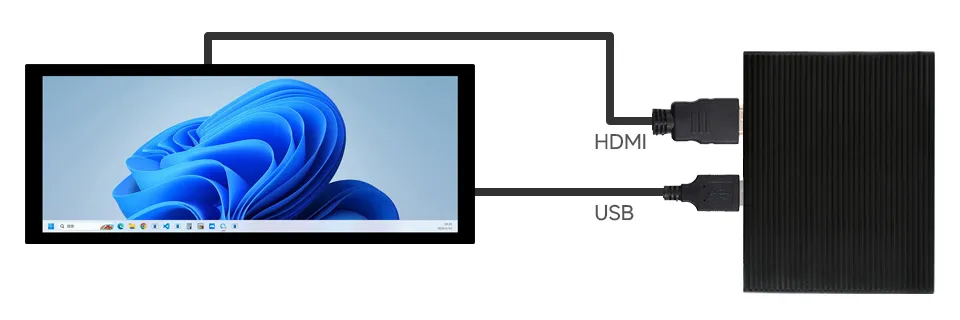
Windows computers and Jetson hosts share the following hardware connection steps. According to the 8.9inch 600x1600 LCD official product page, this screen supports driver-free 10-point touch under Windows 11 / 10 / 8.1 / 8 / 7, and supports driver-free single-point touch under the Jetson's Ubuntu system.
- Connect a 5 V power supply to the screen's Power supply interface.
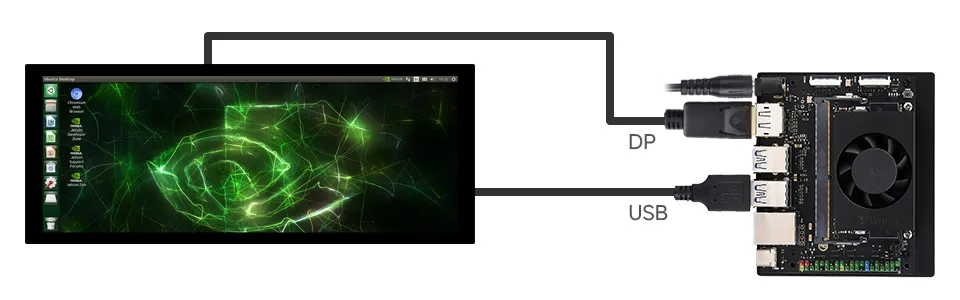
- Use an HDMI cable to connect the screen's HDMI interface to the host's HDMI output. If the Jetson host only has a DP output, use a DP-to-HDMI adapter or cable to connect.
- Use a USB Type-A to Type-C cable that supports data transfer to connect the screen's Touch interface to the host's USB interface.
- Power on and check the display and touch functions.
The HDMI connection is used to transmit video and audio; using the touch function also requires connecting a USB data cable. Connecting only the power supply interface cannot transmit touch data.
Specify the Touchscreen in Windows
The following multi-display touch setup steps apply to Windows.
Windows 11
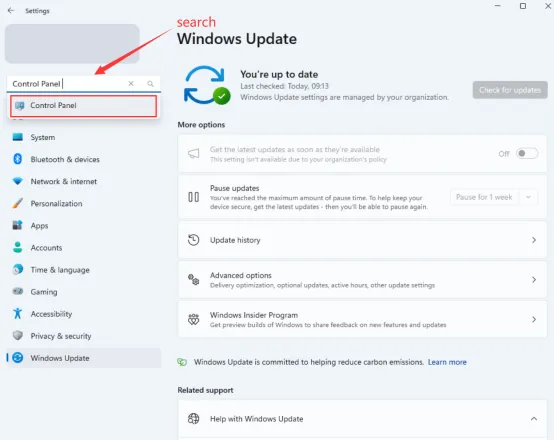
Open Windows Settings, type "Control Panel" in the search bar, and open it.
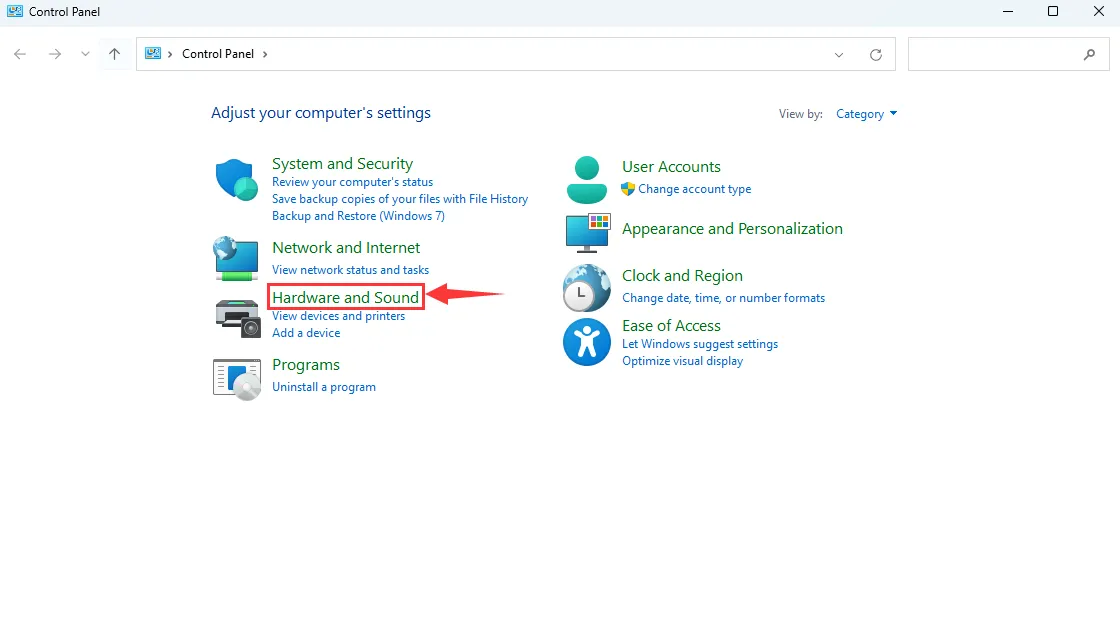
In Control Panel, select "Hardware and Sound".
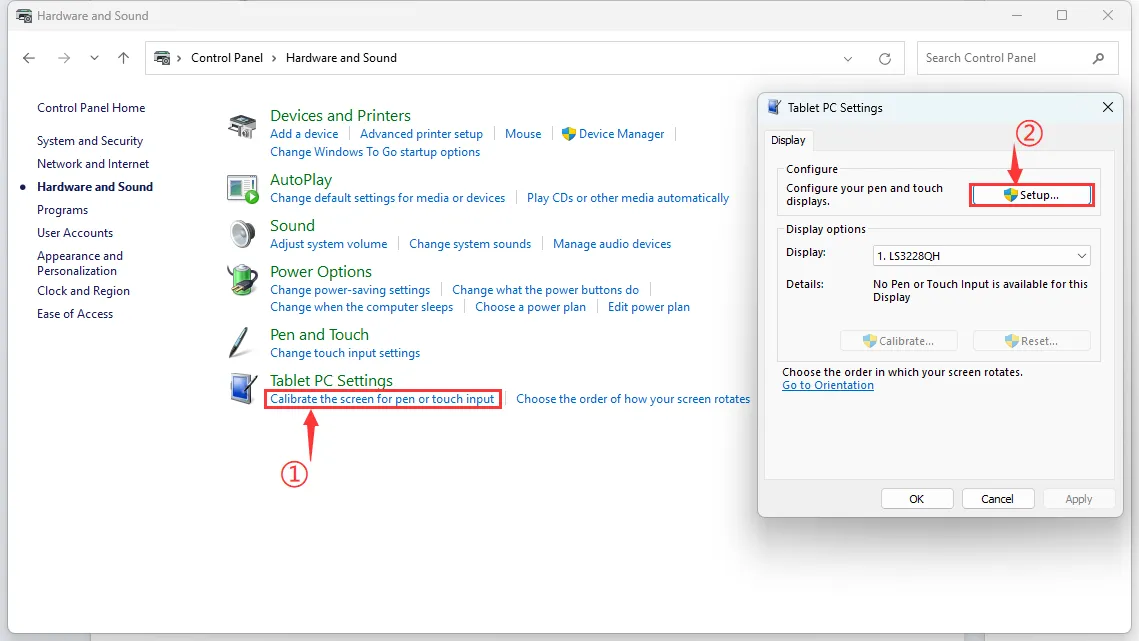
Select "Calibrate the screen for pen or touch input", and click "Setup" in the "Tablet PC Settings" dialog that appears.
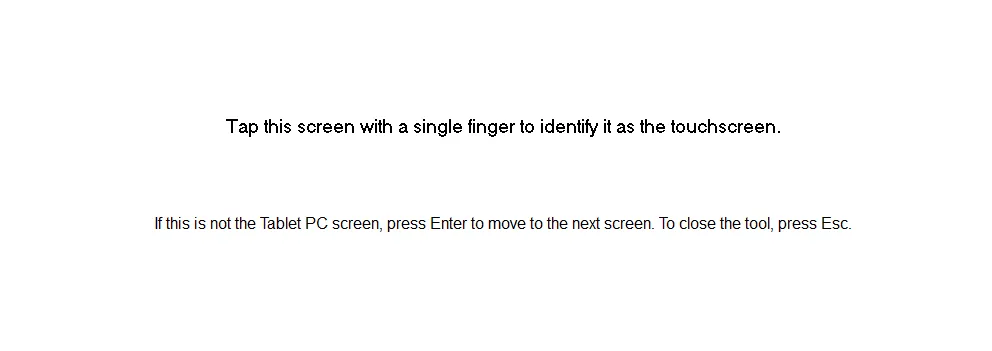
When the text prompt appears on this screen, tap the touch area of this screen with your finger to designate this screen as the touchscreen. If the prompt appears on another monitor, press Enter to move the prompt to this screen, then touch this screen.
Windows 10
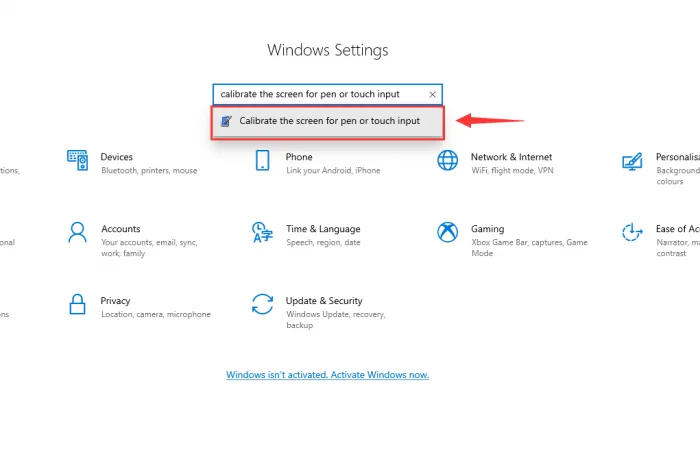
Open Windows Settings, type "Calibrate the screen for pen or touch input" in the search bar, and open it.
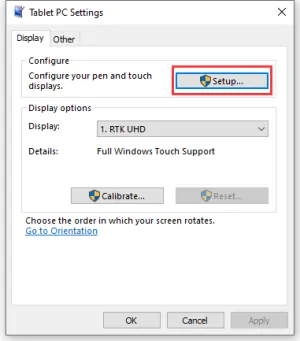
Click "Setup" in the "Tablet PC Settings" dialog that appears.
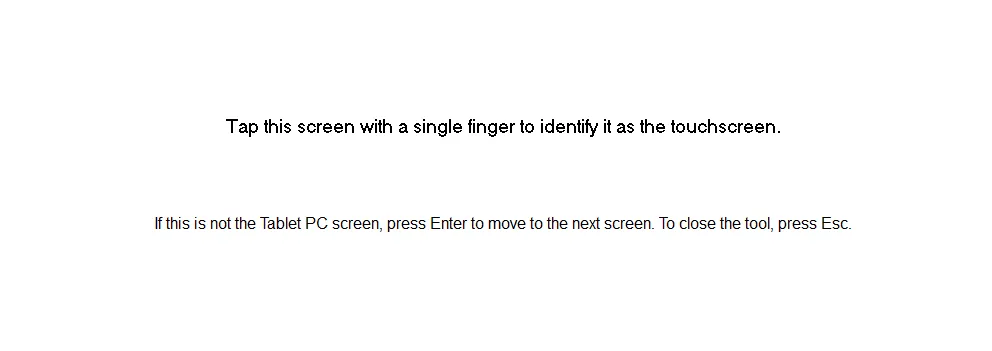
When the text prompt appears on this screen, tap the touch area of this screen with your finger to designate this screen as the touchscreen. If the prompt appears on another monitor, press Enter to move the prompt to this screen, then touch this screen.
Resources
1. Hardware Resources
2D Drawings
Support
Monday-Friday (9:30-6:30) Saturday (9:30-5:30)
Email: services01@spotpear.com