- sales/support
Google Chat:---
- sales
+86-0755-88291180
- sales01
sales@spotpear.com
- sales02
dragon_manager@163.com
- support
tech-support@spotpear.com
- CEO-Complaints
zhoujie@spotpear.com
- Only Tech-Support
WhatsApp:13246739196
- Purchase/Shipping/Refund
WhatsApp:13424403025
- HOME
- >
- ARTICLES
- >
- Raspberry Pi
- >
- Raspberry Pi LCD
- >
- e-Paper
7.5inch-NFC-Powered e-Paper User Guide
Instruction
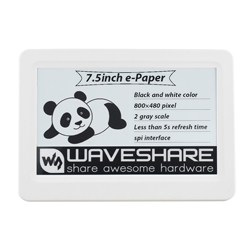
This is an NFC-powered 7.5inch e-Paper Module, with 800 x 480 resolution. Users can transmit data from smartphone or NFC reader to e-Paper and refresh by NFC.
Features
- No backlight required, e-Paper keeps displaying the last content for a long time without power.
- It does not contain a battery or other power supply, You can modify the display content by smartphone, suitable for applications where power is limited.
- The displayed content can be customized and controlled by the user at any time through the smartphone, which is convenient and flexible.
- Suitable as equipment labels, shelf labels, information storage, etc.
- Equipped with ABS plastic shell with good strength and toughness.
- Provide a supporting Android APP to help users edit and manage the display content of the ink screen.
- Provide complete supporting information and manual.
Specification
- Power: NFC-powered
- Resolution: 800x480
- Dot pitch: 0.205 × 0.204
- Refresh time: 5s
- Display color: black, white
- Viewing angle: >170°
- Outline Dimension: 195.84mm × 137.68mm × 13.00mm
- Display Dimension: 163.2mm × 97.92mm
User guide
Please make sure that your telephone supports the NFC function and is enabled. Note that this APP does NOT support the Samsung or Google phones.
Android APP
You can scan the QR code to download and install the APP on your phone, note that the app can only support Android 4.0 (Ice Cream Sandwich) and above.
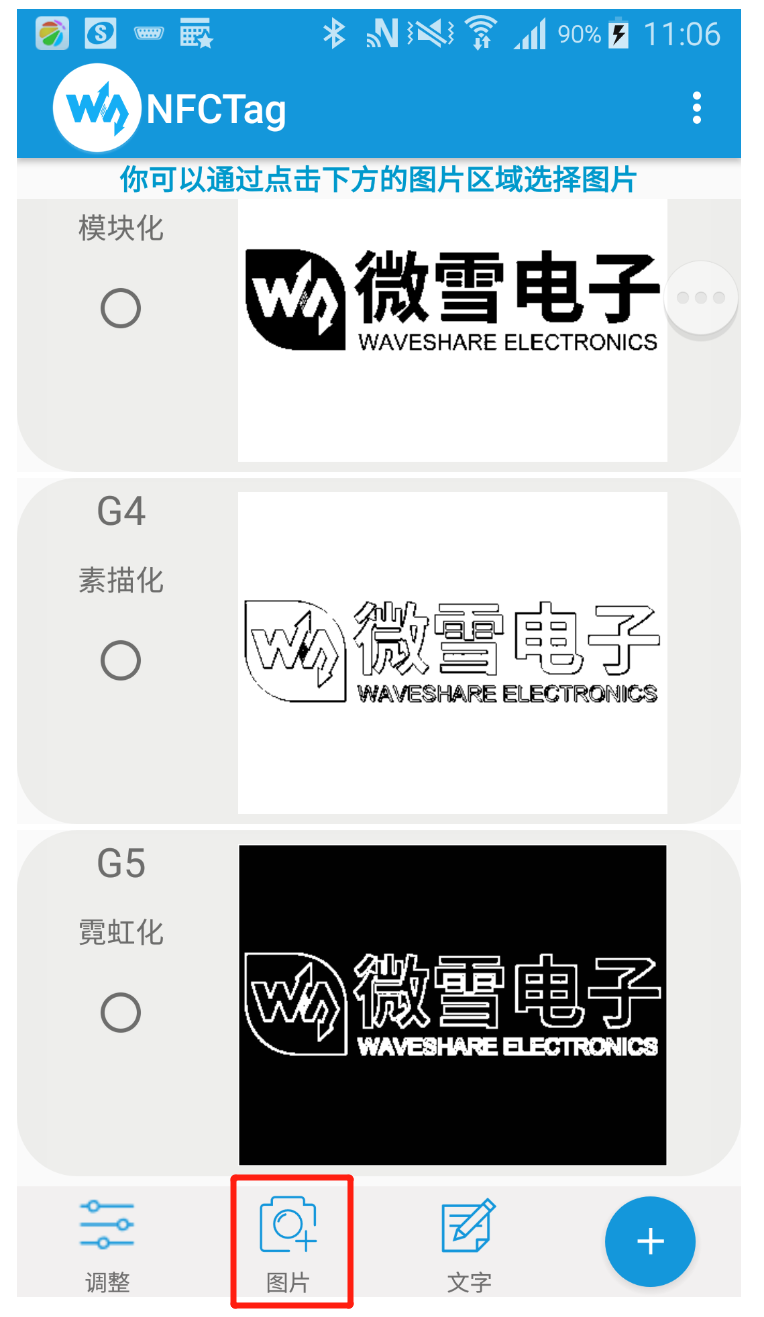
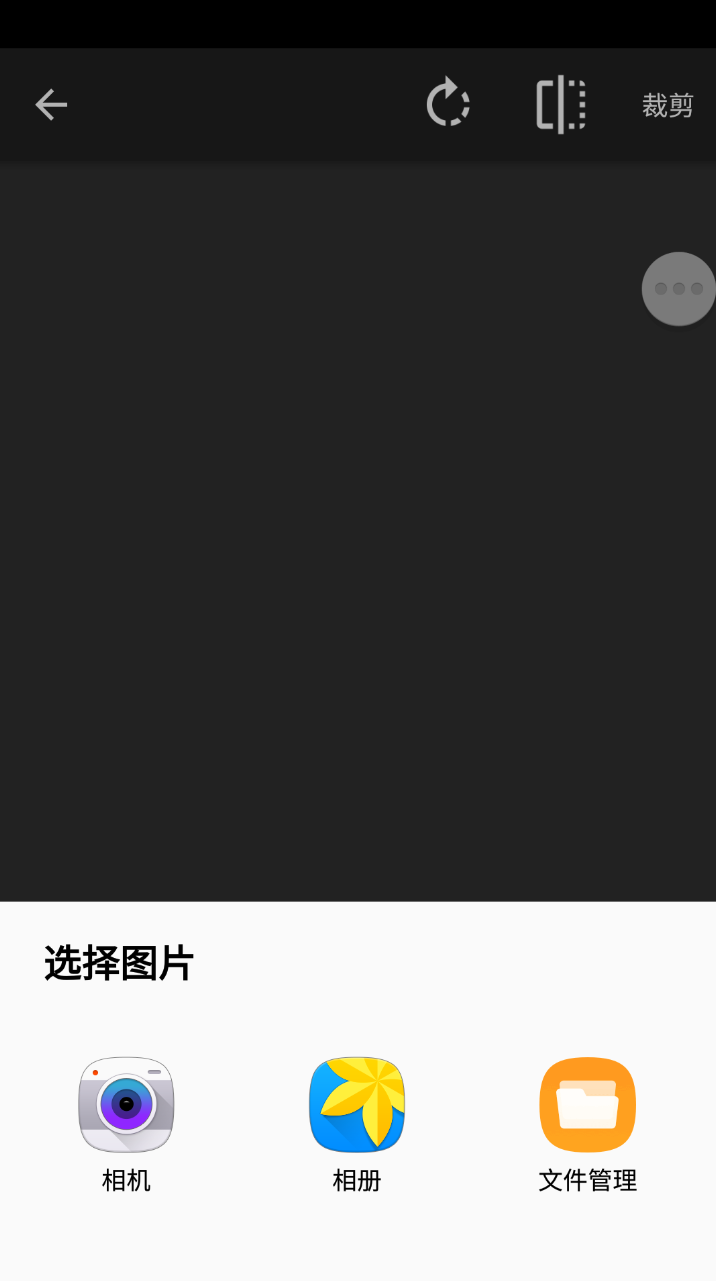
- Click the picture button on the bottom to choose a picture. You can choose the picture from DCIM or you take a picture with the camera.
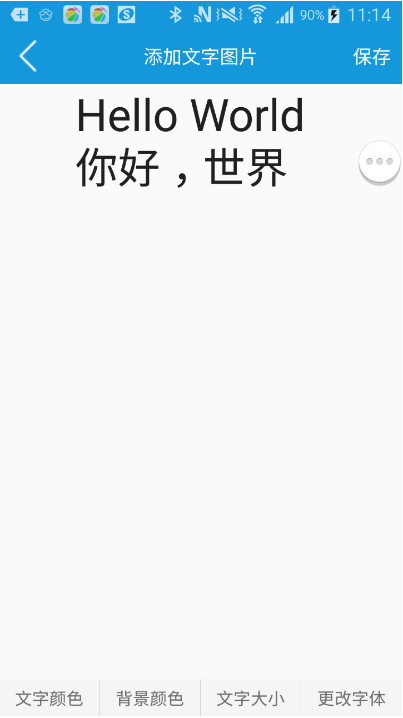
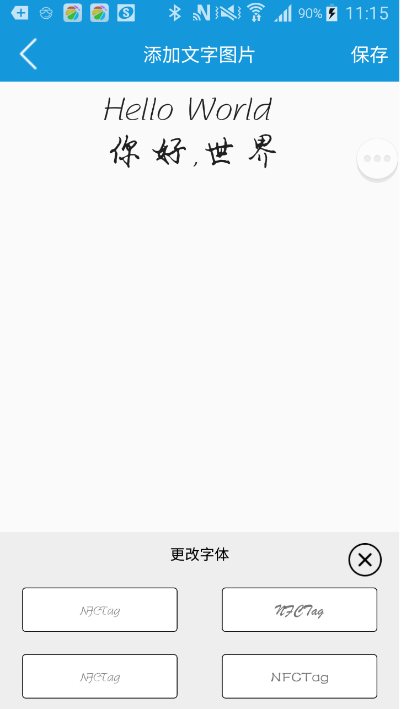
- Except for pictures from DCIM and camera, you can also make string pictures manually.
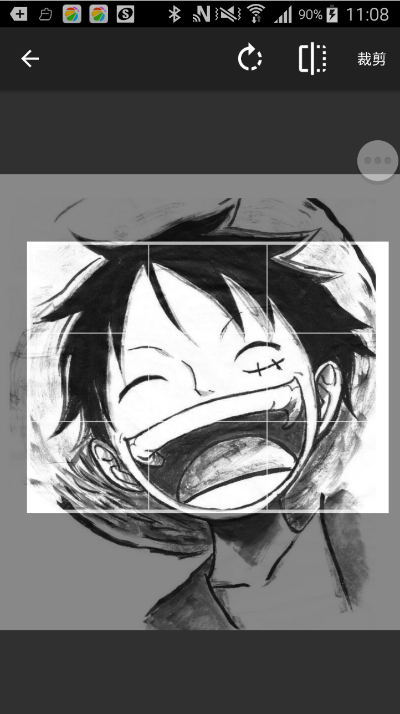
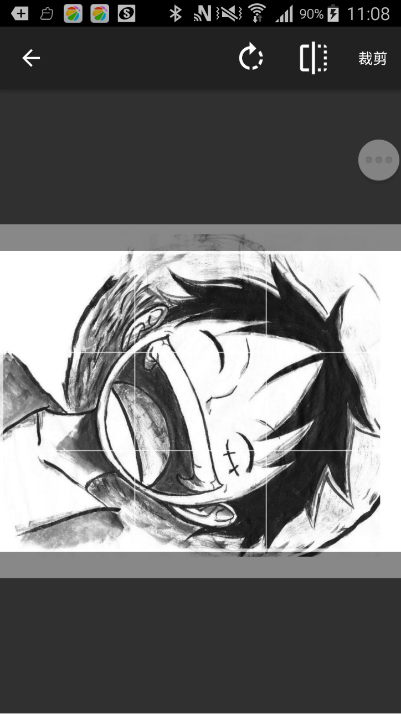
- You can cut the picture after choosing, resize it and rotate it. For the best effect. we recommend you to pre-adjust the picture according to the resolution of the e-Paper.
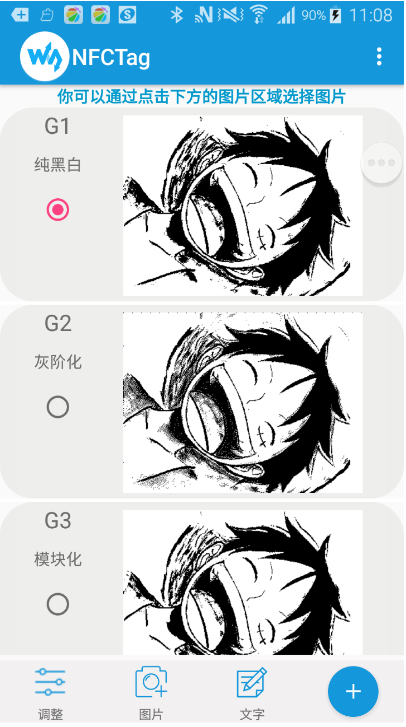
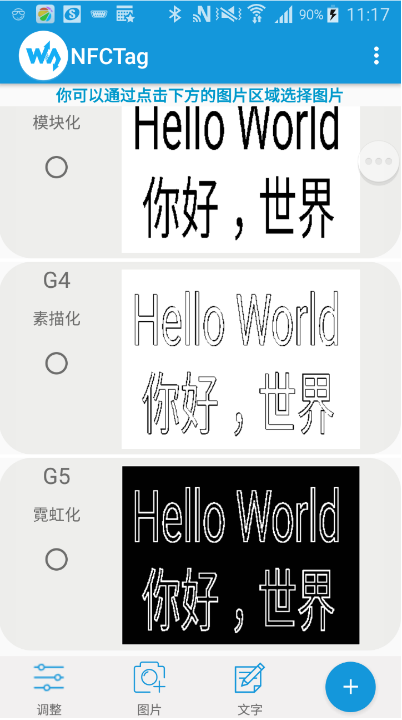
- On the main page, you can select the process effect (None Effect, Gray Effect, Block Effect, Sketch Effect, and Neon Effect).
- On the main page, you can click the Adjust symbol on the left bottom to adjust the brightness and contrast. You can also touch the "+" symbol on the right bottom to adjust the picture.
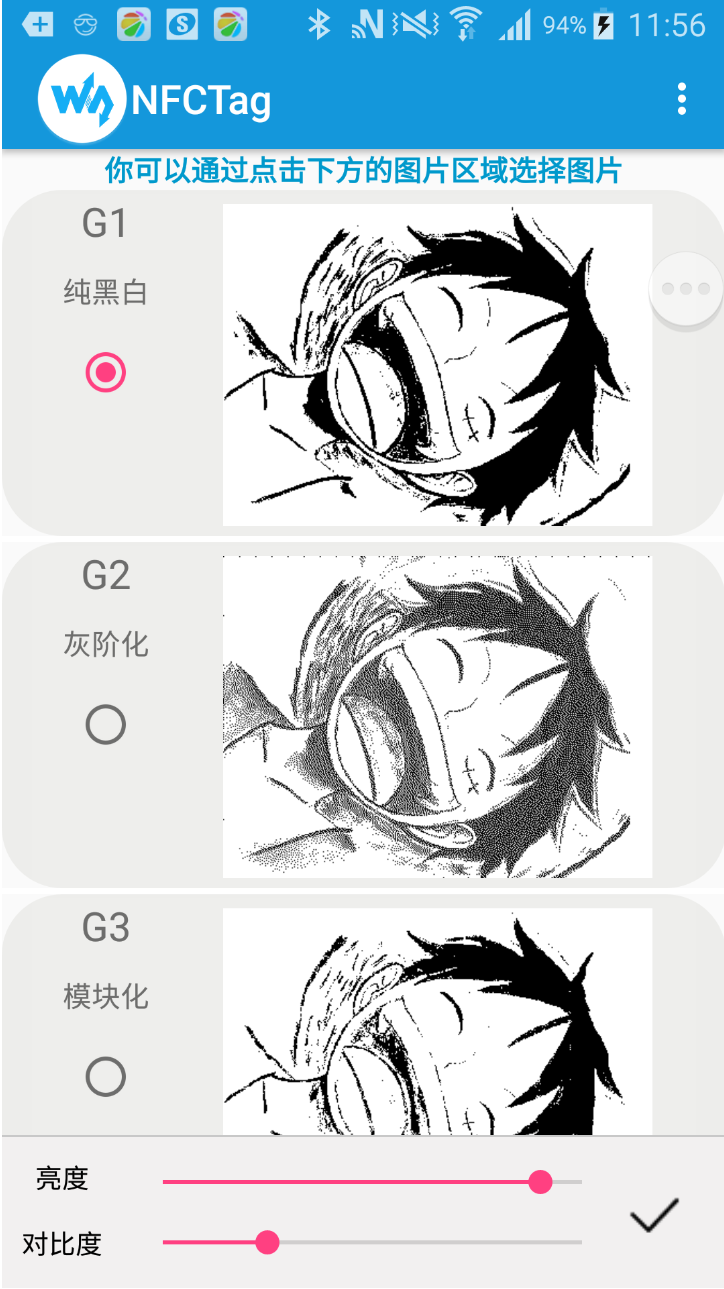
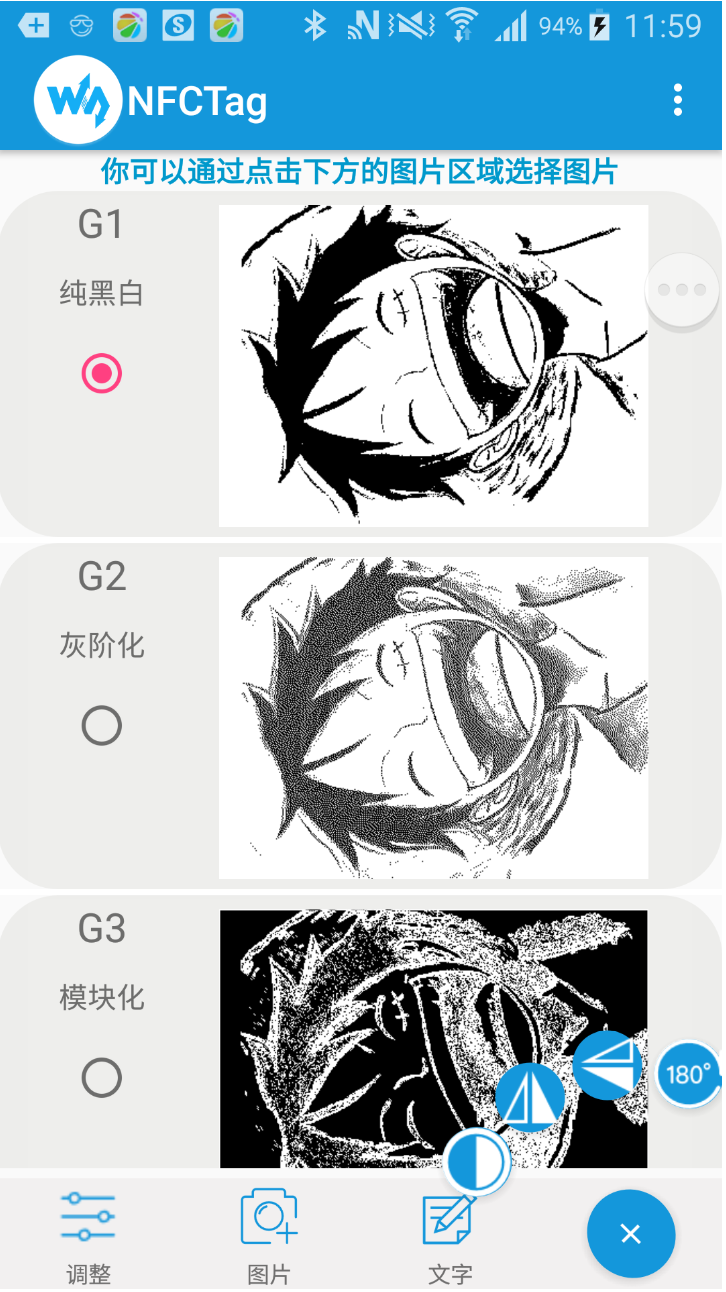
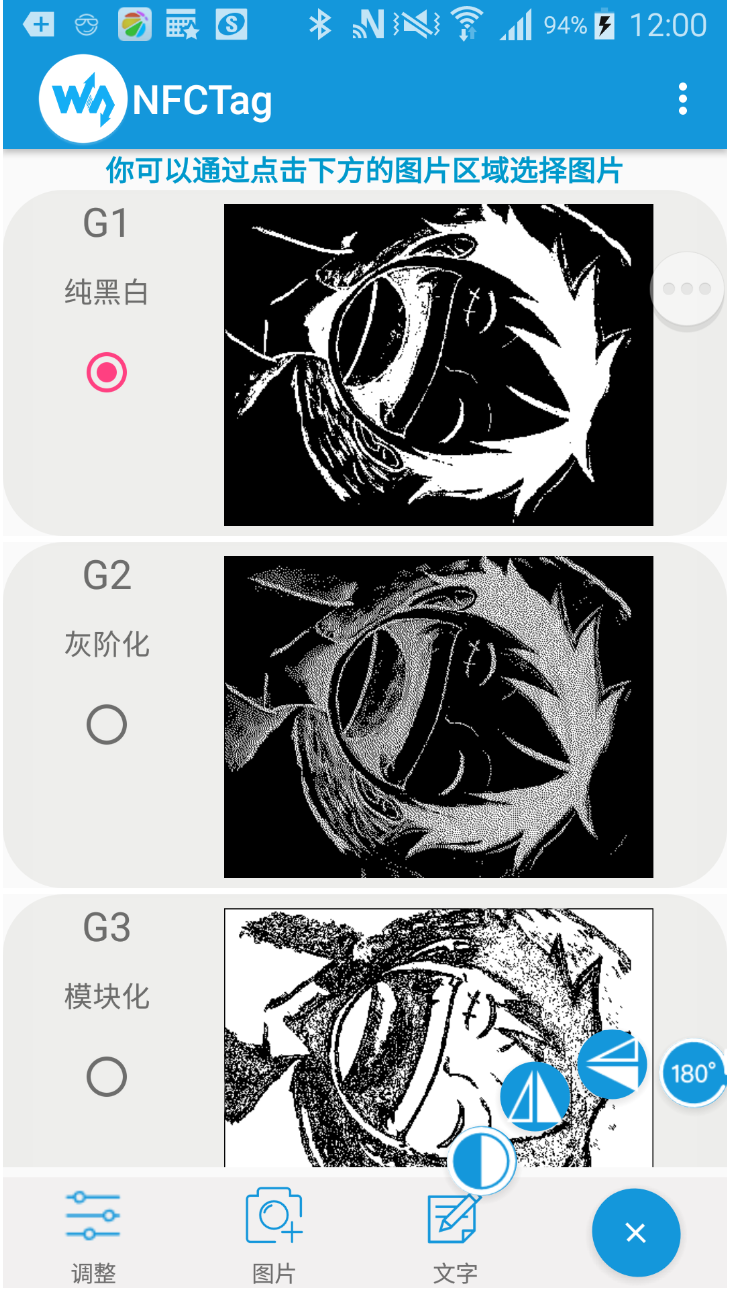
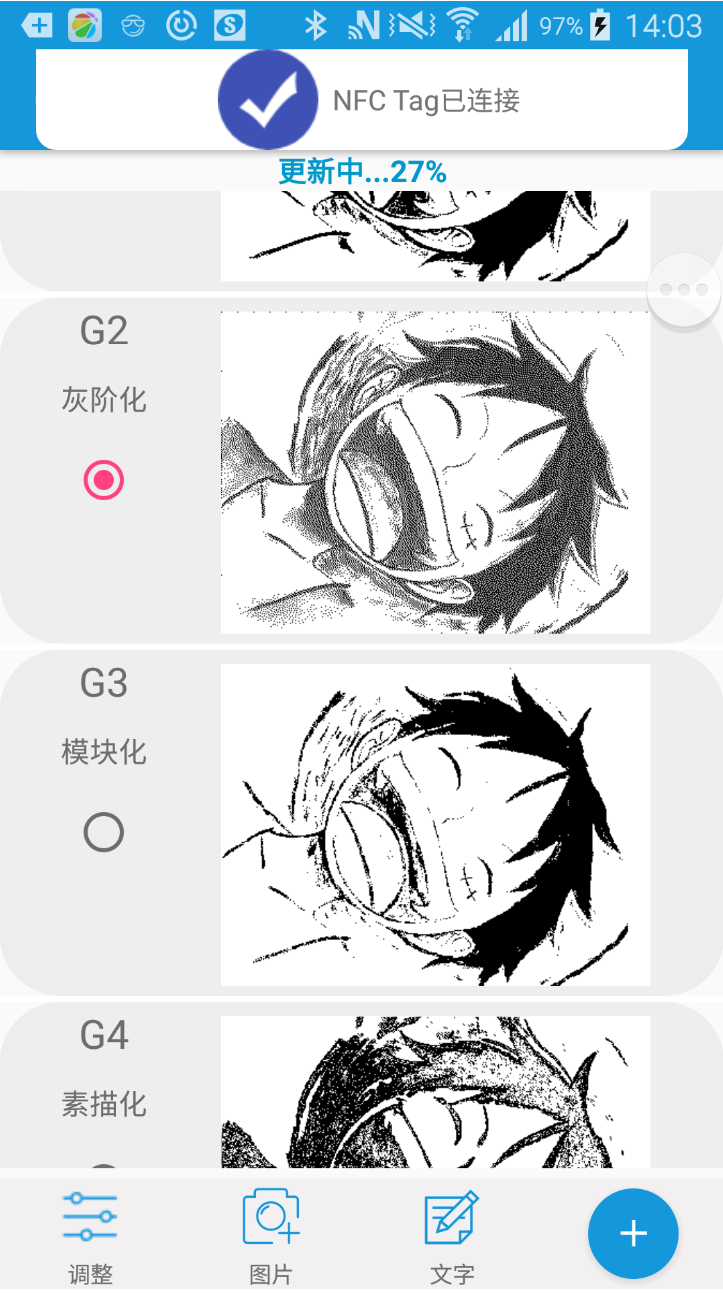
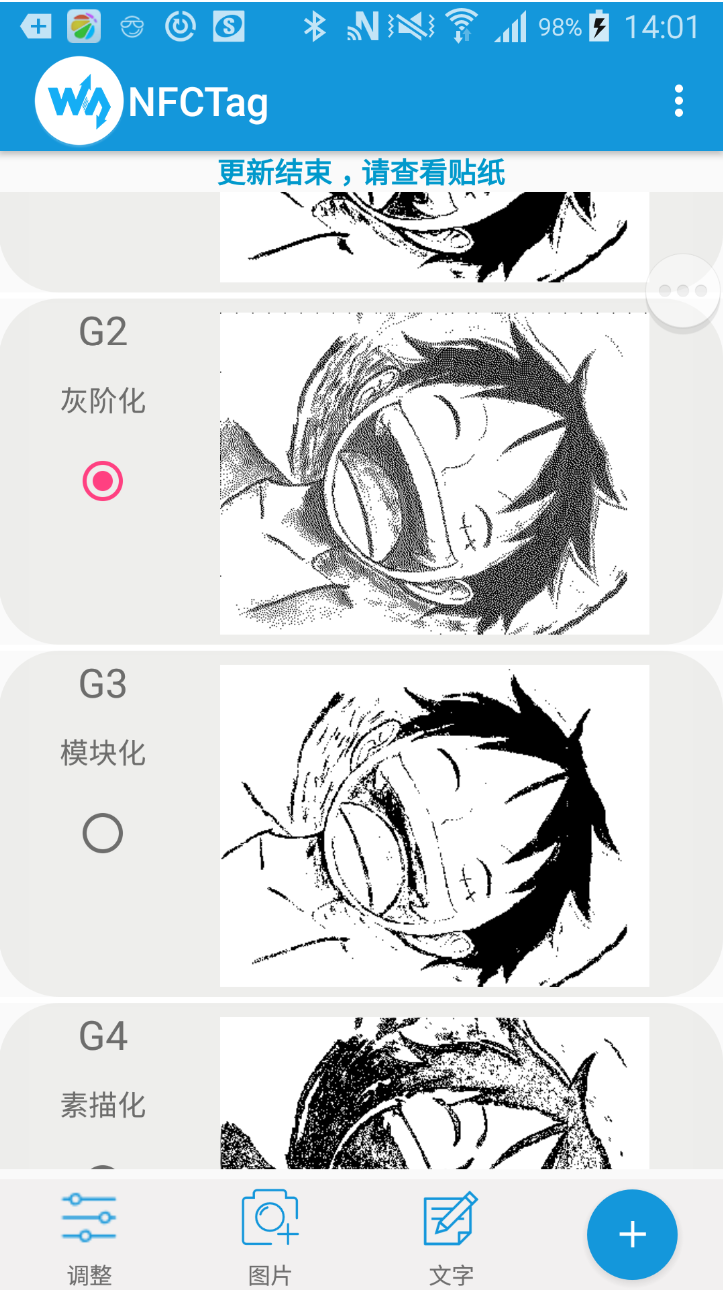
- After setting, close the NFC area of your phone to the backside of the 4.2-inch NFC-Powered e-Paper to update it.
【Note】Make sure that you have opened the NFC function of your phone, and do not move the phone when transmitting and updating.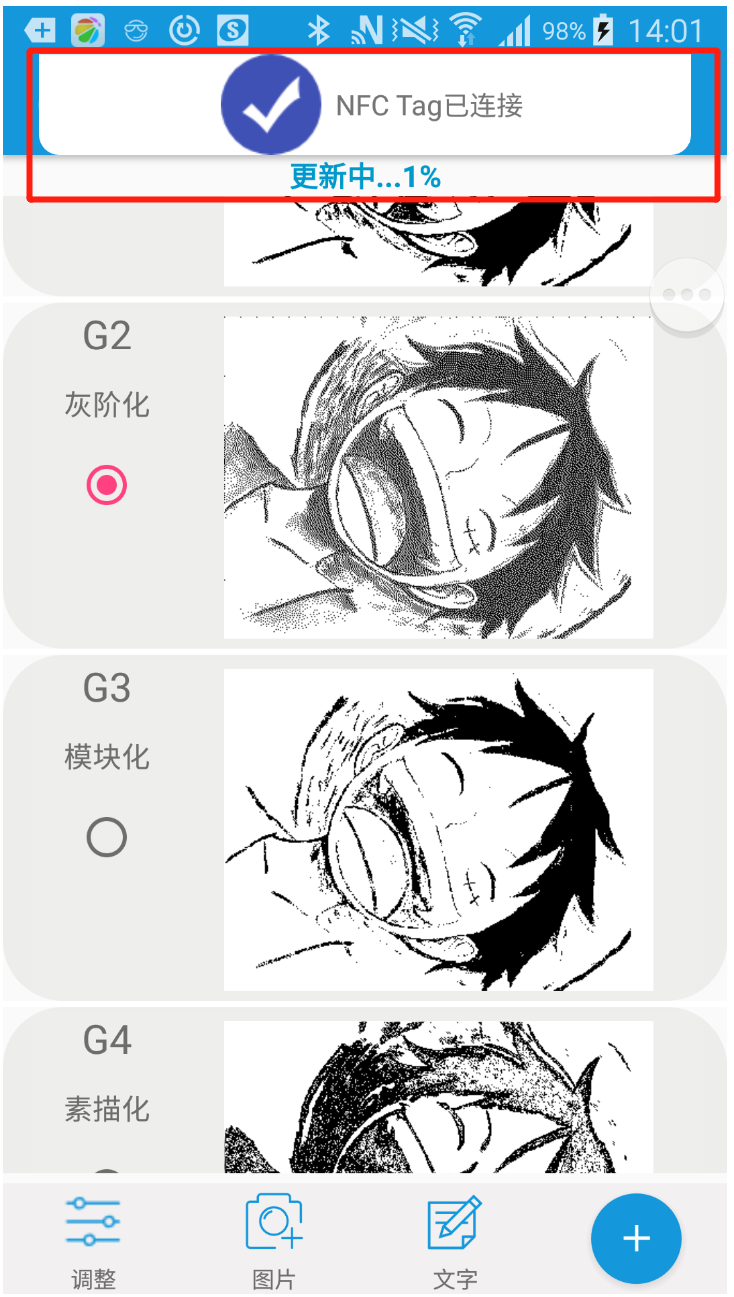
- Other functions
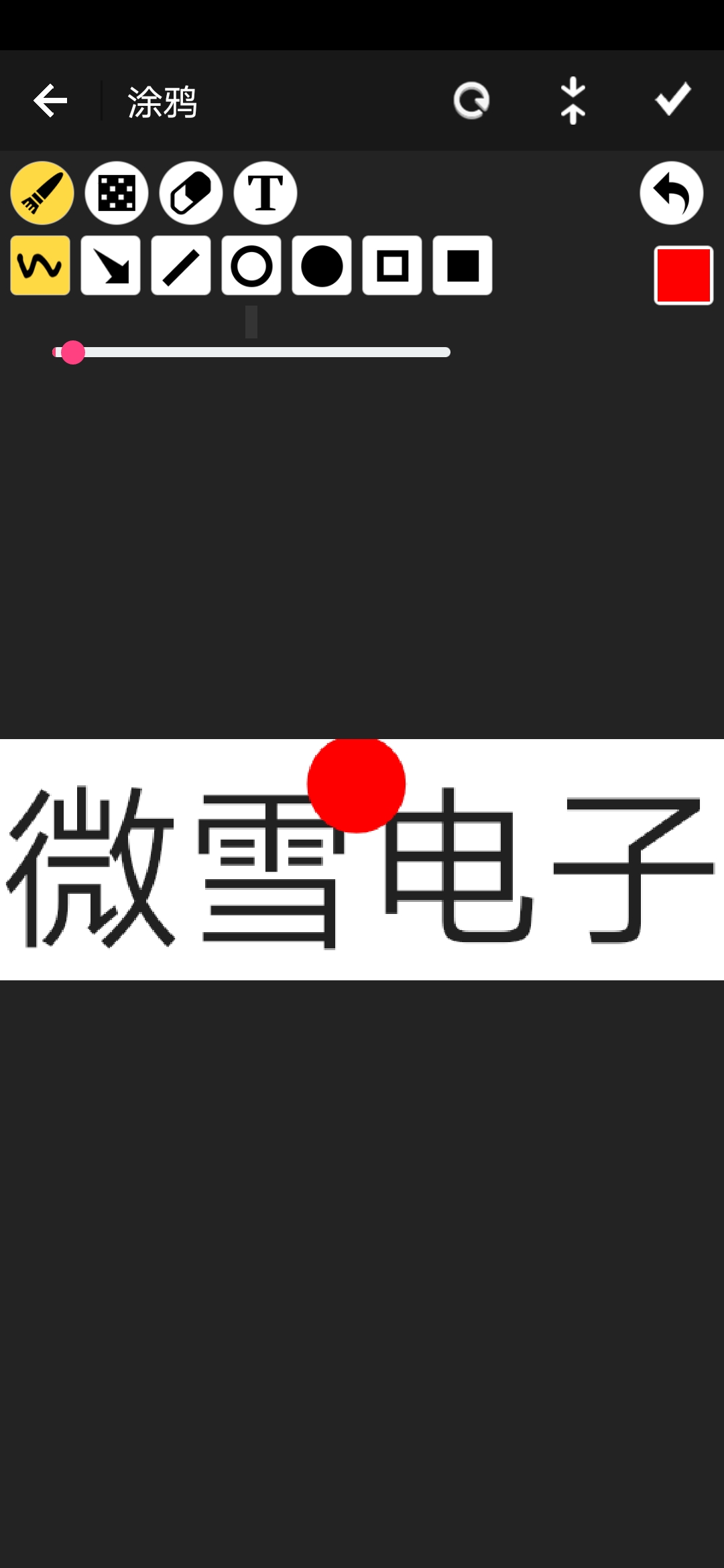
- You can also draw a picture. Click the "..." symbol on the right top, choose Gallery, and touch one picture to enter drawing mode.
IOS APP
For IOS users, you can download and install the NFC E-Tag app from the APP store.
1. Open the APP, and choose the e-Paper type according to the actual display.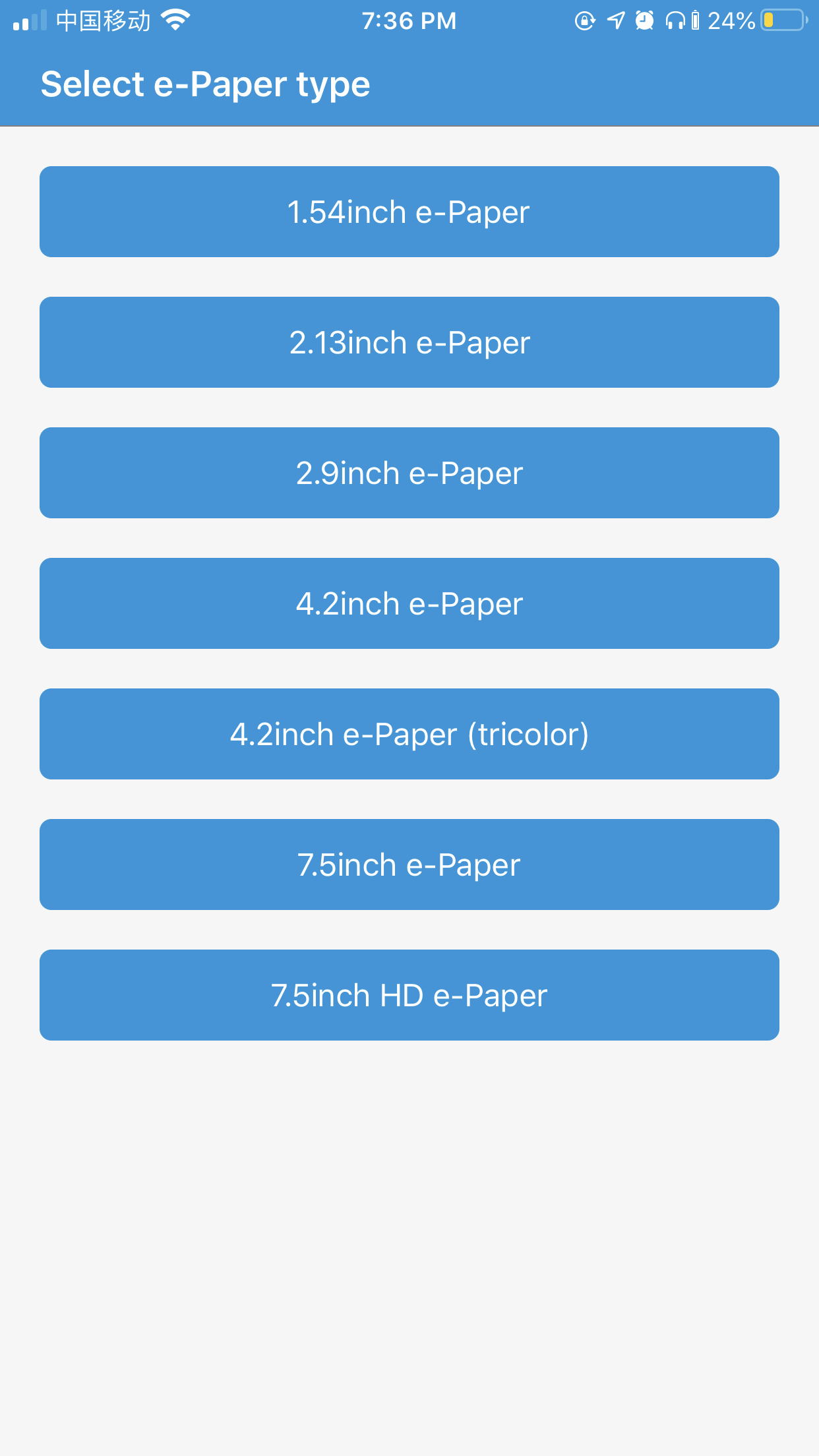
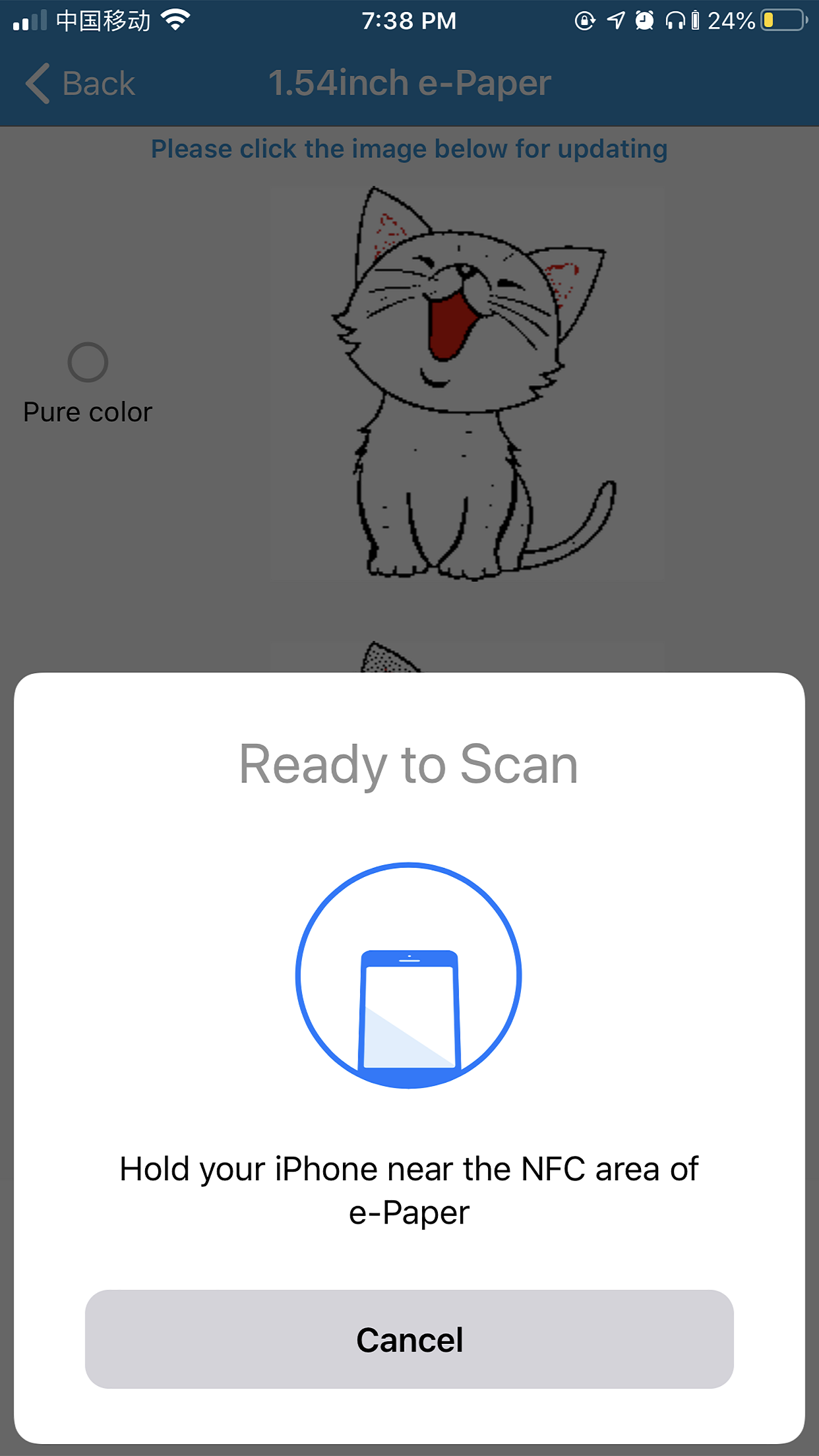
2. Click on the image and hold the phone close to the NFC area of the e-Paper for updating.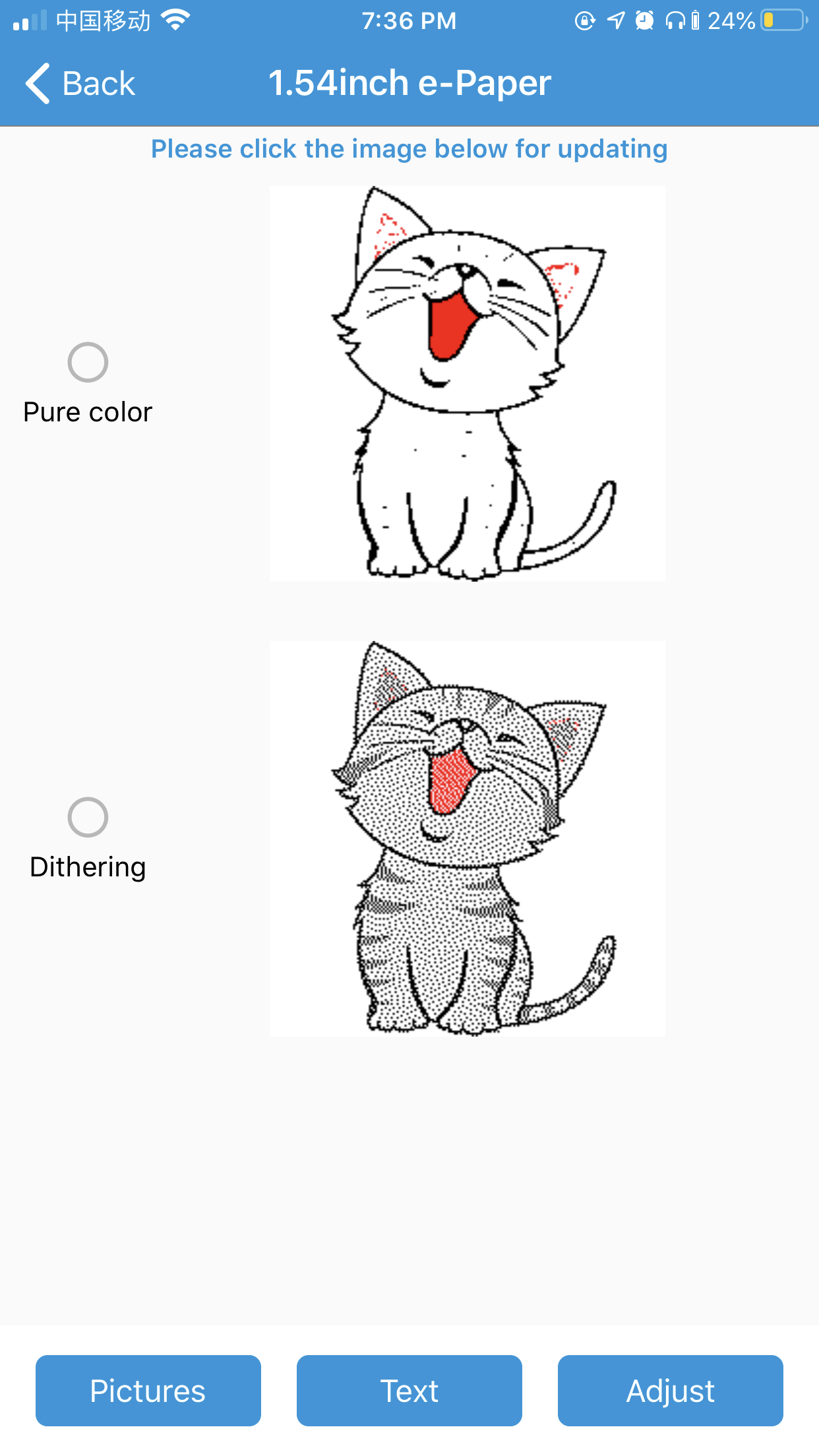
3. You can click the Pictures button on the left-bottom to choose the pictures to update.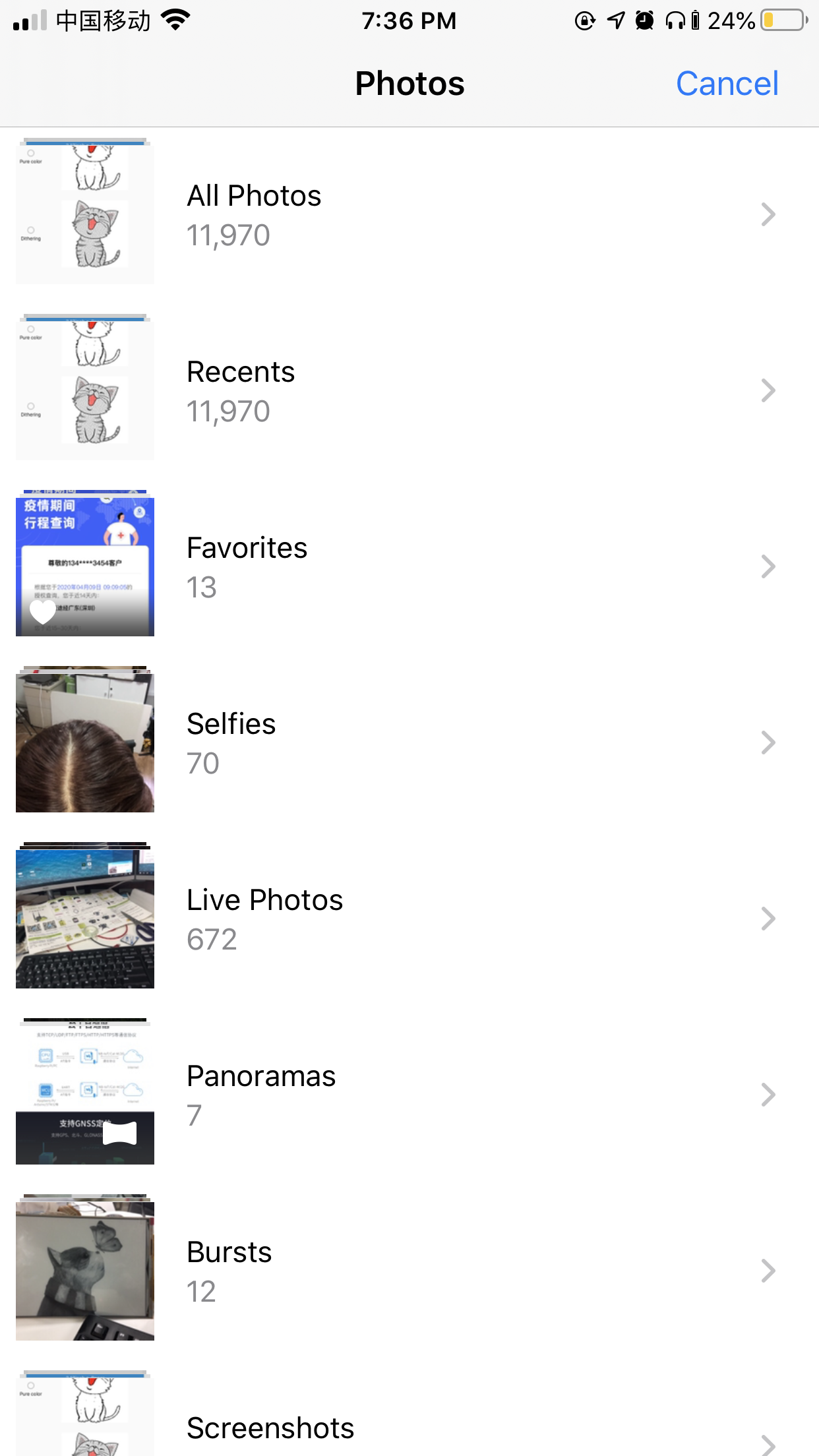
4. You can click the Text buttons to make a text image.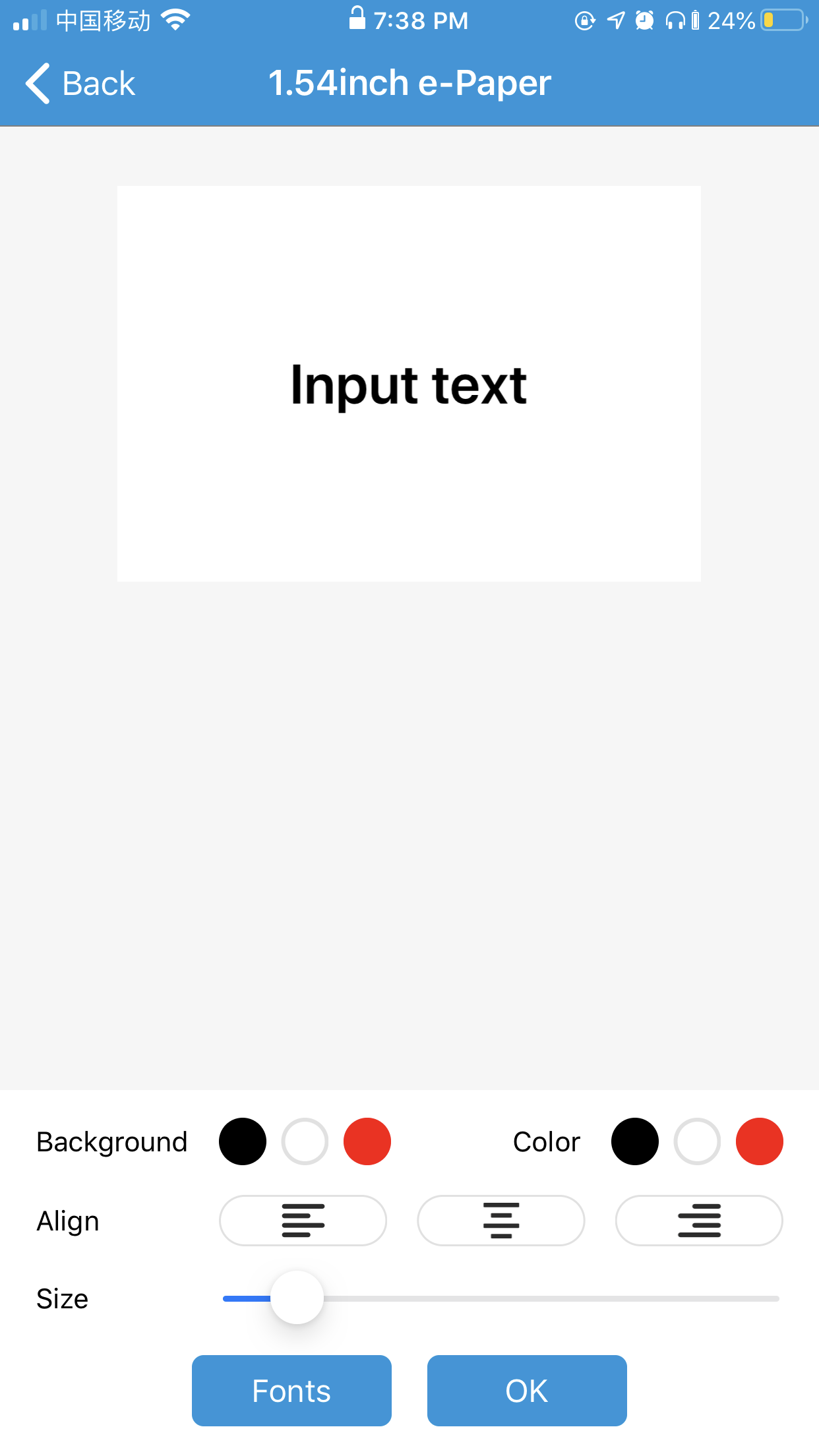
5. You can adjust the brightness and contrast of the picture.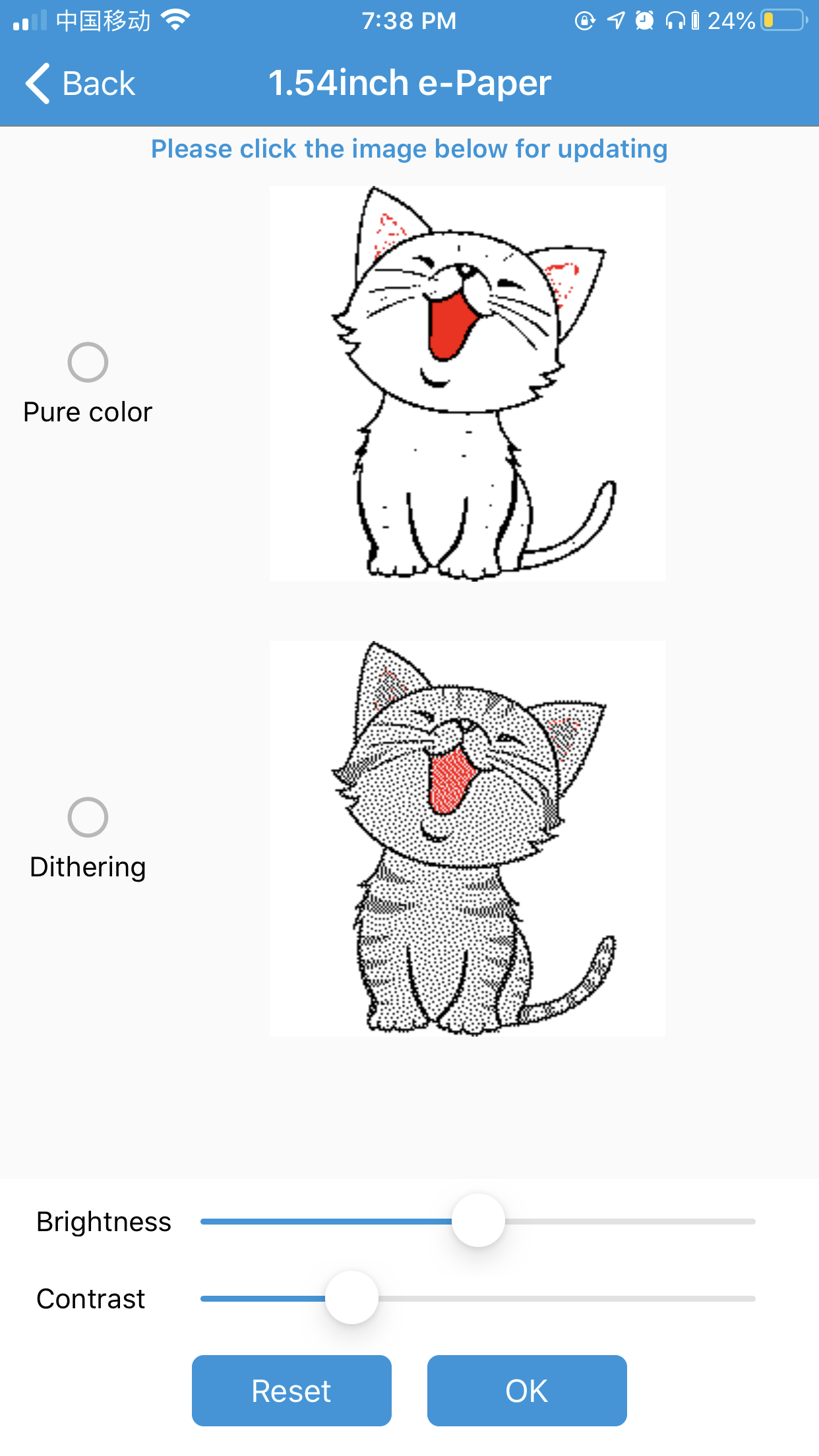
ST25R3911B NFC Module
- Refer to the Made bmp file for e-Paper to make a picture for NFC-powered.
- Copy pictures to TF card (recommend 16G) and insert the TF card into ST25R3911B NFC Board.
- Connect the 5V power adapter to the USB interface of the NFC Board.
- Select the function by buttons, and choose "Update E-paper Demo".
- Select the type of e-paper according to the one you have.
- Select the picture for updating, note that the resolution of the picture should be the same as the e-Paper's.
- Confirm it.
- Put the Reader on the display for updating.
- Wait for updates.
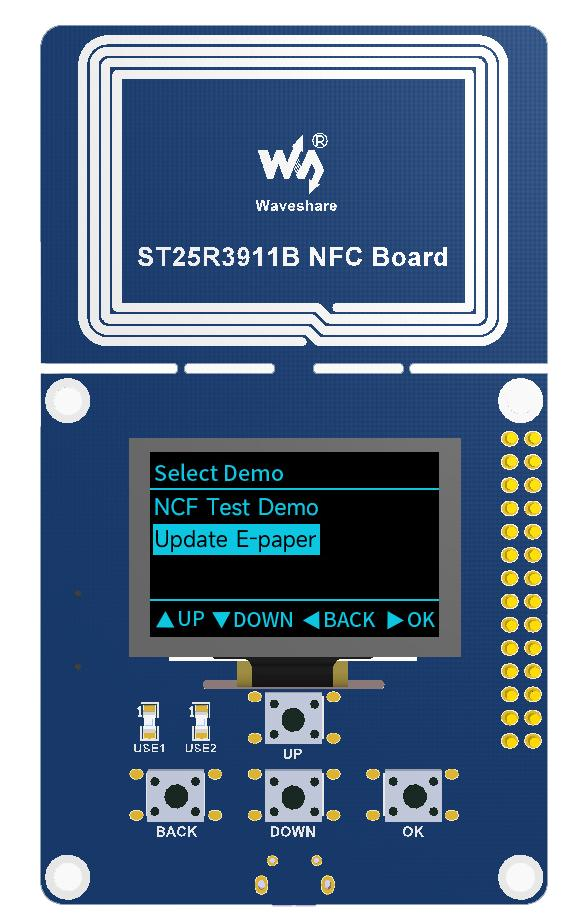
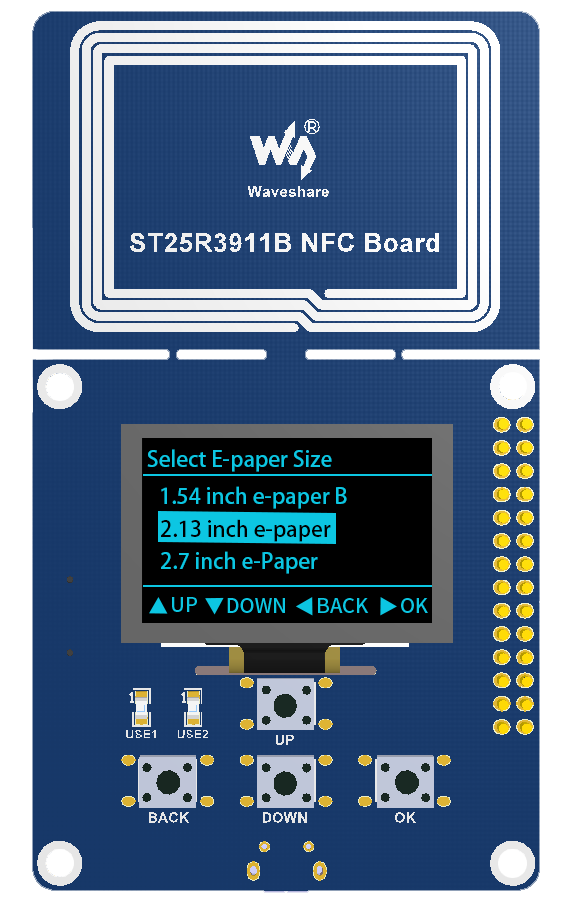
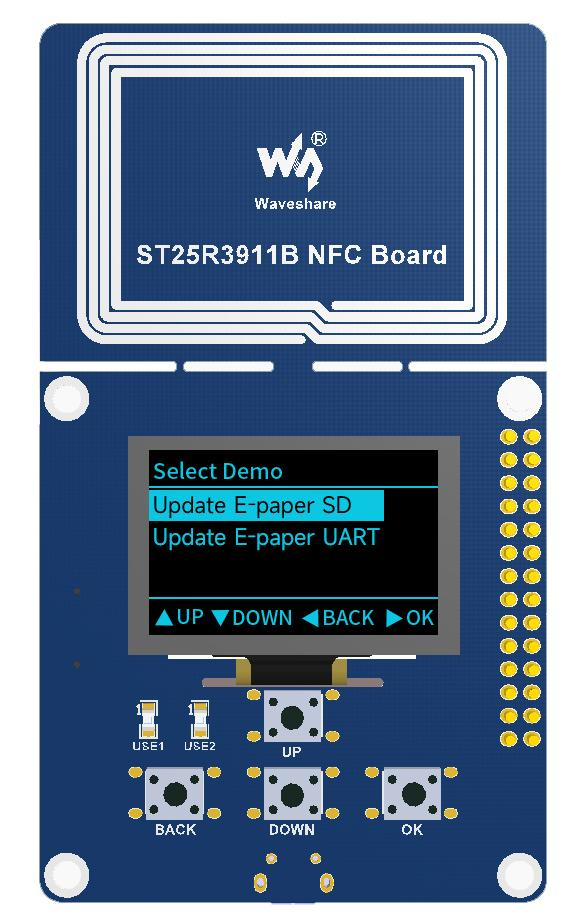
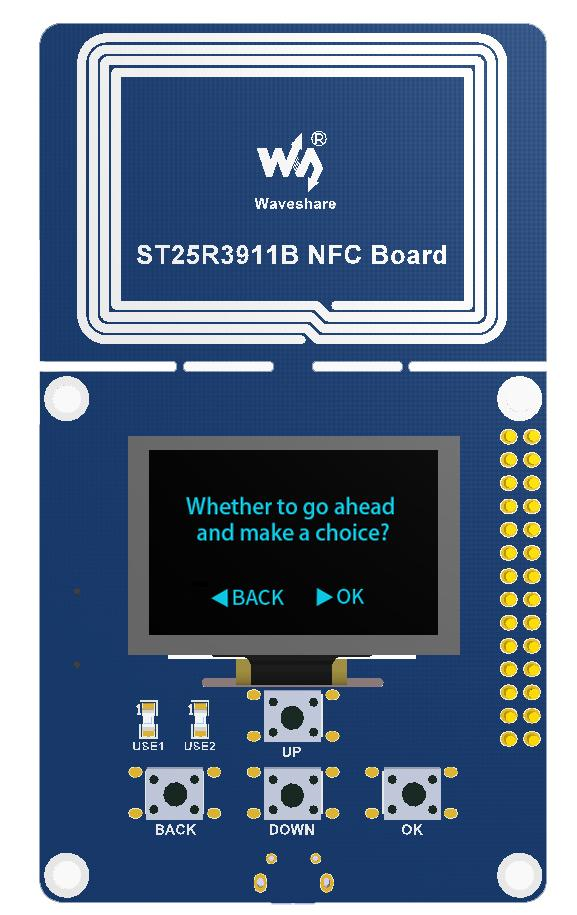
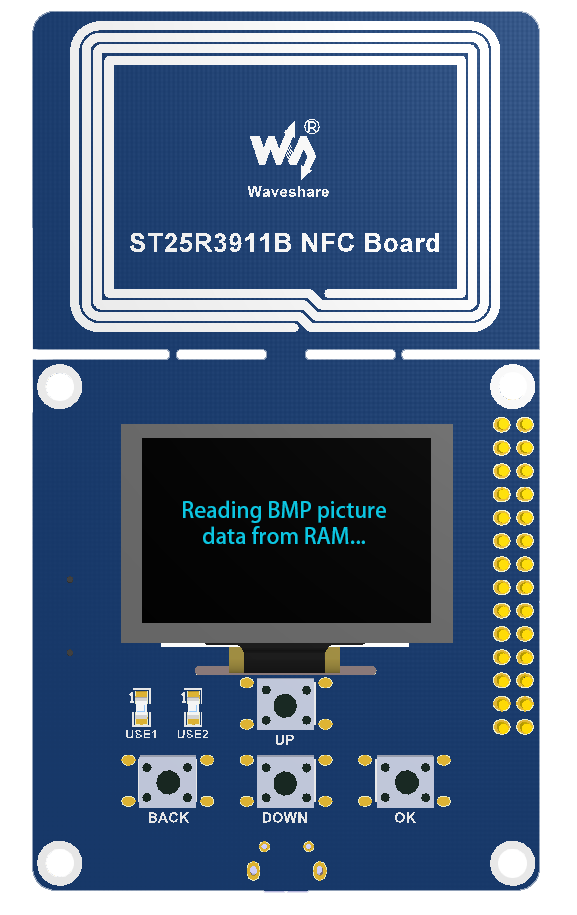
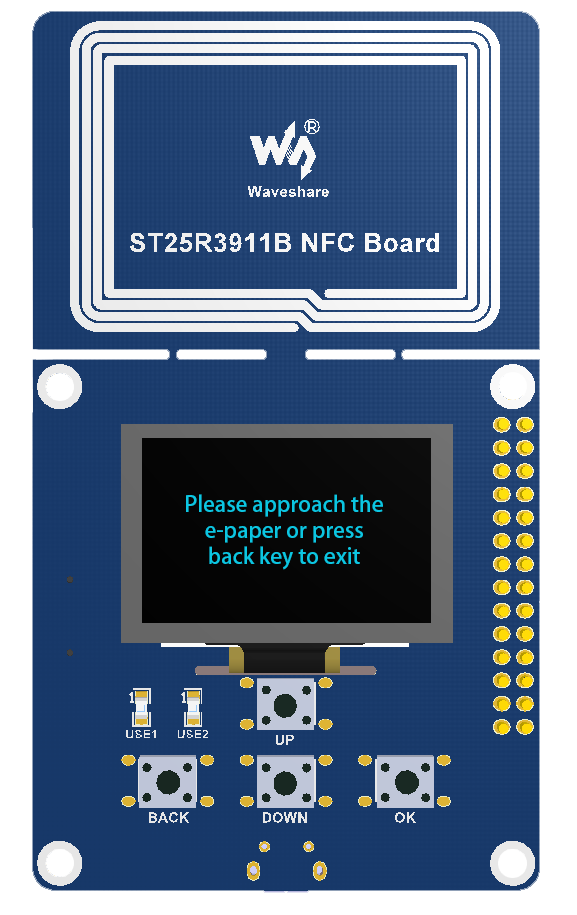
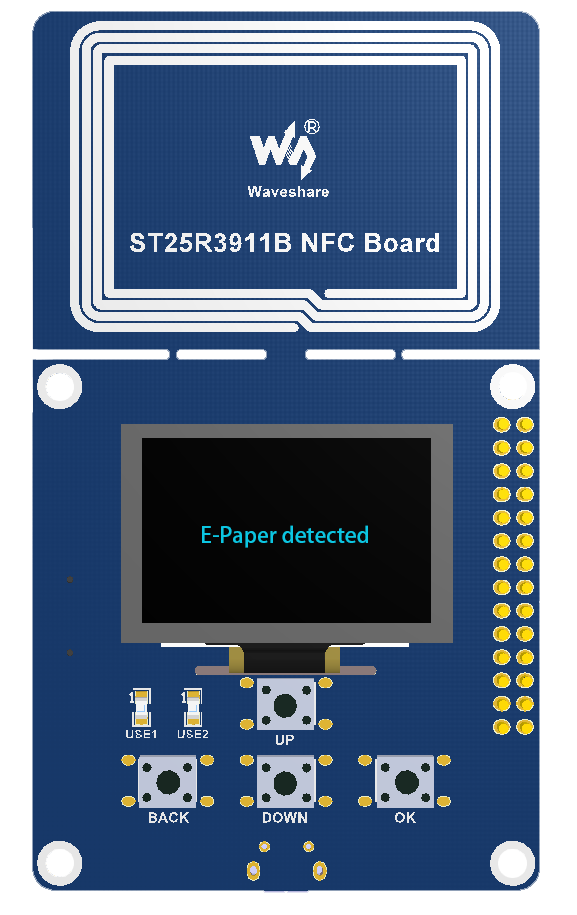
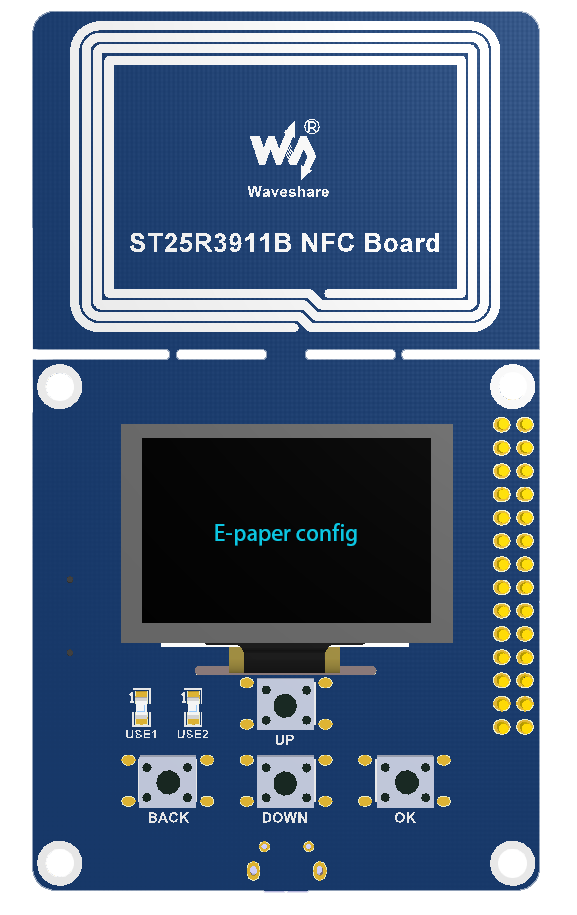
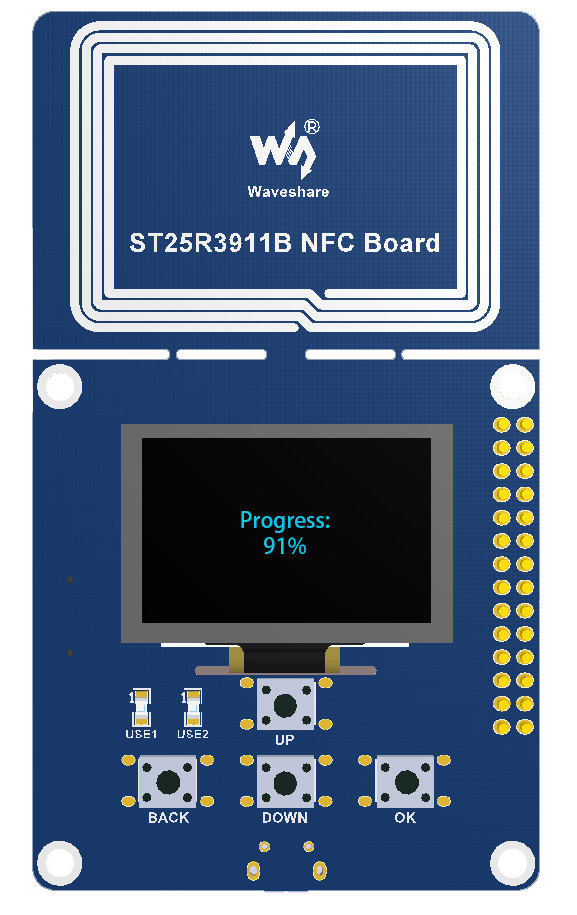
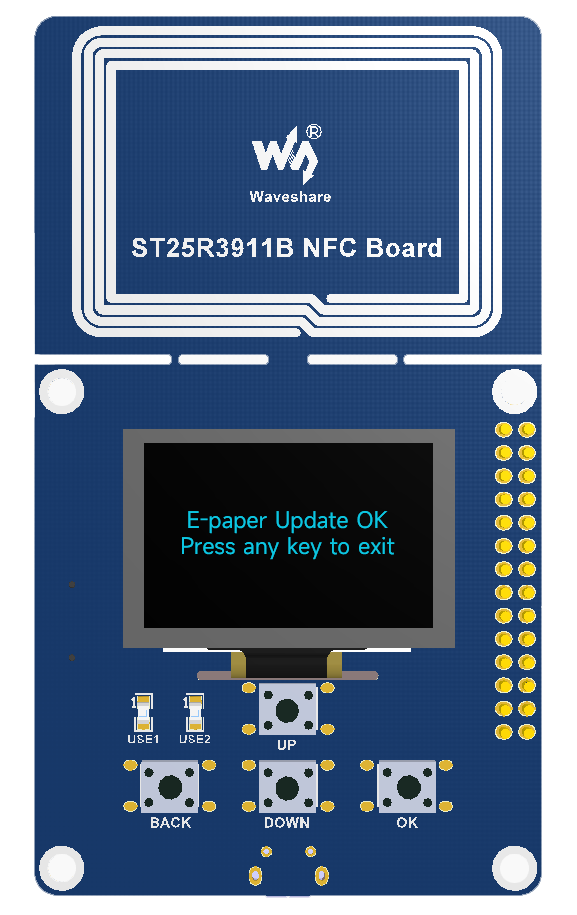
- If the display is updated failed, please put away the NFC read and try it again.
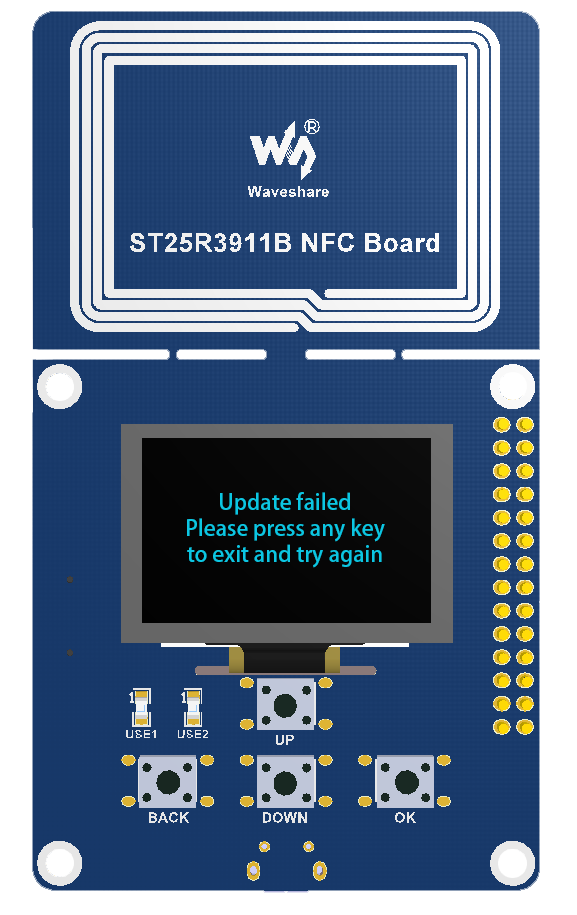
【Note】Because the communicating distance of NFC is short, to make the updating successful, please do not move the device when updating.
Resources
- NFC-Powered e-Paper Manual
- Android APP
- ST25R3911B-NFC-Demo
- Made bmp file for e-Paper
- Android SDK for NFC-Powered e-Paper
FAQ
Question:What is the usage environment of the e-ink screen?
- 【Working conditions】Temperature range: 0~50°C; Humidity range: 35%~65%RH.
- 【Storage conditions】Temperature range: below 30°C; Humidity range: below 55%RH; Maximum storage time: 6 months.
- 【Transportation conditions】Temperature range: -25~70°C; Maximum transportation time: 10 days.
- 【After unpacking】Temperature range: 20°C±5°C; Humidity range: 50±5%RH; Maximum storage time: Assemble within 72 hours.
Question:Why cannot the picture be displayed normally?
- Please check if you have set the display to 24bit bmp or the monochrome format.
- Please check if the resolution of the picture is the same as the display. Note that there are several special cases.
- The 2.13inch should be 122 x 250.
- The 2.9inch should be 128 x 296.
Question:Is there any way to set a password to protect the display or use some other form of authentication?
The display does have a password function.
You can check the symbol on the top-right of the APP. The default password is 1234.
You need to remember the password if you change it.
Technical Support
Monday-Friday (9:30-6:30) Saturday (9:30-5:30)
Email: services01@spotpear.com