




- sales/support
Google Chat:---
- sales
+86-0755-88291180
- sales01
sales@spotpear.com
- sales02
dragon_manager@163.com
- support
tech-support@spotpear.com
- CEO-Complaints
zhoujie@spotpear.com
- Only Tech-Support
WhatsApp:13246739196
- Purchase/Shipping/Refund
WhatsApp:13424403025
- HOME
- >
- ARTICLES
- >
- Common Moudle
- >
- Camera
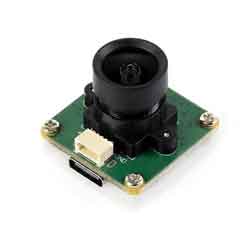
OV2735 2MP USB Camera (A) User Guide
Specifications
- Pixels: 2MP
- Sensor chip: OV2735
- DSP: Auto gain/exposure/white balance
- Camera:
- CCD size: 1/2.7inch
- Aperture (F): 2.7
- Focal length (EFL): 2.88mm
- Field of View (FOV): 96° (D)
- Distortion: < -0.2%
- Focus mode: Fixed focus
- Interface type: USB2.0/SH1.0 4P
- Image:
- Supported image formats: MJPG, YUY2
- Static image resolution: 1920 × 1080
- Video recording (MJPG):
- 30 FPS 1920 × 1080
- 30 FPS 1280 × 720
- Operating voltage: 5V ± 5%
- Operating temperature: 0°C ~ 50°C
- Dimensions: 25.00 × 25.00 × 22.1 (mm)
- Supported systems: Windows, Linux, macOS
Working with Windows PC
Test Software
Currently, a camera app is generally pre-installed on most Windows 10 systems. You can simply open this built-in Windows camera app to perform testing.
If you are using Windows 7 or cannot find the camera app in the system, you can download and install the AMCAP test software provided by us from Resources->Software.
Test Steps
- Window camera software
- Search for "Camera" to open the software
- Click the gear icon in the upper left corner to open the settings interface, where you can set the resolution for taking pictures or videos

- Click the video or capture icon on the right to switch between recording and shooting
- AMCap software
- Download and install AMCap software
- You can click on the Option option and select Video Capture Pin... or Still Capture Pin... to set the parameters of the image and video

Working with Raspberry Pi
Preview with Plugins
- Open the Raspberry Pi terminal, enter the command to install the luvcview software
- sudo apt-get install luvcview -y
- After installation, enter the command on the terminal to open the software for USB camera testing
- sudo luvcview -s 1920x1080

Preview with Scripts
- Install opencv
sudo apt-get install python3-opencv
- Download the demo and test
wget https://files.waveshare.com/wiki/common/Usb_camera_examples.zip
unzip Usb_camera_examples.zip
cd Usb_camera_examples
sudo python3 Usb_camera_examples.py
Working with Jetson Nano Developer Kit
Preview with Commands
- Open the Jetson Nano Developer Kit terminal (open with Ctrl+Alt+T or mouse click)
- Input the following command to preview:
- nvgstcapture-1.0 --camsrc=0
- After inputting, a preview window will open

Preview with Scripts
- Install opencv
sudo apt-get install python3-opencv
- Download the demo and test
wget https://files.waveshare.com/wiki/common/Usb_camera_examples.zip
unzip Usb_camera_examples.zip
cd Usb_camera_examples
sudo python3 Usb_camera_examples.py
Note: In practical application, you may need to call with a program, and you can refer to Opencv and other related image processing library materials by yourself
Resources
Documents
Software
FAQ
Question: If the hand touches the back of the PCB, will the camera display abnormalities?
Answer:
- Avoid touching the components on the PCB backside to prevent affecting electrical performance
Question: Does the module get hot during use?
Answer:
- During use, the module heats up significantly and may feel hot, which is normal.
Question: Why can't I control parameters like brightness, contrast, etc.?
Answer:
- If you are using Mac and Opencv, some parameter settings cannot be used, it is recommended to use Linux and V4L2 drivers.
Support
Monday-Friday (9:30-6:30) Saturday (9:30-5:30)
Email: services01@spotpear.com
TAG:
1.3inch LCD RP2040-PiZero Game ST7789 Raspberry Pi Pico LCD Display Screen
Raspberry Pi Pico HDMI
Serial UART Bus Servo CF35-12 TTL 35KG.CM Magnetic-Encoder High precision and Large torque
800×480
ESP32 S3 AI 0.85inch mini tiny Development Board 0.85 inch DeepSeek RGB LED
Raspberry Pi 3.7 inch e-Paper link (G) RYBW 416x240 For Arduino / Jetson Nano / STM32
1.54inch OLED Display
ESP32 S3 AI 4.3inch (C) Industrial Development Board 4.3 inch TouchScreen Display Sensor CAN I2C RS485 DeepSeek
Modbus RTU Relay 32CH
Raspberry Pi Secondary Screen
Raspberry Pi Pico 2 RP2350-Tiny/Tiny-Kit Super Mini Board RP2350A
ISX031C GMSL Camera H100 Image Sensor IP67 protection rating For Jetson Orin And MAX9296 GMSL camera
Jetson Nano 3G module
Raspberry Pi Zero Pi0 2W Digital Photo Frame 7.3 inch E6 Full Color E Paper Ink Calendar Art Poster
Raspberry Pi Pico 2 RP2350 CAN Onboard XL2515 CAN Controller RP2350A
ESP32-S3 AI 3.97-inch e-Paper Ink Screen 3.97inch Display AIoT Development Board Deepseek
RDK X5 PoE Module For Power Over Ethernet/ IEEE 802.3af/at PoE For D-Robotics RDK X5
Raspberry Pi LCD 3D Display
Arducam
ESP32-C5 1.69inch LCD For Xiaozhi AI Development Board Display 240×280 1.69 inch TouchScreen
[Tutorial Navigation]
- Specifications
- Working with Windows PC
- Working with Raspberry Pi
- Working with Jetson Nano Developer Kit
- Resources
- FAQ
- Question: If the hand touches the back of the PCB, will the camera display abnormalities?
- Question: Does the module get hot during use?
- Question: Why can't I control parameters like brightness, contrast, etc.?
- Support