




- sales/support
Google Chat:---
- sales
+86-0755-88291180
- sales01
sales@spotpear.com
- sales02
dragon_manager@163.com
- support
tech-support@spotpear.com
- CEO-Complaints
zhoujie@spotpear.com
- Only Tech-Support
WhatsApp:13246739196
- Purchase/Shipping/Refund
WhatsApp:13424403025
13.3inch-DSI-LCD User Guide
Features
- 13.3inch DSI touch screen, supports ten-point capacitive touch control
- IPS display panel with hardware resolution of 1920×1080
- Equipped with 6H hardness tempered glass touch cover
- Compatible with Raspberry Pi 5/4B/CM4/3B+/3A+/3B/CM3+/CM3
- Directly drive the LCD through the Raspberry Pi's DSI interface
- When used with Raspberry Pi, it is compatible with Bookworm system
- Supports software to adjust the brightness of the backlight
Hardware connection
Working with Raspberry Pi 5
1. Use the 22PIN DSI FFC cable to connect the DSI port of the display to the 22PIN DSI1 port of the Raspberry Pi motherboard.
2. Use the 3PIN cable to connect the POWER interface of the display to the 5V, 5V and GND pins of the Raspberry Pi motherboard. (Red for 5V, black for GND)
3. Use M2.5 screws to secure the Raspberry Pi to the back panel of the display.
The installation effect is as follows: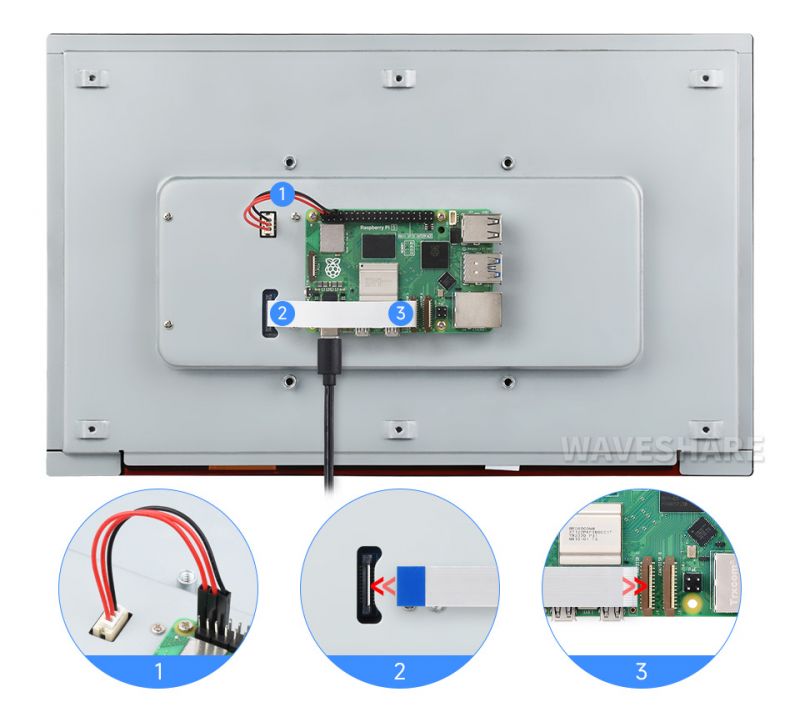
Note: Make sure that the FFC cable is connected in correct direction and 5V power is supplied through the cable.
Working with Raspberry Pi4B/3B+/3B/3A+
1. Use the MIPI-DSI-Cable-12cm cable to connect the DSI port of the display to the DSI port of the Raspberry Pi motherboard.
2. Use the 3PIN cable to connect the POWER interface of the display to the 5V, 5V and GND pins of the Raspberry Pi motherboard. (Red for 5V, black for GND)
3. Use M2.5 screws to secure the Raspberry Pi to the back panel of the display.
The installation effect is as follows: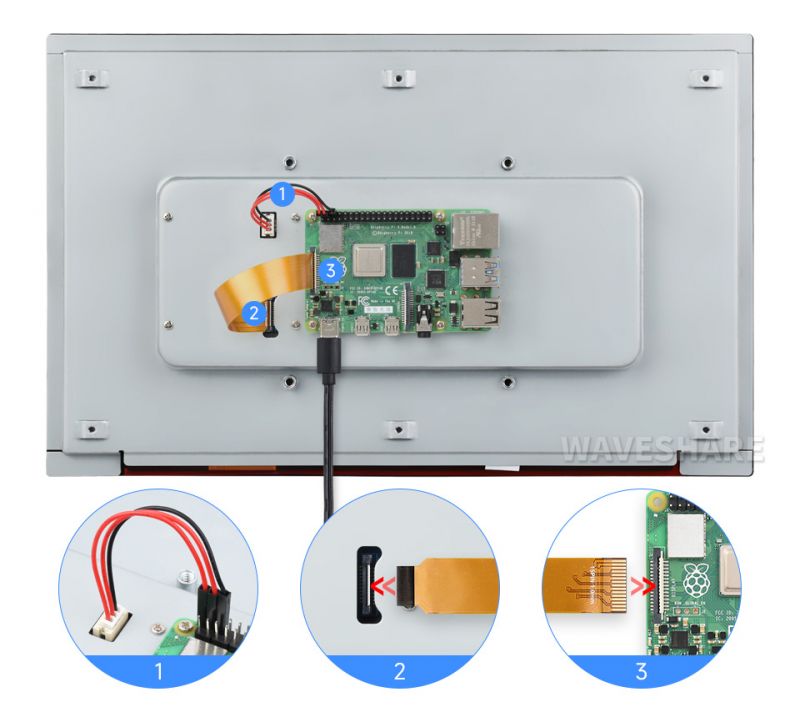
Note: Make sure that the FPC cable is connected in correct direction and 5V power is supplied through the cable.
Working with CM5/CM4/CM3
1. Use the 22PIN FFC cable to connect the DSI port of the display to the 22PIN DSI1 port of the Raspberry Pi motherboard.
2. Use the 3PIN cable to connect the POWER interface of the display to the 5V, 5V and GND pins of the Raspberry Pi motherboard. (Red for 5V, black for GND)
The installation effect is as follows: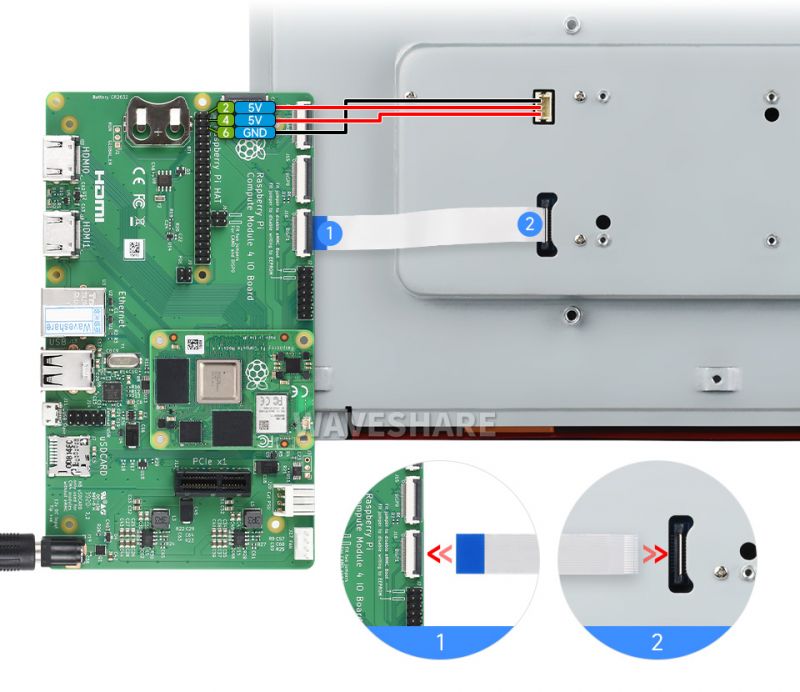
Note: Make sure that the FFC cable is connected in correct direction and 5V power is supplied through the cable.
Software settings
For Bookworm system
Method 1: Burn the pre-installed image (recommended)
1. Select your corresponding Raspberry Pi version image, download and unzip it as .img file.
Raspberry Pi 5 Version Download: Waveshare DSI LCD - Pi5 pre-installed image
Raspberry Pi 4B/CM4/3B+/CM3 Version Download: 13.3inch DSI LCD - Pi4 pre-installed image
2. After the image flashing is completed, connect the TF card to the Raspberry Pi, start the Raspberry Pi, and wait for about 30 seconds for it to be displayed and touched normally.
Template:800*480 DSI LCD software backlight adjustment
Method 2: Install the driver manually
- 1. Connect the TF card to the PC, download and use Raspberry Pi Imager to burn the corresponding system image.
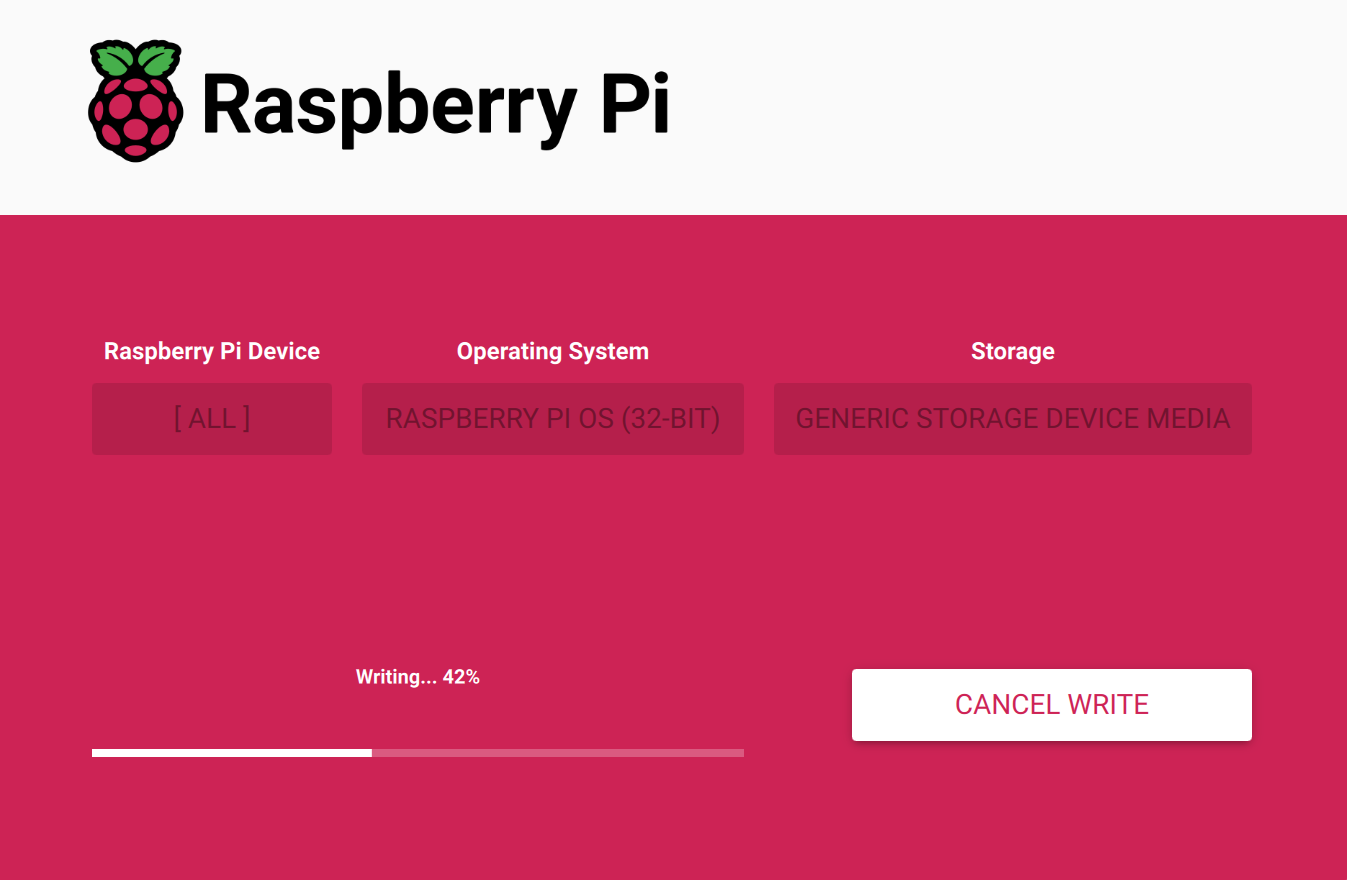
- 2. After the image burning is completed, connect the TF card to the Raspberry Pi, start the Raspberry Pi, and log in to the terminal of the Raspberry Pi (you can connect the Raspberry Pi to the HDMI display or use ssh to log in remotely).
#Step 1: Download and enter the Waveshare-DSI-LCD driver folder
git clone https://github.com/waveshare/Waveshare-DSI-LCD
cd Waveshare-DSI-LCD

#Step 2: Enter uname -a on the terminal to view the kernel version, and cd it to the corresponding file directory
#6.6.51 then run the following command
cd 6.6.51

#Step 3: Please determine the bits of the current system you are using. For a 64-bit system, proceed to the 64 directory, and for a 32-bit system, proceed to the 32 directory
cd 64
#cd 32

#Step 4: Please determine what model of Raspberry Pi motherboard you are currently using
#Pi5 uses the following command:
sudo bash ./WS_xinchDSI_MAIN.sh 133_Pi5 I2C0
#CM5 60Hz uses the following command:
sudo bash ./WS_xinchDSI_MAIN.sh 133_60fps I2C0
#CM5 33Hz uses the following command:
sudo bash ./WS_xinchDSI_MAIN.sh 133_30fps I2C0
#Pi4 and Pi3 use the following command:
sudo bash ./WS_xinchDSI_MAIN.sh 133_Pi4 I2C0

#Step 5: Wait for a few seconds, when the driver installation is complete and no error is displayed, restart and load the DSI driver to use it normally
sudo reboot
#Note: The steps above require that the Raspberry Pi can connect to the internet normally
- 3. Wait for the system to reboot, it will be able to display and touch normally.
Setting Backlight Brightness
sudo nano /boot/firmware/config.txt
#Modify the backlight brightness command of the display driver at the end of the config.txt file, and it will take effect after restarting (the default setting is 50% brightness)
#Set brightness to 100%:
dtoverlay=WS_xinchDSI_Screen,SCREEN_type=13,I2C_bus=10,Backlight=255

#Set brightness to 50%:
#dtoverlay=WS_xinchDSI_Screen,SCREEN_type=13,I2C_bus=10,Backlight=128

#Set brightness to 0%:
#dtoverlay=WS_xinchDSI_Screen,SCREEN_type=13,I2C_bus=10,Backlight=0
Note: If you are using Pi4/P3, the actual recognized SCREEN_type will prevail, for example, SCREEN_type=17.

#Save, exit, and reboot
sudo reboot
Bookworm Touch Screen Rotation
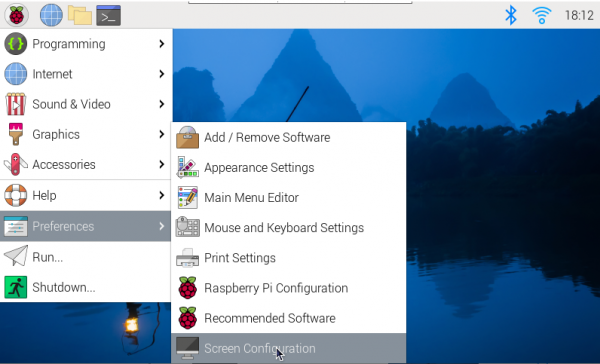
- 1. Open the Screen Configuration application;
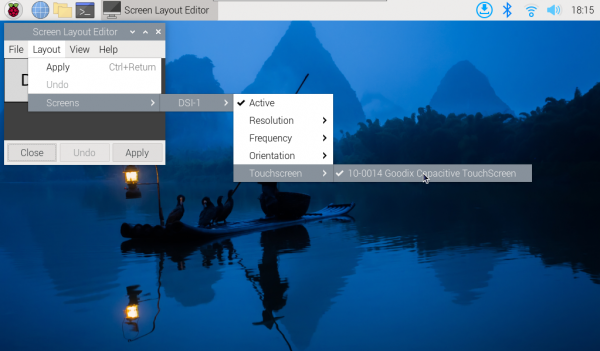
- 2. Go to Screen - > DSI-1 - > Touchscreen and check 10-0014 Goodix Capacitive TouchScreen;
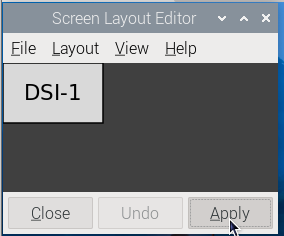
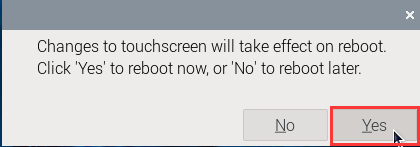
- 3.Click Apply, then close the current window, and reboot according to the pop-up prompts to complete the specified touch screen;
- 4.Go to Screen > DSI-1 - - > Orientation, check the direction you need to rotate, and finally click Apply to complete the display and touch synchronous rotation.
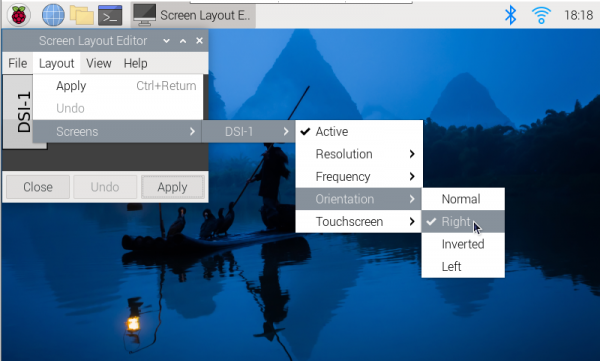
Note: Only the Bookworm system supports the above synchronization rotation method. For the Bullseye and Butser systems, manual separate settings for touch rotation are required after displaying the rotation.
lite version display rotation
sudo nano /boot/firmware/cmdline.txt
#Add a command to display the rotation angle at the beginning of the cmdline.txt file, and save it to take effect after restarting
#Display rotation 90 degrees
video=DSI-1:1920x1080M@60,rotate=90
#Display rotation 180 degrees
video=DSI-1:1920x1080M@60,rotate=180
#Display rotation 270 degrees
video=DSI-1:1920x1080M@60,rotate=270
Note: If you are using Pi5/CM4, the actual recognized DSI display number will prevail, for example DSi-2.
Touch Rotation
sudo nano /etc/udev/rules.d/99-waveshare-touch.rules

#Set the command of touch rotation angle within the file, and it will take effect after the restart
#90°:
ENV{ID_INPUT_TOUCHSCREEN}=="1", ENV{LIBINPUT_CALIBRATION_MATRIX}="0 -1 1 1 0 0"

#180°:
#ENV{ID_INPUT_TOUCHSCREEN}=="1", ENV{LIBINPUT_CALIBRATION_MATRIX}="-1 0 1 0 -1 1"

#270°:
#ENV{ID_INPUT_TOUCHSCREEN}=="1", ENV{LIBINPUT_CALIBRATION_MATRIX}="0 1 0 -1 0 1"

#Save, exit, and reboot
sudo reboot
Resources
FAQ
Question: How to replace Raspberry Pi boot logo image?
Answer:Replace the image in the directory (/usr/share/plymouth/themes/pix/splash.png) with your customized image
Replace the image in the directory (/usr/share/plymouth/themes/pix/splash.png) with your customized image
Question:Why does the image keep shaking and flickering with gray lines when used with Raspberry Pi 5?
Answer:Please try to enter the following command in the terminal: sudo rpi-update pulls/6499
and delete the original driver in the config.txt file, and add the following overlay statement instead: dtoverlay=vc4-kms-dsi-waveshare-panel,13_3_inch_2lane
sudo rpi-update pulls/6499and delete the original driver in the config.txt file, and add the following overlay statement instead:
dtoverlay=vc4-kms-dsi-waveshare-panel,13_3_inch_2lane
Support
Monday-Friday (9:30-6:30) Saturday (9:30-5:30)
Email: services01@spotpear.com
[Tutorial Navigation]
- Features
- Hardware connection
- Software settings
- For Bookworm system
- Setting Backlight Brightness
- Bookworm Touch Screen Rotation
- lite version display rotation
- Touch Rotation
- Resources
- FAQ
- Question: How to replace Raspberry Pi boot logo image?
- Answer:Replace the image in the directory (/usr/share/plymouth/themes/pix/splash.png) with your customized image
- Answer:Please try to enter the following command in the terminal: sudo rpi-update pulls/6499 and delete the original driver in the config.txt file, and add the following overlay statement instead: dtoverlay=vc4-kms-dsi-waveshare-panel,13_3_inch_2lane
- Support
 with your customized image)