- sales/support
Google Chat:---
- sales
+86-0755-88291180
- sales01
sales@spotpear.com
- sales02
dragon_manager@163.com
- support
tech-support@spotpear.com
- CEO-Complaints
zhoujie@spotpear.com
- Only Tech-Support
WhatsApp:13246739196
- Purchase/Shipping/Refund
WhatsApp:13424403025
Raspberry Pi Pico-2CH-RS232 User Guide
Overview
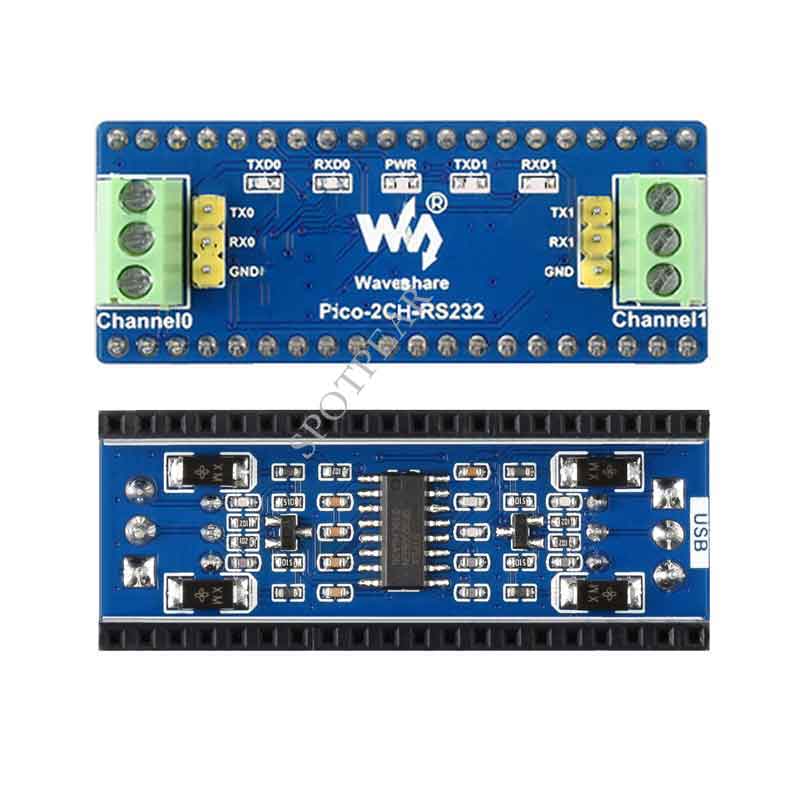
2-Channel RS232 Module For Raspberry Pi Pico, SP3232EEN Transceiver, UART To RS232.
Features
- Standard Raspberry Pi Pico header supports Raspberry Pi Pico series.
- Using UART bus, easily converting UART to RS232 or vice versa.
Specifications
- Operating voltage: 3.3V~5V
- RS232 Transceiver: SP3232EEN
- Communication bus: UART
- Baud rate: 300 ~ 912600bps
- Dimension: 21.00(H)x 52.00(V) mm
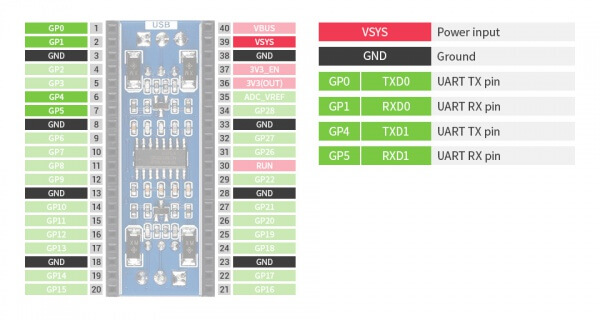
Pinout
How to Use Pico
Download Firmware
- MicroPython Firmware Download

- C_Blink Firmware Download

Hardware connection
When connecting PICO, please pay attention not to connect in the opposite direction. The direction can be judged by observing the USB screen printing end of the module and the USB interface of the Pico (also can be judged by the pin label of the platoon master on the module and the pin label of the Pico).
You can also wire it according to the table below:
| RS485 | Pico | Description |
| VCC | VSYS | Power input |
| GND | GND | Ground |
| TX_CH0 | GP0 | UART transmit pin |
| RX_CH0 | GP1 | UART receive pin |
| TX_CH1 | GP4 | UART transmit pin |
| RX_CH1 | GP5 | UART receive pin |
Connection
The connection of the RS485 board is the same as the Pico-2CH-RS232.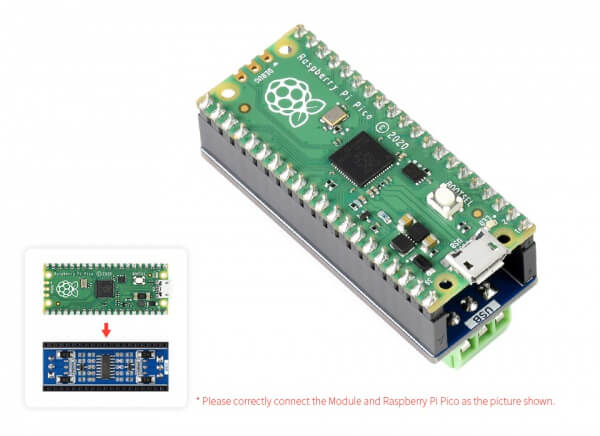
Setup environment
To setup the Pico for working, please refer to the official guide: https://www.raspberrypi.org/documentation/pico/getting-started/
Download example
Open a terminal and run the follow command
sudo apt-get install p7zip-full
cd ~
sudo wget  https://www.waveshare.com/w/upload/6/6a/Pico_2CH_RS232_Code.7z
7z x Pico_2CH_RS232_Code.7z -o.
cd ~/Pico_2CH_RS232_Code
cd C/build/
Run the examples
C codes
- The following tutorials are operated on the Raspberry Pi, but as CMake has multi-platforms and is portable, it can be successfully compiled on the PC, but the operation is slightly different, and you need to judge by yourself.
To compile, make sure you are in the c directory:
cd ~/Pico_2CH_RS232/C/
Create the build folder and add the SDK path to it:
By default, the ../../pico-sdk is the path of SDK.
We have created the build folder in examples, you can just enter it.
Note: If the actual path of your Pi is different, you need to write the correct path.
cd build
export PICO_SDK_PATH=../../pico-sdk
Run the cmake to generate Makefile file.
cmake ..
Run the make command to build the codes and generate an executable file.
make -j9
After building, an uf2 file is generated. Press and hold the key on the Pico board to connect the Pico to the Raspberry Pi's USB port via the Micro USB cable, then release the key. Once connected, Raspberry will automatically recognize a removable disk (RPI-RP2). Copy the file main.uf2 in the corresponding folder to the recognized removable disk (RPI-RP2).
cp main.uf2 /media/pi/RPI-RP2/
Python codes
Use in Windows
- 1. Press and hold the BOOTSET button on the Pico board, connect the pico to the USB port of the computer through the Micro USB cable, and release the button after the computer recognizes a removable hard disk (RPI-RP2).
- 2. Copy the rp2-pico-20210418-v1.15.uf2 file in the python directory to the recognized removable disk (RPI-RP2).
- 3. Open Thonny IDE (Note: Use the latest version of Thonny, otherwise there is no Pico support package, the latest version under Windows is v3.3.3).
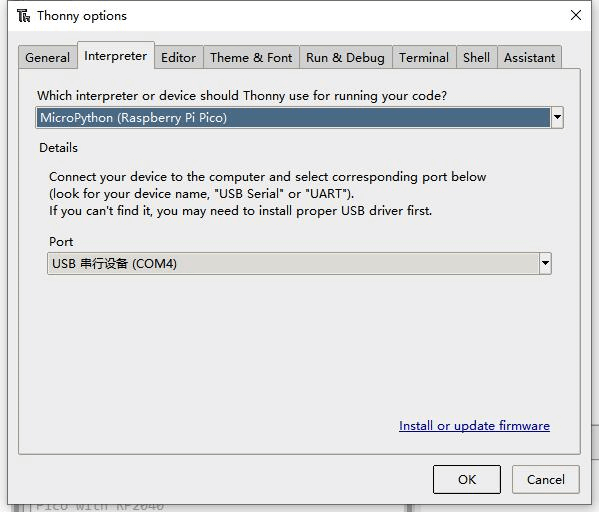
- 4. Click Tools->Settings->Interpreter, select Pico and the corresponding port as shown in the figure.
- 5. File -> Open -> the corresponding .py file, click to run, as shown in the following figure:
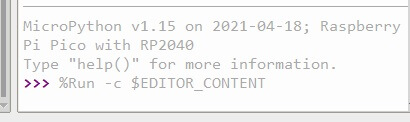
This demo provides a simple program...
Run in Raspberry Pi
- Hold the BOOTSET key of Pico board, then connect the Pico to Raspberry Pi by USB cable, then release the key.
- Once the removable disk (RPI-RPI2) is recognized, copy the rp2-pico-20210418-v1.15.uf2 file to pico.
- Open the Thonny IDE in Raspberry Pi, update it if it doesn't support Pico
- Configure the port by choosing MicroPython(Raspberry Pi and ttyACM0 port) in Tools -> Options... -> Interpreter
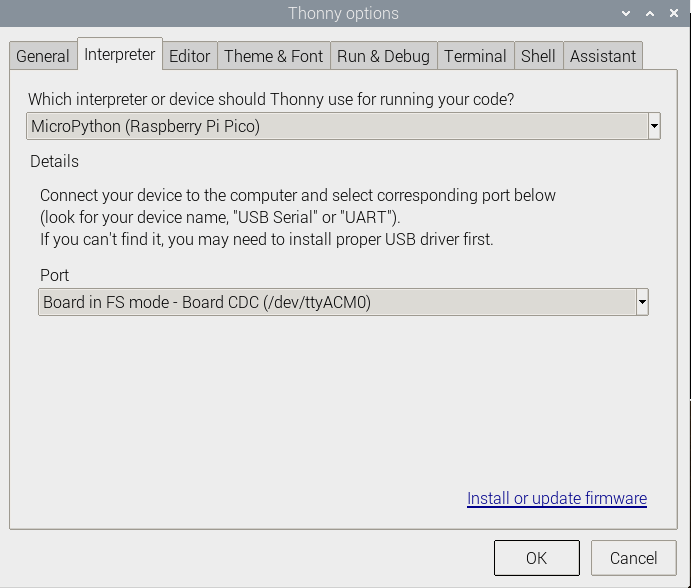
If your Thonny doesn't support Pico, you can update it with the following command:
sudo apt upgrade thonny
- Choose File->Open...->python/ and select the corresponding .py file to run the codes