- sales/support
Google Chat:---
- sales
+86-0755-88291180
- sales01
sales@spotpear.com
- sales02
dragon_manager@163.com
- support
tech-support@spotpear.com
- CEO-Complaints
zhoujie@spotpear.com
- Only Tech-Support
WhatsApp:13246739196
- Purchase/Shipping/Refund
WhatsApp:13424403025
13.3inch FHD AMOLED User Guide
Overview
Features
• 13.3inch AMOLED touch screen with 1920x1080 hardware resolution
• 10-point capacitive touch with tempered glass panel, hardness up to 6H
• Adopts optically bonded touch process for better display effect
• When used with Raspberry Pi, it supports Raspberry Pi OS/Ubuntu/Kali and Retropie
• When used as a computer monitor, it supports Windows 11/10/8.1/8/7
• Supports multi-language OSD menu (can be used for power control, brightness/contrast adjustment, etc.)
• Built-in high-fidelity speaker, with 3.5mm audio, supports HDMI audio output
• All-metal CNC alloy shell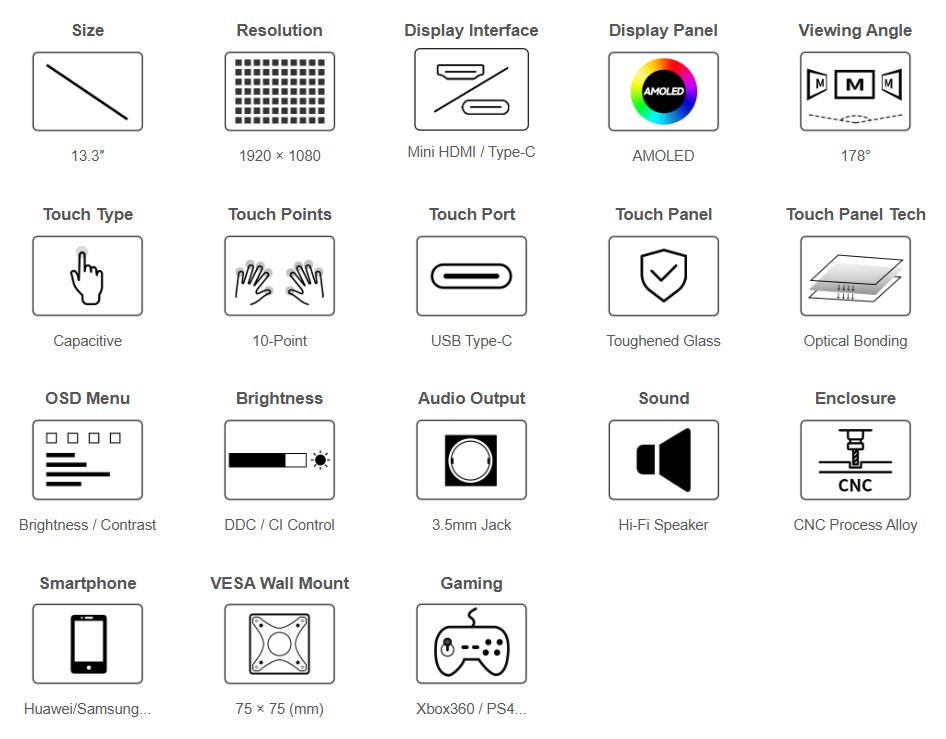
Specifications
| Item | Description | Unit |
|---|---|---|
| Mode | 13.3inch FHD AMOLED | / |
| Size | 13.3 | Inch |
| Viewing angle | 178 | Deg |
| Resolution | 1920x1080 | Pixels |
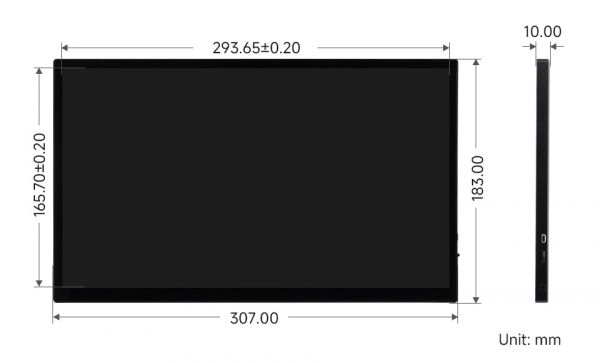
| Overall size | 307.00(H)×183.00(V)×10.00(D) | mm |
| Display area | 293.65(H)×165.70(V) | mm |
| Pixel pitch | 0.153(H) x 0.153(V) | mm |
| Color gamut | 99% | NTSC |
| Maximum brightness | 300 | cd/m² |
| Contrast | 100000:1 | / |
| Backlight adjustment | OSD / DDCCI | / |
| Refresh rate | 60 | Hz |
| Display interface | mini HDMI / Type-C | / |
| Power Interface | 5V power supply | / |
| Weight | 676 | g |
Electrical Specifications
| Parameters | Minimum Value | Standard Value | Maximum Value | Unit | Note |
| Input voltage | 4.75 | 5.0 | 5.25 | V | Note 1 |
| Input current | 1000 | 1000 | TBD | mA | Note 2 |
| Operating temperature | 0 | 25 | 60 | ℃ | Note 4 |
| Storage temperature | -10 | 25 | 70 | ℃ | Note 4 |
•Note 1: Input voltages exceeding the maximum or improper operation may cause permanent damage to the device.
•Note 2: The input current needs to be ≥ 1000mA, otherwise it will cause the startup failure or display abnormality, and staying in an abnormal state for a long time may cause permanent damage to the device.
•Note 3: Please do not store the display panel in a high-temperature and high-humidity environment for a long time. The display panel should operate within its limits, otherwise it may be damaged.
EDID Timing Parameters
If the system of the main control board can automatically recognize the EDID for display, there is no need to set the relevant timing parameters additionally.
Otherwise, you can refer to the following EDID settings:
| Pixel Clock | H Adressable | H Blanking | V Adressable | V Blanking | H Front Porch | H Sync Width | V Front Porch | V Sync Width | H Image Size | V Image Size | H Border | V Border |
|---|---|---|---|---|---|---|---|---|---|---|---|---|
| 148.50 | 1920 | 280 | 1080 | 45 | 88 | 44 | 2 | 5 | 344 | 195 | 0 | 0 |
Interfaces
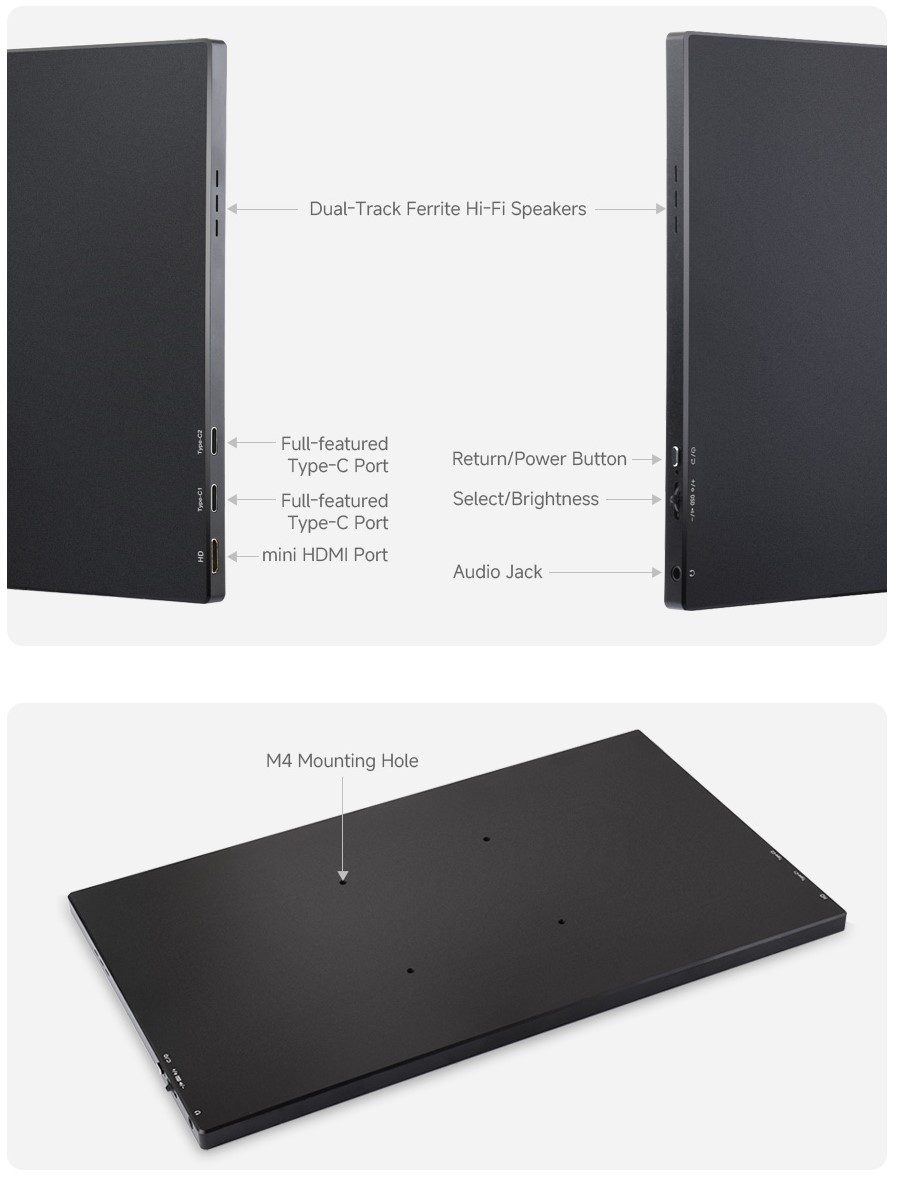
Usage Guide
Working with PC HDMI interface
Supporting Windows 11/10/8.1/8/7 system. How to use:
1. Power the monitor via the POWER port using a 5V 3A power supply
2. Connect the Touch interface of the LCD to the USB interface of the PC, and Windows will automatically recognize the touch function.
3. Connect the HDMI interface of the LCD to the HDMI interface of the PC, and Windows will automatically recognize the display function.
- Note:
- Some PCs do not support HDMI devices plug and play, and they can be recognized normally after restarting the system.
Windows Specified Touch Screen
Take Windows 10 as an example:
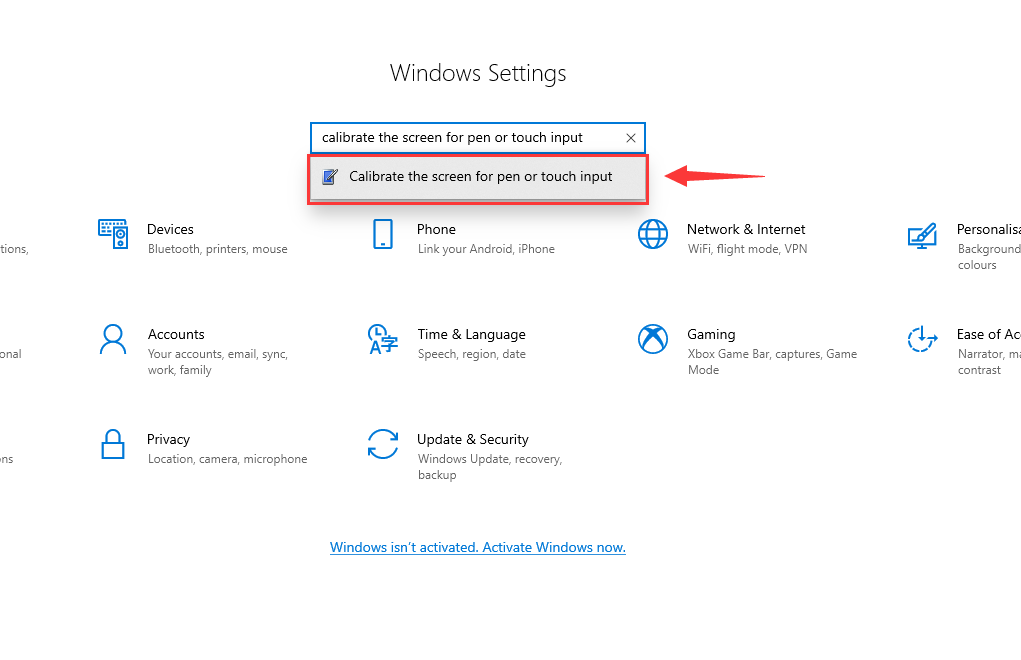
- 1.Go to Windows settings of the system, enter in the search bar and click on Calibrate the screen for pen and touch input (as shown in the figure below)
- 2. In the pop-up Tablet PC Settings interface, click Settings
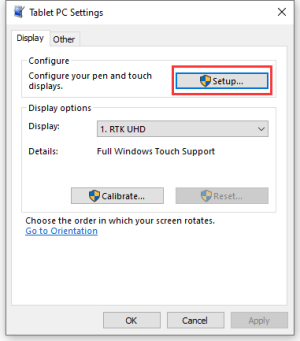
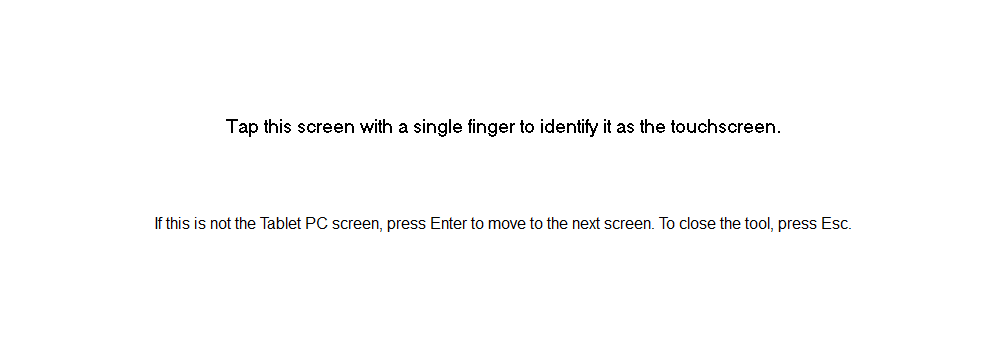
- 3. The text prompt shown below will appear on the screen. Please click on the touchpad with your finger and the computer will recognize it as a touch screen.
Working with Raspberry Pi
Hardware Connection
1. Power the monitor via the POWER port using a 5V 3A power supply
2. Use a USB Type-C cable to connect the Touch port to the Raspberry Pi USB port
3. Use an HDMI cable to connect the HDMI port to the Raspberry Pi HDMI port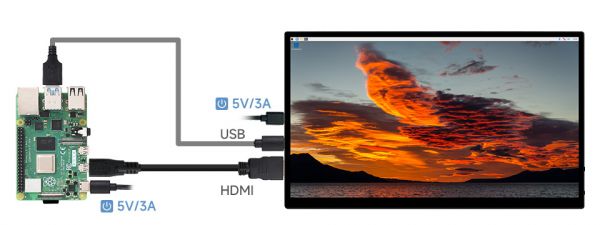
Software Settings
Supports Raspberry Pi OS/Ubuntu/Kali and Retropie systems for Raspberry Pi.
When the LCD works on these systems, the resolution must be set manually, otherwise the display resolution will be incorrect, which will affect the experience.
1. Download the latest version of the image from the Raspberry Pi website
2. Download the compressed file to your PC, and extract it as .img file
3. Connect the TF card to the PC, format the TF card with SDFormatter software
4. Open the Win32DiskImager software, select the system image prepared in step 1, and click Write to flash the system image
5. After the flashing is completed, open the cmdline.txt file in the root directory of the TF card, add the following code at the beginning of the cmdline.txt, separated by spaces, and note that you should not press Enter or return.
usbhid.mousepoll=06. Open the config.txt file in the root directory of the TF card, add the following code at the end of the config.txt, save and safely eject the TF card
hdmi_group=2
hdmi_mode=82
hdmi_cvt 1920 1080 60 6 0 0 0
7. Insert the TF card into the Raspberry Pi, power on the Raspberry Pi, wait for a few seconds to display and touch normally
Full-featured Type-C One-line Communication
Working with Laptop Thunderbolt Port:
As shown in the figure below, using the matching dual male Type-C cables to connect DISPLAY & TOUCH to the As shown in the figure below, using the matching dual male Type-C cables, connecting DISPLAY & TOUCH to the laptop's USB-C Thunderbolt port, and after the system starts up, wait normally for a few seconds to display and touch normally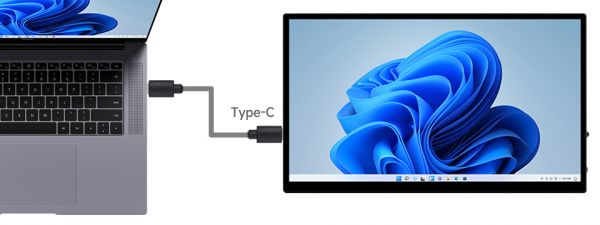
Working with Smartphone Full-featured Type-C Port for Wired Screen Projection:
* Note: Before using this feature, please confirm that your phone has a full-function Type-C port and supports wired screen mirroring.
As shown in the figure below, connect the DISPLAY&TOUCH to the phone's Type-C port using the matching double male Type-C cable, and wait normally for a few seconds to display and touch normally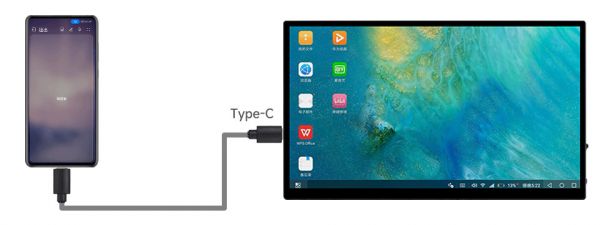
Dimensions
Support
Monday-Friday (9:30-6:30) Saturday (9:30-5:30)
Email: services01@spotpear.com