




- sales/support
Google Chat:---
- sales
+86-0755-88291180
- sales01
sales@spotpear.com
- sales02
dragon_manager@163.com
- support
tech-support@spotpear.com
- CEO-Complaints
zhoujie@spotpear.com
- Only Tech-Support
WhatsApp:13246739196
- Purchase/Shipping/Refund
WhatsApp:13424403025
- HOME
- >
- ARTICLES
- >
- Common Moudle
- >
- ESP
ESP32-S3-Touch-AMOLED-1.75C User Guide
ESP32-S3-Touch-AMOLED-1.75C

The ESP32-S3-Touch-AMOLED-1.75C is a high-performance, highly integrated microcontroller development board designed by Waveshare. It features a compact and aesthetically pleasing CNC-machined aluminum alloy case in an electronic "badge" style, offering excellent build quality. The board integrates a 1.75inch high-definition capacitive AMOLED touchscreen, a highly integrated power management chip, a six-axis sensor (accelerometer + gyroscope), RTC, a low-power audio codec chip with echo cancellation circuitry, a built-in speaker, and space for a battery, providing robust support for rapid development and product prototyping.
| SKU | Product |
|---|---|
| 31261 | ESP32-S3-Touch-AMOLED-1.75C (Standard version) |
| 31264 | ESP32-S3-Touch-AMOLED-1.75C (GPS version) |
| 31262 | ESP32-S3-Touch-AMOLED-1.75C (Standard version with protective case) |
Features
- Equipped with ESP32-S3R8 high-performance Xtensa 32-bit LX7 dual-core processor, with a clock frequency up to 240MHz
- Supports 2.4GHz Wi-Fi (802.11 b/g/n) and Bluetooth 5 (LE), with onboard antenna
- Built-in 512KB SRAM and 384KB ROM, with stacked 8MB PSRAM and external 16MB Flash
- Utilizes a Type-C interface, improving user convenience and device compatibility
- Onboard 1.75inch capacitive touch HD AMOLED screen, 466 × 466 resolution, 16.7 million colors, capable of clearly displaying color images
- Uses an AMOLED screen, offering higher contrast, wider viewing angles, richer colors, and faster response times for superior visual effects, along with advantages like thin design, low power consumption, and flexibility
- Built-in CO5300 driver chip and CST9217 capacitive touch controller chip, communicating via QSPI and I2C interfaces respectively, minimizing the use of I/O pin resources
- Equipped with a dual-microphone array for audio algorithms such as noise reduction and echo cancellation, suitable for accurate speech recognition and near-field/far-field wake-up applications
- Onboard QMI8658 6-axis IMU (3-axis accelerometer and 3-axis gyroscope) for detecting motion posture, step counting, and other functions
- Onboard two side buttons, PWR and BOOT, with customizable functions for convenient custom button operation development
- Onboard 3.7V MX1.25 lithium battery recharge/discharge header
- Adopts AXP2101 IC for efficient power management, supporting multiple voltage outputs, integrating charging and battery management functions, while optimizing battery lifespan
Onboard Resources

ESP32-S3R8 Wi-Fi and Bluetooth SoC, 240MHz operating frequency, with stacked 8MB PSRAM
32MB NOR Flash
QMI8658 Six-axis Inertial Measurement Unit (IMU), containing a 3-axis gyroscope and a 3-axis accelerometer
Dual-microphone Design Combined with echo cancellation circuitry for higher quality audio capture
Onboard Antenna Supporting 2.4GHz Wi-Fi (802.11 b/g/n) and Bluetooth 5 (LE)
Screen Interface
ES7210 Echo Cancellation Algorithm Chip Used to eliminate echoes and improve audio capture accuracy
ES8311 Audio Codec Chip
PWR Power Button Controls power on/off and supports custom functions
BOOT Button Used for device startup and functional debugging
AXP2101 Highly integrated power management IC
Type-C Interface ESP32-S3 USB interface for program flashing and log printing
MX1.25 Lithium Battery Interface MX1.25 2PIN connector for connecting a 3.7V lithium battery, supports charging and discharging
Onboard Speaker Pads
Dimensions

Development Methods
The ESP32-S3-Touch-AMOLED-1.75C supports two development frameworks: Arduino IDE and ESP-IDF, providing developers with flexible choices. You can select the appropriate development tool based on project requirements and personal preference.
Each method has its advantages, and developers can select based on their needs and skill level. Arduino is simple to learn and easy to get started with, suitable for beginners and non-professionals; ESP-IDF provides more advanced development tools and stronger control capabilities, suitable for developers with professional backgrounds or those with higher performance requirements, and is more suitable for complex project development.
Arduino IDE is a convenient, flexible, and easy-to-use open-source electronics prototyping platform. It requires minimal foundational knowledge, allowing for rapid development after a short learning period. Arduino has a vast global community that provides a wealth of open-source code, project examples, tutorials, and rich libraries that encapsulate complex functionalities, enabling developers to implement various features quickly. You can refer to the Working with Arduino to complete the initial setup, and the tutorial also provides related demos for reference.
ESP-IDF (Espressif IoT Development Framework) is a professional development framework released by Espressif for its ESP series chips. It is developed based on the C language, including a compiler, debugger, and flashing tool, etc. It supports development via command line or an Integrated Development Environment (such as Visual Studio Code with the Espressif IDF plugin), which provides features like code navigation, project management, and debugging, etc. We recommend using VS Code for development. For the specific configuration process, please refer to the Working with ESP-IDF. The tutorial also provides relevant demos for reference.
Working with Arduino
Note: This tutorial uses the ESP32-S3-Zero as a reference example, and all hardware code is based on its pinout. Before you start, we recommend checking the pinout of your development board to ensure the pin configuration is correct.
Setting Up Development Environment
1. Installing and Configuring Arduino IDE
Please refer to the tutorial Installing and Configuring Arduino IDE Tutorial to download and install the Arduino IDE and add ESP32 support.
2. Installing Libraries
- When installing Arduino libraries, there are typically two methods: Online Installation and Offline Installation. If the library installation requires offline installation, you must use the provided library file.
- For most libraries, users can easily search and install them through the online Library Manager in the Arduino software. However, some open-source libraries or custom libraries are not synchronized to the Arduino Library Manager, so they cannot be acquired through online searches. In this case, users can only manually install these libraries offline. You can click this link to download the demo package for the ESP32-S3-Touch-AMOLED-1.75C board from the
Arduinodirectory. TheArduino\librariesdirectory within the package already includes all the library files required for this tutorial.
Library/File Name Description Version Installation Method GFX Library for Arduino ST7789 display driver graphics library v1.6.4 Install via library manager or manually SensorLib PCF85063, QMI8658 sensor driver library v0.3.3 Install via library manager or manually XPowersLib AXP2101 driver library v0.2.6 Install via library manager or manually lvgl LVGL display framework v8.4.0 Install via library manager or manually Mylibrary Board pin macro definition —— Install manually lv_conf.h LVGL configuration file —— Install manually VERSION COMPATIBILITY DESCRIPTIONThere are strong dependencies between versions of LVGL and its driver libraries. For example, a driver written for LVGL v8 may not be compatible with LVGL v9. To ensure stable reproduction of the examples, it is recommended to use the specific versions listed in the table above. Mixing different library versions may cause compilation failures or runtime exceptions.
Installation Steps:
Download the demo package.
Copy all folders (Arduino_DriveBus, GFX_Library_for_Arduino, etc.) in the
Arduino\librariesdirectory to the Arduino library folder.INFOThe path to the Arduino libraries folder is typically:
c:\Users\<Username>\Documents\Arduino\libraries.You can also locate it within the Arduino IDE via File > Preferences, by checking the "Sketchbook location". The library folder is the
librariesfolder under this path.For other installation methods, please refer to: Arduino Library Management Tutorial.
Demo
The Arduino demos are located in the
Arduino/examplesdirectory of the demo package.Demo Basic Program Description Dependency Library 01_HelloWorld Demonstrates the basic graphics library function and can also be used to test the basic performance of display screens and the display effect of random text GFX_Library_for_Arduino 02_GFX_AsciiTable Prints ASCII characters in rows and columns on the screen according to the screen size GFX_Library_for_Arduino 03_LVGL_AXP2101_ADC_Data Drives the AXP2101 using the ported XPowersLib to get power-related data GFX_Library_for_Arduino 04_LVGL_QMI8658_ui LVGL draws an acceleration line chart LVGL, SensorLib 05_LVGL_Widgets LVGL demonstration LVGL, Arduino_DriveBus, Adafruit_XCA9554 06_ES7210 ES7210 driver demo, picking up human voice for detection —— 07_ES8311 ES8311 driver example, plays simple audio —— 01_HelloWorld
Demo Description
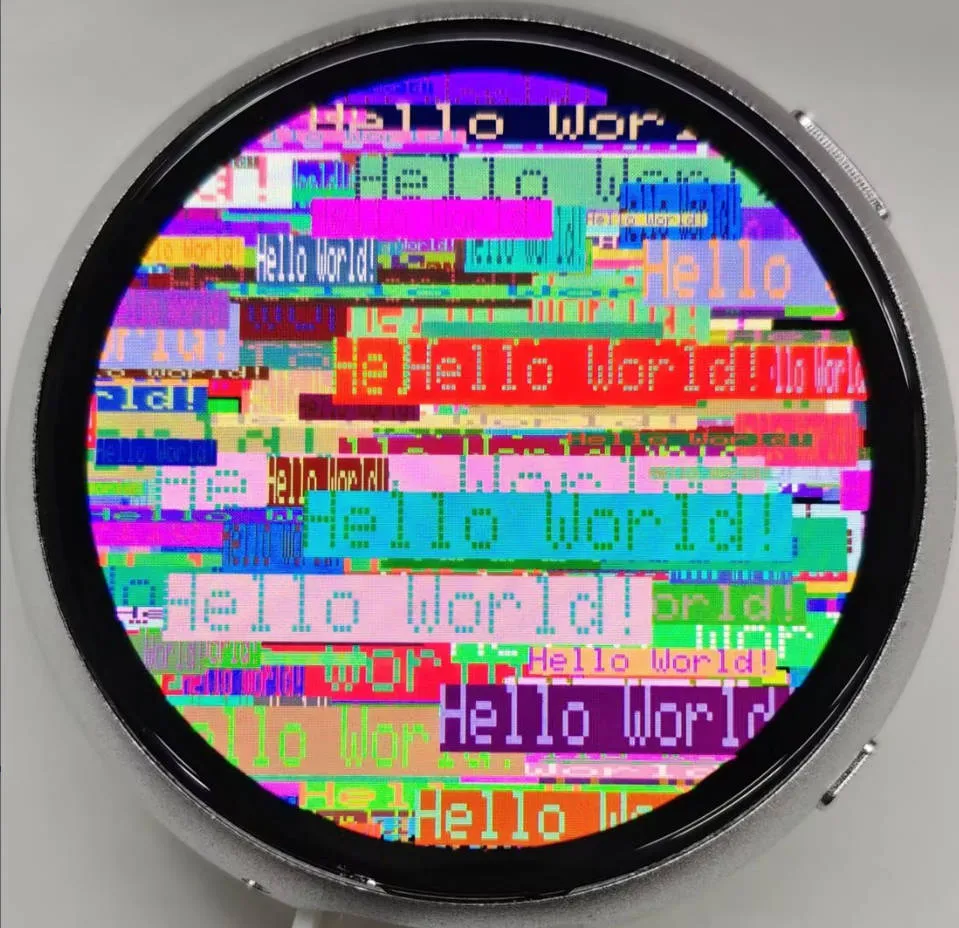
- This demo demonstrates how to control the SH8601 display using the Arduino GFX library, demonstrating basic graphics library functions through dynamically changing text. This code can also be used to test the basic performance of the display and the random text display effects
Hardware Connection
- Connect the development board to the computer
Code Analysis
Display initialization:
if (!gfx->begin()) {
   USBSerial.println("gfx->begin() failed!");
}
Clear the screen and display text:
 gfx->fillScreen(BLACK);
 gfx->setCursor(10, 10);
 gfx->setTextColor(RED);
 gfx->println("Hello World!");
Animated display:
 gfx->setCursor(random(gfx->width()), random(gfx->height()));
 gfx->setTextColor(random(0xffff), random(0xffff));
 gfx->setTextSize(random(6), random(6), random(2));
 gfx->println("Hello World!");
Expected Result
02_GFX_AsciiTable
Demo Description
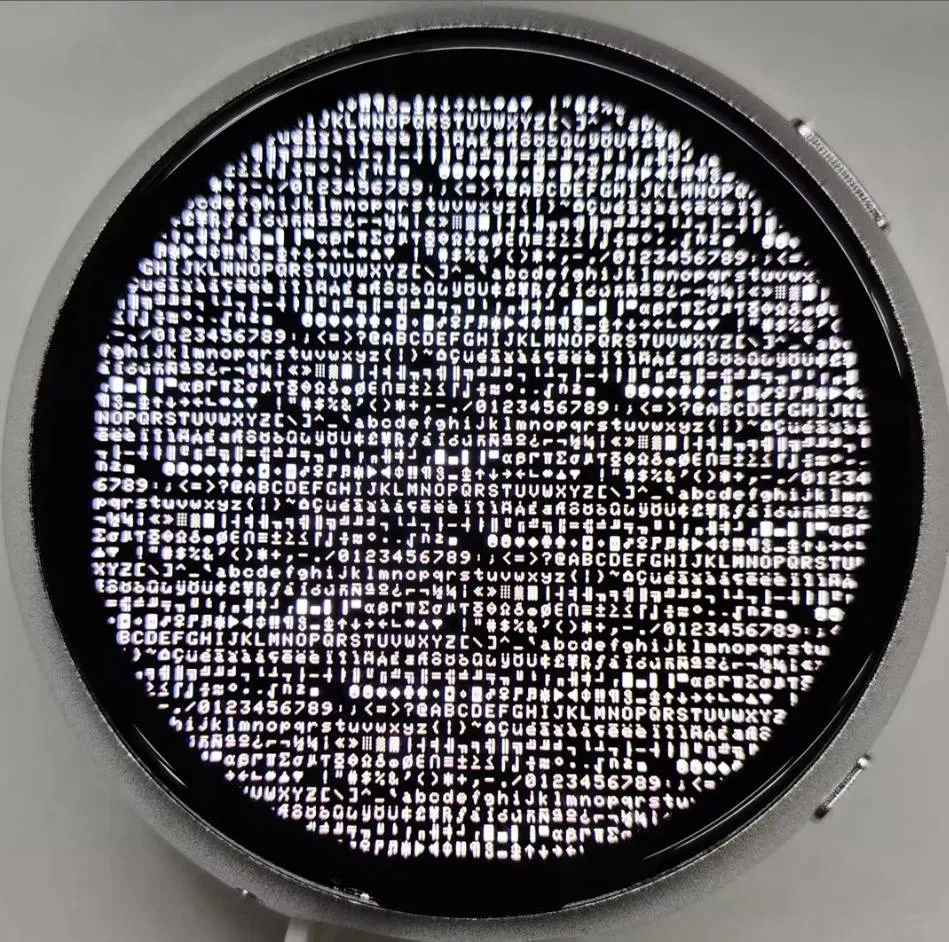
- This demo shows how to display a basic ASCII character table on the SH8601 display by using the Arduino GFX library on an ESP32. The core function of the code is to initialize the display and print ASCII characters in rows and columns according to the screen size
Hardware Connection
- Connect the development board to the computer
Code Analysis
Create data bus and graphic display objects
- Here a data bus object
busis created for communicating with the display, initialized with specific pin configurations. Then a graphics display objectgfxis created, passing parameters such as the data bus, reset pin, rotation angle, whether it is an IPS panel, and the width and height of the display
 Arduino_DataBus *bus = new Arduino_ESP32QSPI(
    LCD_CS /* CS */, LCD_SCLK /* SCK */, LCD_SDIO0 /* SDIO0 */, LCD_SDIO1 /* SDIO1 */,
    LCD_SDIO2 /* SDIO2 */, LCD_SDIO3 /* SDIO3 */);

 Arduino_GFX *gfx = new Arduino_SH8601(bus, -1 /* RST */,
0 /* rotation */, false /* IPS */, LCD_WIDTH, LCD_HEIGHT);- Here a data bus object
Draw row and column numbers and character table
- First set the text color to green and print the row numbers one by one on the display. Then set the text color to blue and print the column numbers. Next, use a loop to draw each character individually, forming the character table, with each character using white foreground and black background
 gfx->setTextColor(GREEN);
 for (int x = 0; x < numRows; x++) {
    gfx->setCursor(10 + x * 8, 2);
    gfx->print(x, 16);
 }
 gfx->setTextColor(BLUE);
 for (int y = 0; y < numCols; y++) {
    gfx->setCursor(2, 12 + y * 10);
    gfx->print(y, 16);
 }

 char c = 0;
 for (int y = 0; y < numRows; y++) {
    for (int x = 0; x < numCols; x++) {
       gfx->drawChar(10 + x * 8, 12 + y * 10, c++, WHITE, BLACK);
    }
 }
Expected Result
03_LVGL_AXP2101_ADC_Data
Demo Description
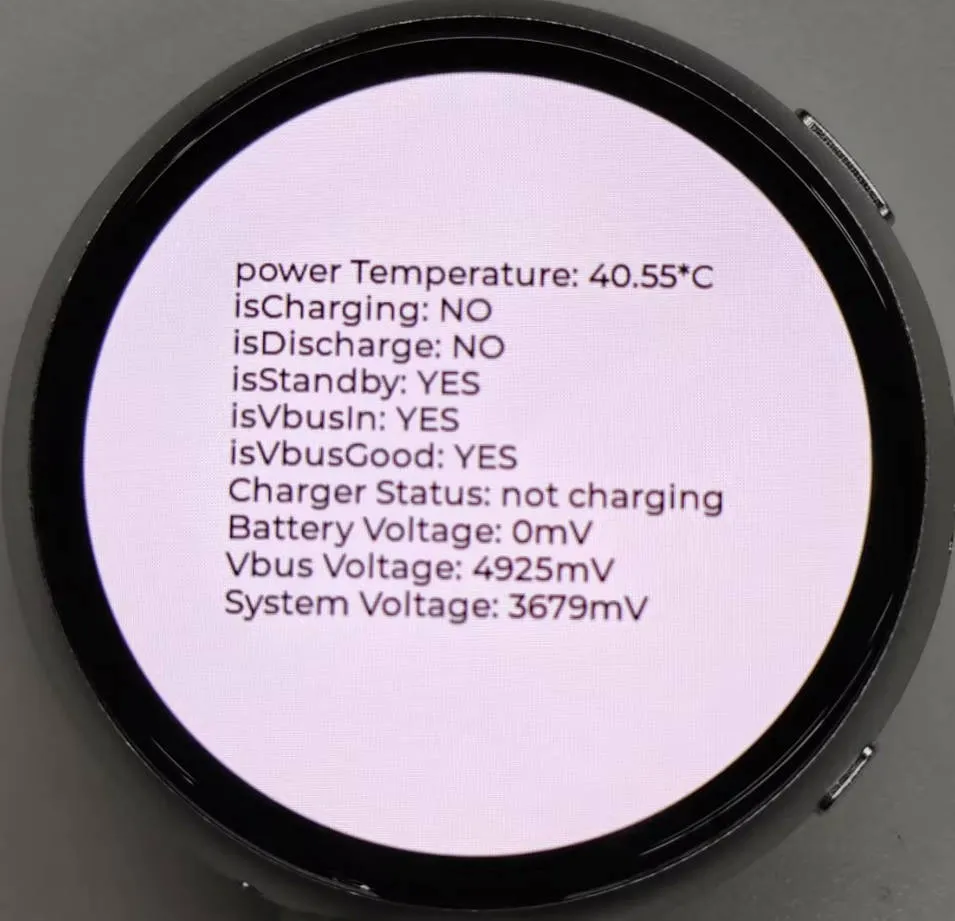
- This demo demonstrates power management using the XPowers library under LVGL, and provides PWR custom button control for screen on and off actions
Hardware Connection
- Connect the development board to the computer
Code Analysis
Screen on/off function
  void toggleBacklight() {
  USBSerial.println(backlight_on);
  if (backlight_on) {
      for (int i = 255; i >= 0; i--) {
      gfx->Display_Brightness(i);
      delay(3);
      }
  }else{
      for(int i = 0;i <= 255;i++){
      gfx->Display_Brightness(i);
      delay(3);
      }
  }
  backlight_on = !backlight_on;
  }
Expected Result
04_LVGL_QMI8658_ui
Demo Description
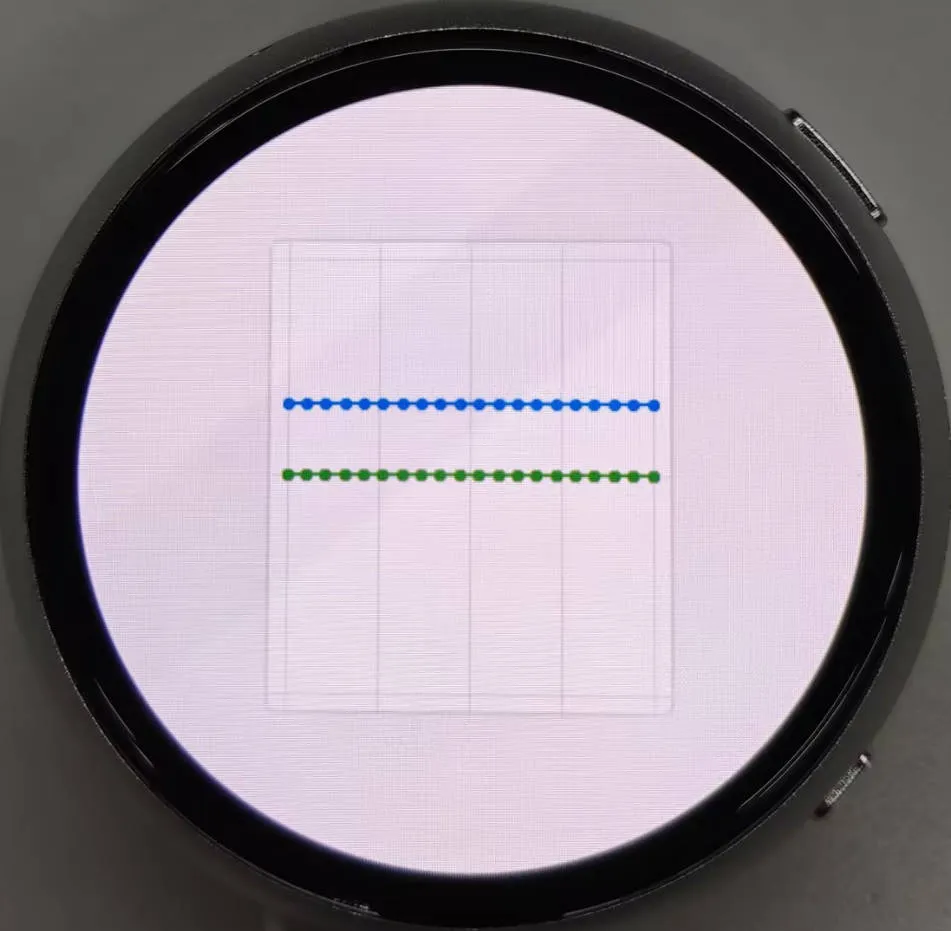
- This demo demonstrates using LVGL for graphical display, communicating with the QMI8658 IMU to obtain accelerometer and gyroscope data
Hardware Connection
- Connect the development board to the computer
Code Analysis
setup: Responsible for initializing various hardware devices and the LVGL graphics library environment- Serial initialization:
USBSerial.begin(115200)prepares for serial debugging - Touch controller initialization: Continuously attempts to initialize the touch controller FT3168. If initialization fails, prints an error message and waits with a delay; prints a success message upon success
- Graphics display initialization: Initializes the graphics display device gfx, sets brightness, and prints LVGL and Arduino version information Then initializes the LVGL, including registering a print callback function for debugging, initializing the display driver and the input device driver. Creates and starts an LVGL timer. Finally creates a label and sets its initial text to "Initializing..."
- Creating a chart: Creates a chart object chart, sets chart properties such as type, range, number of data points, etc., and adds data series for the three axes of acceleration
- Acceleration sensor initialization: Initializes the acceleration sensor qmi, configures accelerometer and gyroscope parameters, enables them, and prints the chip ID and control register information
- Serial initialization:
looplv_timer_handler(): This is an important function in the LVGL graphics library, used to handle various timer events, animation updates, input processing, and other tasks for the graphical interface. Calling this function in each loop ensures the graphical interface runs smoothly and responds to interactions promptly- Reading acceleration sensor data: If acceleration sensor data is ready, reads acceleration data and prints it via the serial port, while updating the chart to display acceleration data. If the gyroscope data is ready, reads the gyroscope data and prints it via the serial port. Finally adds a small delay to increase data polling frequency
Expected Result
05_LVGL_Widgets
Demo Description
- This example demonstrates LVGL Widgets example. The frame rate can reach 50~60 fps in dynamic states. Optimizing the SH8601 display library can achieve smoother frame rates. This can be compared with scenarios where double buffering and dual acceleration are enabled in the ESP-IDF environment
Hardware Connection
- Connect the development board to the computer
Code Analysis
setup: Responsible for initializing various hardware devices and the LVGL graphics library environment- Serial initialization:
USBSerial.begin(115200)prepares for serial debugging - I2C bus Initialization:
Wire.begin(IIC_SDA, IIC_SCL); initializes I2C bus for communicating with other I2C devices - Expansion chip initialization: Creates and initializes the expansion chip expander, sets pin modes to output, and performs some initial pin state settings
- Touch controller initialization: Continuously attempts to initialize the touch controller FT3168. If initialization fails, prints an error message and waits with a delay; prints a success message upon success
- Graphics display initialization: Initializes the graphics display device gfx, sets brightness, and obtains the width and height of the screen. Then initializes LVGL, including registering a print callback function for debugging, setting the touch controller's power mode to monitoring mode, initializing display driver and input device driver. Creates and starts an LVGL timer. Creates a label and sets its text. Finally calls
lv_demo_widgets()to showcase LVGL example widgets
- Serial initialization:
looplv_timer_handler(): This is an important function in the LVGL graphics library, used to handle various timer events, animation updates, input processing, and other tasks for the graphical interface. Calling this function in each loop ensures the graphical interface runs smoothly and responds to interactions promptlydelay(5): Adds a small delay to avoid excessive CPU resource consumption
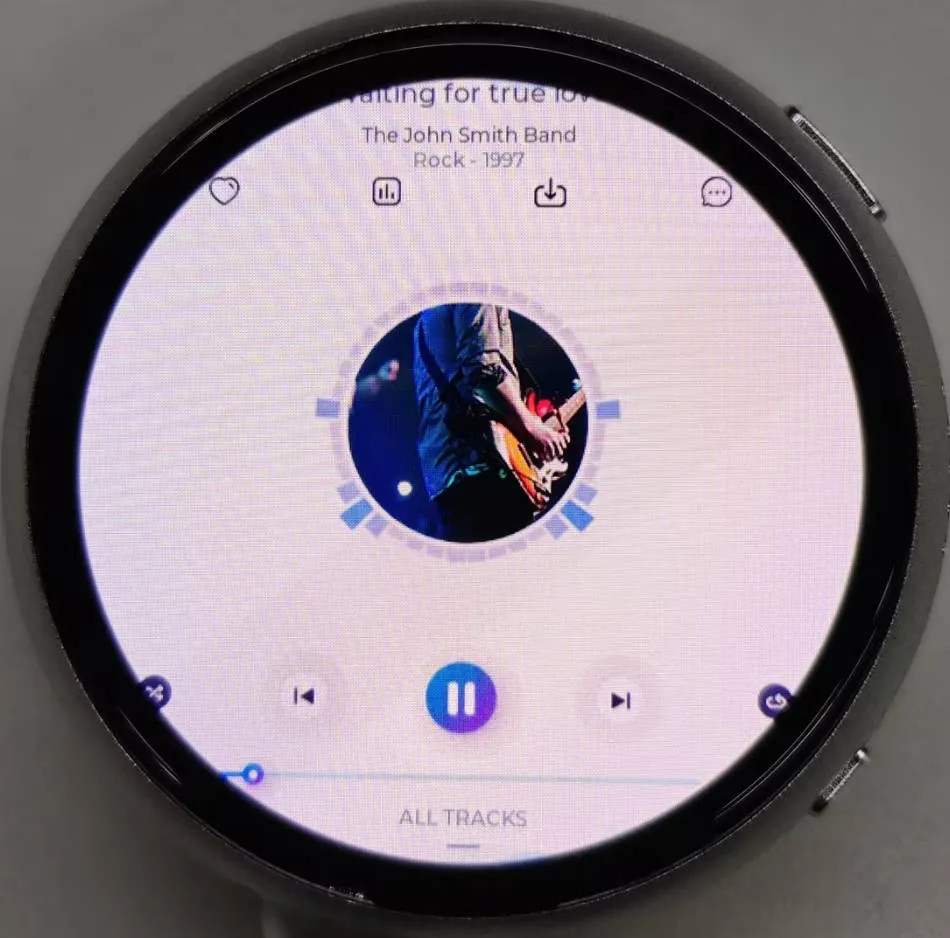
Expected Result
06_ES7210
Demo Description
- This demo demonstrates using I2S to drive the ES7210 chip, pick up sounds, and filter out human voice
Hardware Connection
- Connect the development board to the computer
Expected Result
- The device picks up audio directly without showing content on the screen.
07_ES8311
Demo Description
- This demo demonstrates using I2S to drive the ES8311 chip, playing the converted binary audio file
Hardware Connection
- Connect the development board to the computer
Code Analysis
es8311_codec_init: Initializes the ES8311 audio codec- Creates an ES8311 codec handle es_handle
- Configures ES8311 clock parameters, including master clock and sampling clock frequencies, clock polarity, etc.
- Initializes the codec, sets audio resolution to 16-bit
- Configures sampling frequency
- Configures microphone-related parameters, such as turning off the microphone, setting volume and microphone gain
setup: Performs overall initialization settings, including serial port, pins, I2S, and the ES8311 codec- Initializesserial port for debugging output
- Sets a specific pin as output and pulls it high
- Configures the I2S bus, setting pins, operating mode, sample rate, data bit width, channel mode, etc.
- Initializes the I2C bus
- Calls
es8311_codec_initfunction to initialize the ES8311 codec - Plays a pre-defined audio data (canon_pcm) via the I2S bus
Expected Result
- The device will play auido directly without showing content on the screen
Working with ESP-IDF
This chapter includes the following sections, please read as needed:
Setting Up Development Environment
NOTEThe following environment settings are applicable to Windows 10/11 systems. For Mac/Linux users, please refer to the official instructions
Download and install Visual Studio Code.
In VS Code, open the Extensions view by clicking the
 in the VS Code sidebar or using the shortcut (Ctrl+Shift+X). Then, search for the ESP-IDF extension and install it.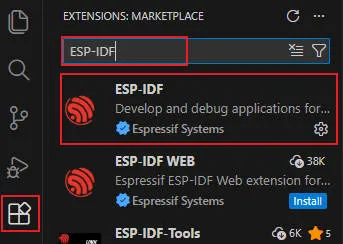
After the extension is installed, the
 will appear in the activity bar on the left side of VS Code. Clicking this icon will view the basic command list for the ESP-IDF extension. Select Configure ESP-IDF extension under Advanced.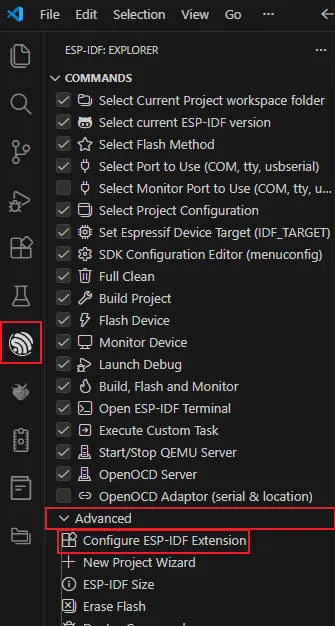
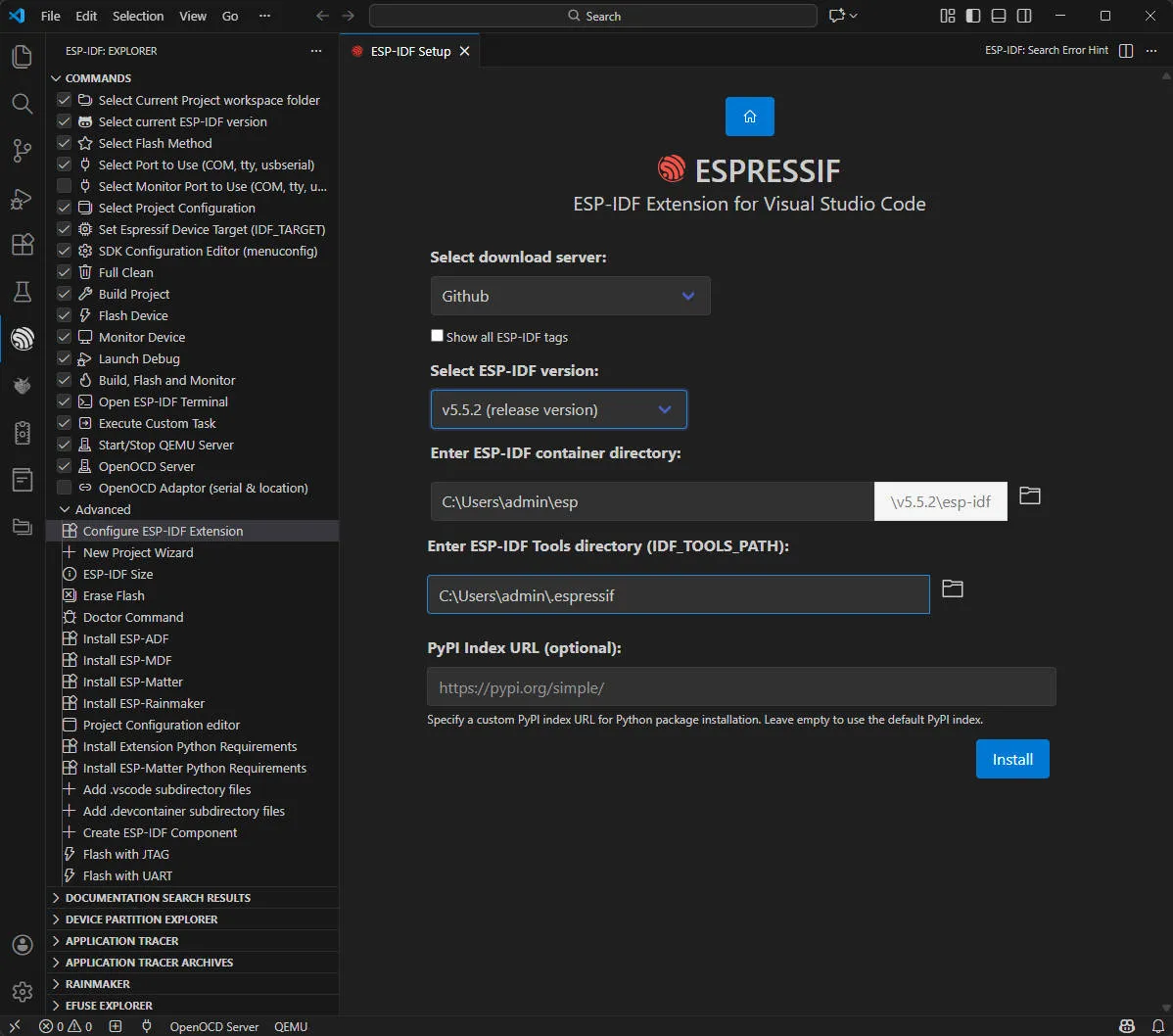
Choose Express to enter quick configuration mode:
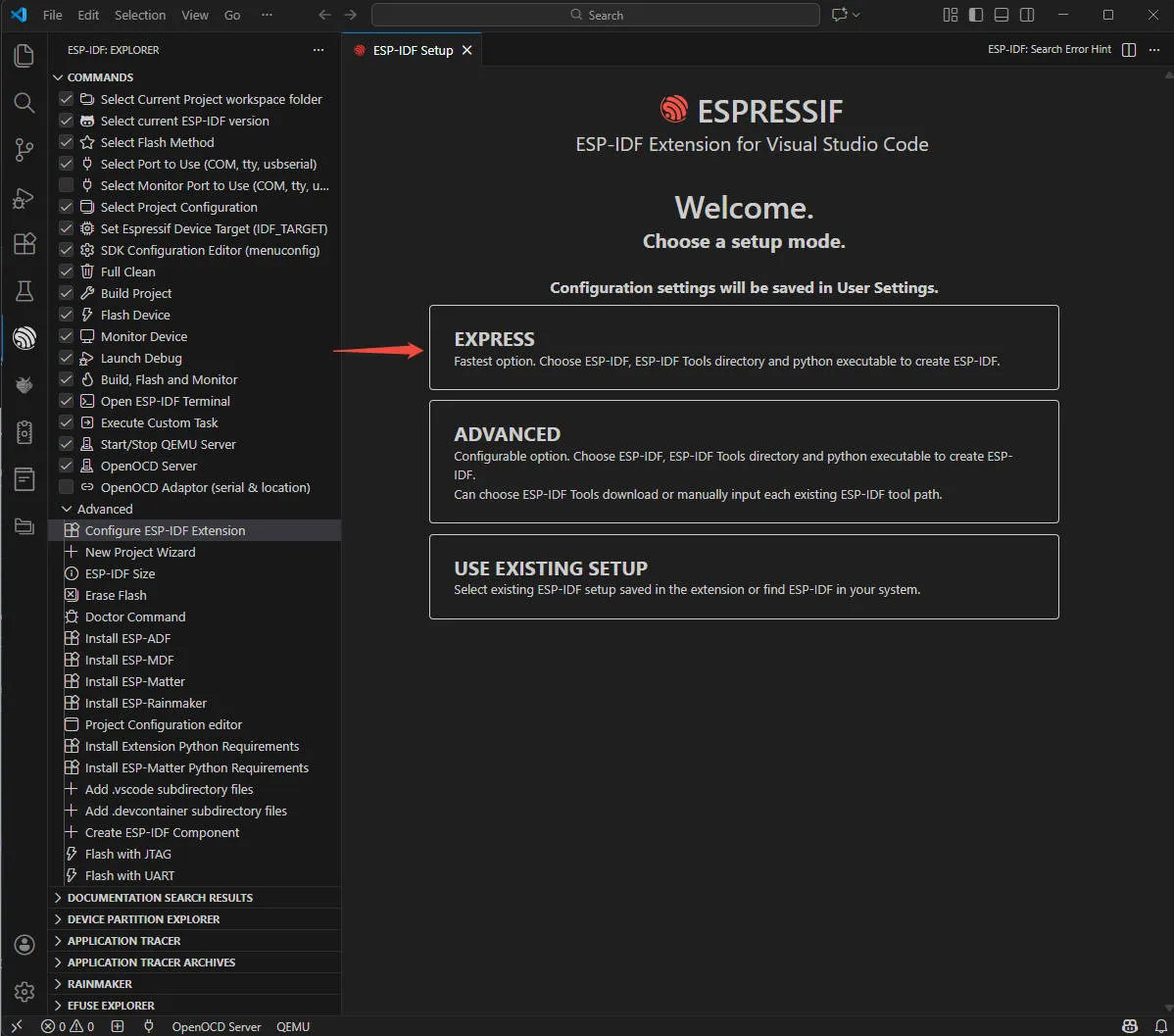
Modify the following options as needed:
- Select download server:
- Espressif: Use a suitable Espressif server for faster download speeds.
- Github: Use the official GitHub release link.
- ESP-IDF Version: Typically, select the version required by the development board. If no specific requirement, it's recommended to use the latest stable version. For ESP32-S3-Touch-AMOLED-1.75C, it is recommended to use the Espressif IDF version ≥ v5.5.0.
- ESP-IDF Container Installation Path: It is recommended to use the default path, or use a path that contains only English characters and no spaces.
- ESP-IDF Required Tools Installation Path: It is recommended to use the default path, or use a path that contains only English characters and no spaces.
- Select download server:
Click Install to start the installation. You will see a page displaying the installation progress, including the progress status of ESP-IDF download, ESP-IDF tool download and installation, as well as the creation of the Python virtual environment.

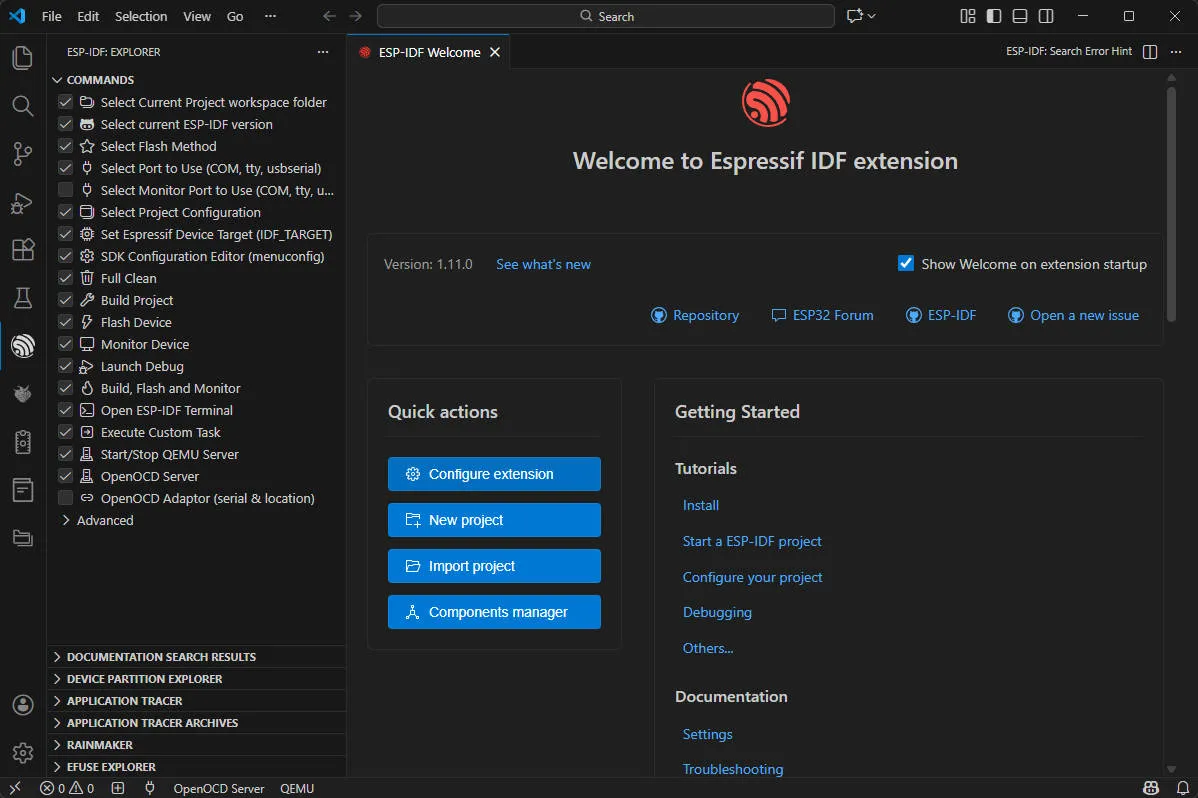
If installed correctly, you will see a prompt indicating that all settings have been configured successfully, and you can start using the extension.
WARNINGNote: If ESP-IDF installation fails or needs to be reinstalled, you can try deleting the
C:\Users\%Username%\espandC:\Users\%Username%\.espressiffolders and then retry.Demo
The ESP-IDF demos are located in the
ESP-IDFdirectory of the demo package.Demo Basic Description 01_AXP2101 Gets power-related data by driving the AXP2101 via the ported XPowersLib 02_lvgl_demo_v9 LVGL Demonstration 03_esp-brookesia Demonstrates a complete phone-style UI system, including status bar, navigation bar, app launcher, and gesture interaction components 04_Immersive_block Uses the QMI8658 six-axis sensor to collect acceleration data, driving randomly generated geometric shapes rendered by the LVGL graphics library to move in sync with device tilt 05_Spec_Analyzer Showcases a real-time audio spectrum visualization analyzer, presenting audio frequency distribution intuitively via 64 colored symmetrical spectrum bars with peak tracking 01_AXP2101
Demo Description
- This demo demonstrates porting XPowersLib in ESP-IDF, and driving AXP2101 to obtain power-related data through the ported XPowersLib
Hardware Connection
- Connect the development board to the computer
Code Analysis
i2c_init: Initializes the I2C master device, preparing it for communication with other devices (e.g., the PMU)- Configures I2C parameters, including setting the master device mode, specifying the SDA and SCL pins, enabling the pull-up resistor, and determining the clock frequency
- Installs the I2C driver to apply the configuration to the actual hardware
pmu_register_read: Reads a series of byte data from a specific register of the PMU- Performs parameter checks to ensure the incoming parameters are valid and avoid invalid read operations
- Performs I2C operations in two steps, first sends the register address to read, then reads the data During the reading process, different processing is carried out according to the length of bytes to be read to ensure accurate reading of the data. At the same time, handles error cases in the I2C communication process and returns the corresponding status code so that the upper-layer code can determine if the read operation is successful
Operation Result
- This demo will not light up the screen
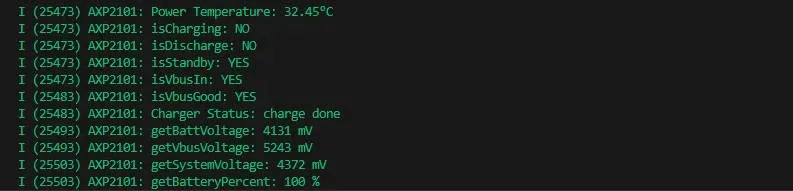
- The serial port monitor displays the parameters: chip temperature, charging state, discharging state, standby state, Vbus connection, Vbus condition, charger status, battery voltage, Vbus voltage, system voltage, battery percentage
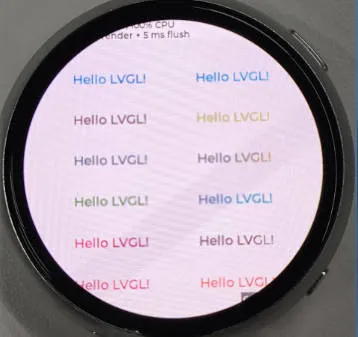
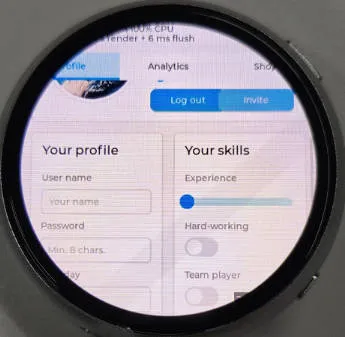
02_lvgl_demo_v9
Demo Description
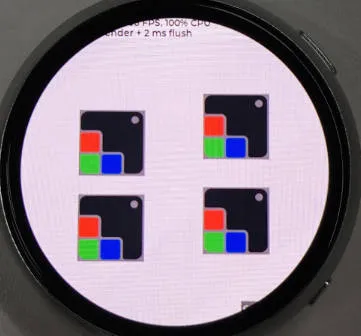
- This demo runs the LVGL V9 demo program
Hardware Connection
- Connect the development board to the computer
Operation Result
03_esp-brookesia
Demo Description
- This example demonstrates a complete phone-style UI system, including components such as a status bar, navigation bar, app launcher, and gesture interaction
Hardware Connection
- Connect the development board to the computer
Operation Result


04_Immersive_block
Demo Description
- This example uses the QMI8658 six-axis sensor to collect acceleration data, driving randomly generated geometric shapes rendered by the LVGL graphics library to move in sync with device tilt
Hardware Connection
- Connect the development board to the computer
Code Analysis
generate_random_shapes(): Generates graphics randomly- Initializes the random seed (based on system time) and resets the shape count
- Loops to attempt generating shapes, up to 100 attempts to find a valid position (not overlapping with existing shapes)
- Valid position criteria: The shape's center is within the screen boundaries and does not overlap with any previously generated shape
- For a valid position: Updates the LVGL object position (
lv_obj_set_pos) and stores it in the shapes array - For an invalid position: Deletes the LVGL shape object to avoid memory leaks
perform_level_calibration(): Core function for horizontal calibration- Collects 200 acceleration samples, calculates the average value for X/Y axes as the bias values (
accel_bias_x/y) - Detects sample fluctuation range (if the range for X/Y axes is greater than 0.1, calibration is considered unstable and a retry is triggered)
- After calibration is complete, sets the
calibration_doneflag and prints the bias information
- Collects 200 acceleration samples, calculates the average value for X/Y axes as the bias values (
Operation Result

05_Spec_Analyzer
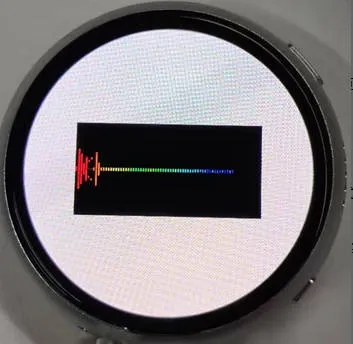
Demo Description
- This example showcases a real-time audio spectrum visualization analyzer. It intuitively presents audio frequency distribution via 64 colored symmetrical spectrum bars with peak tracking
Hardware Connection
- Connect the development board to the computer
Code Analysis
timer_cb: LVGL timer callback function, responsible for spectrum visualization rendering- Canvas and Layer Initialization: Gets the canvas object, initializes an LVGL layer (layer rendering improves refresh efficiency and prevents flickering), and clears the screen (black background)
- Basic Parameter Calculation: Calculates spectrum bar width (canvas width / 64), canvas center Y coordinate (for symmetrical drawing), and spectrum bar gap
- Iterates to render 64 spectrum bars
- Layer Rendering Completion: Calls
lv_canvas_finish_layerto commit the layer rendering and updates the canvas display
lv_example_canvas_10: Canvas initialization- Static Draw Buffer Definition: Uses
LV_DRAW_BUF_DEFINE_STATICto define a 300×150 pixel RGB565 format draw buffer - Canvas Creation: Creates an LVGL canvas object, sets its size and centers it, and binds the static draw buffer
- Timer Creation: Creates a 33ms timer, binds the
timer_cbcallback function, and passes the canvas object as user data to enable timed rendering
- Static Draw Buffer Definition: Uses
Expected Result
Resources
1. Hardware Resources
Development Board Design File
- Schematic: ESP32-S3-Touch-AMOLED-1.75C-Schematic
2. Technical Manuals
Official ESP32-S3 Chip Manuals
- Datasheets:
- Technical Manuals:
Onboard Component Datasheets
3. Demo
- Github GitHub Example Program Repository: ESP32-S3-Touch-AMOLED-1.75C
Support
Monday-Friday (9:30-6:30) Saturday (9:30-5:30)
Email: services01@spotpear.com
[Tutorial Navigation]
- ESP32-S3-Touch-AMOLED-1.75C
- Working with Arduino
- Setting Up Development Environment
- Demo
- Working with ESP-IDF
- Setting Up Development Environment
- Demo
- Resources
- Support