- sales/support
Google Chat:---
- sales
+86-0755-88291180
- sales01
sales@spotpear.com
- sales02
dragon_manager@163.com
- support
tech-support@spotpear.com
- CEO-Complaints
zhoujie@spotpear.com
- Only Tech-Support
WhatsApp:13246739196
- Purchase/Shipping/Refund
WhatsApp:13424403025
5-DSI-TOUCH-B User Guide
Introduction
The 5-DSI-TOUCH-B is a portrait touchscreen LCD display designed for interactive projects such as tablets, entertainment systems, and information dashboards.
Features
- 5inch DSI touch screen, 10-point capacitive touch control
- IPS display panel with a hardware resolution of 720×1280
- Features the optical bonding process for clearer picture quality
- Toughened glass touch panel, hardness up to 6H
- Drives the LCD through the DSI interface, with a refresh rate of up to 60Hz
- Supports software control of backlight brightness
- Aluminum alloy back cover design, pure passive cooling design
Electrical Specifications
| Parameter | Typical Value | Standard Value | Maximum Value | Unit | Note |
| Input voltage | 4.75 | 5.00 | 5.30 | V | Note 1 |
| Input current | - | 0.5 | TBD | A | Note 2 |
| Operating temperature | 0 | 25 | 60 | ℃ | Note 3 |
| Storage temperature | -10 | 25 | 70 | ℃ | Note 3 |
•Note 1: Input voltages exceeding the maximum or improper operation may cause permanent damage to the device.
•Note 2: The input current must be ≥ 0.5A, otherwise it will cause startup failure or display abnormality, and prolonged operation in an abnormal state may permanently damage the device.
•Note 3: Please do not store the display panel in a high-temperature and high-humidity environment for a long time. The display panel should operate within the operating limits specified above, otherwise it may be damaged.
Interfaces
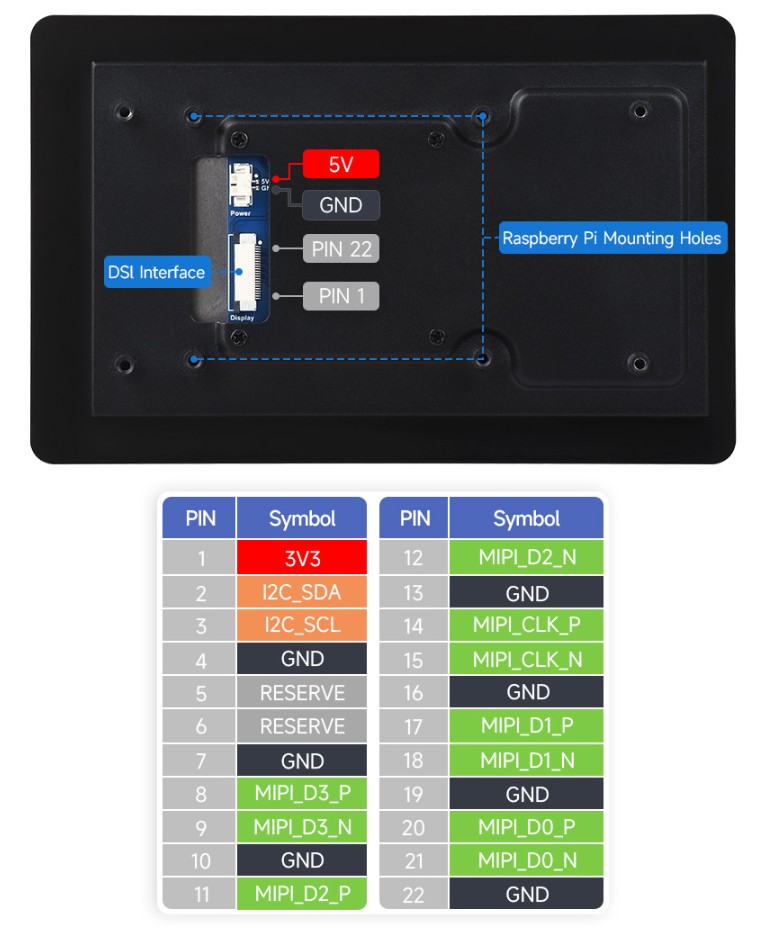
Working with Raspberry Pi
Pi5/CM5/CM4/CM3+/CM3 Hardware Connection
1. Use an FFC cable (22PIN, 200mm, reversed) to connect the DSI port of the display to the 22PIN DSI port of the Raspberry Pi motherboard.
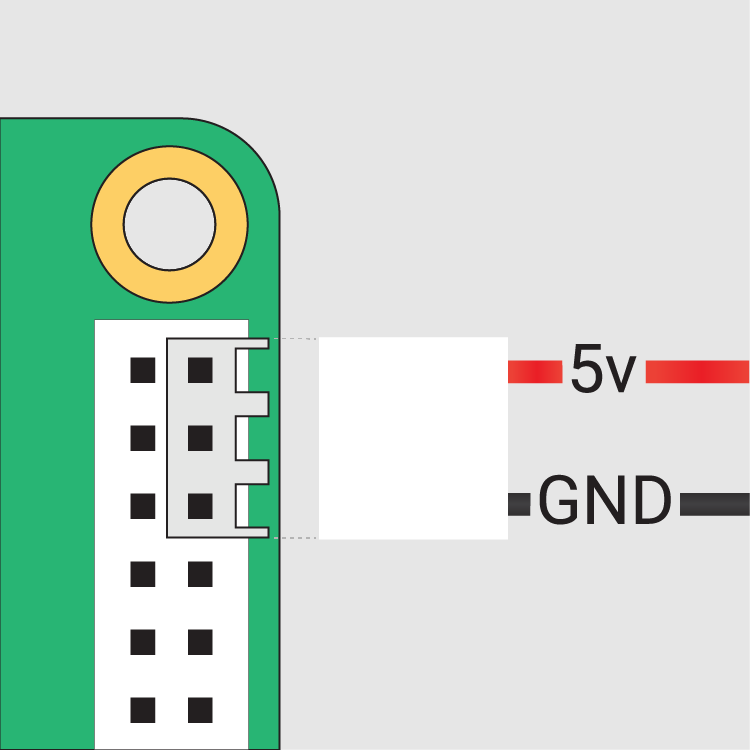
2. Use a GPIO cable to connect the power connector of the display to the 5V GND pin header of the Raspberry Pi motherboard.
3. Secure the Raspberry Pi to the display with M2.5 screws.
The installation effect is as follows: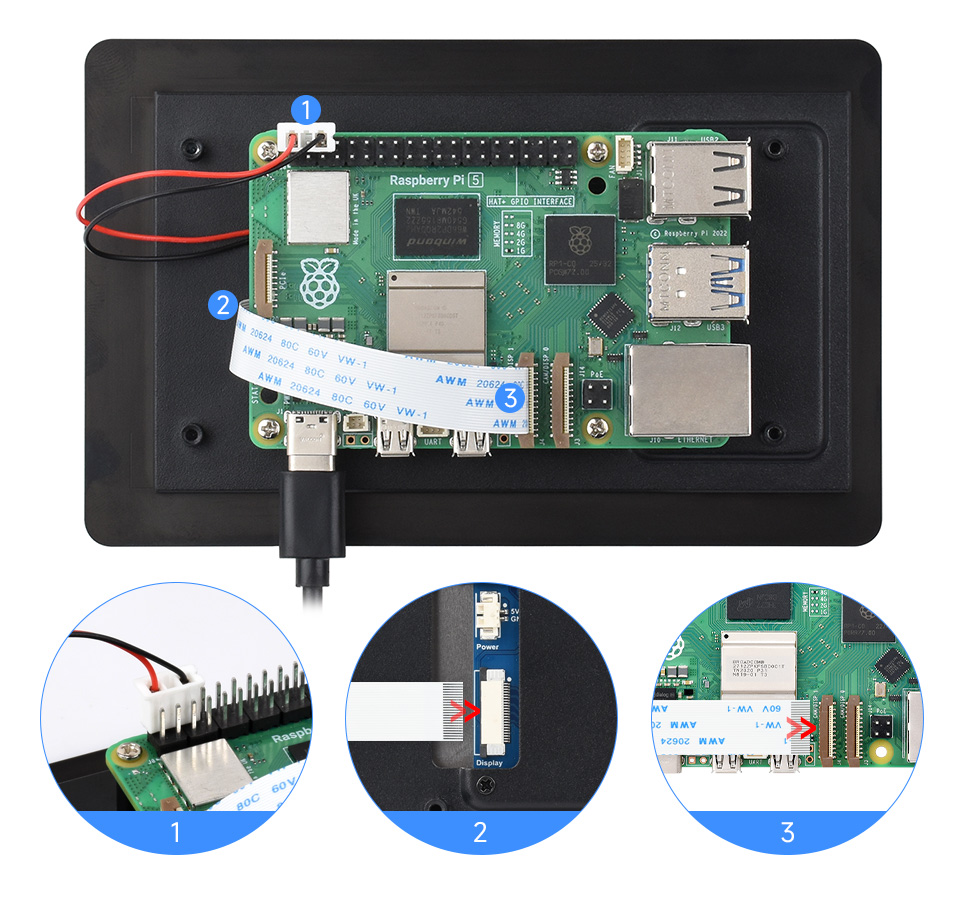
Note: Make sure that the DSI cable is connected in the correct direction and 5V power is supplied through the GPIO pins.
Pi4B/3B+/3B/3A+ Hardware Connection
1. Use the "DSI-Cable-12cm" cable to connect the DSI port of the display to the 15PIN DSI port of the Raspberry Pi motherboard.
2. Use a GPIO cable to connect the power connector of the display to the 5V GND pin header of the Raspberry Pi motherboard.
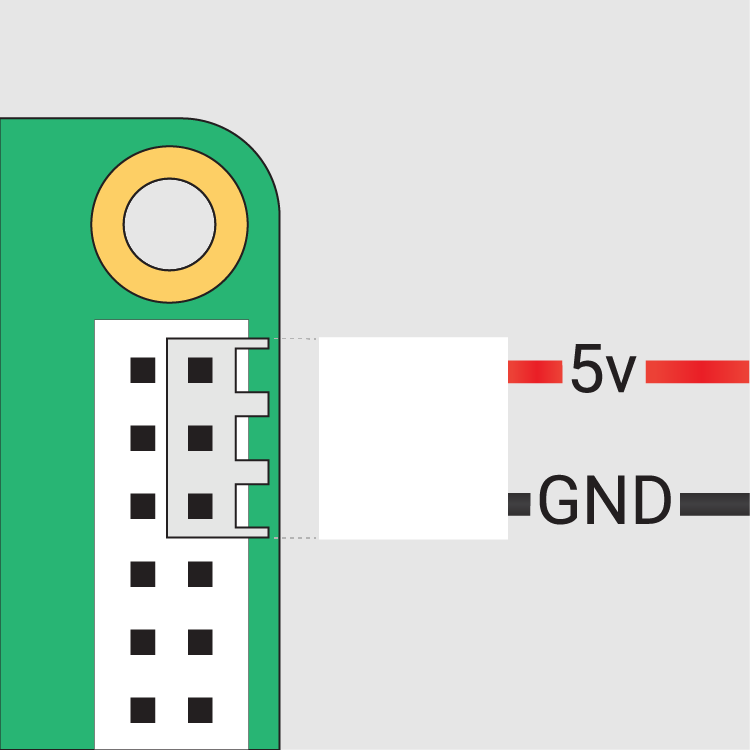
3. Secure the Raspberry Pi to the display with M2.5 screws.
The installation effect is as follows: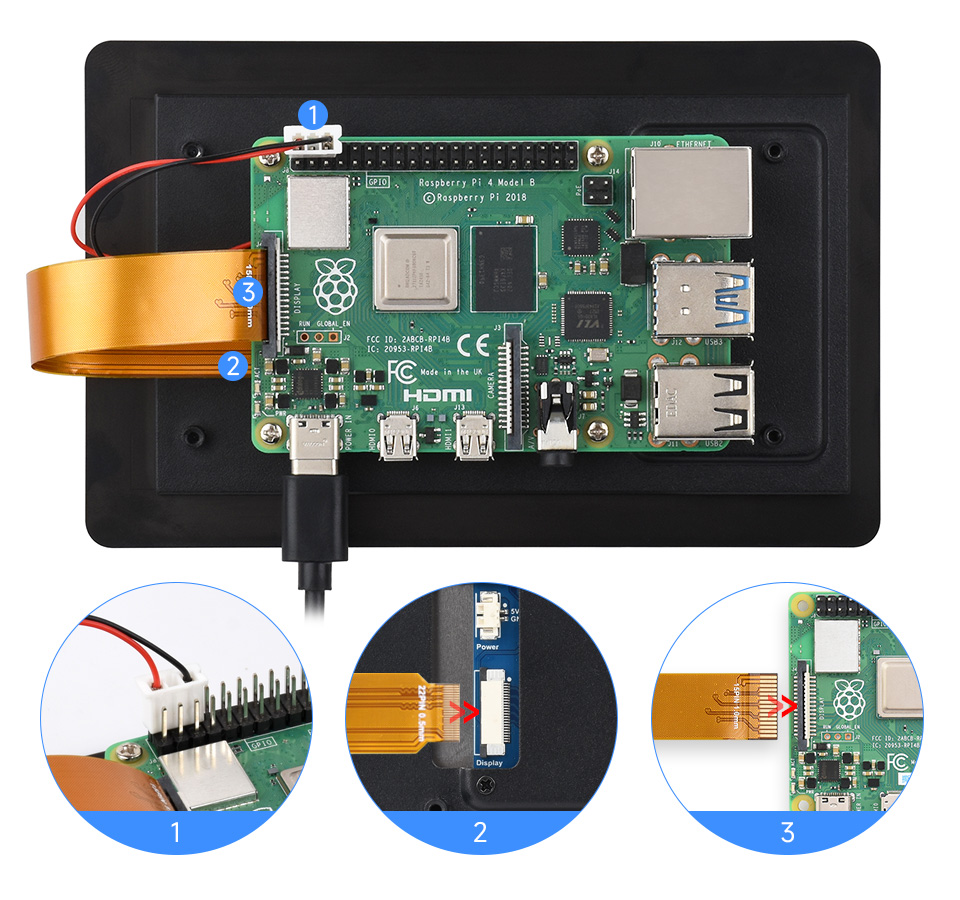
Note: Make sure that the DSI cable is connected in the correct direction and 5V power is supplied through the GPIO pins.
Software Settings
Method 1: Flash Latest Trixie/Bookworm System
1. Connect the TF card to the PC, download and use Raspberry Pi Imager to flash the corresponding system image.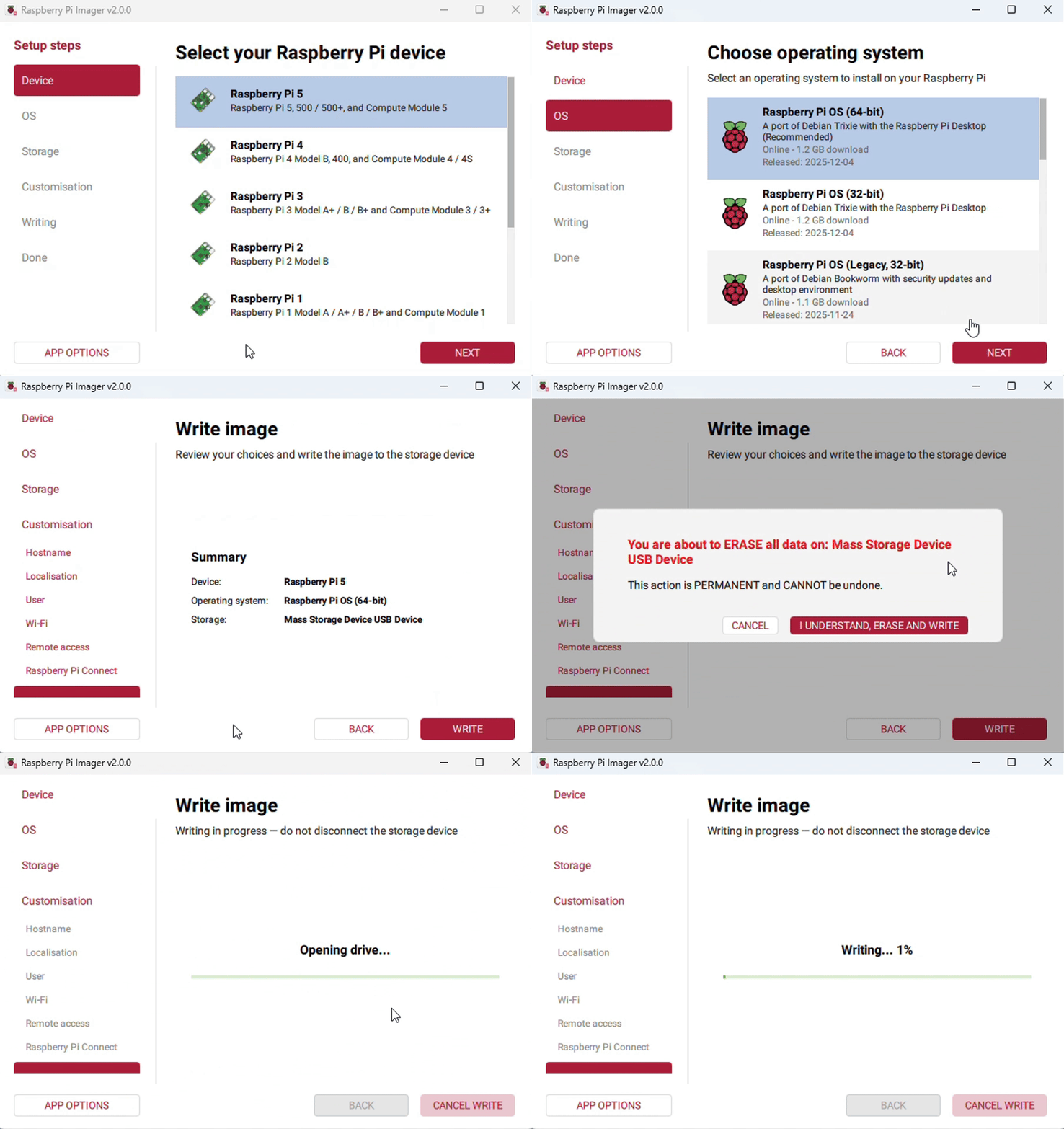
2. After the image flashing is completed, open the config.txt file in the root directory of the TF card, add the following code at the end of the config.txt, save and safely eject the TF card.
Note: Since Pi5/CM5/CM4/CM3+/CM3 have two MIPI DSI interfaces, please note that the correct DSI interfaces and commands are used, DSI1 is recommended by default.
dtoverlay=vc4-kms-v3d
#DSI1 Use
dtoverlay=vc4-kms-dsi-waveshare-panel-v2,5_0_inch_a
#DSI0 Use
# dtoverlay=vc4-kms-dsi-waveshare-panel-v2,5_0_inch_a,dsi0
3. Insert the TF card into the Raspberry Pi, power on the Raspberry Pi, and generally wait for about 30 seconds to enter the display state. The touch function can be used normally after the system boots.
Method 2: Flash Pre-installed Image
1. Select pre-installed image, download and unzip it as .img file
2. After the image flashing is completed, connect the TF card to the Raspberry Pi, start the Raspberry Pi, and wait for about 30 seconds for the display and touch to function normally.
Adjust Backlight Brightness
Graphical Interface Backlight Adjustment
The following steps are based on the Trixie system:
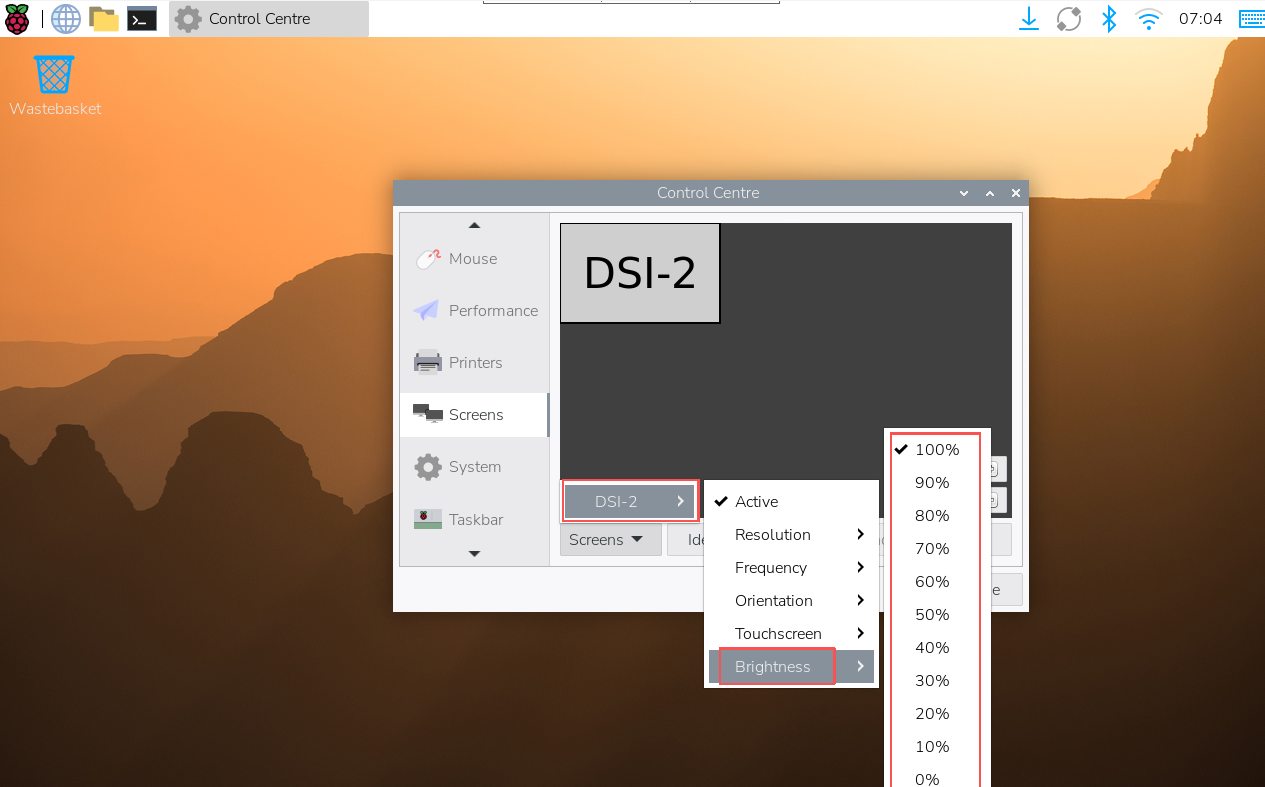
- 1. Click the menu in the upper left corner, then go to Preferences → Control Center, and select Screens;
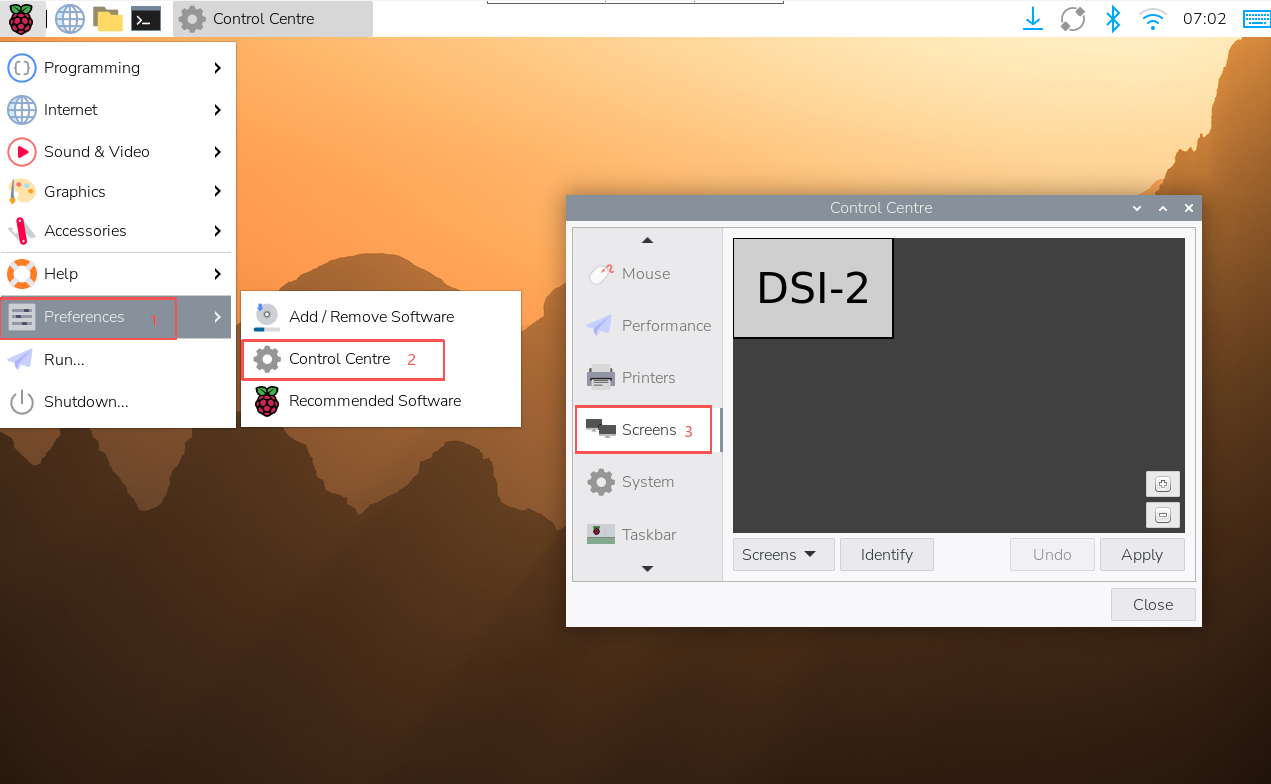
- 2. Go to "Screen" -> "DSI-2" -> "Brightness", check and adjust the desired backlight brightness, and finally click Apply to save the settings.
You can also use the graphical backlight adjustment tool provided by Waveshare:
wget https://files.waveshare.com/wiki/common/Brightness.zip
unzip Brightness.zip
cd Brightness
sudo chmod +x install.sh
./install.sh
After the installation is completed, you can open the demo in the Start Menu -> Accessories -> Brightness, as shown below: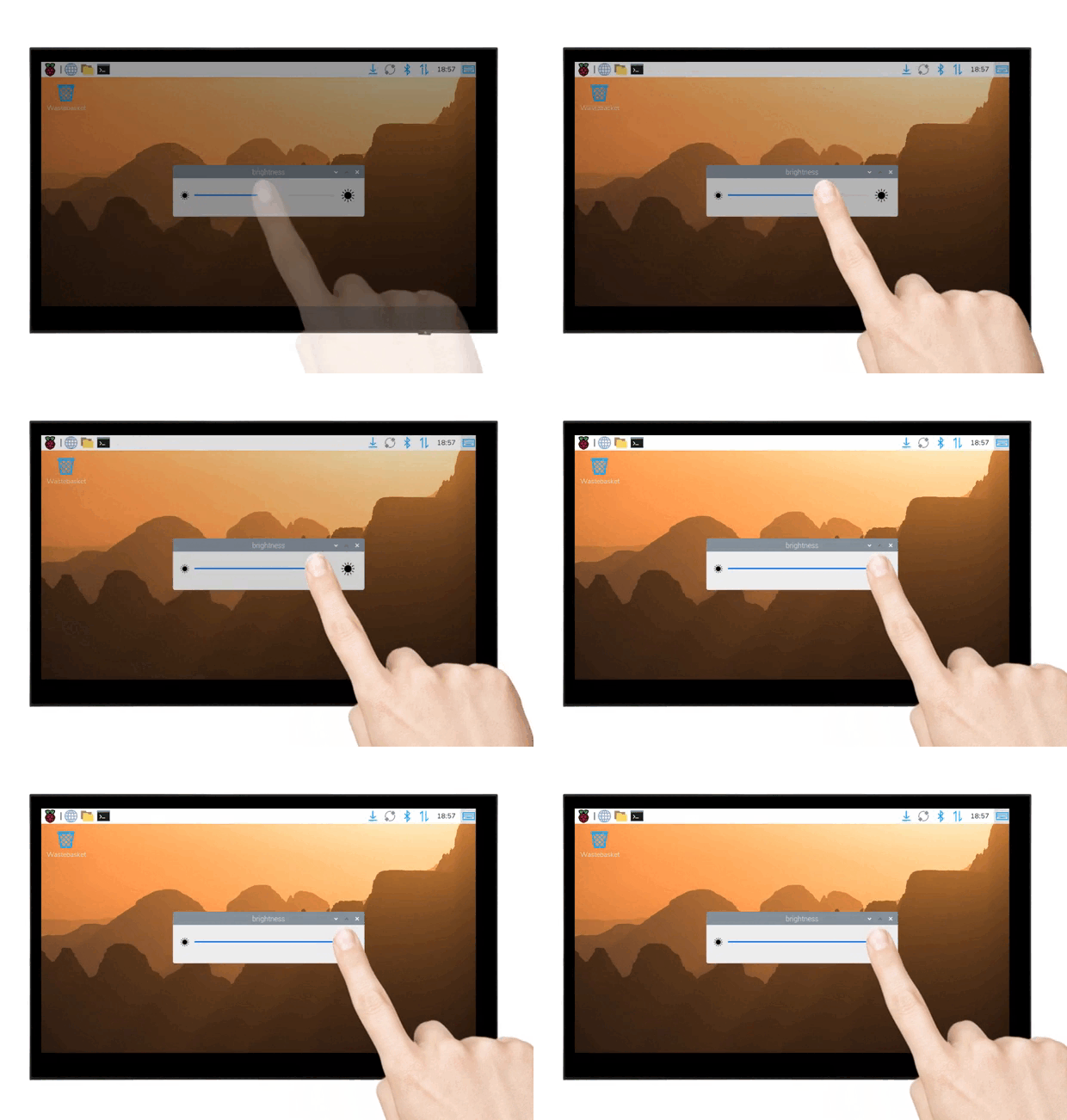
Adjust Backlight Brightness Using Terminal
echo X | sudo tee /sys/class/backlight/*/brightness
Where X represents any number from 0 to 255. 0 means the darkest backlight, and 255 means the brightest backlight. For example:
echo 100 | sudo tee /sys/class/backlight/*/brightness
echo 0 | sudo tee /sys/class/backlight/*/brightness
echo 255 | sudo tee /sys/class/backlight/*/brightness
Trixie/Bookworm Display Rotation
GUI Interface Rotation
The following steps are based on the Trixie system:
- 1. Click the menu in the upper left corner, then go to Preferences → Control Center, and select Screens;
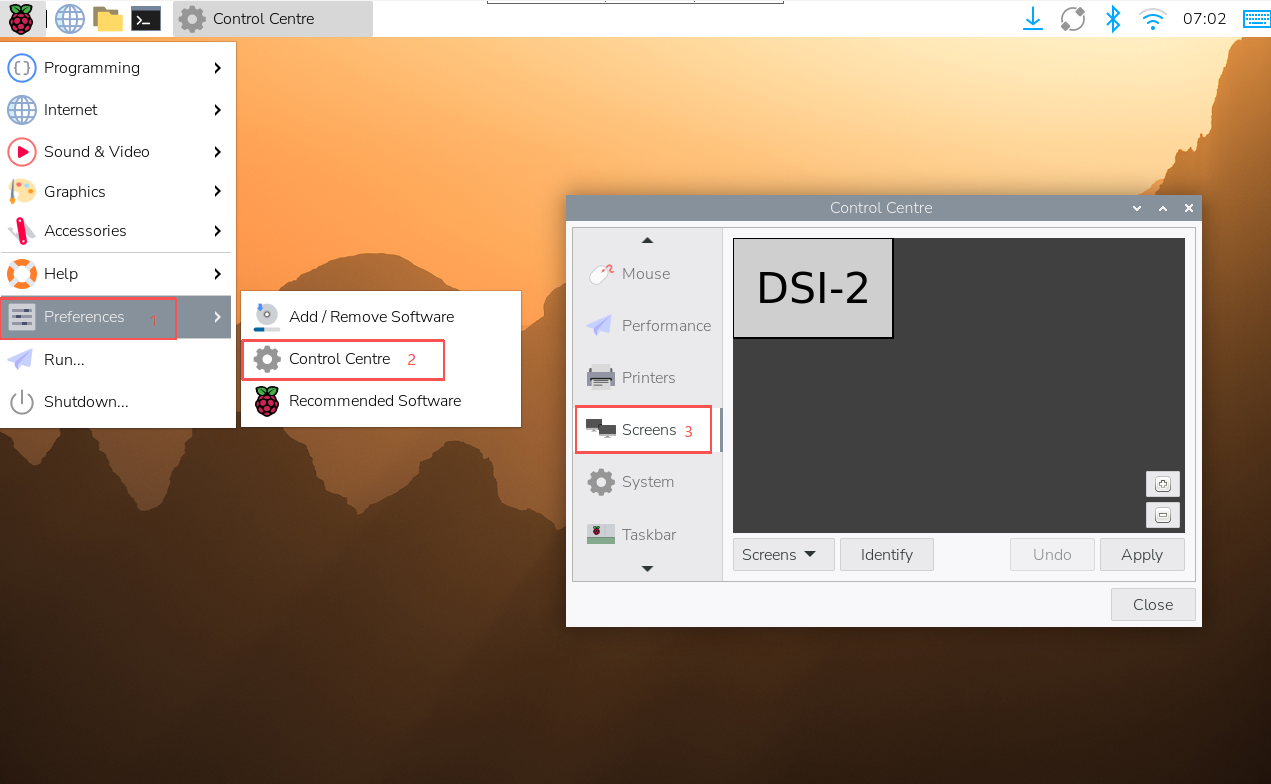
- 2. Go to Screens -> DSI-1 -> Touchscreen and check "10-0014 Goodix Capacitive TouchScreen";
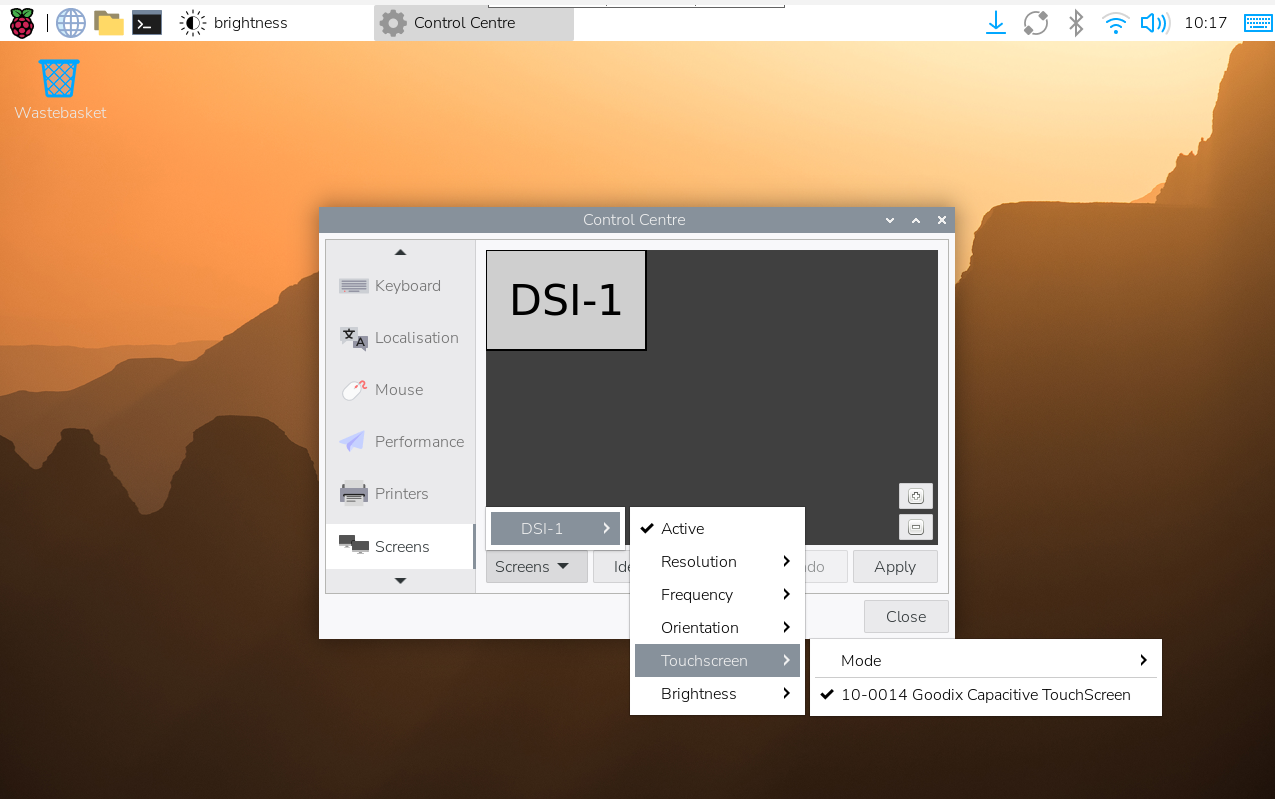
- 3. Go to Screens -> DSI-2 -> Orientation, check the direction you need to rotate, and finally click "Apply" to complete the display and touch synchronous rotation.
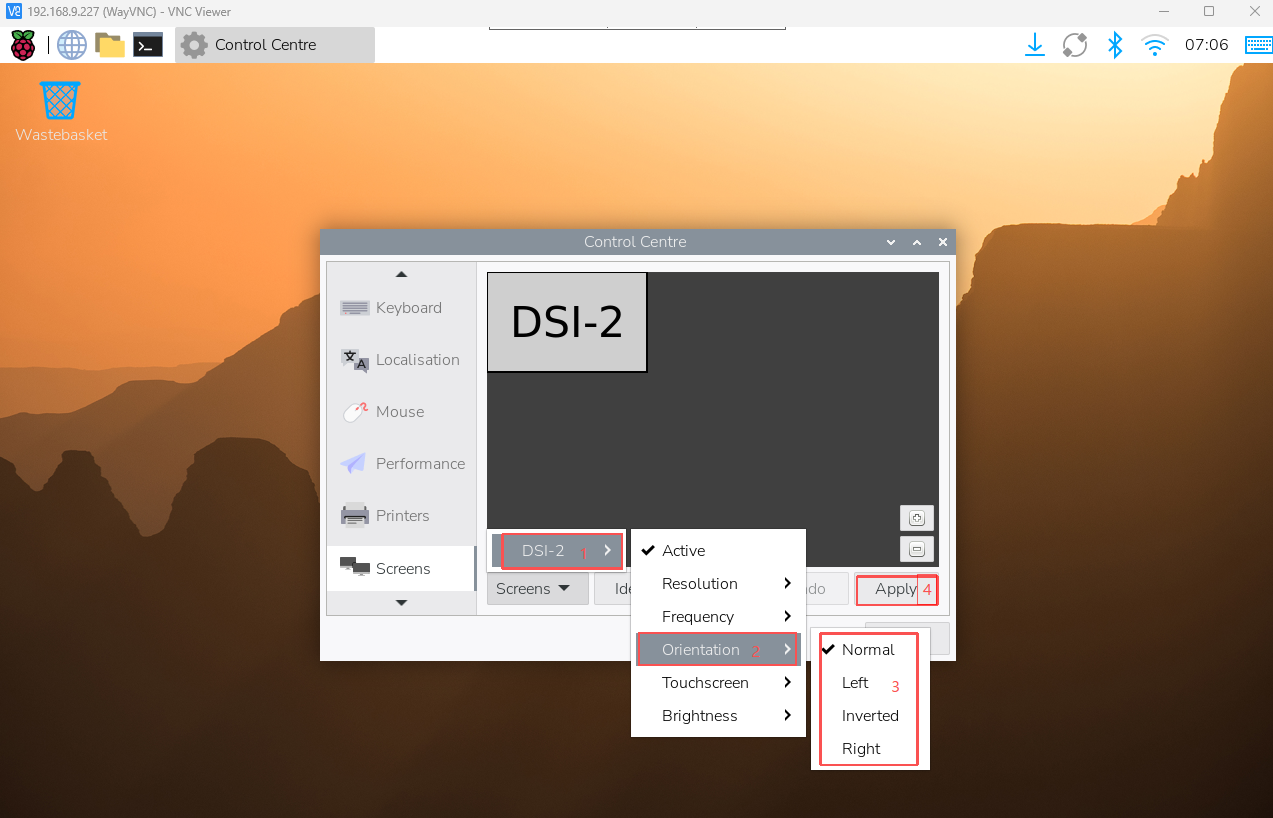
- In the Bookworm system, this setting entry is located at Screen Configuration → Screen.
lite Version Display Rotation
sudo nano /boot/firmware/cmdline.txt
#Add the display resolution and rotation commands at the beginning of the cmdline.txt file to take effect after a reboot
#For example, the DSI-1 display has a 720x1280 resolution and the display rotation is 90 degrees
video=DSI-1:720x1280e,rotate=90
#For example, the DSI-1 display has a 720x1280 resolution and the display rotation is 180 degrees
video=DSI-1:720x1280e,rotate=180
#For example, the DSI-1 display has a 720x1280 resolution and the display rotation is 270 degrees
video=DSI-1:720x1280e,rotate=270
Notes:
- 1. Based on actual display resolution.
- 2. If using Pi5/CM5, use the actual DSI display number identified, for example, "DSI-2".
- 3. It is not possible to rotate DSI monitor and HDMI monitor separately using cmdline.txt. When you use both DSI and HDMI simultaneously, they share the same rotation value.
Touch Rotation
If you use the graphical interface for rotation, you can tick "Touchscreen" in the screen layout editor window to synchronize the touch rotation. Please refer to the previous introduction for how to rotate the screen. For the command line rotation method, please refer to the following text:
1. Create a new file named 99-waveshare-touch.rules
sudo nano /etc/udev/rules.d/99-waveshare-touch.rules
2. Add the following lines as needed:
#90°:
ENV{ID_INPUT_TOUCHSCREEN}=="1", ENV{LIBINPUT_CALIBRATION_MATRIX}="0 -1 1 1 0 0"

#180°:
#ENV{ID_INPUT_TOUCHSCREEN}=="1", ENV{LIBINPUT_CALIBRATION_MATRIX}="-1 0 1 0 -1 1"

#270°:
#ENV{ID_INPUT_TOUCHSCREEN}=="1", ENV{LIBINPUT_CALIBRATION_MATRIX}="0 1 0 -1 0 1"
3. Save and reboot
sudo reboot
Touch Mode Selection
The Trixie and Bookworm systems support two touch modes, which can be switched in the Screen Configuration > Touchscreen menu: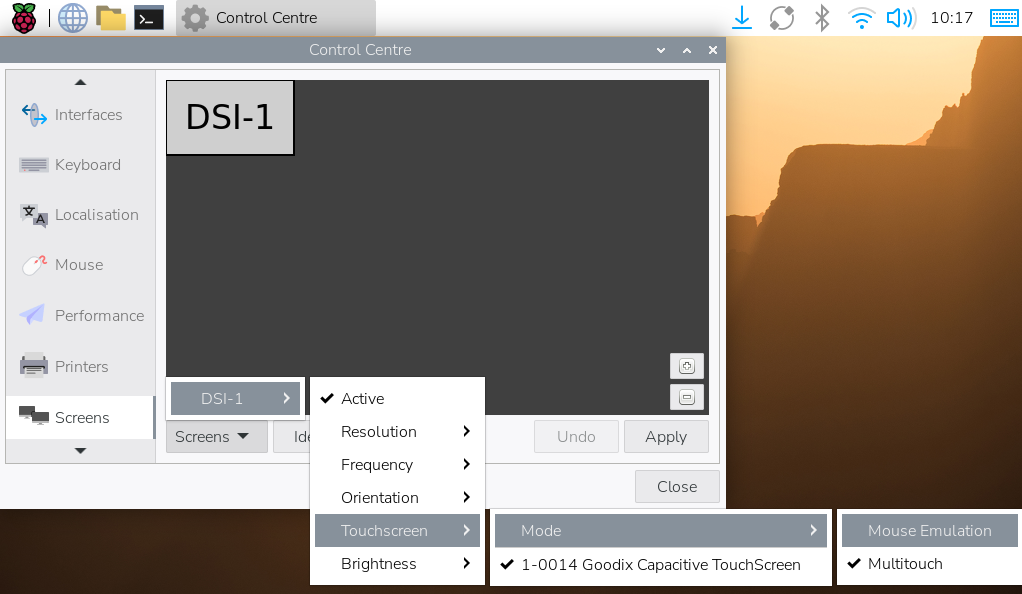
- 1. Mouse Emulation (default)
Click = Left mouse button function
Long press = Right mouse button function
Supports double-click
Does not support page swiping and multi-touch functionality
Note: This mode is suitable for scenarios that require mouse operation, such as double clicking to open the file manager and long pressing to achieve right-click functionality.
- 2. Multitouch
Supports multi-touch functionality
Supports swiping pages
Does not support double-click and long-press right-click functions
Note: This mode is suitable for touch-optimized scenarios, such as web browsing and scrolling lists.
Use Touchscreen Virtual Keyboard
Raspberry Pi OS Bookworm and later versions include Squeekboard on-screen keyboard by default.
- The keyboard system will automatically pop up when text input is available and automatically hide when text input is not available.
- It can also be shown or hidden manually via the keyboard icon in the top right corner of the taskbar
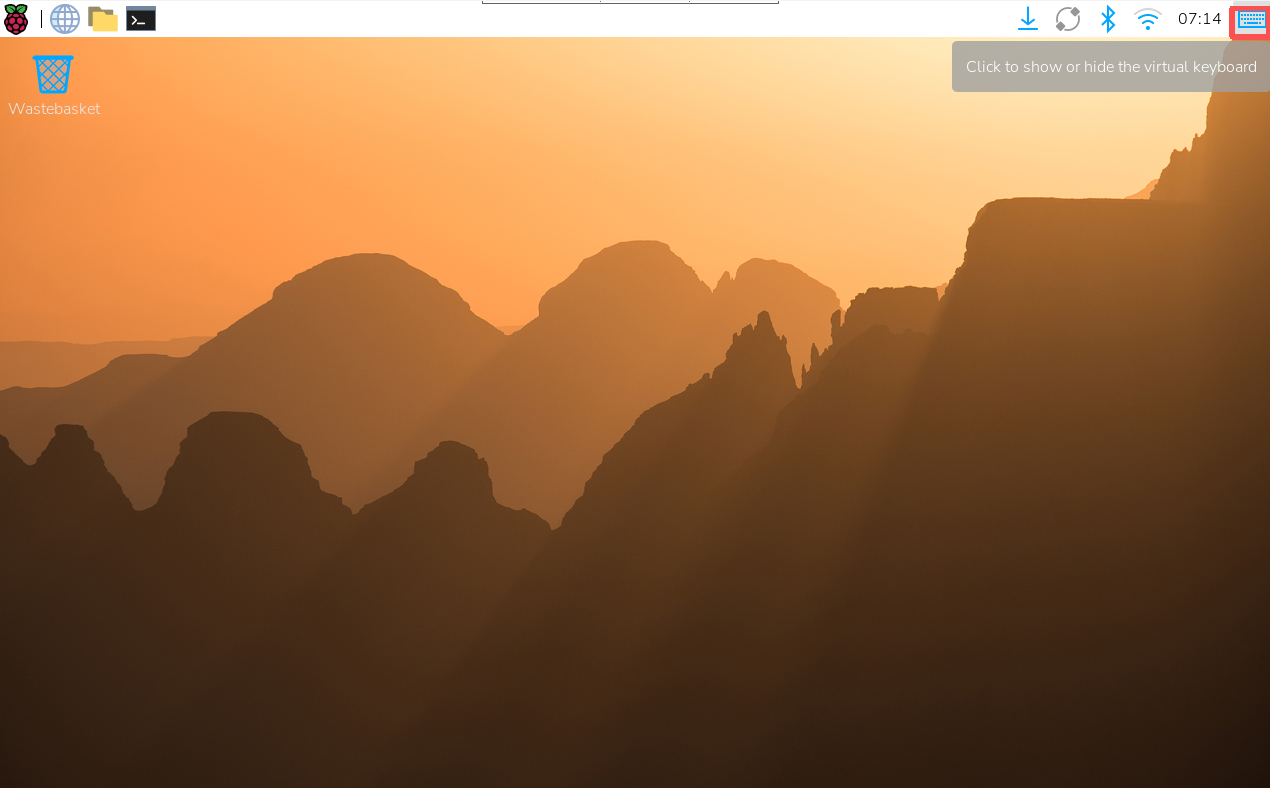
You can also permanently set the display or hiding of the on-screen keyboard through the menu Preferences → Control Centre → Display in the upper left corner.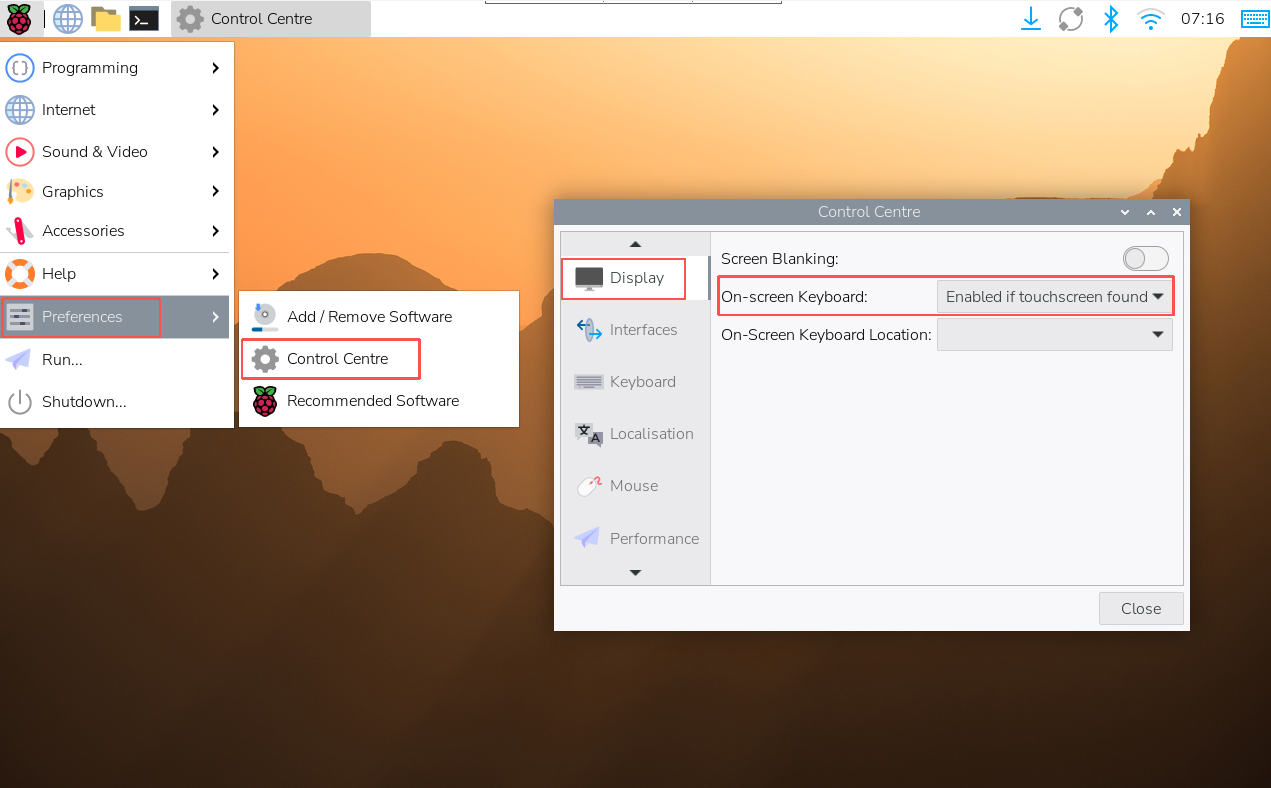
In the Bookworm system, you can set the keyboard to be displayed or hidden via Raspberry Pi Configuration → Display or raspi-config → Display.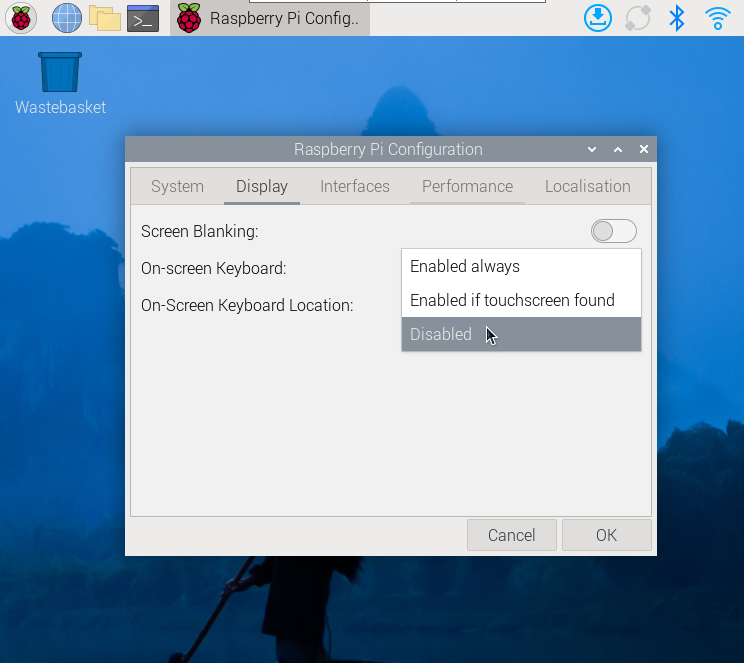
- Note:
For older versions of Raspberry Pi OS before Bookworm, please use matchbox-keyboard. If you are using the wayfire desktop compositor, use wvkbd.
Working with Luckfox-Omni3576
Hardware Connection
1. Use a 22PIN FPC cable to connect the DSI interface of the display to the DSI interface of the Omni3576 motherboard.
2. Use a 2PIN power cable to connect the power interface of the display to the 40PIN GPIO interface on the Omni3576 motherboard. As shown in the figure below: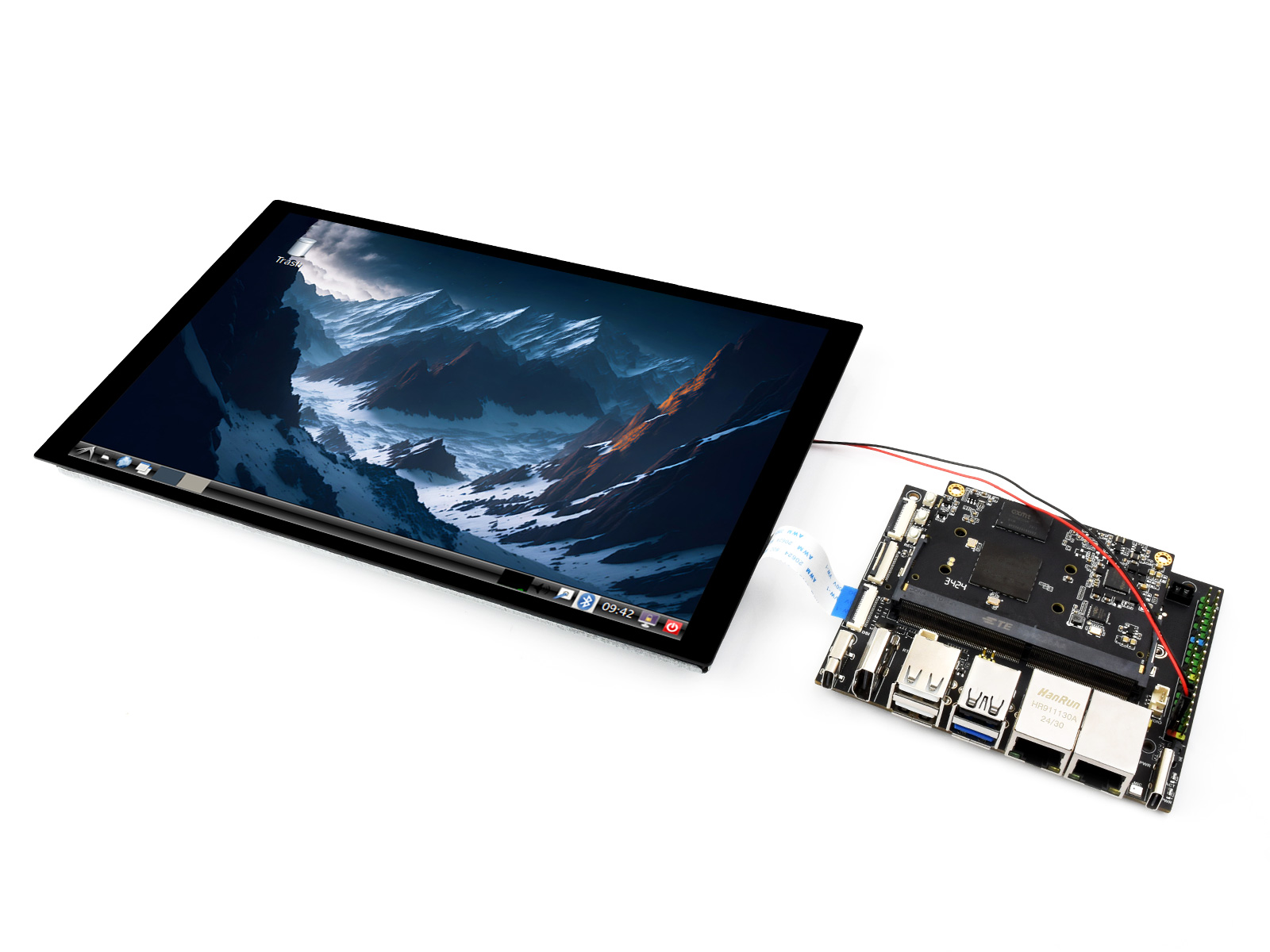
Software Settings
1. Download and use the image file from the Luckfox official website to flash the corresponding system image.
2. Connect the Omni3576 motherboard to a 5V power supply, and the screen will light up after the system starts
View Screen Information
- The screen ID available in the current system can be viewed using the following command:
sudo cat /sys/kernel/debug/dri/0/summary
- Under normal circumstances, the following output will be obtained:
Video Port0: DISABLED
Video Port1: ACTIVE
    Connector:DSI-1     Encoder: DSI-203
        bus_format[100a]: RGB888_1X24
        overlay_mode[0] output_mode[0] SDR[0] color-encoding[BT.709] color-range[Full]
    Display mode: 800x1280p60
        clk[70000] real_clk[69883] type[48] flag[a]
        H: 800 840 860 880
        V: 1280 1300 1304 1324
        Fixed H: 800 840 860 880
        Fixed V: 1280 1300 1304 1324
    Esmart1-win0: ACTIVE
        win_id: 1
        format: XR24 little-endian (0x34325258) pixel_blend_mode[0] glb_alpha[0xff]
        color: SDR[0] color-encoding[BT.601] color-range[Limited]
        rotate: xmirror: 0 ymirror: 0 rotate_90: 0 rotate_270: 0
        csc: y2r[0] r2y[0] csc mode[0]
        zpos: 1
        src: pos[0, 0] rect[800 x 1280]
        dst: pos[0, 0] rect[800 x 1280]
        buf[0]: addr: 0x00000000fe44e000 pitch: 3200 offset: 0
Video Port2: DISABLED
Show Rotation
- Rotation command
#Rotate 90 degrees
xrandr -o left
#Rotate 270 degrees
xrandr -o right
#Rotate 180 degrees
xrandr -o inverted
#Rotate 0 degrees
xrandr -o normal
- The effect of using xrandr rotation is a one-time and the screen orientation is restored after the system restarts. If you want the device to rotate automatically upon startup, you need to modify the configuration file:
sudo vim /etc/X11/xorg.conf.d/10-monitor.conf
Add the following statement:
### Valid values for rotation are "normal", "left", "right"
Section "Monitor"
#    Identifier "Default Monitor"
    Identifier  "DSI-1"
    Option      "Rotate" "left"
EndSection
Touch Rotation
- After the system displays rotation, the touch direction is inconsistent, and you need to perform the following operations to touch and rotate:
sudo vim /etc/udev/rules.d/99-luckfox-touch.rules
- Add the corresponding configuration according to your rotation direction, save it, and restart the development board.
90 degrees:
ENV{ID_INPUT_TOUCHSCREEN}=="1", ENV{LIBINPUT_CALIBRATION_MATRIX}="0 -1 1 1 0 0"
180 degrees:
ENV{ID_INPUT_TOUCHSCREEN}=="1", ENV{LIBINPUT_CALIBRATION_MATRIX}="-1 0 1 0 -1 1"
270 degrees:
ENV{ID_INPUT_TOUCHSCREEN}=="1", ENV{LIBINPUT_CALIBRATION_MATRIX}="0 1 0 -1 0 1"
Working with Luckfox-Lyra
Hardware Connection
1. Use a 22PIN FPC cable to connect the DSI interface of the display to the DSI interface of Luckfox-Lyra board.
2. Use a MX1.25 2PIN to 4PIN cable to connect the power interface of the display to the USB MX1.25 4P interface on Luckfox-Lyra board. As shown in the figure below: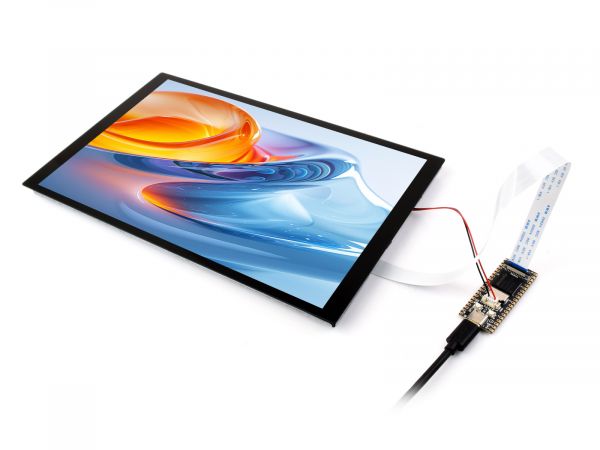
Software Settings
1. Download and use the image file from the Luckfox official website to flash the corresponding system image.
2. Connect the Luckfox-Lyra board to a 5V power supply, and the screen will light up after the system starts
View Screen Information
- The screen ID available in the current system can be viewed using the following command:
cat /sys/kernel/debug/dri/0/summary
- Under normal circumstances, the following output will be obtained:
VOP [ff600000.vop]: ACTIVE
    Connector: DSI-1
        bus_format[100a]: RGB888_1X24
        overlay_mode[0] output_mode[0]color-encoding[1] color-range[1]
    Display mode: 800x1280p60
        dclk[70000 kHz] real_dclk[69475 kHz] aclk[294912 kHz] type[48] flag[a]
        H: 800 840 860 880
        V: 1280 1310 1314 1324
    win1-0: ACTIVE
        format: XR24 little-endian (0x34325258) SDR[0] color-encoding[0] color-range[0]
        csc: y2r[0] r2r[0] r2y[0] csc mode[0]
        zpos: 0
        src: pos[0x0] rect[800x1280]
        dst: pos[0x0] rect[800x1280]
        buf[0]: addr: 0x06100000 pitch: 3200 offset: 0
    post: sdr2hdr[0] hdr2sdr[0]
    pre : sdr2hdr[0]
    post CSC: r2y[0] y2r[0] CSC mode[2]
Display Test
- Color bar test command
#Vertical bar test
modetest -M rockchip -s 74@71:800x1280
#Slant bar test
modetest -M rockchip -s 74@71:800x1280 -Ftiles
Touch Test
- Touch test command
evtest
- Under normal circumstances, the following output will be obtained:
No device specified, trying to scan all of /dev/input/event*
Available devices:
/dev/input/event0:      2-005d Goodix Capacitive TouchScreen
Select the device event number [0-0]:
- After entering "0" and pressing Enter, touch the screen to start testing, and the terminal will print the event values triggered by the touch operation.
Working with ESP32-P4
Screen Driver
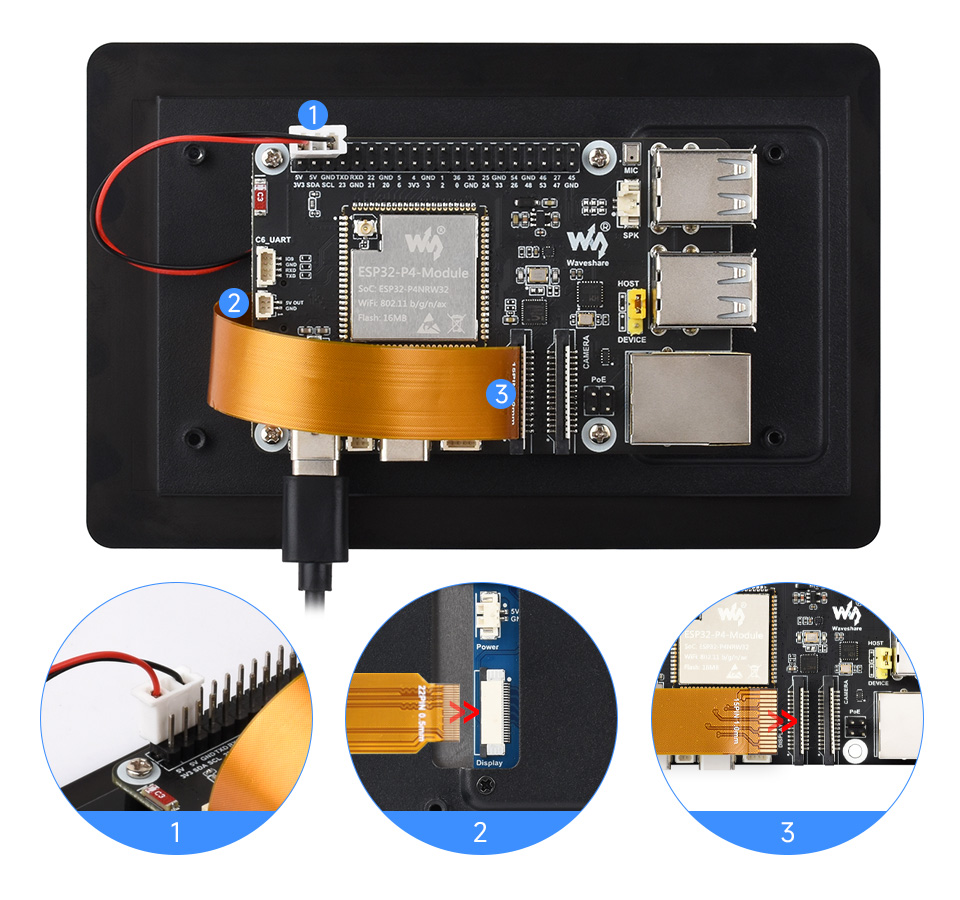
The ESP32-P4-NANO drives the screen via MIPI 2-lane
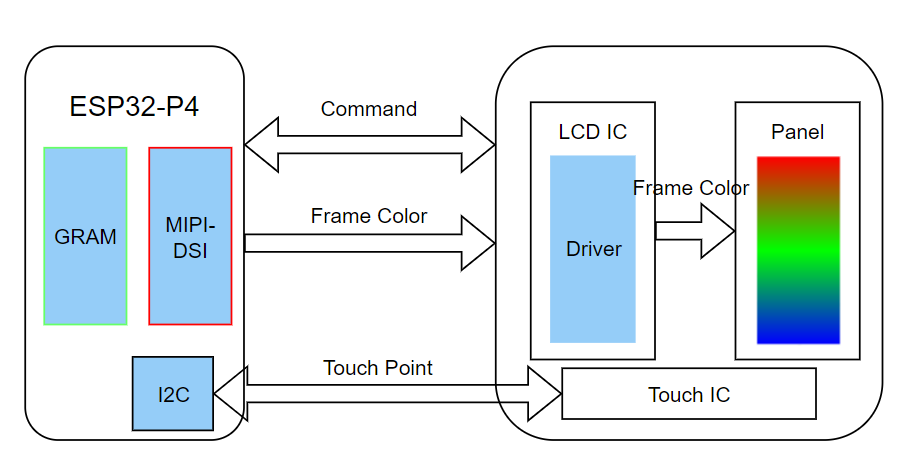
- The screen driver has been packaged as a component, with the component located at ESP Component Registry
Useidf.py add-dependency "waveshare/esp_lcd_hx8394"to add components to your ESP-IDF project - You can also directly view the Wiki that describes how ESP32-P4-NANO drives the screen: ESP32-P4-NANO_MIPI-DSI
Backlight Control
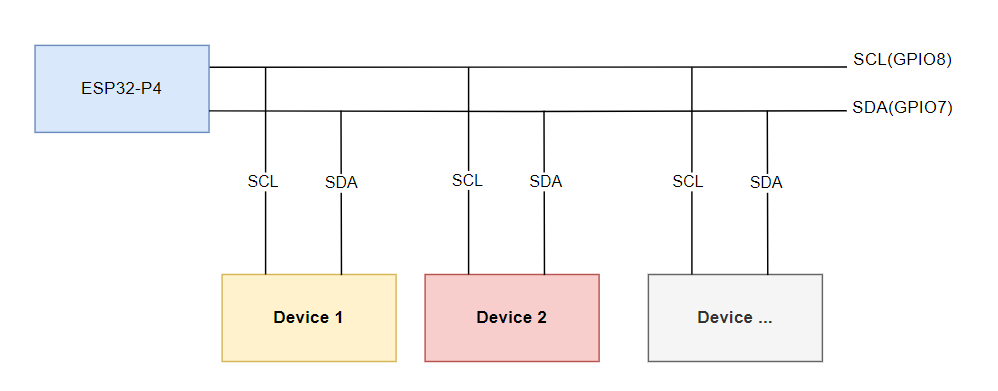
After connecting the ESP32-P4-NANO with the matching FPC cable and power cable, the backlight can be controlled by writing 0x00~0xFF (full brightness) to the 0x45 device and 0x96 register on the screen through the ESP32-P4-NANO I2C
If you use the ESP32-P4-NANO BSP component, you can control it directly by the following functions
bsp_display_brightness_init();   // Initialize the backlight

bsp_display_backlight_on();      // Turn on the backlight, default full brightness

Bsp_display_backlight_off();     // Turn off the backlight

bsp_display_brightness_set(95);  // Set the specific backlight brightness, 0~100
Safety Instructions
To avoid any malfunction or damage to this product, please follow the following instructions:
- Turn off your Raspberry Pi computer and disconnect the external power supply before connecting the device.
- If the cable falls off, pull the locking latch on the connector forward, insert the FFC cable with the metal contacts facing you, and push the latch back into place.
- This device should be operated in a dry environment between 0-60°C.
- Do not expose the device to water or humid environments during operation, nor place it on conductive surfaces.
- Do not expose it to any overheated environment.
- Be careful not to fold or tighten the FFC cable.
- Be careful when screwing in the parts. Misalignment of threads may cause irreparable damage and void the warranty.
- Please be careful during transportation to avoid mechanical or electrical damage to printed circuit boards and connectors.
- Store in a cool and dry place.
- Avoid sudden temperature changes, otherwise it may lead to the accumulation of moisture inside the device.
- The surface of the display screen is fragile and may break.
Resources
Standard Version 2D Diagrams
With Case Version 2D Diagrams
FAQ
The display IC is HX8394 and the touch IC is GT911.
Support
Monday-Friday (9:30-6:30) Saturday (9:30-5:30)
Email: services01@spotpear.com