




- sales/support
Google Chat:---
- sales
+86-0755-88291180
- sales01
sales@spotpear.com
- sales02
dragon_manager@163.com
- support
tech-support@spotpear.com
- CEO-Complaints
zhoujie@spotpear.com
- Only Tech-Support
WhatsApp:13246739196
- Purchase/Shipping/Refund
WhatsApp:13424403025
- HOME
- >
- ARTICLES
- >
- Common Moudle
- >
- ESP
ESP32-C6-Touch-LCD-1.54 User Guide
Features
- Powered by the ESP32-C6 high-performance 32-bit RISC-V processor with a main frequency up to 160MHz
- Supports 2.4 GHz Wi-Fi (802.11 b/g/n) and Bluetooth 5, with an onboard antenna for excellent RF performance
- Built-in 512KB SRAM and 320KB ROM, plus an external 16MB Flash
- Features a Type-C interface, eliminating the hassle of plug orientation and enhancing user convenience and device compatibility
- Onboard 1.54inch capacitive LCD screen, 240 × 240 resolution, 262K colors, capable of displaying color images clearly
- Onboard ES7210 audio codec chip, supporting dual-microphone audio capture
- Onboard ES8311 audio codec chip, NS4150B power amplifier chip, microphone, and speaker
- Onboard QMI8658 6-axis IMU (3-axis accelerometer and 3-axis gyroscope) for detecting motion and posture in expanded applications
- Built-in ST7789 driver IC, communicating via SPI interface
- Built-in CST816 capacitive touch controller, communicating via I2C interface (touch version only)
- Onboard PLUS and BOOT buttons, both customizable for function development
- Onboard 3.7V MX1.25 lithium battery charge/discharge interface
- Exposes 1-ch I2C, 1-ch USB and 1-ch UART pads for external devices connection and debugging, enabling flexible peripheral configuration
- Onboard TF card slot supporting storage expansion and high-speed data transfer, facilitating functions like data logging and media playback while simplifying circuit design
Onboard Resources
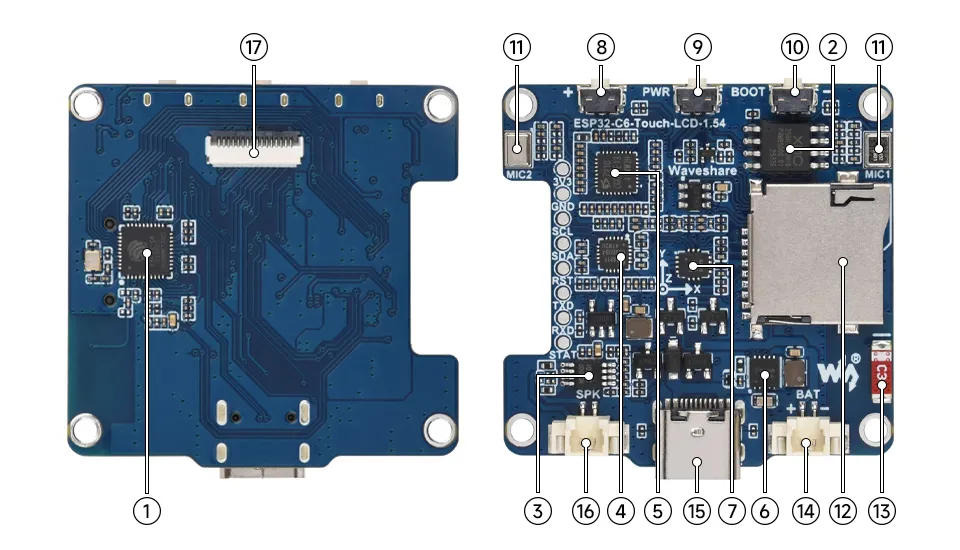
- ESP32-C6 Integrates a RISC-V single-core processor running at 160MHz, supports 2.4GHz Wi-Fi 6 and BLE 5
- 16MB NOR-Flash
- NS4150B Audio power amplifier chip
- ES8311 Low-power audio codec chip
- ES7210 ADC chip for echo cancellation circuit
- Battery charge/discharge management chip
- QMI8658 6-axis IMU includes a 3-axis gyroscope and a 3-axis accelerometer
- PLUS button
- PWR button
- BOOT button Used for device startup and functional debugging
- Microphone
- TF card slot
- Onboard antenna Supports 2.4GHz Wi-Fi 6 (802.11 b/g/n) and Bluetooth 5 (LE)
- MX1.25 lithium battery header MX1.25 2PIN connector for connecting a 3.7V lithium battery, supports charging and discharging
- Type-C port
- MX1.25 speaker header
- 1.54inch display panel connector
LCD Screen Specifications
| Display Panel | IPS | Display Size | 1.54inch |
|---|---|---|---|
| Resolution | 240 × 240 pixels | Display Colors | 262K |
| Communication Interface | 4-wire SPI | Driver IC | ST7789 |
| Touch Type (Touch Version Only) | Capacitive touch | Touch IC (Touch Version Only) | CST816 |
| Active Display Area | 27.72 × 27.72 mm | - | - |
SPI Communication Protocol:
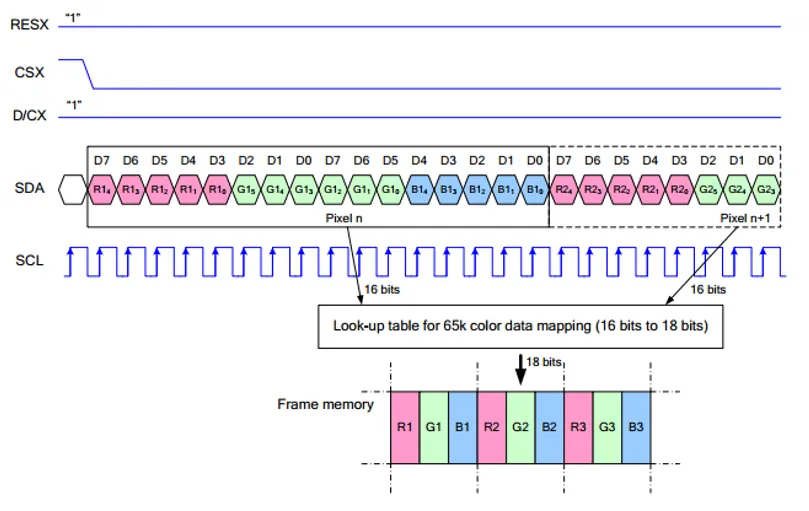
Note: Unlike the traditional SPI protocol, because only display functionality is needed, the data line from the slave to the master is omitted
RESX is the Reset pin; it is pulled low during module power-up and is normally set to 1.
CSX is the slave chip select pin; the chip is enabled only when CS is low
D/CX is the data/command control pin of the chip. When DC = 0, commands are written; when DC = 1, data is written.
SDA is the data transmission pin, specifically for RGB data.
SCL is the SPI communication clock pin.
For SPI communication, data transmission follows a specific timing sequence, which are determined by the combination of clock phase (CPHA) and clock polarity (CPOL):
The level of CPHA determines whether data is captured on the first or second clock transition edge of the serial synchronous clock. When CPHA = 0, data is captured on the first transition edge;
The level of CPOL determines the idle level of the serial synchronous clock. CPOL = 0 means the idle state is low level.
As shown in the diagram, data transmission begins on the first falling edge of SCLK, with 8 bits of data transferred per clock cycle using SPI mode 0, transmitting bits from MSB to LSB
Peripheral Quick Reference
| Module | Device / Function | Interface | Address / Parameters | GPIO / Signals |
|---|---|---|---|---|
| LCD | 1.54inch SPI LCD | 4-wire SPI | 240x240, commonly RGB565, MISO not used | CLK=GPIO1, DIN=GPIO2, DC=GPIO3, RST=GPIO4, CS=GPIO11, BL=GPIO6 |
| Touch | CST816 capacitive touch | I2C | 7-bit address 0x15 | SCL=GPIO7, SDA=GPIO8, INT=GPIO5 |
| IMU | QMI8658 6-axis sensor | I2C | 7-bit address 0x6B | SCL=GPIO7, SDA=GPIO8, INT=GPIO10 |
| Audio DAC/Codec | ES8311 | I2C + I2S | 7-bit address 0x30 | SCL=GPIO7, SDA=GPIO8; MCLK=GPIO19, SCLK=GPIO20, ASDOUT=GPIO21, LRCK=GPIO22, DSDIN=GPIO23 |
| Microphone ADC | ES7210 | I2C + I2S | 7-bit address 0x80 | Shares I2C/I2S with Codec |
| Amplifier | NS4150B | GPIO control + analog audio | Mono amplifier | PA_CTRL=GPIO15 |
| TF Card | TF card slot | SPI | Shares SPI clock/data with LCD; independent CS | SCK=GPIO1, MOSI=GPIO2, MISO=GPIO16, SDCS=GPIO17 |
| Battery Sampling | B+ divided to ADC | ADC | R29 pull-up 200K, R31 pull-down 100K; VBAT = VADC × 3 | GPIO0 / BAT_ADC |
| USB Type-C | ESP32-C6 native USB | USB | Download, logging | USB_N=GPIO12, USB_P=GPIO13 |
| UART0 | Default serial / expansion port | UART | Debug / expansion pads | ESP_TXD=GPIO16, ESP_RXD=GPIO17 |
| Charging Management | ETA6098 | Power | Single-cell Li-ion charge/discharge | Battery connector |
| 3.3 V Power | TMI3112H | DC-DC | System 3.3V | 3V3 |
| BOOT Button | BOOT | GPIO / Download mode | Pull-up, low when pressed | GPIO9 |
| User Button | KEY_PLUS | GPIO | Onboard button / function key | GPIO18 |
| PWR Button | PWR | ECJ23001-4FCBD6 switch IC | Long press to power off, short press to power on |
Pinout Definition
When using the GPIO terminals reserved on the ESP32-C6-Touch-LCD-1.54 board, note that this board uses the ESP32-C6, and the BOOT, USB, and UART assignments differ from those of ESP32-S3 series boards. Avoid connecting according to old board wiring to prevent functional issues.
Expansion Interface
| Type | Signals |
|---|---|
| Power | 3V3 / GND |
| I2C | SCL(GPIO7) / SDA(GPIO8) |
| UART | TX(GPIO16) / RX(GPIO17) |
| Control | CHIP_EN / CHG_STAT |
GPIO Allocation
| GPIO | Signal Name | Connected To | Remarks |
|---|---|---|---|
| GPIO0 | BAT_ADC | Battery voltage divider sampling | R29=200K, R31=100K; VBAT = VADC × 3 |
| GPIO1 | LCD_CLK / SCK | LCD SPI CLK / TF card SCK | LCD and TF share SPI clock |
| GPIO2 | LCD_DIN / MOSI | LCD SPI MOSI / TF card MOSI | LCD and TF share SPI data |
| GPIO3 | LCD_DC | LCD data/command | - |
| GPIO4 | LCD_RST | LCD reset; touch reset network related | - |
| GPIO5 | TP_INT | Touch interrupt | - |
| GPIO6 | LCD_BL | LCD backlight control | - |
| GPIO7 | SCL / TP_SCL / IMU_SCL / CODEC_SCL | Shared I2C SCL | Connected to expansion port |
| GPIO8 | SDA / TP_SDA / IMU_SDA / CODEC_SDA | Shared I2C SDA | Connected to expansion port |
| GPIO9 | BOOT | BOOT button | ESP32-C6 download mode pin; low when pressed |
| GPIO10 | IMU_INT | QMI8658 interrupt | - |
| GPIO11 | LCD_CS | LCD SPI chip select | - |
| GPIO12 | USB_N | USB Type-C D- | ESP32-C6 native USB |
| GPIO13 | USB_P | USB Type-C D+ | ESP32-C6 native USB |
| GPIO15 | PA_CTRL | NS4150B amplifier control | Amplifier enable control |
| GPIO16 | MISO / ESP_TXD | TF card MISO / UART TX | Shared with UART expansion function; beware of conflicts when using |
| GPIO17 | SDCS / ESP_RXD | TF card CS / UART RX | Shared with UART expansion function; beware of conflicts when using |
| GPIO18 | KEY_PLUS | Onboard button | User button / function key |
| GPIO19 | I2S_MCLK | Audio MCLK | ES8311 / ES7210 |
| GPIO20 | I2S_SCLK | Audio BCLK/SCLK | ES8311 / ES7210 |
| GPIO21 | I2S_ASDOUT | Audio data output | Codec/ADC audio data |
| GPIO22 | I2S_LRCK | Audio LRCK/WS | ES8311 / ES7210 |
| GPIO23 | I2S_DSDIN | Audio data input | ES8311 / ES7210 |
Dimensions
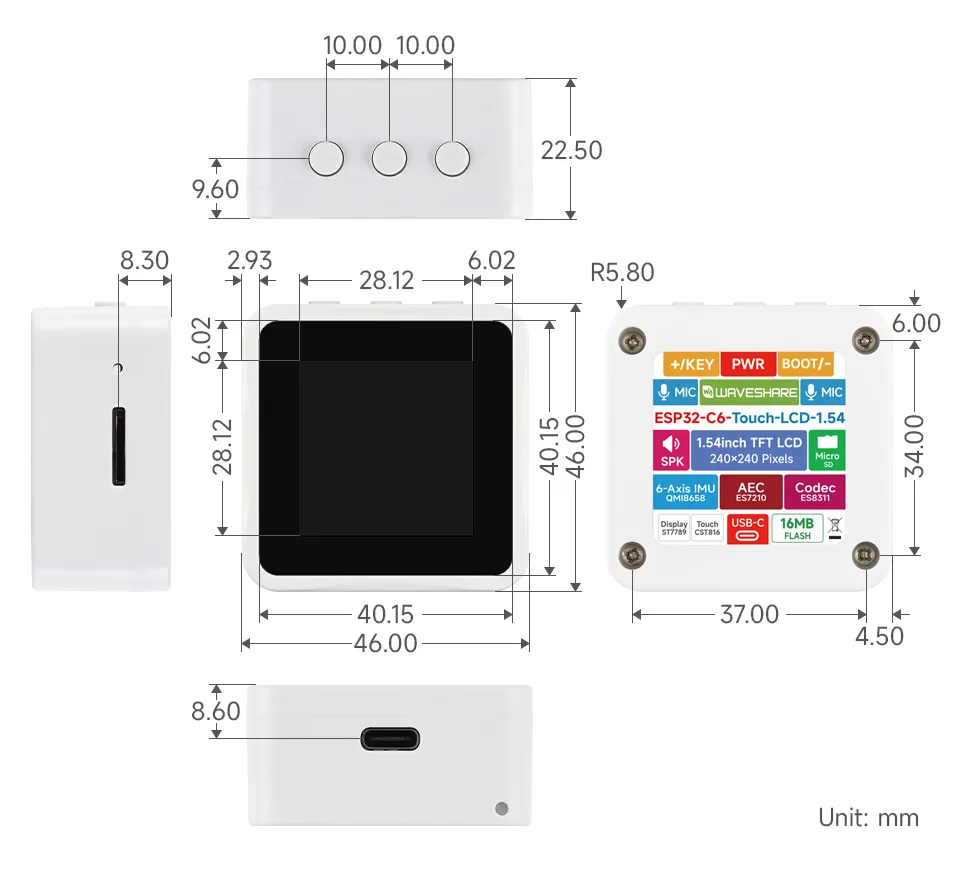
XiaoZhi AI Application Tutorial
XiaozhiAI (XiaoZhi AI) is an open-source AI voice chatbot project based on the ESP32 development board, aiming to bring the general intelligence of large language models (LLMs) to edge devices. It provides a software-hardware integrated solution supporting full-duplex voice conversations and IoT device control, dedicated to assisting developers in building highly customized physical AI agents quickly and at low cost.
This article demonstrates how to flash firmware for Waveshare ESP32 development boards that support XiaoZhi AI, covering two methods: flashing without a development environment (directly flashing precompiled firmware) and flashing with a development environment (compiling from source and flashing).
0. Firmware Flashing Process Reference
This section uses the ESP32-S3-Touch-AMOLED-1.8 development board as an example. The steps are similar for other development boards.
Please first confirm that your hardware is listed in the XiaoZhi AI Supported Products List.
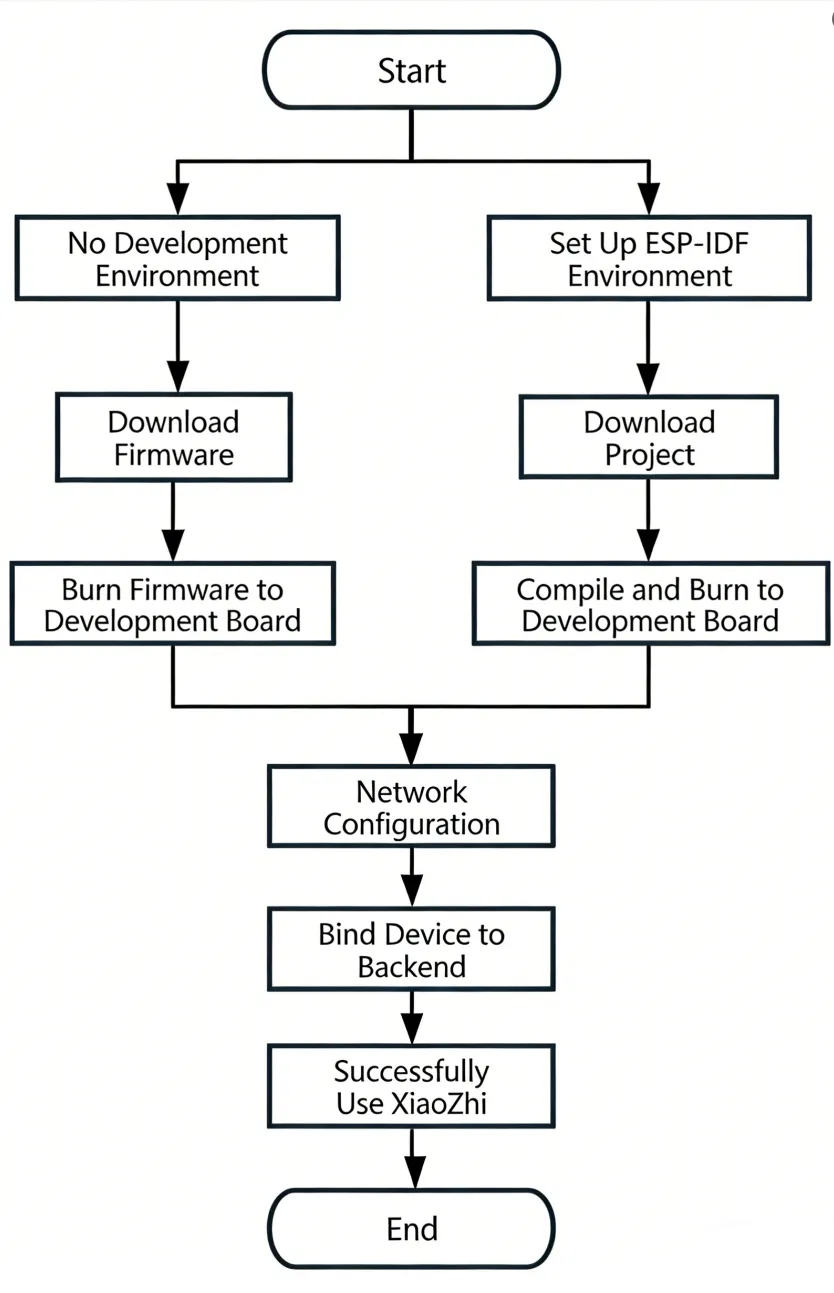
1. Flashing Without a Development Environment
1.1 Download Firmware from XiaoZhi Official GitHub
Visit the XiaoZhi GitHub to download the firmware file for your device. Click Assets to expand the full file list:
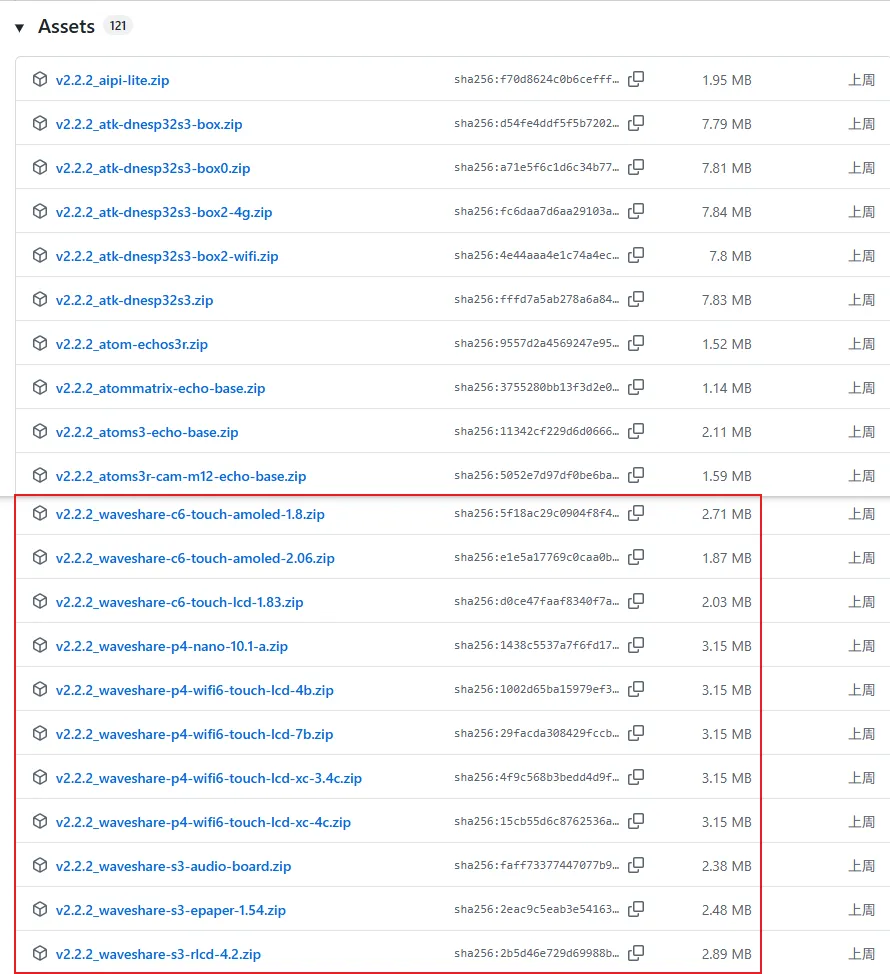
Refer to the Flash Firmware Flashing and Erasing Tutorial to complete the firmware flashing.
1.2 Download Firmware from Waveshare GitHub
This repository aggregates firmware for Waveshare ESP32 development boards that support XiaoZhi AI. All firmware has been tested and verified on the corresponding boards, making it convenient for users to find and download. Firmware versions may be updated slightly later than the official XiaoZhi repository.
Visit the Waveshare GitHub repository and download the appropriate firmware version for your needs:
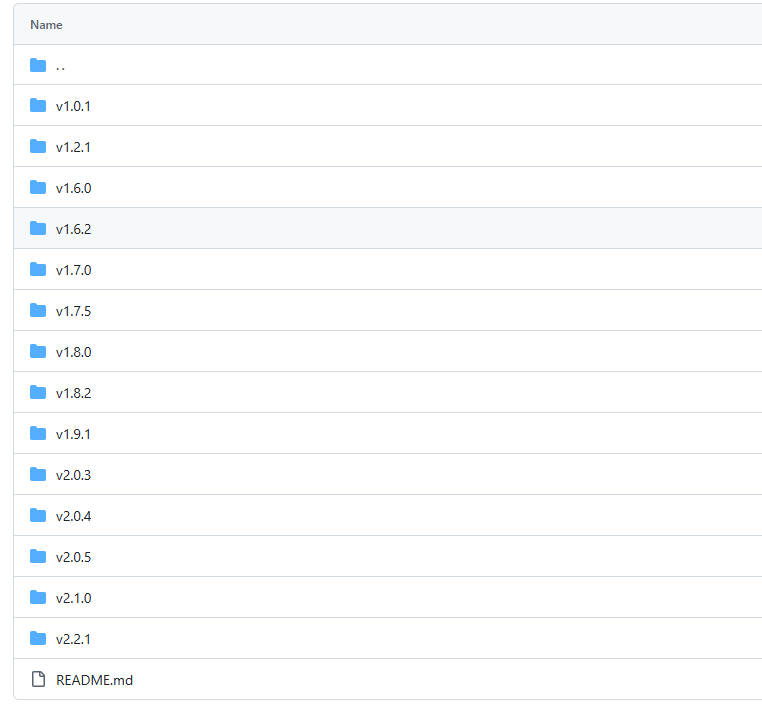
Refer to the Flash Firmware Flashing and Erasing Tutorial to complete the firmware flashing.
2. Flashing with ESP-IDF Environment
2.1 Download the Project from XiaoZhi GitHub
Visit the XiaoZhi AI Chatbot repository to download the complete project code:
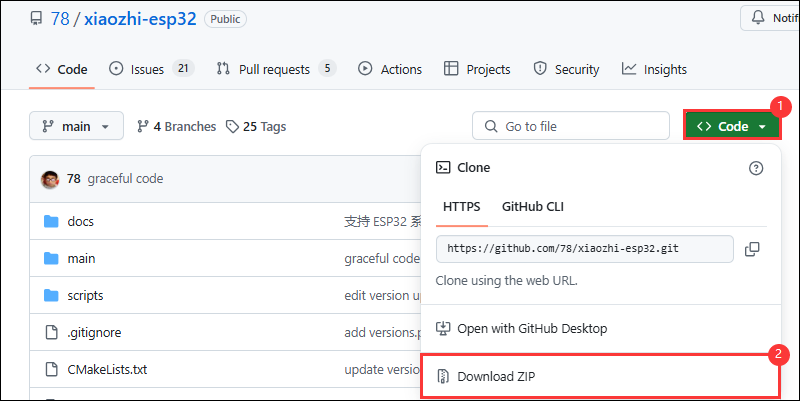
2.2 Environment Setup
Refer to the ESP-IDF Environment Setup Tutorial to configure the development environment.
2.3 Configuration and Compilation
Click
 to select the target device. Choose the chip model corresponding to your development board (e.g.,
 esp32s3):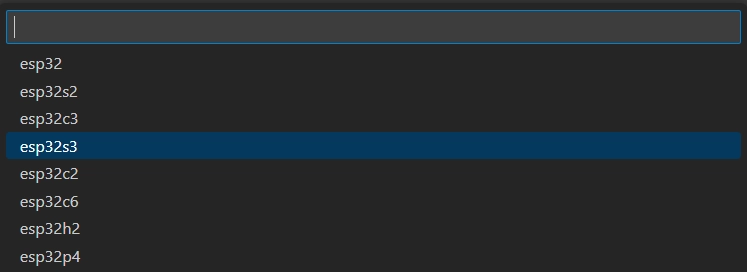 TIP
TIPWhen setting the target device, ESP-IDF will automatically configure the corresponding toolchain and libraries. This process may take some time, please be patient. For more details, please refer to the Official Documentation.
Click
 to open the ESP-IDF terminal, then execute the command
 idf.py menuconfigto enter the configuration interface. Select Xiaozhi Assistant: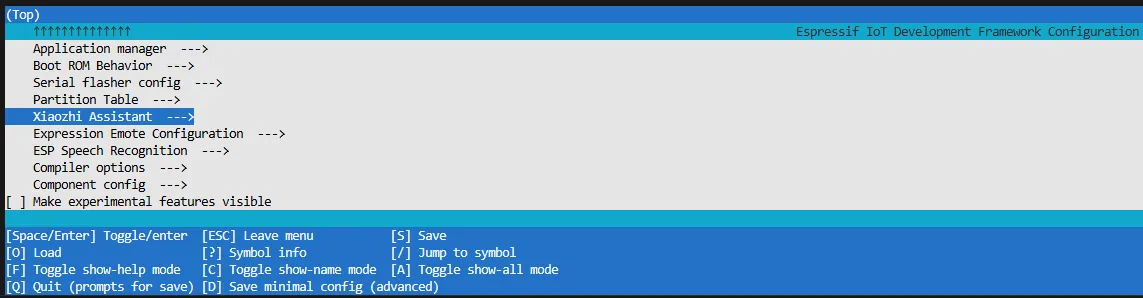
Select Board Type to choose the development board type:
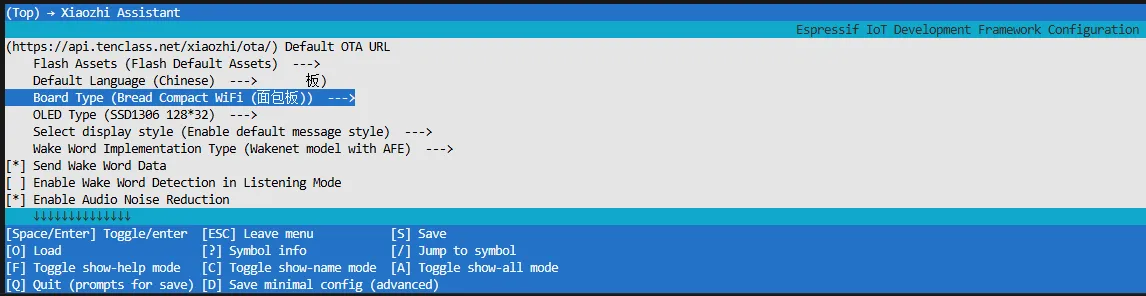
Choose the product model corresponding to your development board:
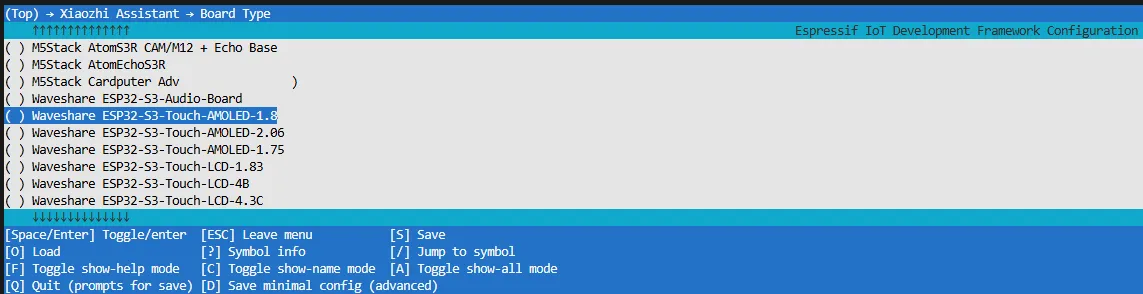
Choose XiaoZhi-AI default display language:
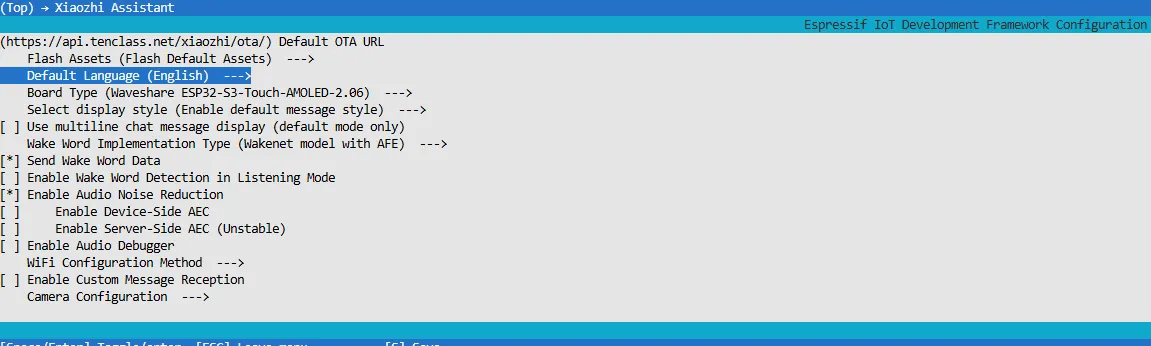
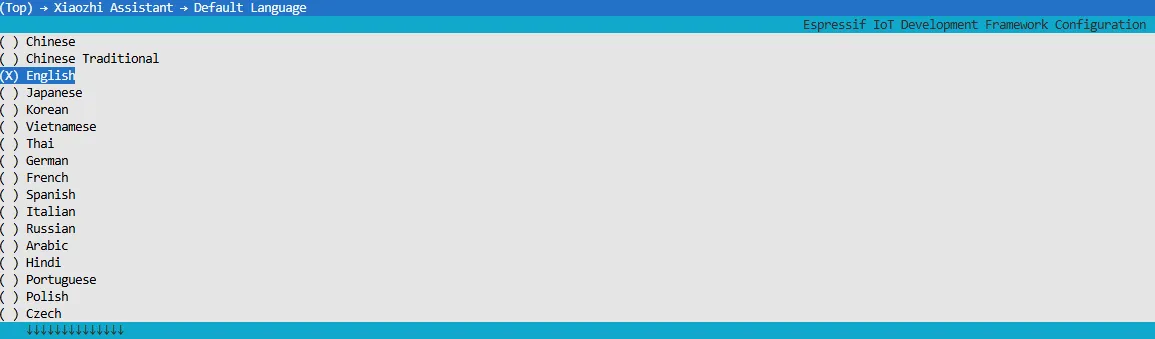
Press the S key to save the configuration and exit. Then click the
 to automatically complete compilation, flashing, and serial monitoring.
2.4 Start Network Provisioning
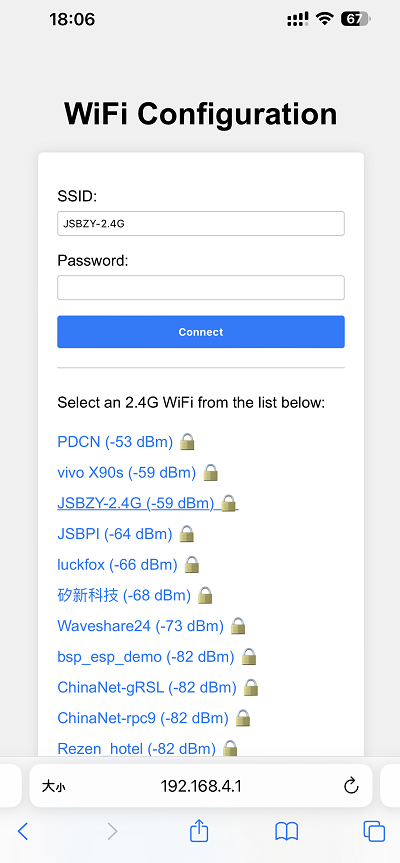
Connect your phone or computer to the device's Wi-Fi hotspot: Xiaozhi-xxxxxx. After successful connection, the configuration page should automatically pop up. If not, manually open a browser and visit
http://192.168.4.1.On the network configuration page, select the Wi-Fi name you want to connect to (only 2.4G band is supported; to connect to an iPhone hotspot, enable Max Compatibility in your phone's system settings). The SSID will be auto-filled. Enter the password and click Connect to start connecting:
2.5 Add a New Device to the Management Console
Ensure the device has successfully connected to the Internet. The device will then broadcast a 6-digit device verification code (you can wake the device again to replay the code).
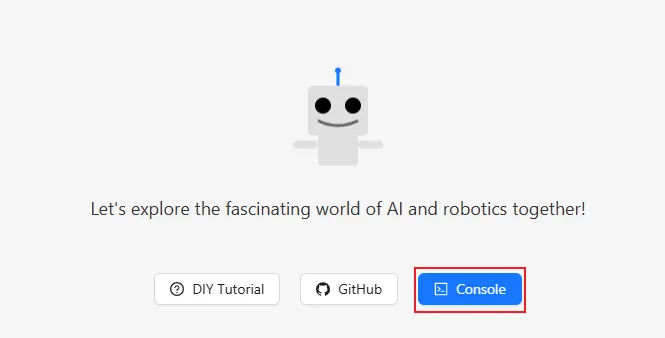
Visit the XiaoZhi AI Console. If you haven't registered, complete the registration and log in:
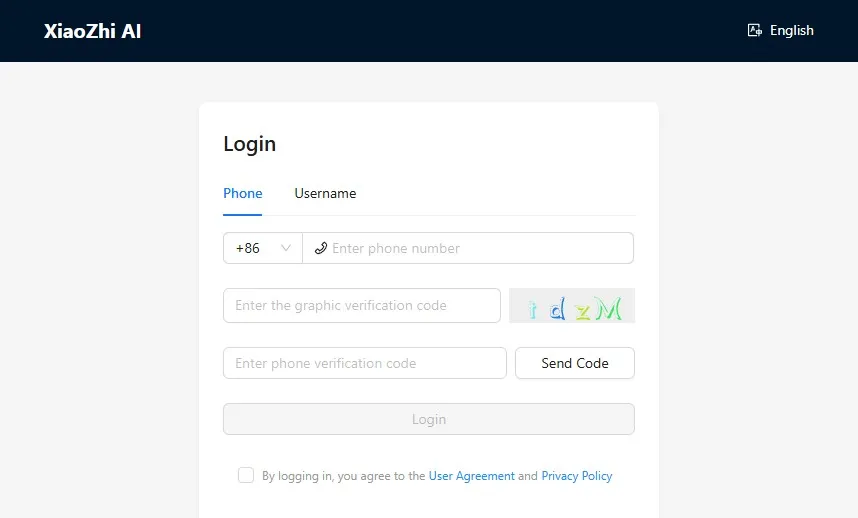
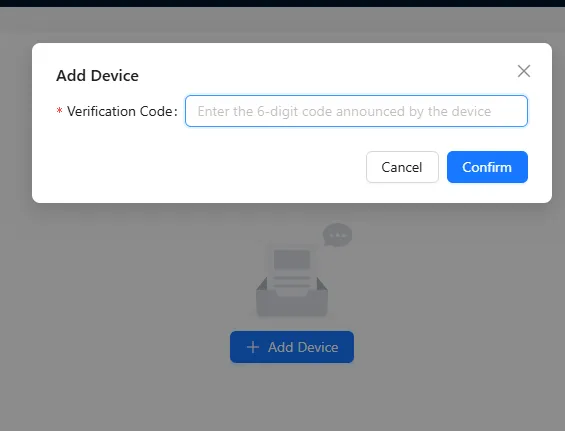
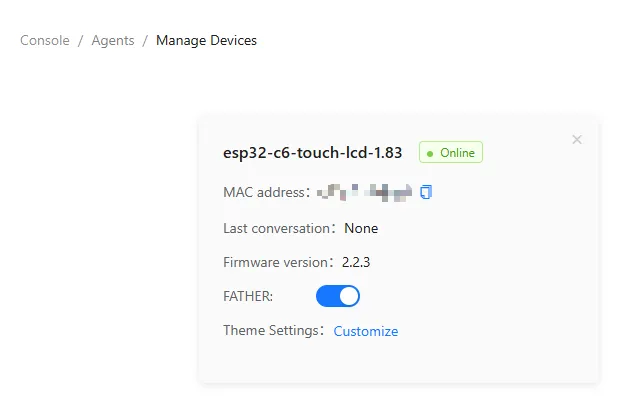
Enter the 6-digit verification code. The device will automatically activate and appear on the Device Management page, ready for normal use.
Say the wake word "Hello XiaoZhi" to wake the device and start voice conversations.
ESP32-S3-Touch-AMOLED-1.8 Button Instructions:
- BOOT button: Press to wake XiaoZhi
- PWR button: Short press to power on; long press for more than 6 seconds to power off
3. XiaoZhi Resources
Working with Arduino
This chapter contains the following sections. Please read as needed:
Arduino Getting Started
New to Arduino ESP32 development and looking for a quick start? We have prepared a comprehensive Getting Started Tutorial for you.
- Section 0: Getting to Know ESP32
- Section 1: Installing and Configuring Arduino IDE
- Section 2: Arduino Basics
- Section 3: Digital Output/Input
- Section 4: Analog Input
- Section 5: Pulse Width Modulation (PWM)
- Section 6: Serial Communication (UART)
- Section 7: I2C Communication
- Section 8: SPI Communication
- Section 9: Wi-Fi Basics
- Section 10: Web Server
- Section 11: Bluetooth
- Section 12: LVGL GUI Development
- Section 13: Comprehensive Project
Note: This tutorial uses the ESP32-S3-Zero as a reference example, and all hardware code is based on its pinout. Before you start, we recommend checking the pinout of your development board to ensure the pin configuration is correct.
Setting Up the Development Environment
1. Installing and Configuring the Arduino IDE
Please refer to the tutorial Installing and Configuring Arduino IDE to download and install the Arduino IDE and add ESP32 support.
2. Installing Libraries
To run the example, you need to install the corresponding library. The example code uses the GFX Library for Arduino library to drive the ST7789 display and the SensorLib library to drive the CST816 touch controller.
The example package for the ESP32-C6-Touch-LCD-1.54 development board can be downloaded from this link. The Arduino\libraries directory within this package contains all the necessary library files required for this tutorial.
| Library or File Name | Description | Version | Installation Method |
|---|---|---|---|
| lvgl | LVGL graphics library | v8.4.0 or v9.3.0 | Via Library Manager or manual installation |
| GFX_Library_for_Arduino | GFX graphics library | v1.6.0 | Via Library Manager or manual installation |
| U8g2 | Graphics display library | v2.35.30 | Via Library Manager or manual installation |
| SensorLib | Sensor driver library | v0.3.1 | Via Library Manager or manual installation |
| ESP32-audioI2S-master | Audio processing library | v3.4.0 | Via Library Manager or manual installation |
| OneButton | Button library | v2.6.1 | Via Library Manager or manual installation |
There are strong dependencies between versions of LVGL and its driver libraries. For example, a driver written for LVGL v8 may not be compatible with LVGL v9. To ensure that the examples can be reproduced reliably, it is recommended to use the specific versions listed in the table above. Mixing different versions of libraries may lead to compilation failures or runtime errors.
Installation Steps:
- Extract the downloaded example package.
- Copy all folders from its
Arduino\librariesdirectory to your Arduino libraries folder.
The path to the Arduino libraries folder is typically: c:\Users\<username>\Documents\Arduino\libraries.
You can also locate it in the Arduino IDE by going to File > Preferences and checking the "Sketchbook location". The libraries folder is the libraries subfolder within this path.
- For other installation methods, please refer to: Arduino Library Management Tutorial.
ESP32-C6-Touch-LCD-1.54 Board Installation Instructions
| Board Name | Board Installation Requirement | Version Requirement |
|---|---|---|
| ESP32 by Espressif Systems | "Offline Installation" / "Online Installation" | 3.2.0 |
3. Additional Tips
The ESP32-C6-Touch-LCD-1.54 requires selecting and configuring the development board.
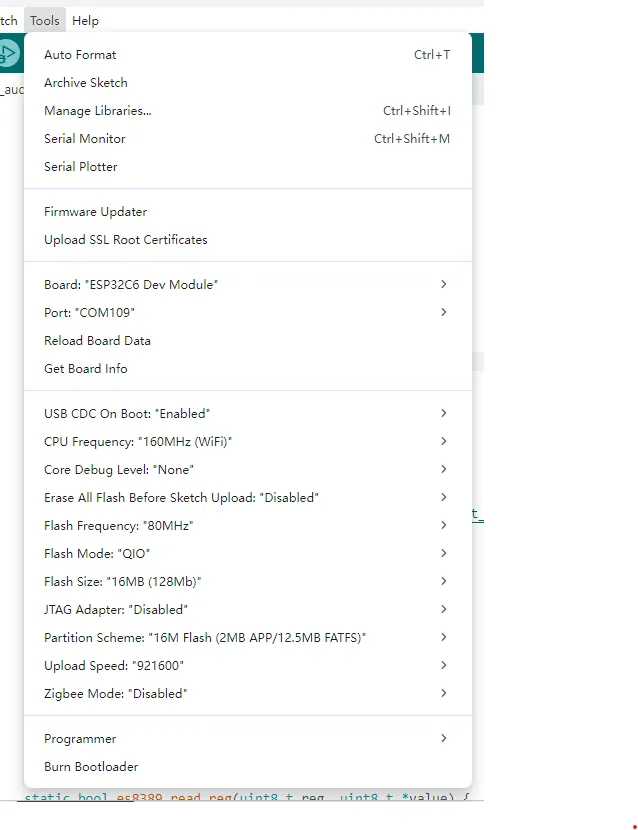
- For ESP32-C6-Touch-LCD-1.54, select ESP32C6 Dev Module.
- Select the corresponding USB port.
- The ESP32-C6-Touch-LCD-1.54 uses the ESP32-C6 native USB interface, not UART-to-USB.
- For serial communication:
- The
printf()function can be used directly; - To use the
Serial.println()function, it is recommended to enable USB CDC On Boot in the IDE Tools menu.
- The
- Select
16MB Flash. - Choose the appropriate partition table size based on example requirements. When running ESP-SR examples, you need to select a large partition table that supports voice models.
Example
The Arduino example programs are located in the Arduino/examples directory of the example package.
| Example | Basic Description | Dependency Library |
|---|---|---|
| 01_audio_out | Read audio files from TF card and play them | ESP32-audioI2S-master |
| 02_button_example | Button test | OneButton |
| 03_qmi8658_example | Prints data obtained from the IMU | SensorLib FastLED |
| 04_gfx_helloworld | Display HelloWorld on the screen | GFX_Library_for_Arduino |
| 05_esp_wifi_analyzer | Display WiFi signal strength on the screen | GFX_Library_for_Arduino |
| 06_gfx_u8g2_font | Display text in multiple languages by loading fonts | GFX_Library_for_Arduino, U8g2 |
| 07_sd_card_test | Test TF card read/write | --- |
| 08_lvgl_example_v8 | lvgl v8.4.0 example | GFX_Library_for_Arduino, lvgl |
| 09_lvgl_example_v9 | lvgl v9.3.0 example | GFX_Library_for_Arduino, lvgl |
01_audio_out
- This example demonstrates the ESP32-C6-Touch-LCD-1.54 reading audio data and playing it back. No activity on the screen.
Code Analysis
- Set I2S pins:void setupI2S() {i2s.setPins(I2S_BCK_PIN, I2S_LRCK_PIN, I2S_DOUT_PIN, I2S_DIN_PIN, I2S_MCK_PIN);// Initialize the I2S bus in standard modeif (!i2s.begin(I2S_MODE_STD, EXAMPLE_SAMPLE_RATE, I2S_DATA_BIT_WIDTH_16BIT, I2S_SLOT_MODE_MONO, I2S_STD_SLOT_LEFT)) {Serial.println("Failed to initialize I2S bus!");return;}}
- Set the audio data to be played:i2s.write((uint8_t *)audio_data, AUDIO_SAMPLES * 2);
Operation Result
- The device will play auido directly without showing content on the screen
02_button_example
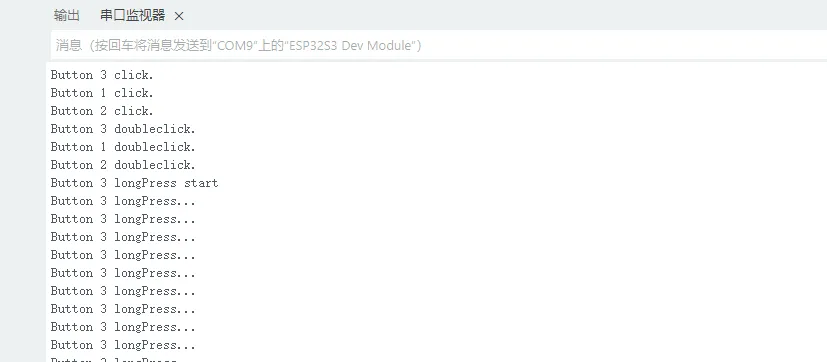
- This example demonstrates how to use the OneButton library to read button states such as single-click, double-click, and long press, and prints them to the serial port.
Code Analysis
Bind callback functions:
button1.attachClick(click1);button1.attachDoubleClick(doubleclick1);button1.attachLongPressStart(longPressStart1);button1.attachLongPressStop(longPressStop1);button1.attachDuringLongPress(longPress1);
Operation Result
- The screen shows no output
- Button information is printed to the serial monitor
03_qmi8658_example
- This example uses the ESP32-C6-LCD-1.54 to obtain data from the onboard QMI8658 and prints it to the serial port.
Code Analysis
Initialize QMI8658:
if (!qmi.begin(Wire, QMI8658_L_SLAVE_ADDRESS, SENSOR_SDA, SENSOR_SCL)) {Serial.println("Failed to find QMI8658 - check your wiring!");while (1) {delay(1000);}}
Operation Result
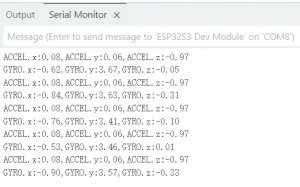
- The screen shows no output
- Opening the serial monitor shows printed accelerometer and gyroscope data for the x, y, and z axes.
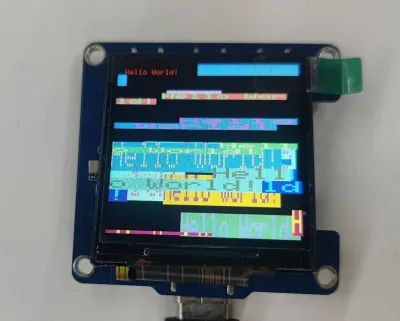
04_gfx_helloworld
- This example demonstrates the ESP32-C6-Touch-LCD-1.54 using the GFX_Library_for_Arduino library to drive the screen and display "HelloWorld" on it.
Code Analysis
- Configure the screen interface and screen resolution, etc.Arduino_DataBus* bus = new Arduino_HWSPI(3 /* DC */, 5 /* CS */, 1 /* SCK */, 2 /* MOSI */, -1 /* MISO */);Arduino_GFX* gfx = new Arduino_ST7789(bus, 4 /* RST */, 0 /* rotation */, true, 240, 240);
Operation Result
- The screen displays as follows:
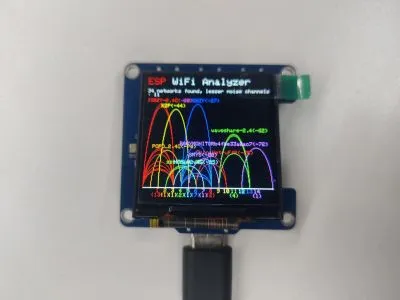
05_esp_wifi_analyzer
- This example demonstrates the ESP32-C6-Touch-LCD-1.54 using the GFX_Library_for_Arduino library to display Wi-Fi band signal strength.
Operation Result
- The screen displays as follows:
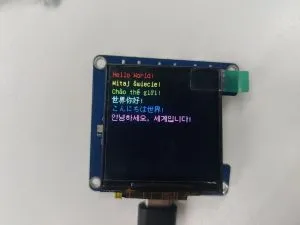
06_gfx_u8g2_font
- This example demonstrates the ESP32-C6-Touch-LCD-1.54 using the GFX_Library_for_Arduino library to display text in various languages by loading font libraries.
Operation Result
- The screen displays as follows:
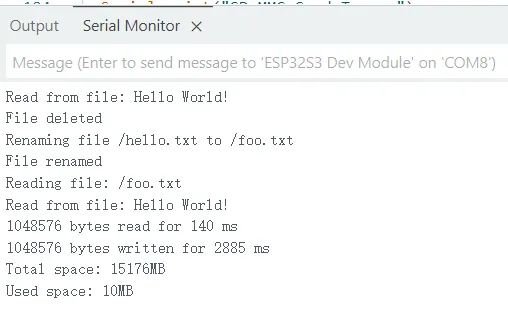
07_sd_card_test
- This example uses the ESP32-C6-Touch-LCD-1.54 to test the TF card read/write functionality.
Code Analysis
TF card initialization:
#ifdef REASSIGN_PINSSPI.begin(sck, miso, mosi, cs);if (!SD.begin(cs)) {#elseif (!SD.begin()) {#endifSerial.println("Card Mount Failed");return;}
Operation Result
- The screen shows no output
- Open the serial monitor
08_lvgl_example_v8
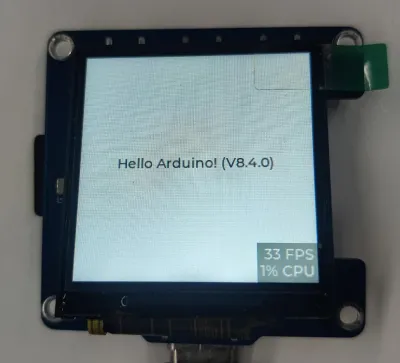
This example demonstrates running the lvgl (v8.4.0) example program on the ESP32-C6-Touch-LCD-1.54.
It is required to install lvgl v8.4.0 version. If you have installed other version, please reinstall.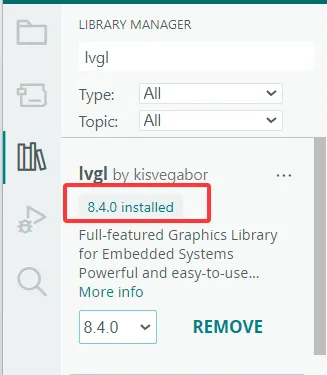
Operation Result
- The screen displays as follows:
09_lvgl_example_v9
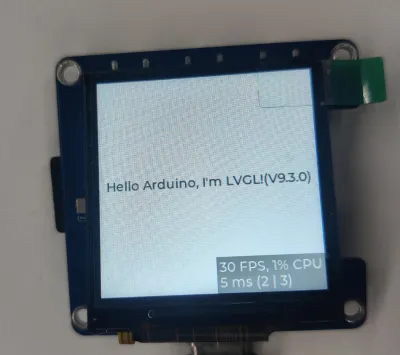
This example demonstrates running the lvgl (v9.3.0) example program on the ESP32-C6-Touch-LCD-1.54.
It is required to install lvgl v9.3.0 version. If you have installed other version, please reinstall.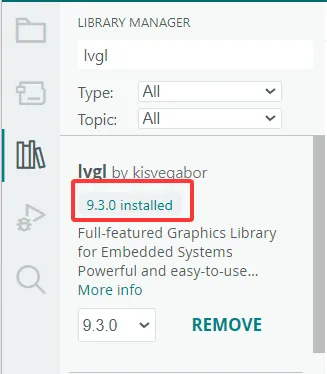
Operation Result
- The screen displays as follows:
ESP-IDF
This chapter contains the following sections. Please read as needed:
ESP-IDF Getting Started
New to ESP32 ESP-IDF development and looking to get started quickly? We have prepared a general Getting Started Tutorial for you.
- Section 1: Environment Setup
- Section 2: Running Examples
- Section 3: Creating a Project
- Section 4: Using Components
- Section 5: Debugging
- Section 6: FreeRTOS
- Section 7: Peripherals
- Section 8: Wi-Fi Programming
- Section 9: BLE Programming
Please Note: This tutorial uses the ESP32-S3-Zero as a teaching example, and all hardware code is based on its pinout. Before you start, it is recommended that you check the pinout of your development board to ensure the pin configuration is correct.
Setting Up the Development Environment
For the ESP32-C6-Touch-LCD-1.54 development board, it is recommended to use ESP-IDF V5.5.1 or later.
The following guide uses Windows as an example, demonstrating development using VS Code + the ESP-IDF extension. macOS and Linux users should refer to the official documentation.
The screenshots in this section use ESP-IDF V5.5.2 as an example. When installing, please select the ESP-IDF version that matches your board's example.
Install the ESP-IDF Development Environment
Download the installation manager from the ESP-IDF Installation Manager page. This is Espressif's latest cross-platform installer. The following steps demonstrate how to use its offline installation feature.
Click the Offline Installer tab on the page, then select Windows as the operating system and the ESP-IDF version you need (the version shown in the screenshot is for reference only — choose the version that fits your actual needs).
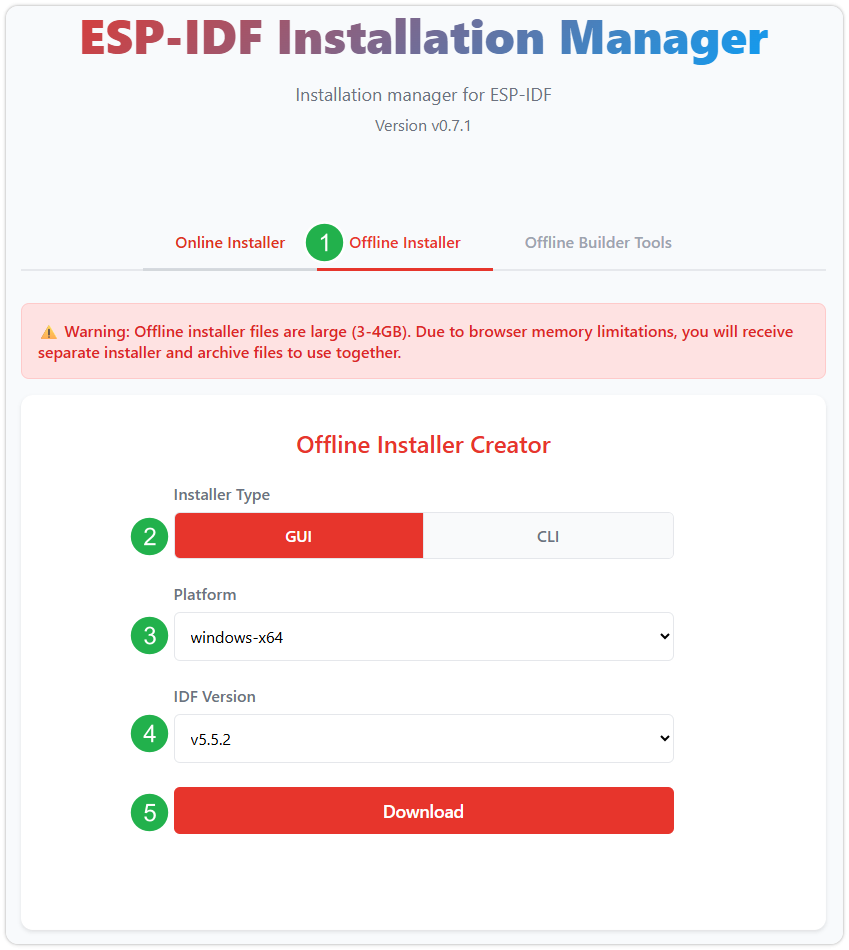
After confirming your selection, click the download button. The browser will automatically download two files: the ESP-IDF Offline Package (.zst) and the ESP-IDF Installer (.exe).
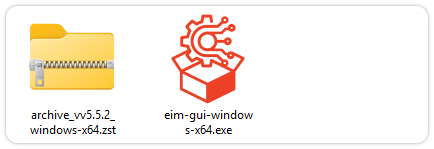
Please wait for both files to finish downloading.
Once the download is complete, double-click to run the ESP-IDF Installer (eim-gui-windows-x64.exe).
The installer will automatically detect if the offline package exists in the same directory. Click Install from archive.
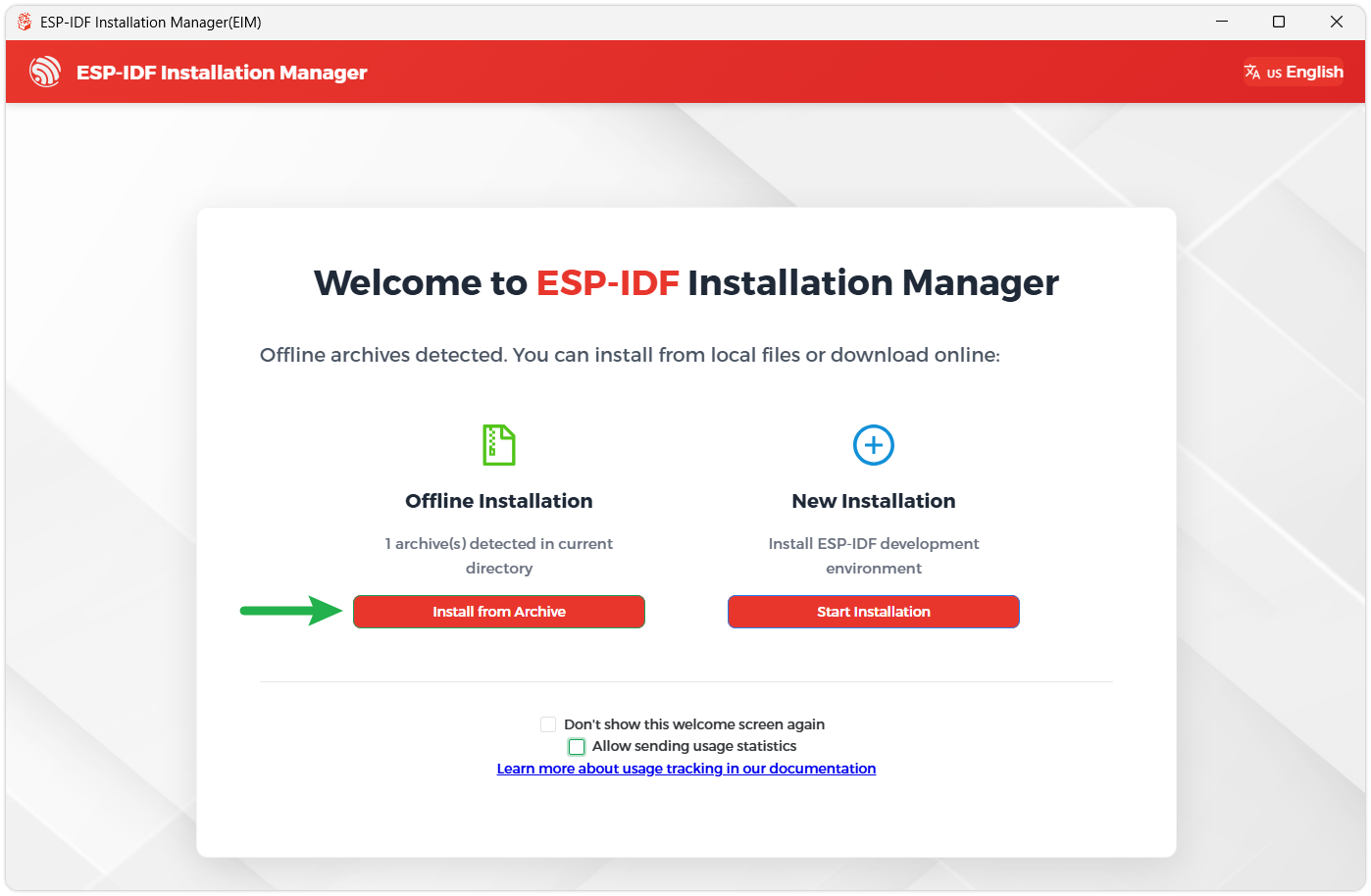
Next, select the installation path. We recommend using the default path. If you need to customize it, ensure the path does not contain Chinese characters or spaces. Click Start installation to proceed.
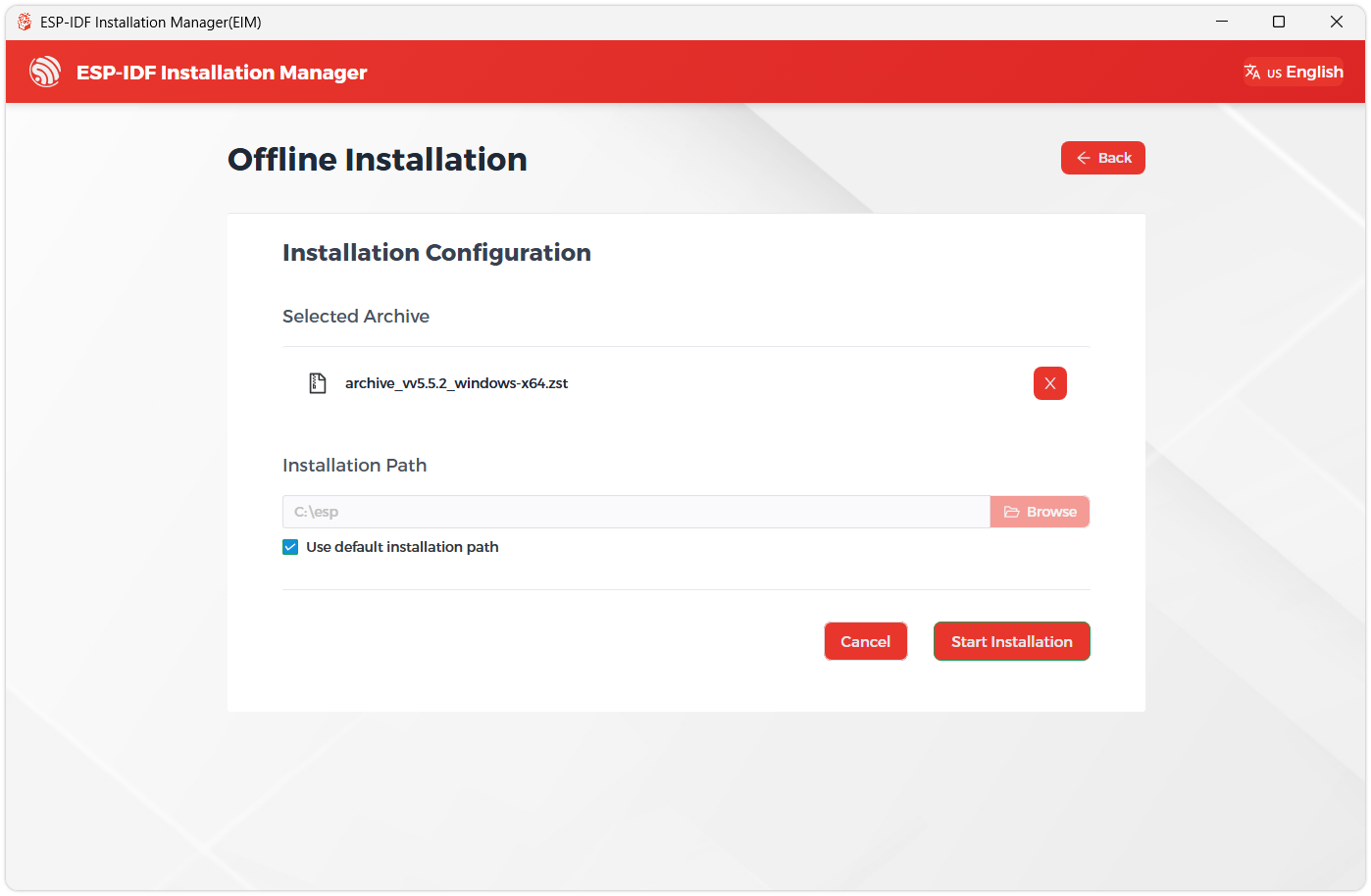
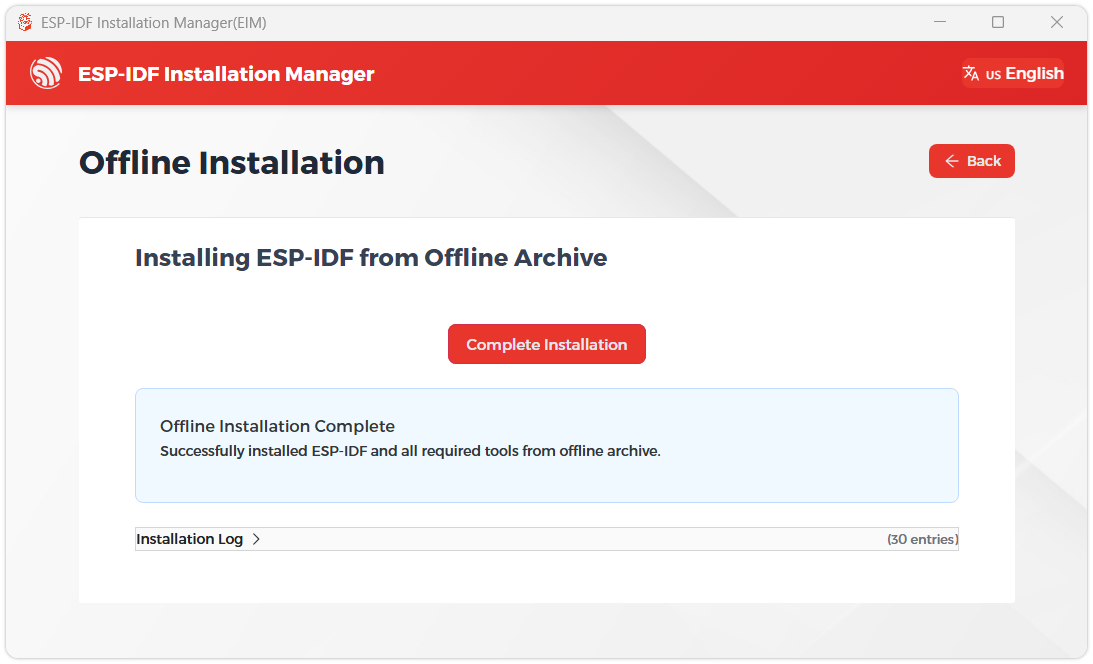
When you see the following screen, the ESP-IDF installation is successful.
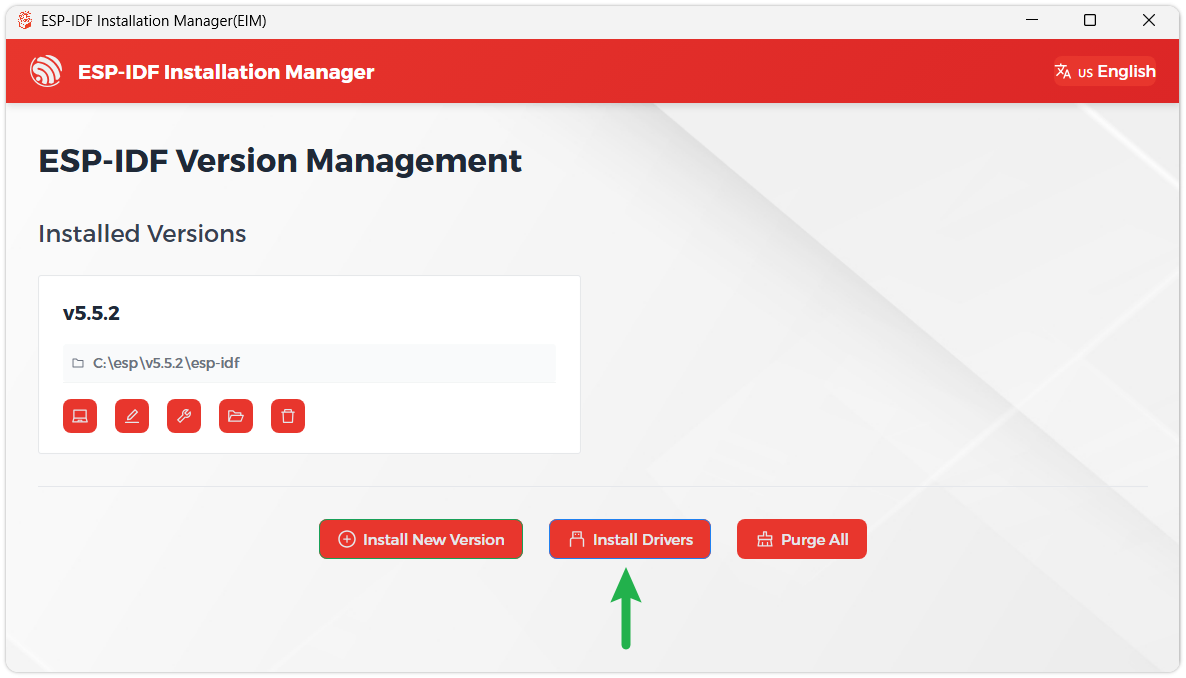
We recommend installing the drivers as well. Click Finish installation, then select Install driver.
Install Visual Studio Code and the ESP-IDF Extension
Download and install Visual Studio Code.
During installation, it is recommended to check Add "Open with Code" action to Windows Explorer file context menu to facilitate opening project folders quickly.
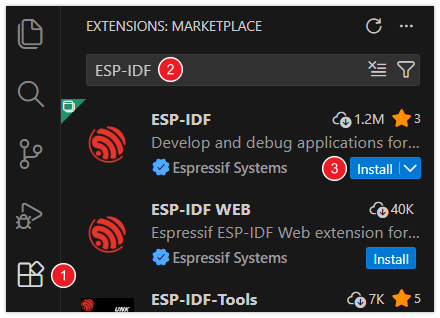
In VS Code, click the Extensions icon
 in the Activity Bar on the side (or use the shortcut Ctrl + Shift + X) to open the Extensions view.
Enter ESP-IDF in the search box, locate the ESP-IDF extension, and click Install.
For ESP-IDF extension versions ≥ 2.0, the extension will automatically detect and recognize the ESP-IDF environment installed in the previous steps, requiring no manual configuration.
Example
The ESP-IDF examples are located in the ESP-IDF directory of the example package.
01_factory
This is a comprehensive example for the ESP32-C6-Touch-LCD-1.54.
Hardware Connection
- Connect the development board to the computer.
Operation Result
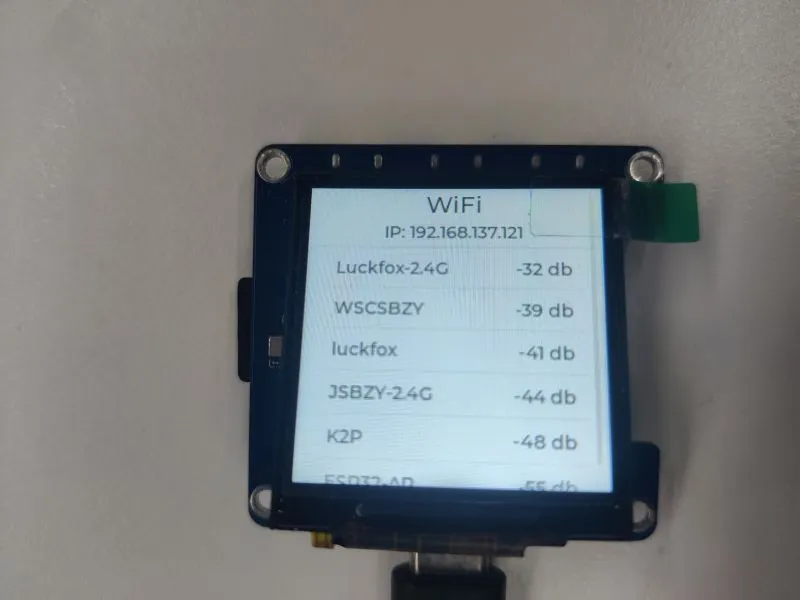
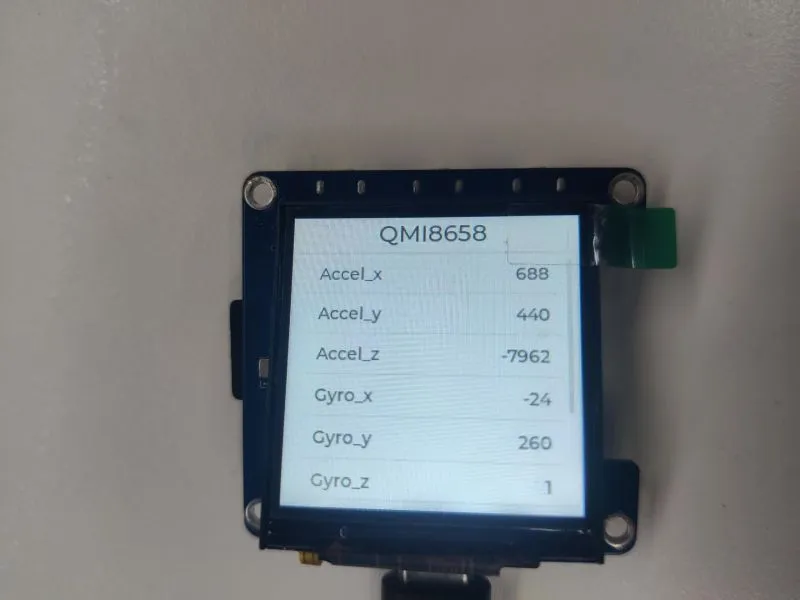
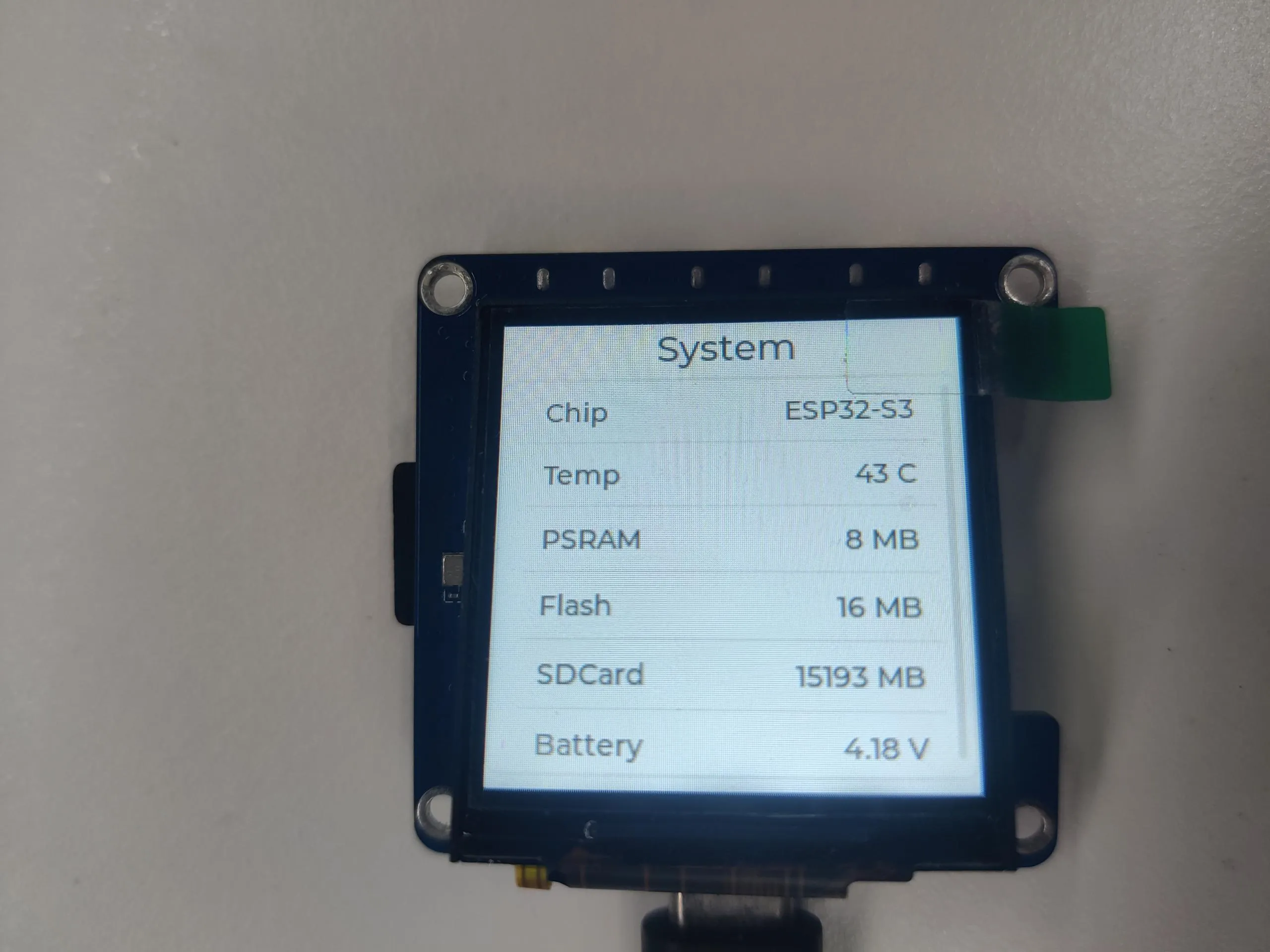
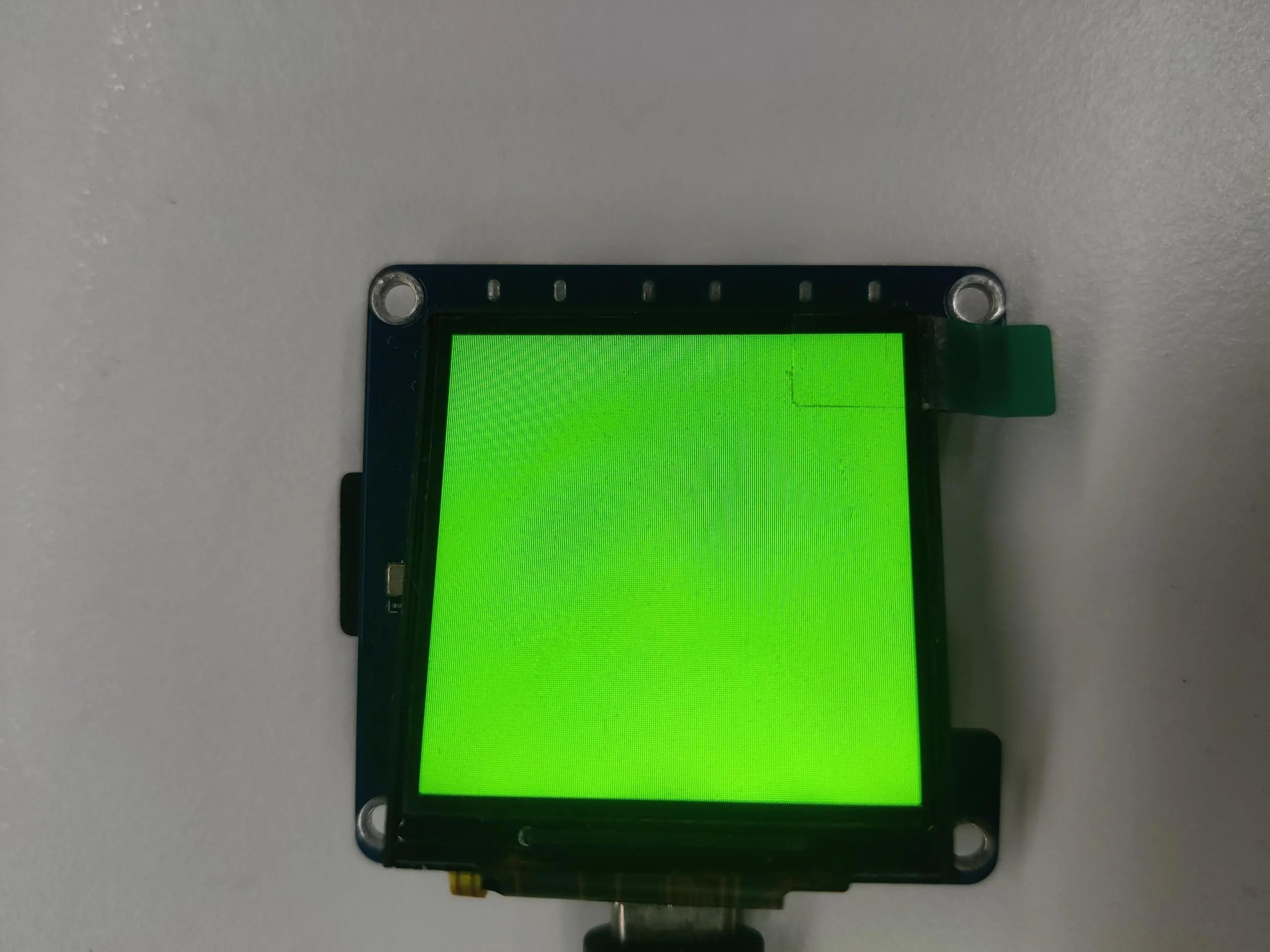
- The first page cycles through the colors red, green, and blue
- The second page displays development board information
- The third page shows the data read from the IMU
- The fourth page shows the IP address of the connected Wi-Fi (if not connected or connection fails, it displays 0.0.0.0) and the discovered Wi-Fi networks
Specific Operations
- Long press and hold the left button. After 2 seconds, the microphone captures sound. Release the left button or after capturing for 4 seconds, the speaker plays the recording (if there is noise, re-flash the firmware).
- When powered by battery, long press the middle button to power on; long press again and release to power off
- Click the left/right buttons to switch pages. On the ESP32-C6-Touch-LCD-1.54, you can also swipe the screen to switch pages.
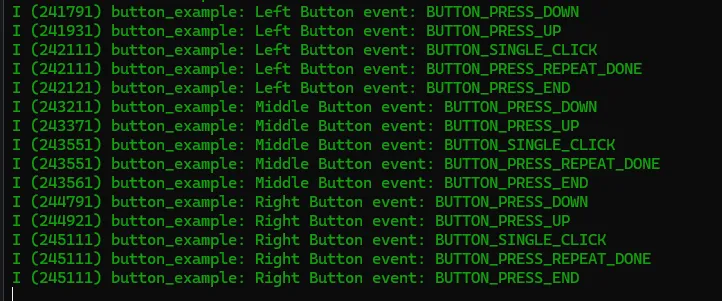
02_button_example
This example demonstrates how to use the espressif/button library to read button states such as single click, double click, and long press, and print them via serial port.
Hardware Connection
- Connect the development board to the computer.
Code Analysis
Bind callback functions:
ret = iot_button_register_cb(boot_btn, BUTTON_PRESS_DOWN, NULL, button_event_cb, NULL);ret |= iot_button_register_cb(boot_btn, BUTTON_PRESS_UP, NULL, button_event_cb, NULL);ret |= iot_button_register_cb(boot_btn, BUTTON_PRESS_REPEAT, NULL, button_event_cb, NULL);ret |= iot_button_register_cb(boot_btn, BUTTON_PRESS_REPEAT_DONE, NULL, button_event_cb, NULL);ret |= iot_button_register_cb(boot_btn, BUTTON_SINGLE_CLICK, NULL, button_event_cb, NULL);ret |= iot_button_register_cb(boot_btn, BUTTON_DOUBLE_CLICK, NULL, button_event_cb, NULL);ret |= iot_button_register_cb(boot_btn, BUTTON_LONG_PRESS_START, NULL, button_event_cb, NULL);ret |= iot_button_register_cb(boot_btn, BUTTON_LONG_PRESS_HOLD, NULL, button_event_cb, NULL);ret |= iot_button_register_cb(boot_btn, BUTTON_LONG_PRESS_UP, NULL, button_event_cb, NULL);ret |= iot_button_register_cb(boot_btn, BUTTON_PRESS_END, NULL, button_event_cb, NULL);
Operation Result
- The screen shows no output
- Open the serial debugging tool; button information is printed to the serial port
03_qmi8658_example
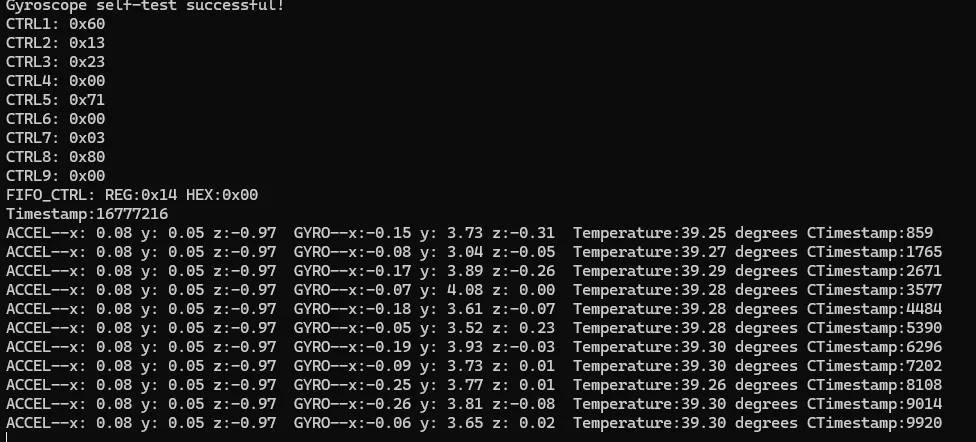
This example demonstrates how to use the sensorlib library to read data from the qmi8658 and print it.
Hardware Connection
- Connect the development board to the computer.
Code Analysis
- Read Accelerometer, Gyroscope, and Timestamp data from the qmi8658if (qmi.getDataReady()){if (qmi.getAccelerometer(acc.x, acc.y, acc.z)){printf("ACCEL--x:%5.2f y:%5.2f z:%5.2f ", acc.x, acc.y, acc.z);}if (qmi.getGyroscope(gyr.x, gyr.y, gyr.z)){printf("GYRO--x:%5.2f y:%5.2f z:%5.2f ", gyr.x, gyr.y, gyr.z);}}
Operation Result
- The screen shows no output
- Open the serial debugging tool; qmi8658 data information is printed to the serial port
04_sd_card_test
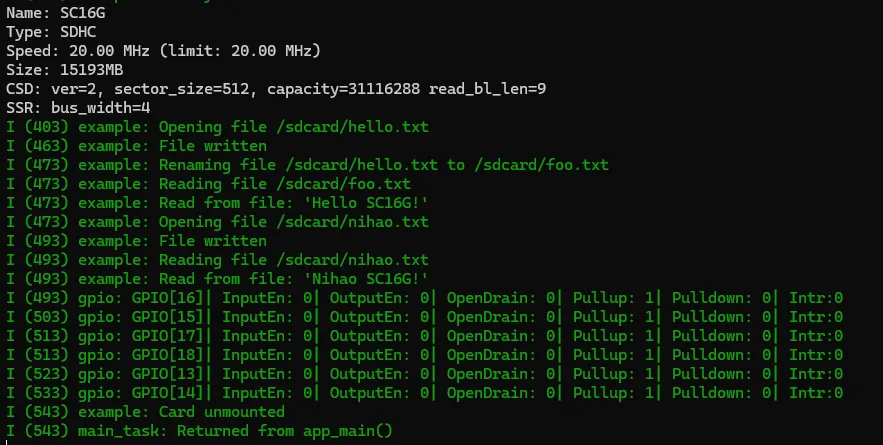
This example uses the ESP32-C6-Touch-LCD-1.54 to test the TF card read/write functionality.
Hardware Connection
- Insert the TF card into the card slot (TF card needs to be formatted as FAT32)
- Connect the development board to the computer.
Operation Result
- The screen shows no output
- Open the serial debugging tool; TF card information is printed to the serial port
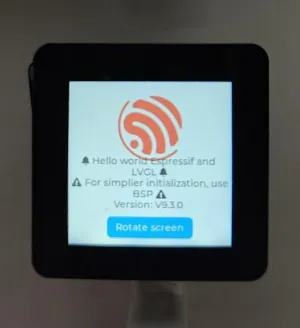
05_lvgl_example
This example demonstrates running an lvgl example program on the ESP32-C6-Touch-LCD-1.54 (supports lvgl v8 and lvgl v9).
- The default LVGL version used is v9.3.0. To change the version, modify the LVGL configuration in the
main/idf_component.ymlfile, for example, change it tolvgl/lvgl:^8.4.0.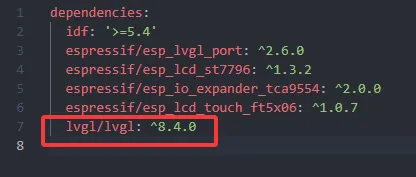
Hardware Connection
- Connect the development board to the computer.
Code Analysis
Initialization:
/* LCD HW initialization */ESP_ERROR_CHECK(app_lcd_init());/* Touch initialization */app_touch_init();/* LVGL initialization */ESP_ERROR_CHECK(app_lvgl_init());
Operation Result
Resources
1. Hardware Resources
Development Board Design Files
2. Technical Manuals
ESP32-C6 Chip Official Manuals
Onboard Component Datasheets
3. Example
4. Software Tools
- Arduino:
- VS Code:
- Debugging Tools:
- Firmware Flashing Tool:
- Other Resource Links:
Support
Monday-Friday (9:30-6:30) Saturday (9:30-5:30)
Email: services01@spotpear.com
[Tutorial Navigation]
- Features
- Onboard Resources
- Pinout Definition
- Dimensions
- XiaoZhi AI Application Tutorial
- 0. Firmware Flashing Process Reference
- 1. Flashing Without a Development Environment
- 2. Flashing with ESP-IDF Environment
- 2.1 Download the Project from XiaoZhi GitHub
- 2.2 Environment Setup
- 2.3 Configuration and Compilation
- 2.4 Start Network Provisioning
- 2.5 Add a New Device to the Management Console
- 3. XiaoZhi Resources
- Working with Arduino
- Arduino Getting Started
- Setting Up the Development Environment
- Example
- ESP-IDF
- ESP-IDF Getting Started
- Setting Up the Development Environment
- Example
- Resources
- Support