- sales/support
Google Chat:---
- sales
+86-0755-88291180
- sales01
sales@spotpear.com
- sales02
dragon_manager@163.com
- support
tech-support@spotpear.com
- CEO-Complaints
zhoujie@spotpear.com
- Only Tech-Support
WhatsApp:13246739196
- Purchase/Shipping/Refund
WhatsApp:13424403025
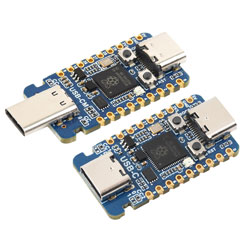
RP2350-USB-C User Guide
Features
- Utilizes the RP2350A microcontroller chip designed by Raspberry Pi
- Unique dual-core, dual-architecture, featuring dual-core ARM Cortex-M33 processors and dual-core Hazard3 RISC-V processors, both operating at up to 150MHz, allowing users to flexibly switch between the two architectures
- Built-in 520KB of SRAM and 2MB of on-chip Flash
- Utilizes a Type-C port, eliminating the hassle of plug orientation
- USB1.1 host and slave device support
- Supports low-power sleep and dormant modes
- Drag-and-drop programming using mass storage over USB
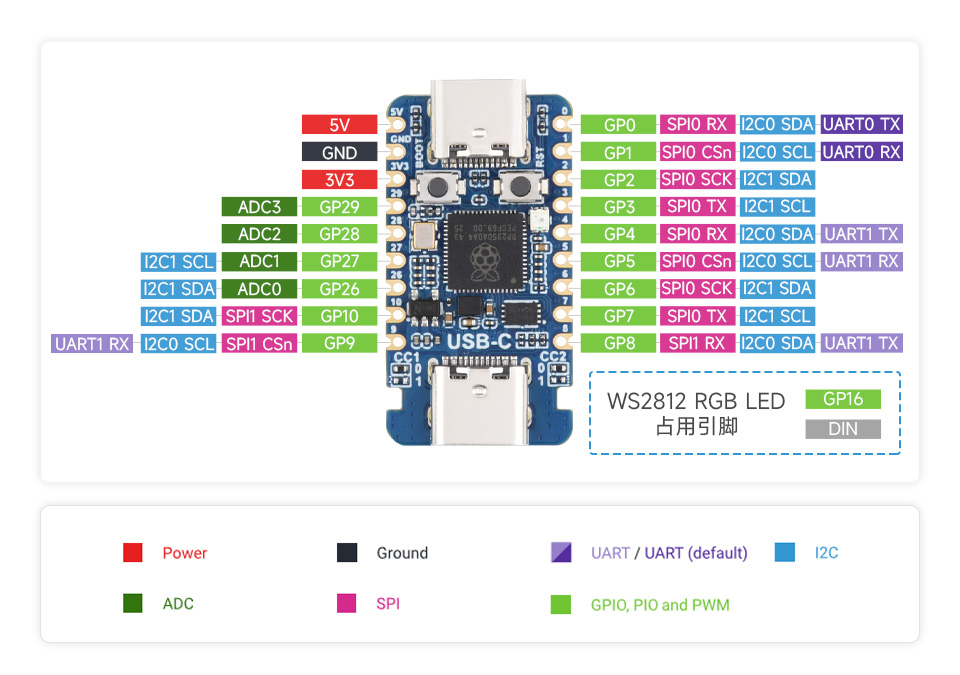
- 15 × multi-function GPIO pins of the RP2350A are brought out
- 2 × SPI, 2 × I2C, 2 × UART, 4 × 12-bit ADC and 14 × controllable PWM channels
- Accurate on-chip clock and timer
- Built-in temperature sensor for real-time chip temperature monitoring
- 12 × programmable I/O (PIO) state machines for custom peripheral support
Onboard Resources
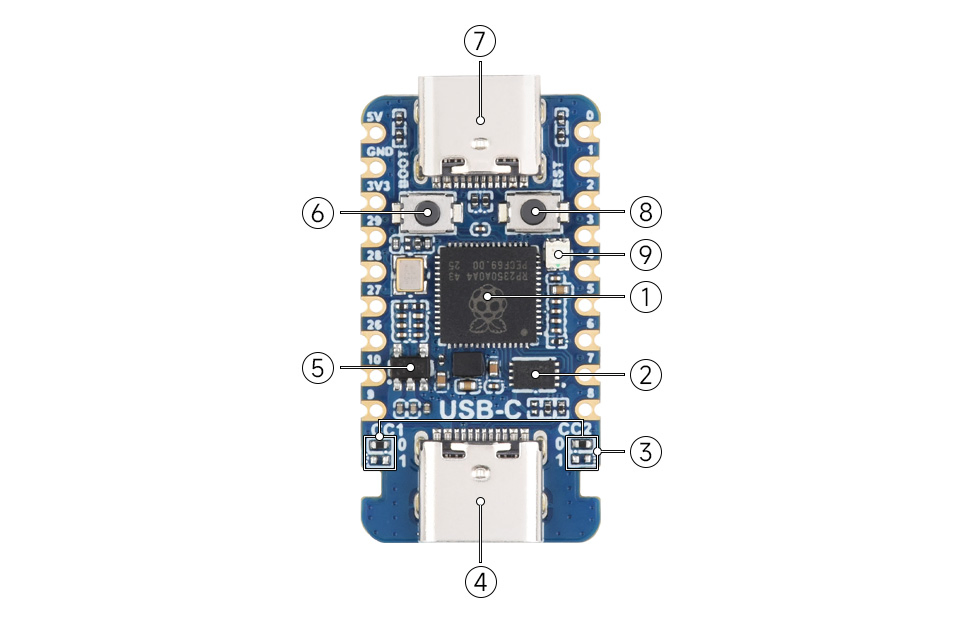
- RP2350A Dual-core, dual-architecture processor, up to 150MHz operating frequency
- W25Q16JVUXIQ 2MB NOR Flash
- PIO-USB CCX pull‑up/pull‑down resistors Supports Sink / Source switching via resistor configuration
- PIO-USB For using as a USB host or device via PIO
- RT9013-33GB 500mA low dropout, low noise, ultra‑fast LDO
- BOOT button Press while resetting to enter download mode
- USB Type-C Port For programming, supports USB1.1 host and device
- RUN Reset Button For resetting the board
- WS2812 Colorful RGB LED
Interface Introduction
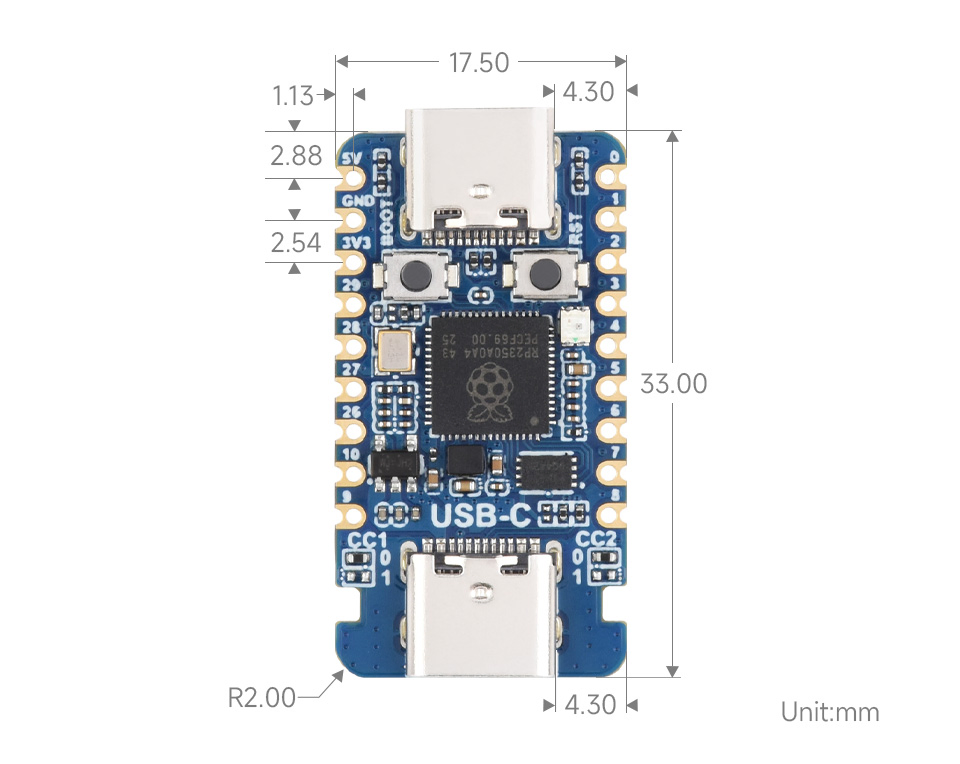
Dimensions
Working with MicroPython
This chapter contains the following sections. Please read as needed:
MicroPython Getting Started Tutorial
New to Pico MicroPython development and want to get started quickly? We have prepared a general introductory tutorial for you. These tutorial is designed to help developers quickly become familiar with Thonny IDE and start developing. It covers environment setup, project creation, component usage, and peripheral programming, helping you take the first step in MicroPython programming.
- Section 1 Basic Introduction
- Section 2 GPIO
- Section 3 PWM
- Section 4 ADC
- Section 5 UART
- Section 6 I2C
- Section 7 SPI
- Section 8 PIO
Setting Up the Development Environment
Please refer to the Install and Configure Thonny IDE Tutorial to download and install the Thonny IDE.
Example
The MicroPython examples are located in the examples\MicroPython directory of the example package.
| Example | Basic Program Description | Dependency Library |
|---|---|---|
| 01_RGB | Onboard RGB LED example | - |
01_RGB
Example Description
- Uses GPIO16 to drive a WS2812B RGB LED via PIO, cycling through colors.
Hardware Connection
- Connect the board to the computer using a USB cable.
Operation Result
- After flashing, the WS2812B RGB LED continuously fades through red, green, and blue.
Working with C/C++
This chapter contains the following sections. Please read as needed:
Setting Up the Development Environment
Please refer to the Install and Configure Pico C/C++ Development Environment Tutorial to download and install the Pico VSCode.
Example
The C/C++ examples are located in the examples\C directory of the example package.
| Example | Basic Program Description | Dependency Library |
|---|---|---|
| 01_USB | PIO‑USB emulation of USB device/host examples | - |
| 02_RGB | Onboard RGB LED example | - |
01_USB
The examples are modified from sekigon-gonnoc's Pico-PIO-USB.
Example version: 0.5.3
PICO SDK version: 2.2.0
Example Description
usb_device
- Example path:
examples/usb_device - Uses PIO‑USB to emulate an HID keyboard/mouse device. After the computer recognizes it, the mouse cursor moves periodically.
- Example path:
host_hid_to_device_cdc
- Example path:
examples/host_hid_to_device_cdc - Uses PIO‑USB as a host to read HID reports from a keyboard/mouse and outputs them to the computer's serial port via native USB CDC.
- Note: When compiling this example, you must comment out the return statements in the file
SDK\lib\tinyusb\src\portable\raspberrypi\pio_usb\hcd_pio_usb.c, as shown below:bool hcd_edpt_abort_xfer(uint8_t rhport, uint8_t dev_addr, uint8_t ep_addr) {uint8_t const pio_rhport = RHPORT_PIO(rhport);// return pio_usb_host_endpoint_abort_transfer(pio_rhport, dev_addr, ep_addr);}uint32_t hcd_frame_number(uint8_t rhport) {(void) rhport;// return pio_usb_host_get_frame_number();}
- Example path:
Hardware Connection
- Connect the board to the computer using a USB cable
Operation Result
usb_device
PIO‑USB emulates a mouse and moves the mouse cursor every 0.5 seconds.

host_hid_to_device_cdc
Similar to capture_hid_report, prints mouse/keyboard reports from the host port to the device port's CDC.

02_RGB
Example Description
- Uses GPIO16 to drive a WS2812B RGB LED via PIO, cycling through colors.
Hardware Connection
- Connect the board to the computer using a USB cable.
Operation Result
- After flashing, the WS2812B RGB LED continuously fades through red, green, and blue.
Resources
1. Hardware Resources
Development Board Design Files
2. Official Resources
- Raspberry Pi Official Documentation
- Raspberry Pi-Open Source Examples
3. Development Software
- pico-vscode package
- Chinese character conversion software
- Font Library Conversion Tutorial
- Image bitmap conversion software
- Image Bitmap Conversion Tutorial
4. Example
Support
Monday-Friday (9:30-6:30) Saturday (9:30-5:30)
Email: services01@spotpear.com