- sales/support
Google Chat:---
- sales
+86-0755-88291180
- sales01
sales@spotpear.com
- sales02
dragon_manager@163.com
- support
tech-support@spotpear.com
- CEO-Complaints
zhoujie@spotpear.com
- Only Tech-Support
WhatsApp:13246739196
- Purchase/Shipping/Refund
WhatsApp:13424403025
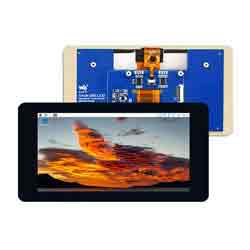
Raspberry Pi 7inch DSI LCD (B) User Guide
Features
- 7-inch DSI touch screen, 5-point capacitive touch control.
- IPS screen with a hardware resolution of 800 x 480.
- Support Pi 4B/3B+/3A+/3B/2B/B+/A+, and some CM3/3+/4 expansion board require DSI-Cable-15cm.
- Support drives the LCD directly via the DSI interface of the Raspberry Pi, and the refresh rate is up to 60Hz.
- When working with Raspberry Pi, it supports Raspberry Pi OS/Ubuntu/Kali and Retropie, driver-free.
- When working with VisionFive2, it supports Debian, single-point control, and driver-free.
- When working with Tinker Board 2, it supports Linux/Android, up to five-point touch control, and is driver-free.
- When working Core3566, it supports Debian/Ubuntu, up to five-point touch control, and is driver-free.
- Support brightness adjusted by the software.
Working with Raspberry Pi
Hardware Connection
- Connect the 7-inch DSI LCD to the DSI interface of Raspberry Pi with the 15PIN FPC cable.
- Connect the power port to the 40PIN GPIO header with a 2PIN power cable.
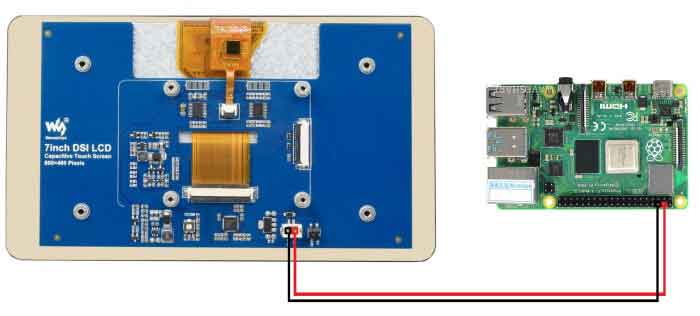
- For ease of use, the Raspberry Pi can be screwed to the back of the 7-inch DSI LCD and assembled with copper posts.
The final installation is shown below: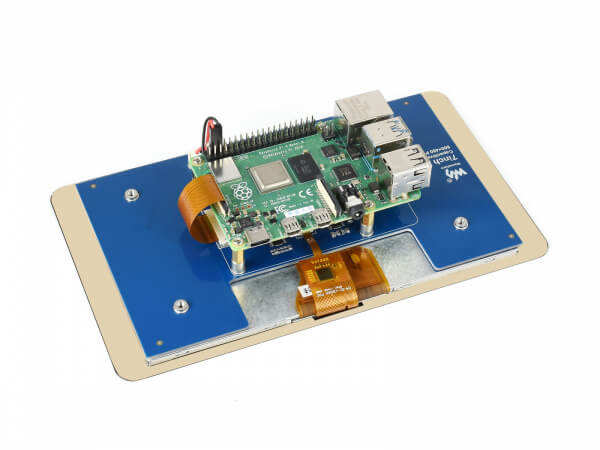
Software Setting
It is used for Raspberry Pi OS/Ubuntu/Kali and Retropie systems.
- Please click Raspberry Pi official website to download the newest image. Download the compressed file to the PC and unzip it to get the .img file.
- Connect the TF card to the PC, and use SDFformatter to format the TF card.
- Open Win32DiskImager, choose the image prepared in the first step, and click "Write" to program the system image.
- After programming, open the config.txt file in the root directory of the TF card and enter the following codes at the end of config.txt. Then, save and safely eject the TF card.
- Insert the TF card into the Raspberry Pi, power up the Raspberry Pi, wait for a few seconds normally and then it will display normally.
dtoverlay=vc4-kms-v3d
dtoverlay=vc4-kms-dsi-7inchBacklight Control
Input the following commands in the terminal to control the brightness:
echo X > /sys/class/backlight/rpi_backlight/brightness
Where X denotes any number from 0 to 255. 0 means the backlight is the dimmest, and 255 means the backlight is the brightest. For example:
echo 100 > /sys/class/backlight/rpi_backlight/brightness
echo 0 > /sys/class/backlight/rpi_backlight/brightness
echo 255 > /sys/class/backlight/rpi_backlight/brightness
In addition, Waveshare provides a corresponding application (the program is only for Raspberry Pi OS system), which users can download and install in the following ways to use:
wget https://www.waveshare.com/w/upload/f/f4/Brightness.zip
unzip Brightness.zip
cd Brightness
sudo chmod +x install.sh
./install.sh
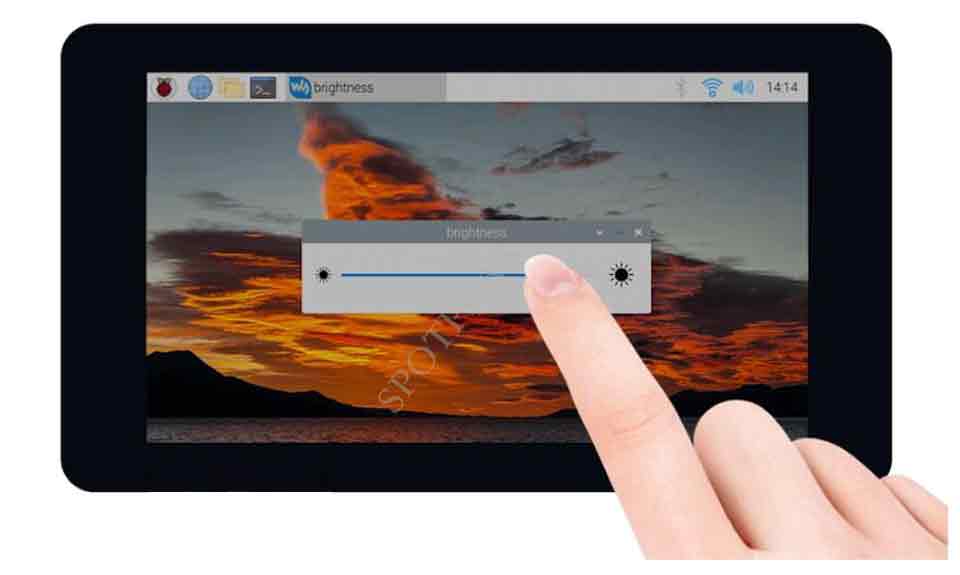
Once the installation is complete, you can open the program from the Start Menu - "Accessories - "Brightness" as shown below:
Display Rotation
If the system you used is Bullseye/Buster, you can rotate it in the following ways:
1. Enter Screen Configuration.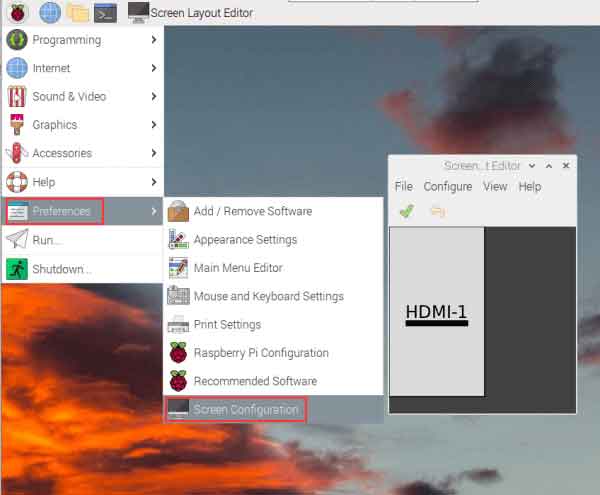
2. Rotate it as shown below: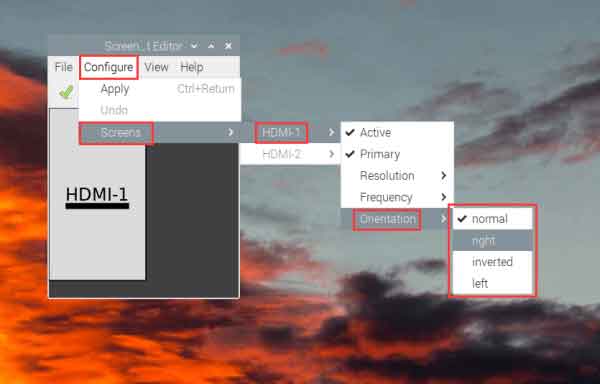
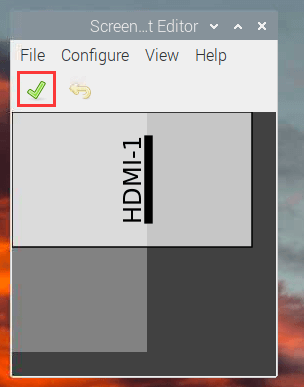
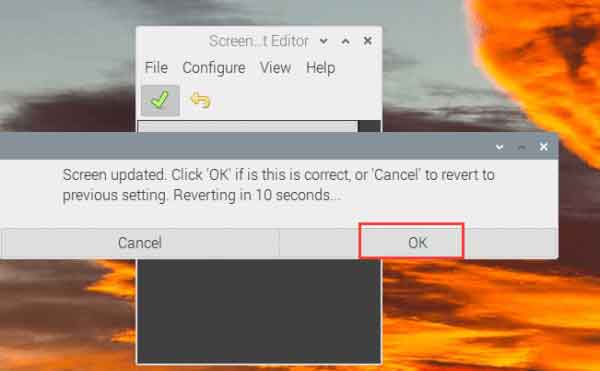
If you use other systems, you can rotate it as shown below:
1. Add the following sentence in the config.txt file. (The config file is in the root directory (/boot) of the TF card.):
display_rotate=1 #1:90; 2:180; 3:270
2. Save it and then reboot the Raspberry Pi.
sudo reboot
Touch Rotation
As the touch direction is different after rotating, you need to rotate the touch as shown below:
1. Install libinput
sudo apt-get install xserver-xorg-input-libinput
If the system you want to install is Ubuntu or Jetson Nano, the installation command is:
sudo apt install xserver-xorg-input-synaptics
2. Create xorg.conf.d directory in /etc/X11/. (If the directory exists, you can directly skip to Step 3.)
sudo mkdir /etc/X11/xorg.conf.d
3. Copy 40-libinput-conf file to the directory created just now.
sudo cp /usr/share/X11/xorg.conf.d/40-libinput.conf /etc/X11/xorg.conf.d/
4. Edit the file.
sudo nano /etc/X11/xorg.conf.d/40-libinput.conf
Find the touchscreen part, add the following sentence, and then save.
Option "CalibrationMatrix" "0 1 0 -1 0 1 0 0 1"
As shown below: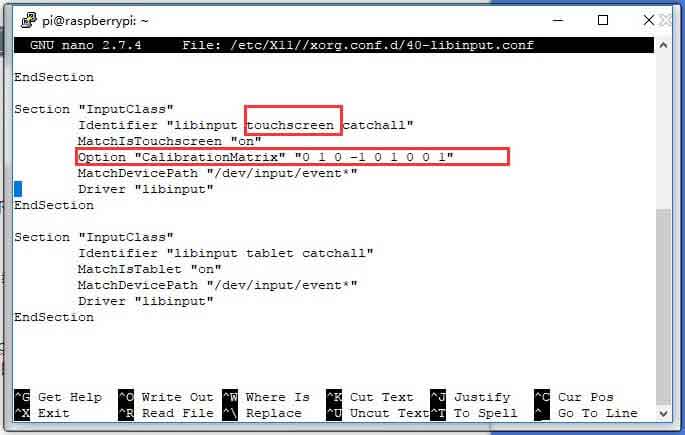
5. Reboot the Raspberry Pi.
sudo reboot
After finishing the above steps, the touch can be rotated 90 degrees.
Note:
90-degree rotation: Option "CalibrationMatrix" "0 1 0 -1 0 1 0 0 1"
180-degree rotation: Option "CalibrationMatrix" "-1 0 1 0 -1 1 0 0 1"
270-degree rotation: Option "CalibrationMatrix" "0 -1 1 1 0 0 0 0 1"
Sleep
Run the following commands on the Raspberry Pi terminal and the screen enter sleep mode:
xset dpms force off
Disable Touch
At the end of the config.txt file, add the following commands to disable the touch. The config file is located in the root directory of the TF card and can also be accessed by the command: sudo nano /boot/config.txt.
disable_touchscreen=1
Note: You should reboot it after adding the commands.