




- sales/support
Google Chat:---
- sales
+86-0755-88291180
- sales01
sales@spotpear.com
- sales02
dragon_manager@163.com
- support
tech-support@spotpear.com
- CEO-Complaints
zhoujie@spotpear.com
- Only Tech-Support
WhatsApp:13246739196
- Purchase/Shipping/Refund
WhatsApp:13424403025
- HOME
- >
- ARTICLES
- >
- Raspberry Pi
PI5-CASE-ARGON-ONE User guide
PI5-CASE-ARGON-ONE
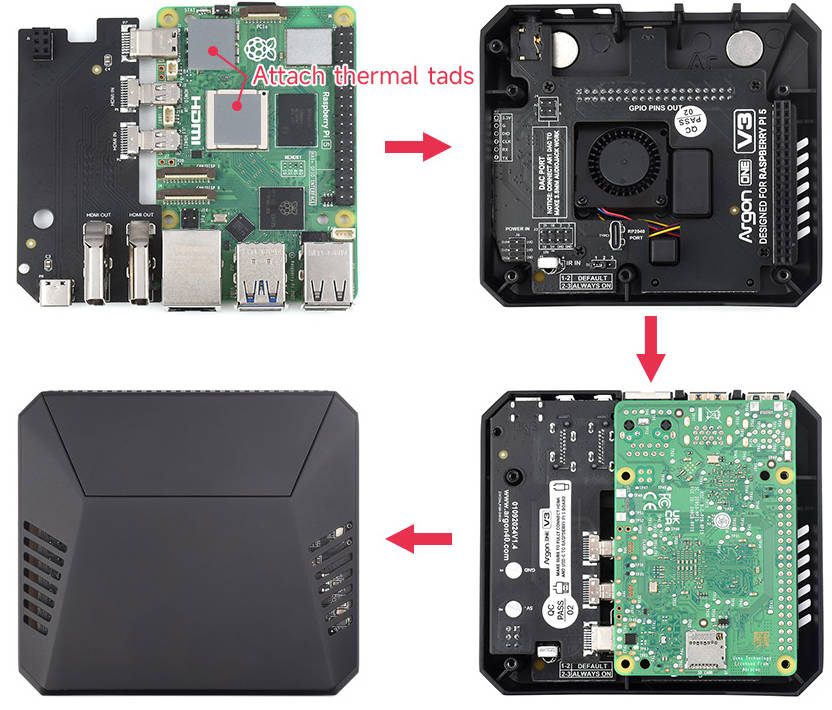
Note: Please assemble the case before inserting the SD card!!!
User Manual
Assembly Guide
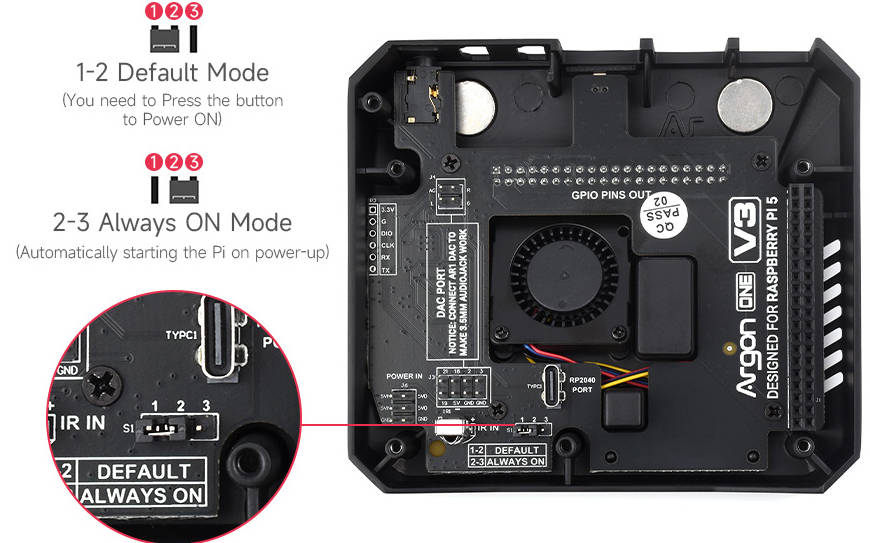
Power Mode
Enabled Via Jumper:
1-2: Default mode: you need to press the button to power on.
2-3: Always on mode, automatically starting the Pi on power up.
How to Assemble PI5-CASE-ARGON-ONE Case
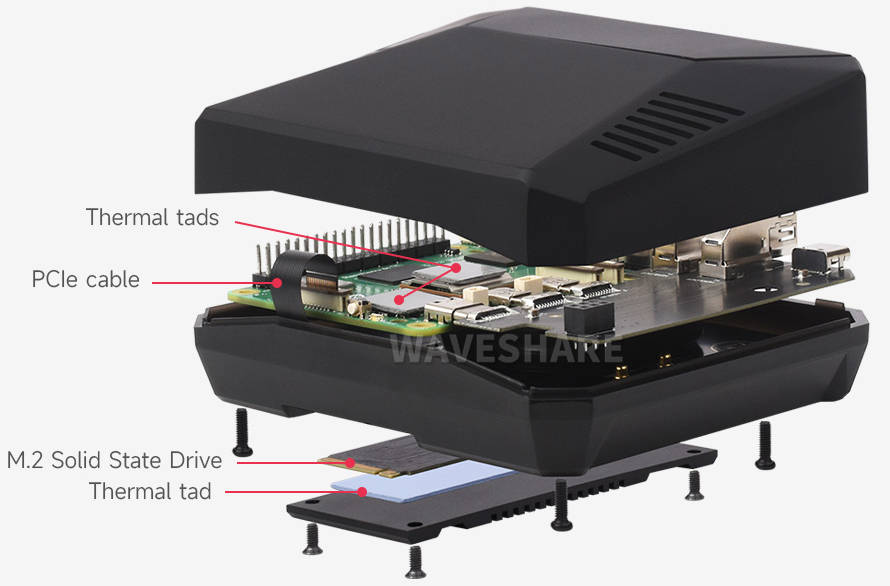
How to PI5-CASE-ARGON-ONE-M.2 Case
Software Setting
Program Bookworm System
- Insert the TF card onto the PC and then click here to program the corresponding system imager.
- After writing the image, save it and then remove the TF card.
- Insert the TF card into the card slot after assembling the case.
- Connect the matched power adapter to boot the system.
- Note: Due to the case thickness, please ensure that the Type-C connector is fully inserted. Otherwise, poor contact at the Type-C interface will prevent the device from powering on normally.
Install ARGON ONE V3 Power Button and Fan Control Script
Step 1: Configure EEPROM to Improve Power Supply and Boot From NVMe
- Connect to the network, please ensure Raspberry Pi Time is updated and execute the following code at the terminal:
curl https://download.argon40.com/argon-eeprom.sh | bash
sudo reboot
Step 2: Install Argon Control Script and Config.txt Setting
- Connect the network and execute the following code at the terminal:
sudo apt-get update
sudo apt-get full-upgrade -y
curl https://download.argon40.com/argon1.sh | bash
sudo reboot
Power Button Function Introduction
| Raspberry Pi Status | Operation | Function |
|---|---|---|
| Power off | Short press | Power on |
| Power on | Press and hold for more than three seconds | Soft shutdown or power off |
| Power on | Short press within three seconds | None |
| Power on | Double click | Reboot |
| Power on | Press and hold for more than five seconds | Force shutdown |
Fan Speed
| CPU Temperature | Fan Speed |
|---|---|
| 55 ℃ | 30% |
| 60 ℃ | 55% |
| 65 ℃ | 100% |
- To modify the setting, input the following commands:
argonone-config
- To delete the driver demo, input the following commands:
argonone-uninstall
Note: Please reboot the system to make the setting effective after modifying any configuration or uninstall any items.
FAQ
1. Power-on Mode Selection:
Please check if there is an option for the power-on mode. In the default mode, you need to manually press the POWER button to turn on the device. Alternatively, you can switch to an always-on mode by adjusting the jumper settings. Ensure that the jumper cap is correctly inserted into the appropriate pin header.
2. Type-C Connector Insertion:
Due to the thickness of the casing, ensure that the Type-C power connector is fully inserted. An improperly connected Type-C interface can result in the device not powering on correctly.
3. Check Software Drivers:
Install the Argon control script and Config.txt settings.
- Connect to the internet and execute the following code in the terminal:
sudo apt-get update
sudo apt-get full-upgrade -y
curl https://download.argon40.com/argon1.sh | bash
sudo reboot
Note: please reboot to make the setting effective after modification.
- Check the Power-On Mode:
Default Mode: In the default mode, you need to manually press the POWER button to boot up. Alternatively, you can change the jumper settings to always-on mode. Make sure the jumper cap is correctly inserted into the proper pin header.
- Ensure Proper Connection of the Type-C Connector:
Due to the thickness of the case, make sure the Type-C power connector is fully inserted. An improperly connected Type-C interface can result in the Raspberry Pi not booting up properly.
1. Check the hardware connection:
Please ensure the contact orientation of the PCIe cable is fully inserted into the pin header, and the case is correctly assembled. In addition, the 5V pogo pin should provide 3A to the adapter board.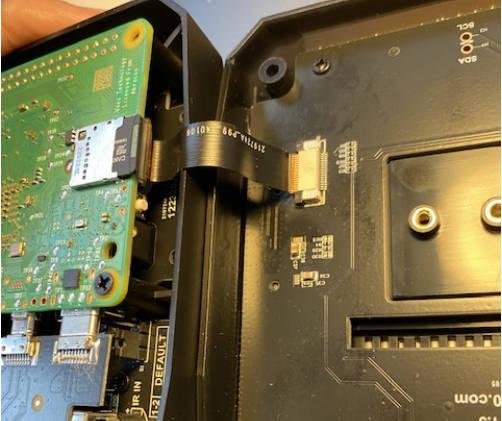
2. Check the software driver: configure EEPROM setting to improve the power supply and boot it from NVMe.
Connect to the network, and ensure Raspberry Pi Time is updated, input the following code in the terminal:
curl https://download.argon40.com/argon-eeprom.sh | bash
sudo reboot
Note: Please reboot the system to make the setting effective.
AData Legend 700
AData Legend 800
AData XPG SX8200 Pro
Axe Memory Generic Drive
Crucial P2 M.2
Crucial P3 M.2
Crucial P3 Plus M.2
Inland PCIe NVMe SSD
Kingston KC3000
Kioxia Exceria NVMe SSD
Kioxia Exceria G2 NVMe SSD
Lexar NM620
Lexar NM710
Netac NV2000 NVMe SSD
Netac NV3000 NVMe SSD
Origin Inception TLC830 Pro NVMe
Patriot P300
Patriot P310
PNY CS1030
Sabrent Rocket 4.0
Sabrent Rocket Nano
Samsung 980
Samsung 980 Pro (500GB/1TB)
Team MP33
Western Digital Black SN750 SE (Phison Controller)
1. Download the latest Argon ONE V3 firmware from your PC or Raspberry Pi: https://download.argon40.com/firmware/ArgonOne.uf2
2. Press and hold the power button on the Argon ONE V3, and connect the USB-C interface to your PC/Raspberry Pi with a USB cable.
3. Then, RP2040 is on USB mass storage device mode: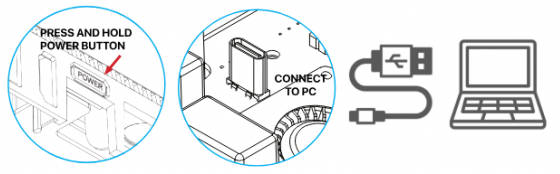
4. You can drag the uf2 firmware that you edited to the USB mass storage device.
5. Remove the device.
Support
Monday-Friday (9:30-6:30) Saturday (9:30-5:30)
Mobile: +86 13434470212
Email: services01@spotpear.com


[Tutorial Navigation]
- PI5-CASE-ARGON-ONE
- User Manual
- Assembly Guide
- Software Setting
- FAQ
- Question: Can a 5V 3A power adapter be used? What precautions should be taken?
- Question:Why can't the Raspberry Pi boot up with the official 27W power adapter?
- Question:Can't Argon One V3 nvme be recognized?
- Question:What nvme drivers are supported?
- Question:How to update the firmware demo of the ARGON ONE V3?
- Support