- sales/support
Google Chat:---
- sales
+86-0755-88291180
- sales01
sales@spotpear.com
- sales02
dragon_manager@163.com
- support
tech-support@spotpear.com
- CEO-Complaints
zhoujie@spotpear.com
- Only Tech-Support
WhatsApp:13246739196
- Purchase/Shipping/Refund
WhatsApp:13424403025
7inch 1080x1080 LCD User Guide
Features
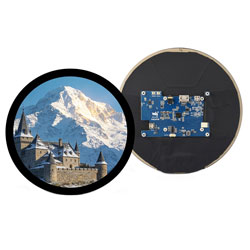
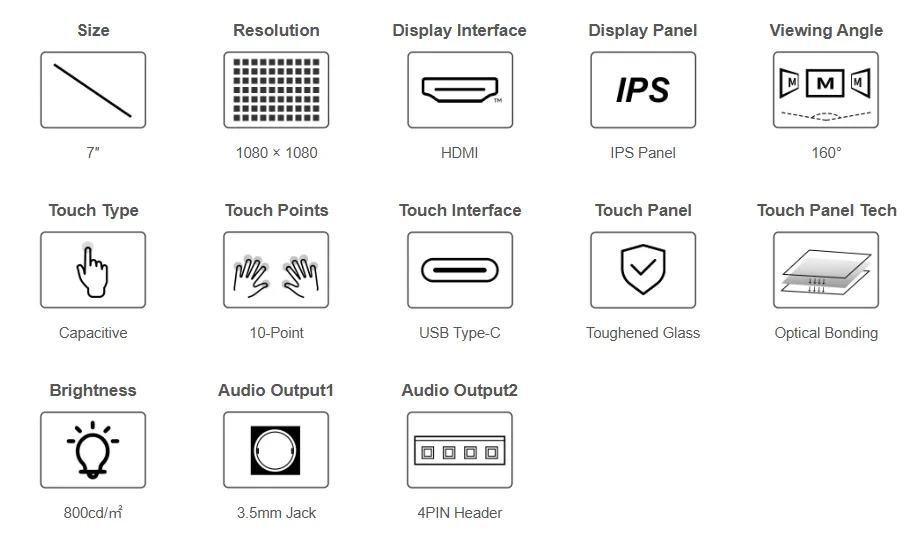
- 7inch IPS round screen with 1080x1080 hardware resolution
- 10-point capacitive touch with toughened glass panel, hardness up to 6H
- Uses optical bonding touch process for better display effect
- When used with Raspberry Pi, supports Raspberry Pi OS / Ubuntu / Kali and Retropie
- When used as a computer monitor, supports Windows 11 / 10 / 8.1 / 8 / 7
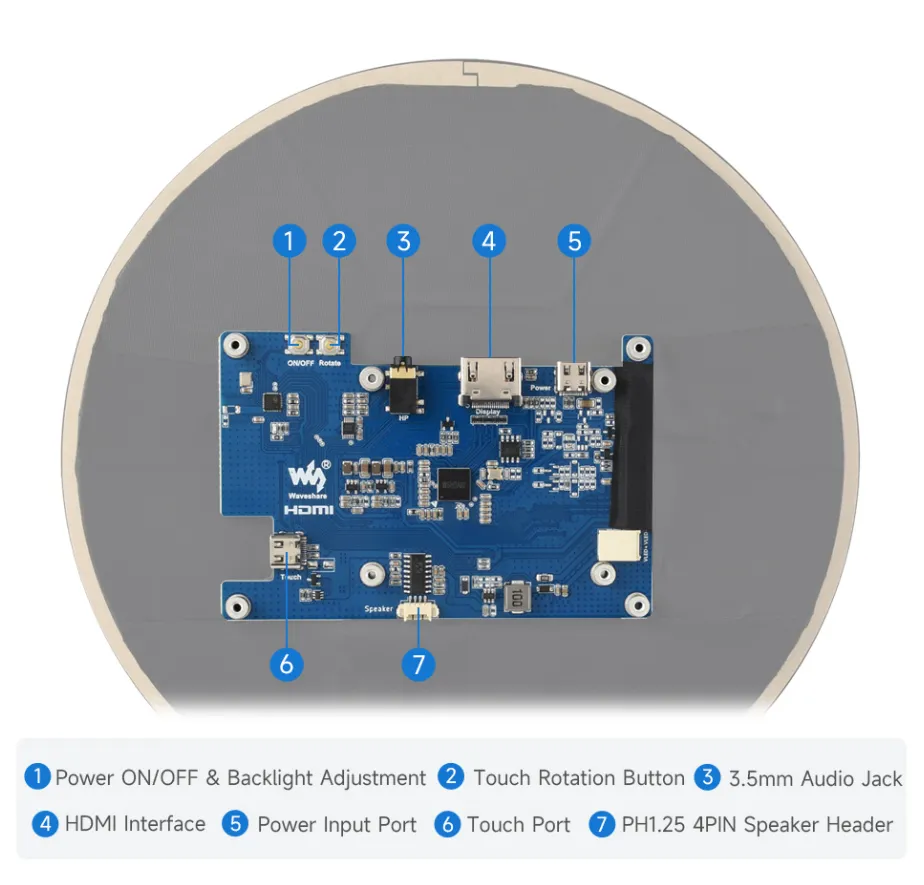
- Supports HDMI audio output, onboard 3.5mm headphone jack and 4PIN speaker interface
Specifications
| Parameter Name | Parameter | Unit |
|---|---|---|
| Product Model | 7inch 1080x1080 LCD | / |
| Size | 7.0 | Inch |
| Viewing Angle | 160 | Deg |
| Resolution | 1080x1080 | Pixels |
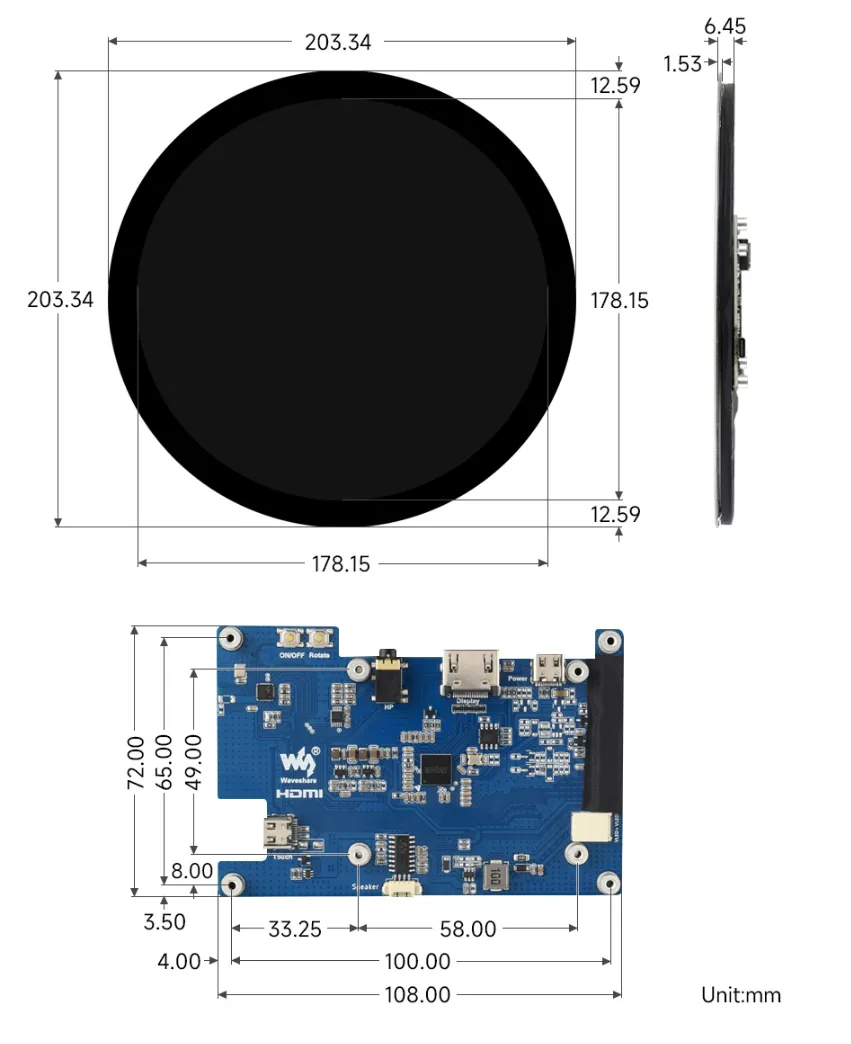
| Overall Dimensions | 230.34(H)×230.34(V)×6.45(D) | mm |
| Display Area | 177.55(H)×177.55(V) | mm |
| Color Gamut | 65% | NTSC |
| Maximum Brightness | 800 | cd/m² |
| Contrast Ratio | 1200:1 | / |
| Backlight Adjustment | Button backlight adjustment | / |
| Refresh Rate | 60 | Hz |
| Display Interface | Standard HDMI interface | / |
| Power Interface | 5V Type-C power supply | / |
| Power consumption | 2 | Watt |
Electrical Specifications
| Parameter | Min | Typical | Max | Unit | Note |
|---|---|---|---|---|---|
| Input Voltage | 4.75 | 5.00 | 5.25 | V | Note 1 |
| Input Current | 300 | 400 | TBD | mA | Note 2 |
| Operating Temperature | 0 | 25 | 60 | ℃ | Note 3 |
| Storage Temperature | -10 | 25 | 70 | ℃ | Note 3 |
- Note 1: Exceeding the maximum input voltage or improper operation may cause permanent damage to the device.
- Note 2: Input current must be ≥300mA, otherwise it will cause startup failure or display abnormalities. Prolonged abnormal operation may cause permanent damage to the device.
- Note 3: Do not store the display in high temperature or high humidity environments for extended periods. The display must operate within the specified limits to avoid damage.
Interfaces
Dimensions
Working with Raspberry Pi
Hardware Connection
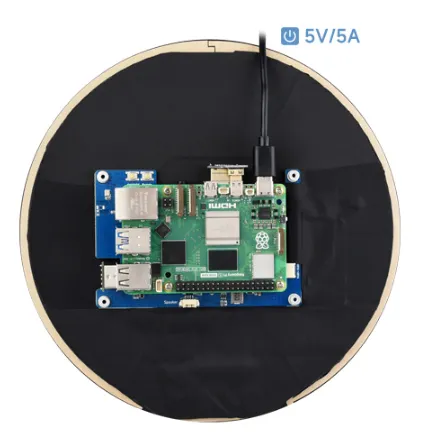
- 1: Connect the Touch interface to the USB port on the Raspberry Pi
- 2: Connect the HDMI interface to the HDMI port on the Raspberry Pi
Software Settings
Supports Raspberry Pi OS/Ubuntu/Kali and Retropie systems for Raspberry Pi.
When the LCD works on these systems, the resolution must be set manually, otherwise the display resolution will be incorrect, which will affect the experience.
- Download the latest image from the Raspberry Pi official website
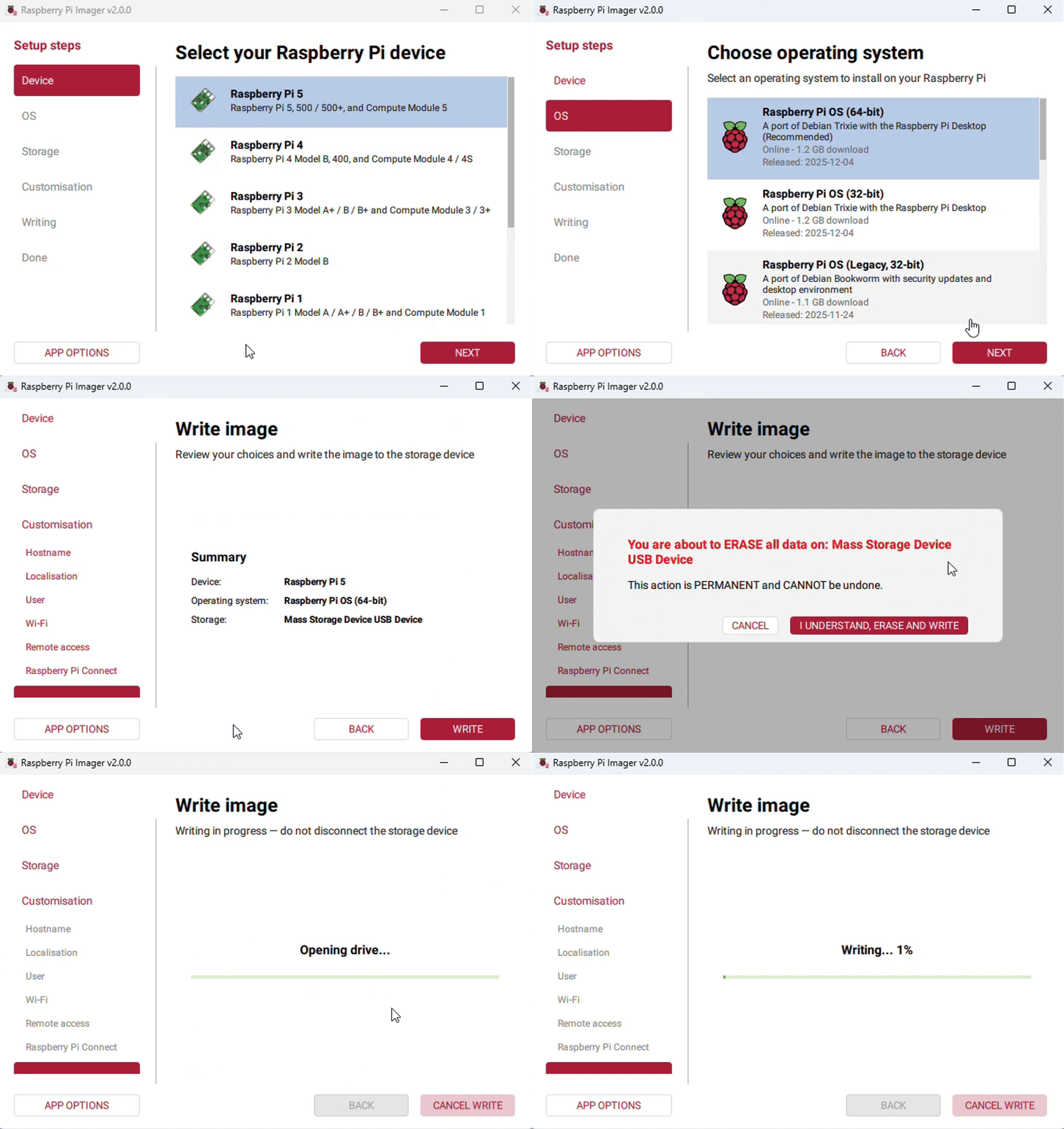
- Download the compressed file to your PC and extract the .img file
- Connect the TF card to your PC and format it using SDFormatter software
- Open Win32DiskImager software, select the system image prepared in step 1, and click "write" to flash the system image
- After flashing, open the config.txt file in the root directory of the TF card, add the following code at the end of config.txt, save the file, and safely eject the TF card
hdmi_force_hotplug=1
hdmi_group=2
hdmi_mode=87
hdmi_pixel_freq_limit=200000000
hdmi_timings=1080 0 80 20 80 1080 0 10 10 14 0 0 0 60 0 84210000 0
- Insert the TF card into the Raspberry Pi, power it on, and wait a few seconds for normal display
Due to the characteristics of the round screen, it is recommended to perform the initial setup using the Raspberry Pi remote login tutorial.
Working with PC
Supports Windows 11 / 10 / 8.1 / 8 / 7
Hardware Connection
- Connect the LCD's Touch interface to a USB port on the PC. Windows will automatically recognize the touch function.
- Connect the LCD's HDMI interface to an HDMI port on the PC. Windows will automatically recognize the display function.
Some PCs do not support HDMI plug-and-play; usually, restarting the system will enable normal use.
If the USB port cannot supply sufficient power, it may cause screen flickering. This can be resolved by connecting an external 5V 1A power adapter to the LCD's Power interface.
Windows Specified Touch Screen
Windows11:
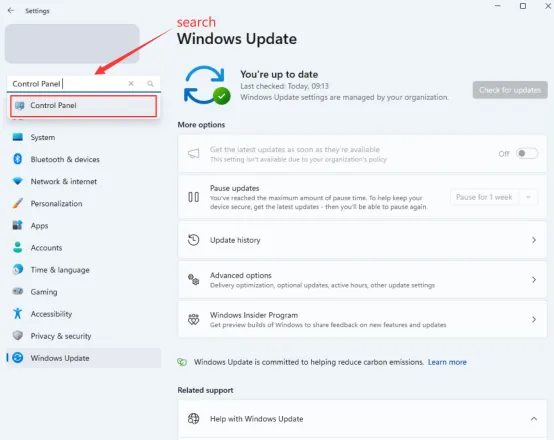
- Open Windows Settings, type and click "Control Panel" in the search bar.
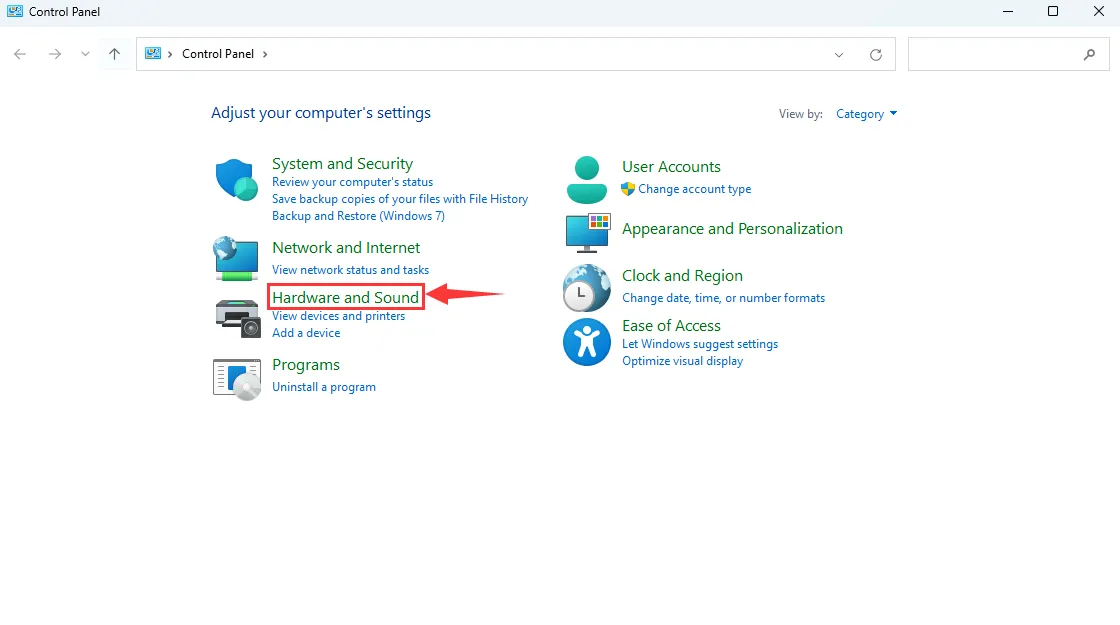
- In the "Control Panel" window, select "Hardware and Sound".
- Under "Calibrate the screen for pen or touch input", in the "Tablet PC Settings" dialog, click "Setup".
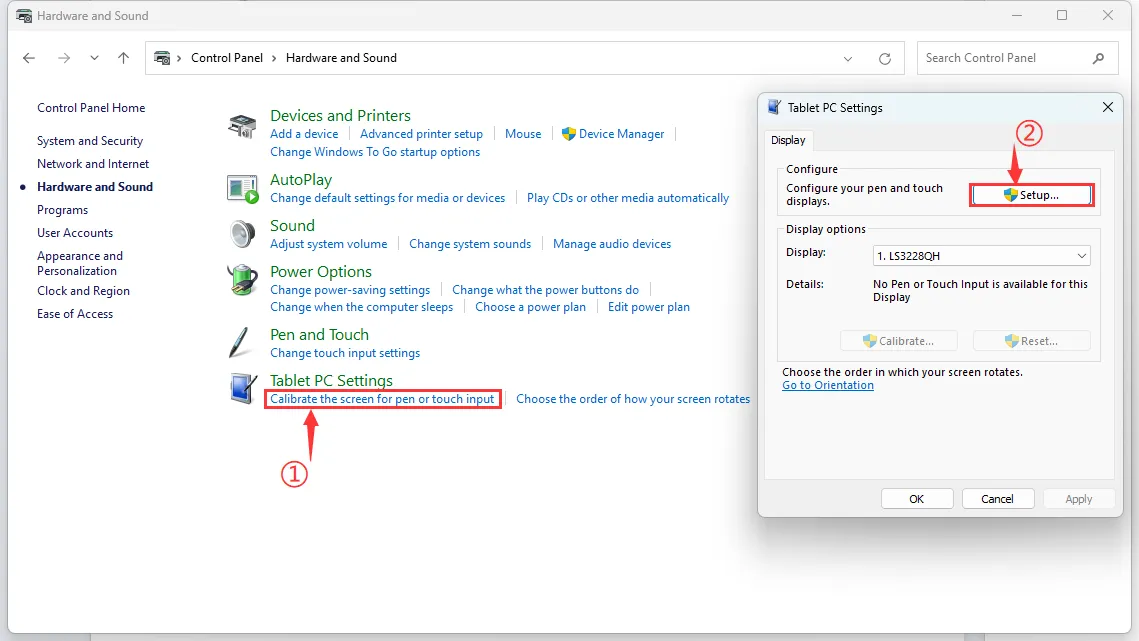
- A text prompt will appear on the screen as shown below. Tap the touch screen with your finger; the computer will then recognize it as the touch screen.
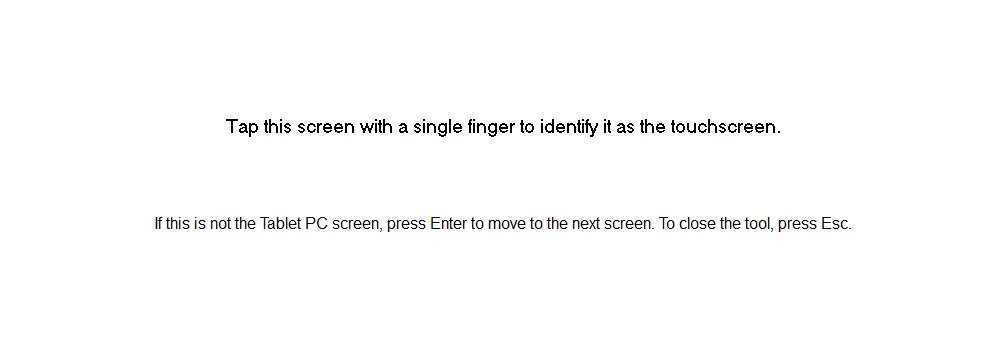
Note: If the screen is blank, press the "Enter" key; the text prompt will switch to the next screen.
(The screen displaying the text prompt will be designated as the touch screen.)
Windows10:
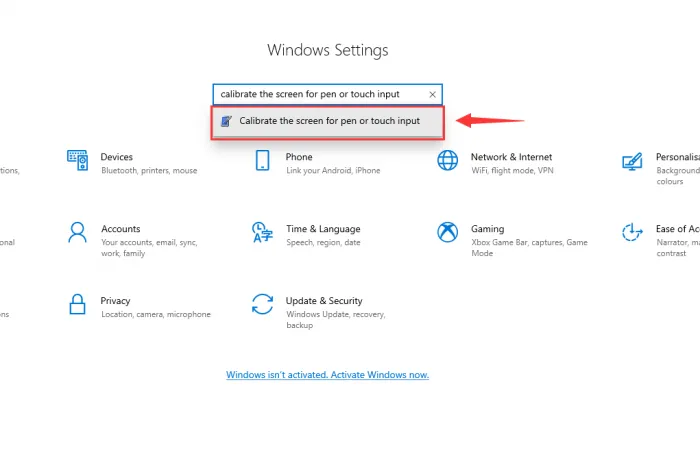
- Go to Windows Settings, type and click "Calibrate the screen for pen or touch input" in the search bar (as shown below)
- In the pop-up Tablet PC Settings interface, click Settings
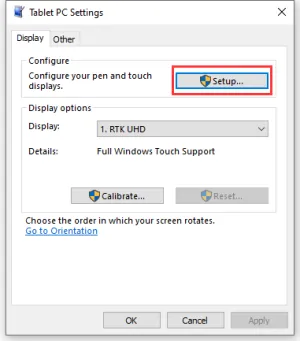
The screen will display a prompt as shown below. Please touch the screen with your finger, and the computer will recognize it as a touch screen.
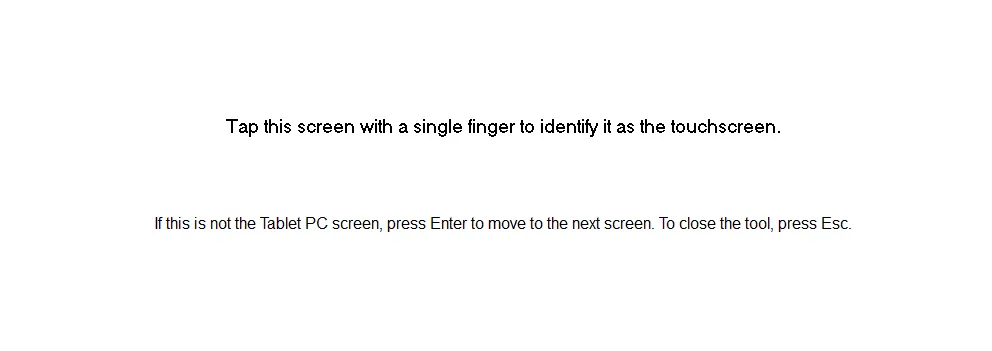
Note: If the screen is blank, press the "Enter" key; the text prompt will switch to the next screen. (The screen displaying the text prompt will be designated as the touch screen.)
Support
Monday-Friday (9:30-6:30) Saturday (9:30-5:30)
Email: services01@spotpear.com