




- sales/support
Google Chat:---
- sales
+86-0755-88291180
- sales01
sales@spotpear.com
- sales02
dragon_manager@163.com
- support
tech-support@spotpear.com
- CEO-Complaints
zhoujie@spotpear.com
- Only Tech-Support
WhatsApp:13246739196
- Purchase/Shipping/Refund
WhatsApp:13424403025
- HOME
- >
- ARTICLES
- >
- Raspberry Pi
- >
- Raspberry Pi LCD
- >
- e-Paper
2.13inch NFC-Powered e-Paper (G) User Guide
Introduction
This is an NFC-powered module with a 2.13inch e-Paper display, with a resolution of 122×250. It supports users to wirelessly transmit image information through an NFC enabled card readers or mobile phones, and display the information on the e-Paper screen.
Features
- No backlight required, the e-Paper screen can keep displaying the last content for a long time without power
- It does not contain a power supply such as a battery, suitable for applications where power supply is limited.
- The content displayed can be customized and controlled at any time by the user using a smartphone, convenient and flexible
- Suitable for equipment labels, shelf labels, information storage, etc.
- Equipped with ABS plastic shell with good strength and toughness
- Provides a supporting Android APP to help users edit and manage the display content of the e-Paper display
- Provides complete supporting information and manuals
Specifications
- Power: NFC-powered
- Resolution: 122 x 250
- Dot pitch: 0.194 × 0.194
- Display colors: Red, Black, White, Yellow
- Refresh time: 16s
- Viewing angle: >170°
- Outline dimensions: 65.35mm × 40.05mm × 12.70mm
- Display size: 23.70mm × 48.55mm
User Guide
For the convenience of use, we provide a mobile app. Please make sure that your telephone supports the NFC function and is enabled.
App Test on Mobile Phones
| Phone model | Test result |
|---|---|
| Redmi K40 Pro+ | Normal |
| Xiaomi 14 Ultra | Normal |
| Huawei Mate 60 (Android system) | Normal |
| Huawei Mate 60 (HarmonyOS, non-pureblood) | Normal |
| OnePlus 13T | Normal |
| OPPO Reno12 | Normal |
| vivo X200s | Normal |
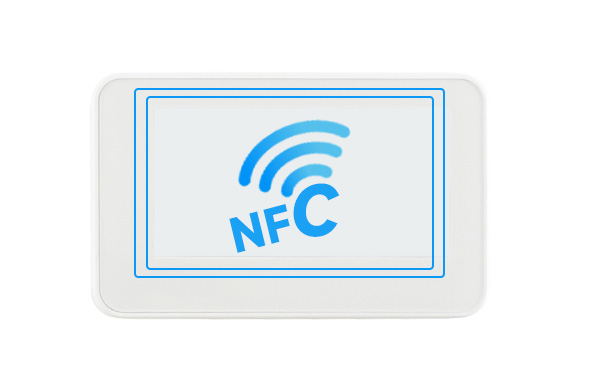
NFC Sensing Location Reference
Android APP
Demo Download
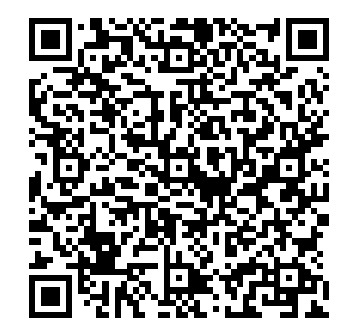
You can scan the QR code below to download and install the APP on your phone, note that the app can only support Android 4.0 (Ice Cream Sandwich) and above. Note: Do not scan with WeChat, please use the scanning function of your browser
Usage Steps
The steps to use the app are:
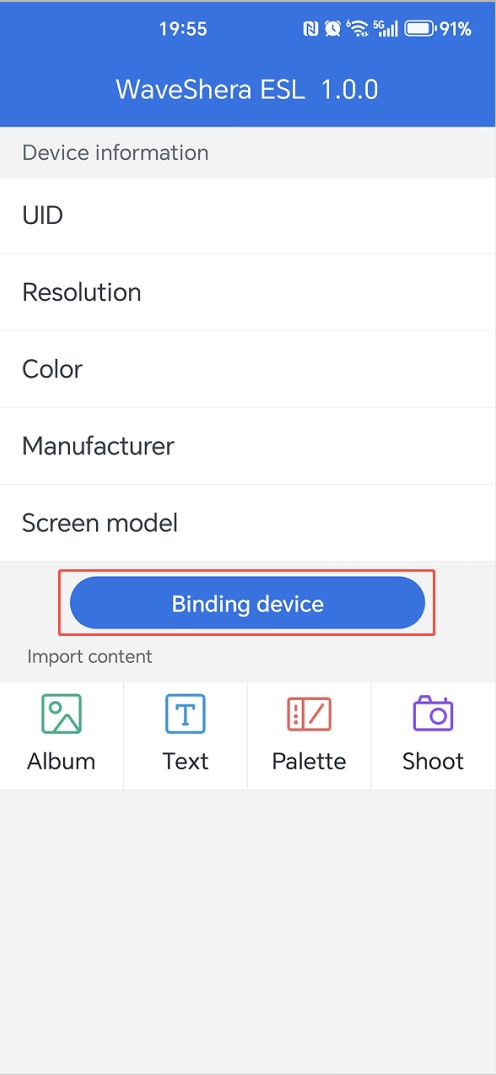
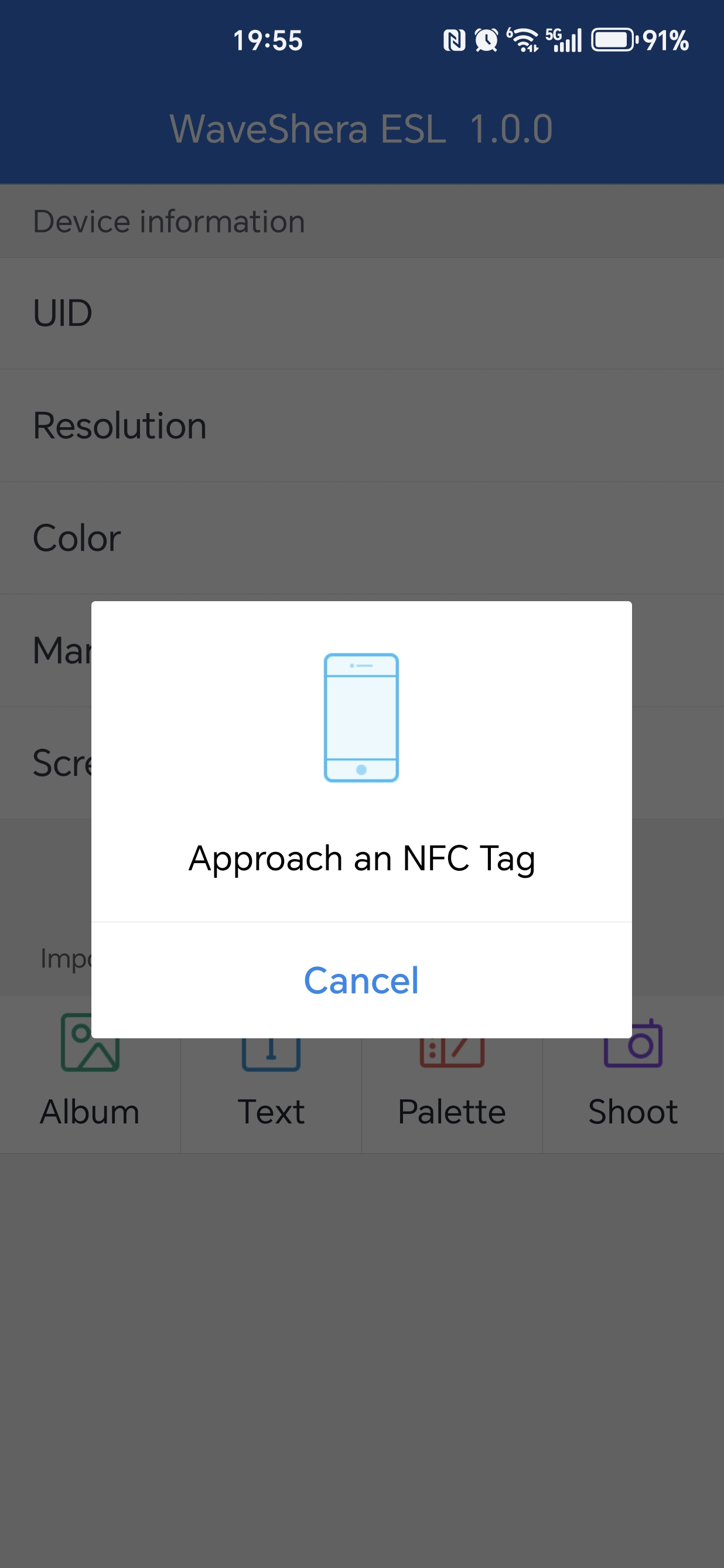
- 1. Click Binding device button to read the device information to be refreshed first; After the binding is complete, the corresponding information will be displayed on the main page
- 2. Click the "Album" icon to enter the album, then select the image you want to display, confirm the selection, and you will then enter the following page
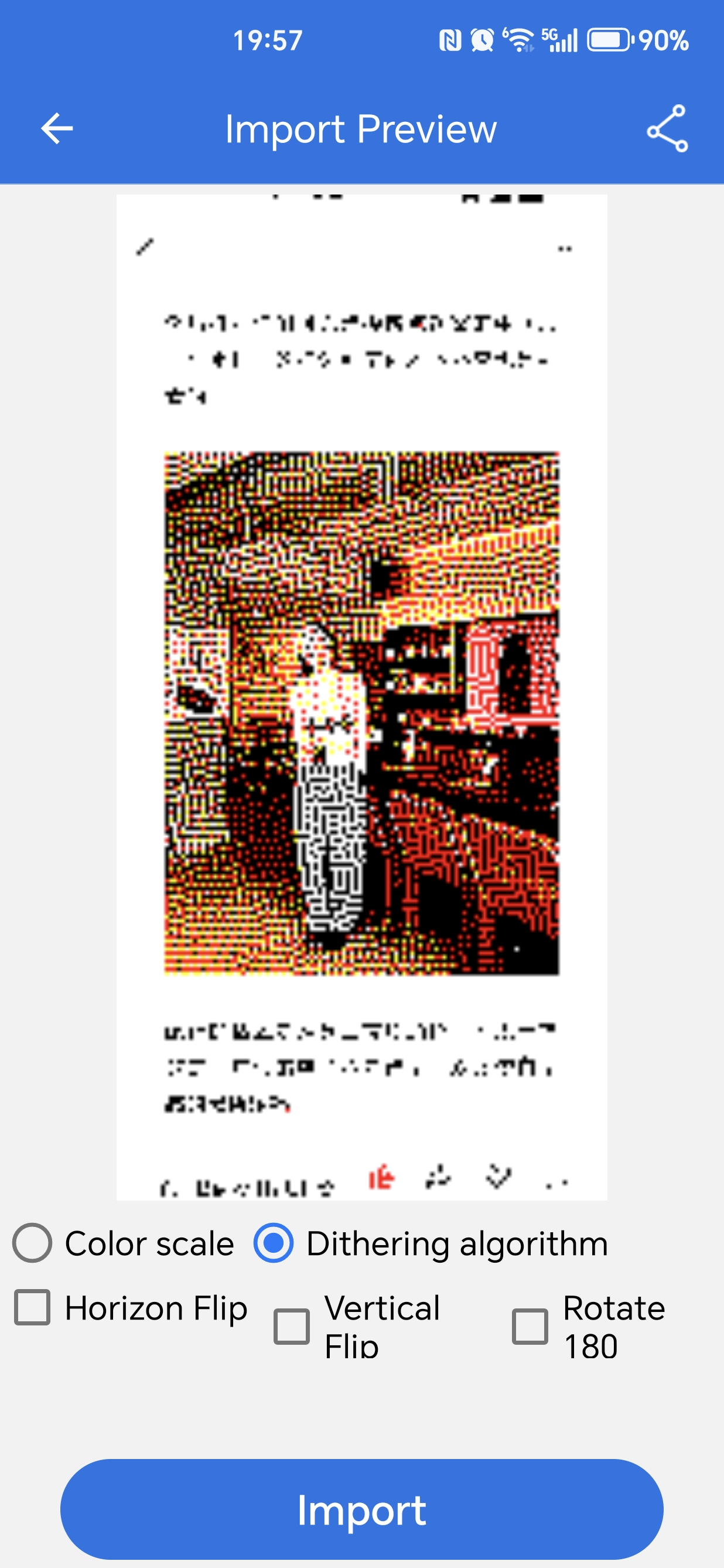
- 3. You can perform the corresponding processing on the image by selecting the corresponding button. Click the Import button to start importing the image (PS: If you have not separated the e-Paper screen and phone after binding, you need to re-contact it after separation)

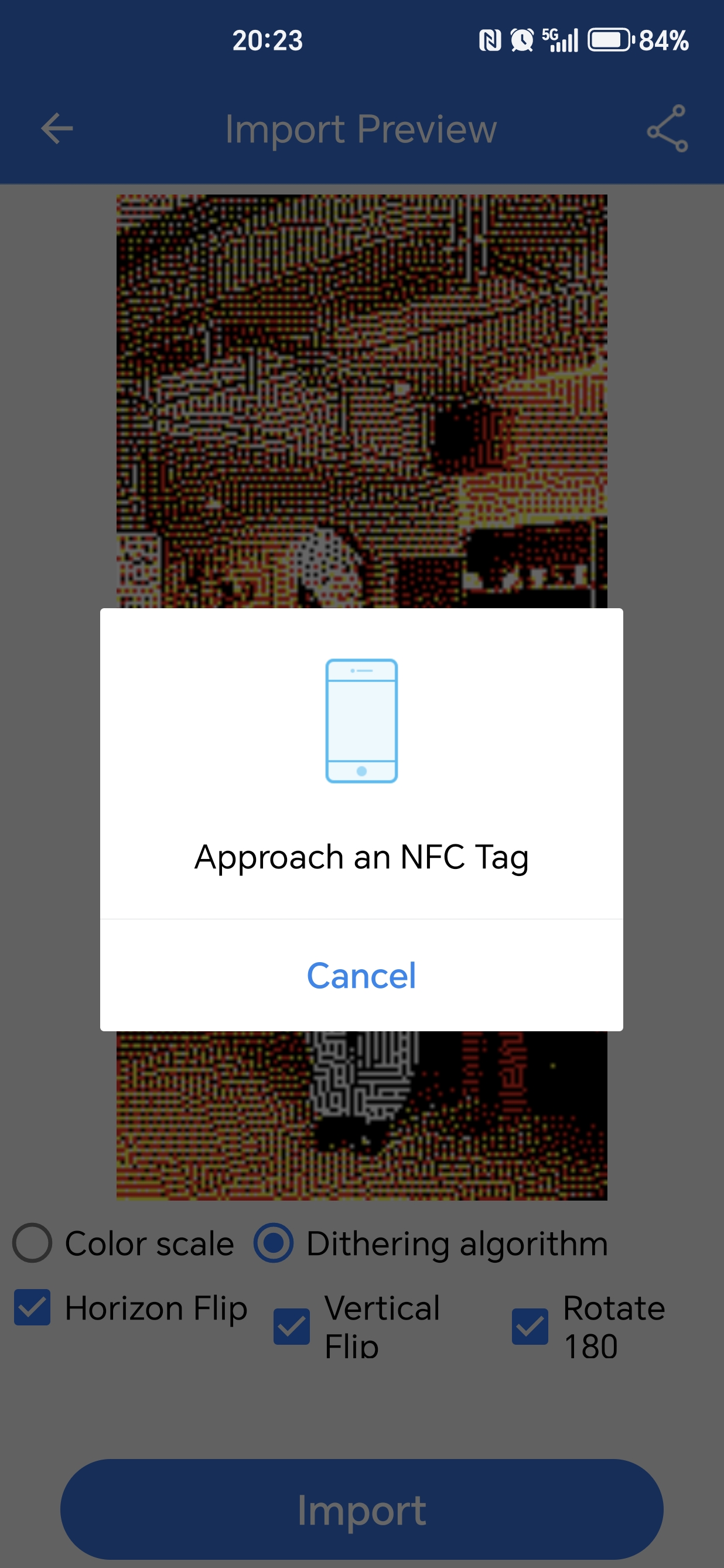
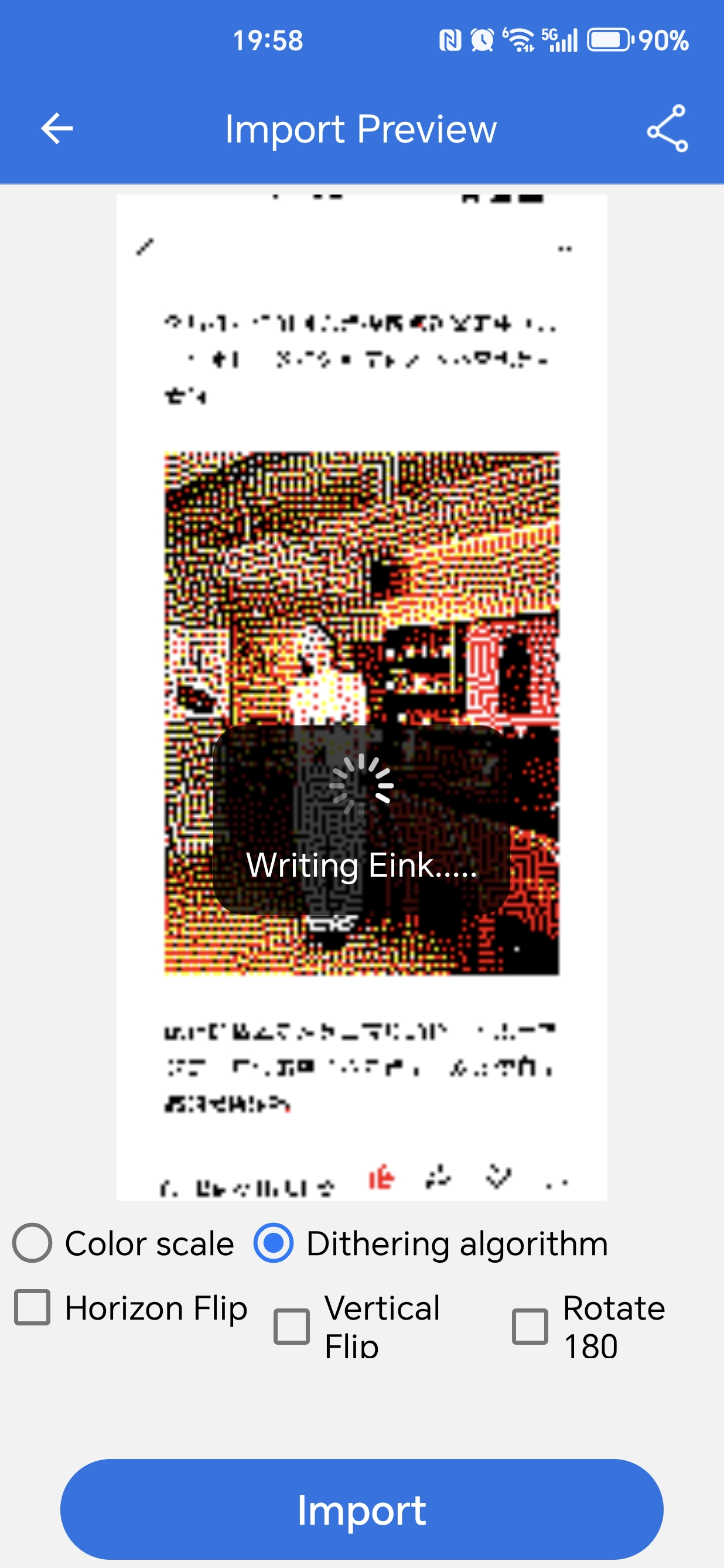
- 4. Wait for the refresh to complete, expected 20s
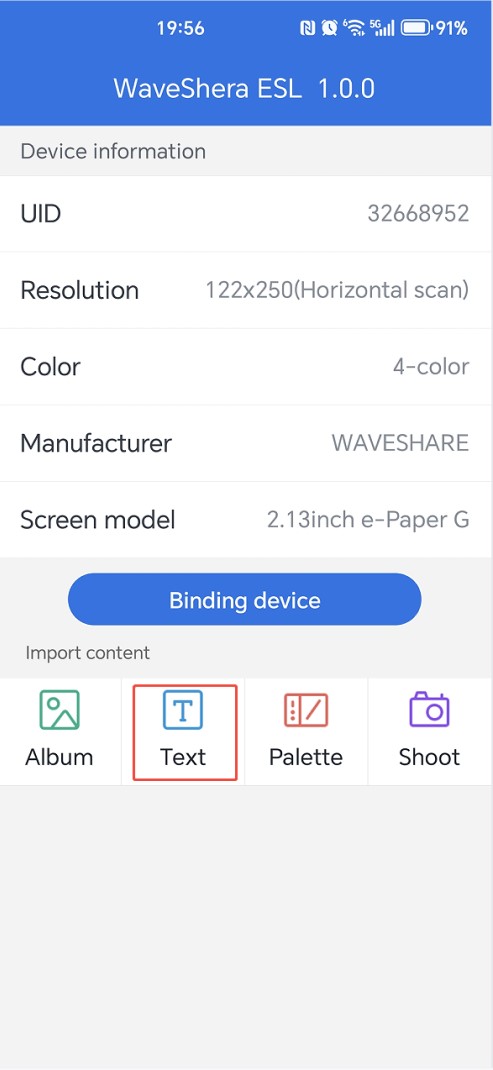
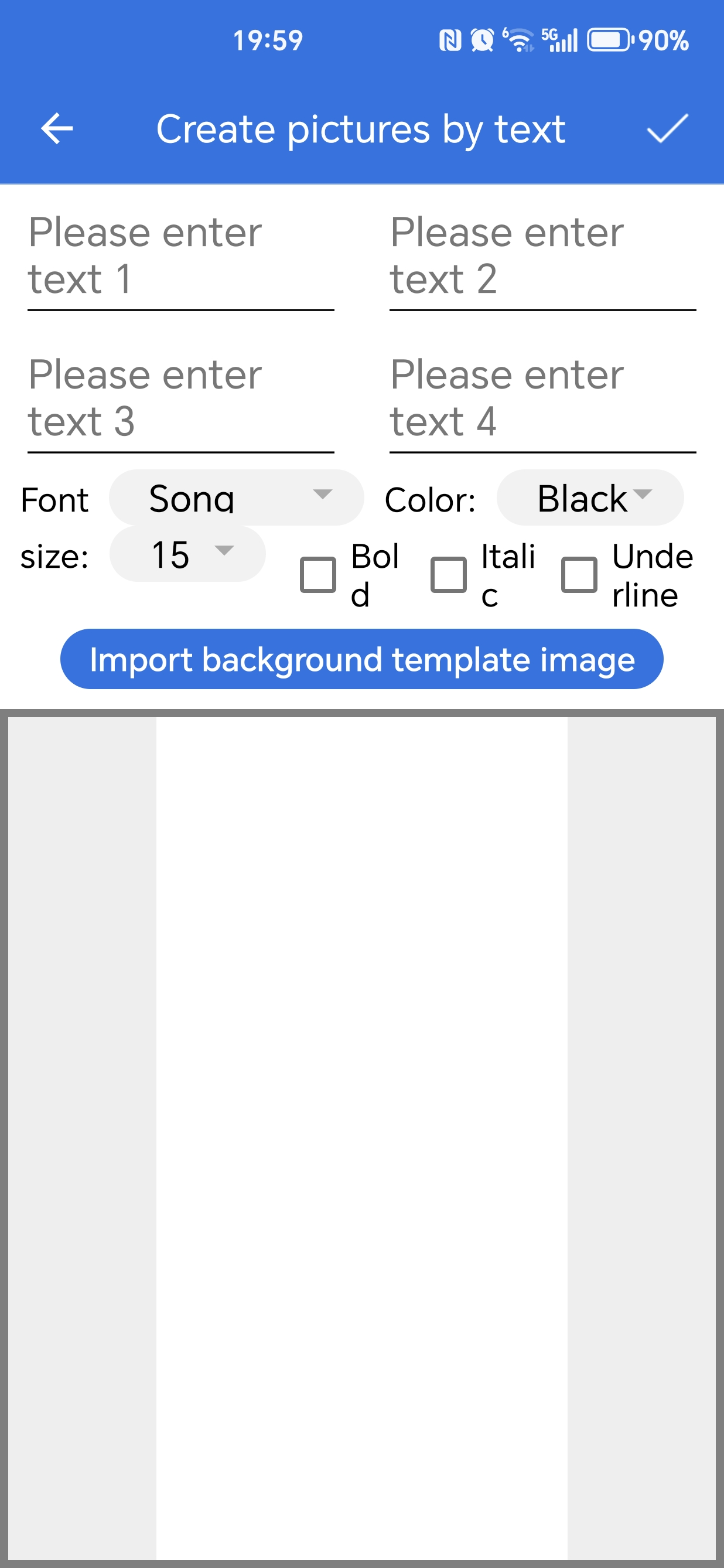
- 5. Text operation, select the Text icon on the main page (PS: you also need to bind the device first)
- 6. Start drawing text, and you can choose the font size, color, and font of the text; Simply drag to adjust the position of the text in the image below;
Alternatively, you can choose to "Import background template image". This image must be consistent with the resolution of the e-Paper screen. After completing all the settings, click the "√" in the upper right corner to save the image and enter the image processing page, then proceed to step 3 above
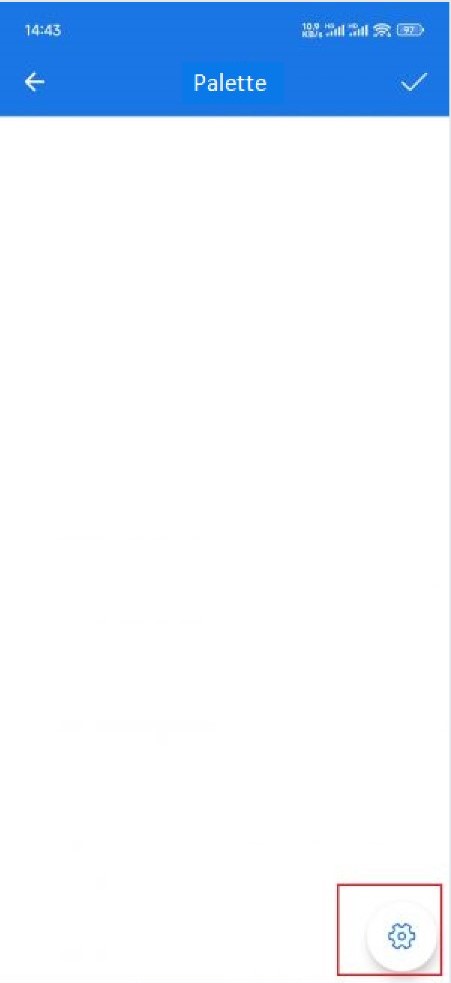
- 7. Palette operation, select the Palette icon on the main page (PS: you also need to bind the device first)

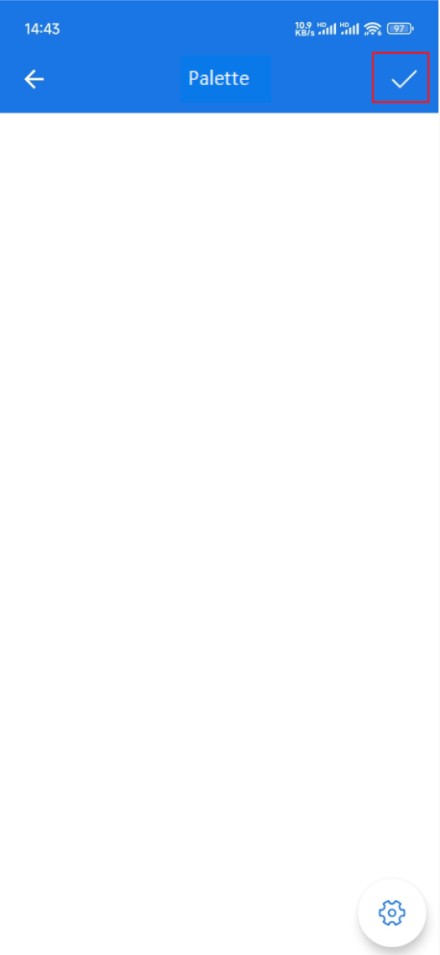
- 8. Start drawing shapes on the screen with your finger; the default brush is black with a width of 5. Click the gear in the lower right corner to access the brush selection, click the "√" in the upper right corner to save the image and enter the image processing page, then proceed to step 3 above

- 9. Shoot operation, select the Shoot on the main page (PS: you also need to bind the device first)
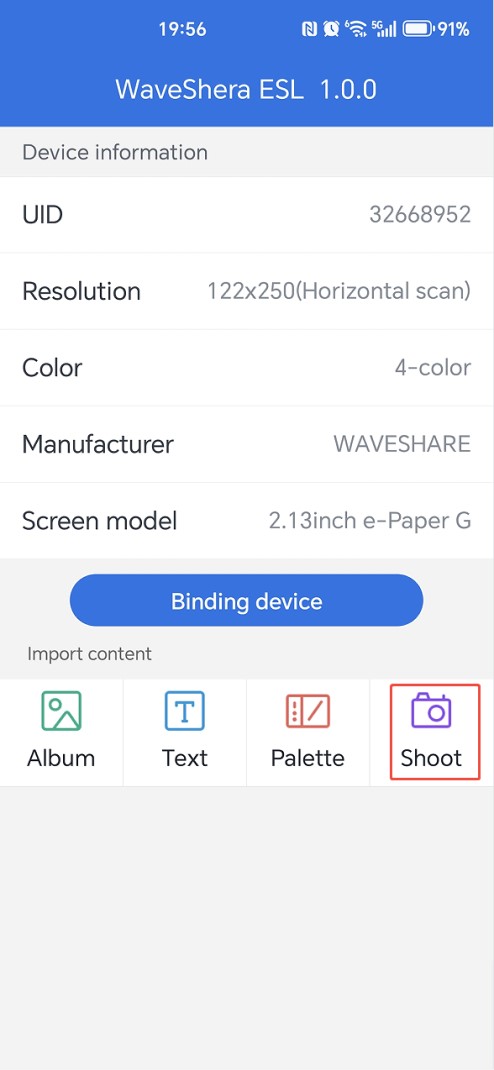
- 10. Shoot and take a screenshot of the image, then proceed to step 3 above
ST25R3911B NFC Board
Demo Download
- The reader has the program flashed in at the factory, so you can skip the program download and test it directly if you don't need to modify the program
- ST25R3911 NFC Board (NFC Board for short) provides a SW download interface, allowing users to connect a downloader via this interface to download the program to the driver board.
- After the program is downloaded, connect the reader's Micro USB port to the PC using a Micro USB cable
Demos for Image Refresh
- Connect the USB port of the reader to the computer or 5V power supply using USB first
- Copy the prepared monochrome bitmap to the TF card. Insert the TF card into the card slot of the NFC Board
- Connect the 5V power supply to the USB interface of the NFC Board
- The directory is displayed on the screen, and you can select the e-Paper display model and corresponding images to refresh by pressing the buttons
- Move the mouse to select the Update e-Paper option
- Select the display model to refresh based on the your display
- Select the corresponding image transfer method
- TF card reading image: Update E-paper SD
- Select an image (note that the image resolution should match the screen resolution)
- Confirm the image
- Serial transmission image: Update E-paper UART
- Send BMP format images via serial port (note that the image resolution should match the screen resolution)
- Place the coil of the NFC Board near the center of the NFC Powered e-paper
- Waiting for successful image updating


- If prompted with refresh failure, please remove the reader and reposition for refresh
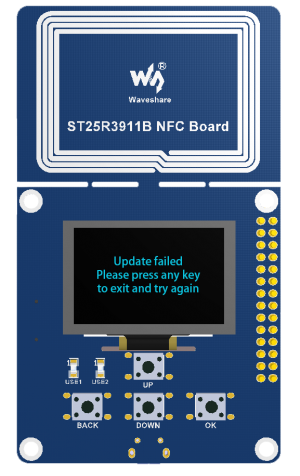
Note: Due to the limited communication distance of NFC, please do not move the device during refreshing to improve the success rate.
Resources
Related Document
ST25R3911B NFC Board Related Resources
- Schematic
- ST25R3911B Reference Manual
- ST25R3911B Datasheet
- Demo (Quick refresh, default)
- Demo (Global refresh)
- Pictures for testing
Mobile App
FAQ
Question: What is the usage environment of the e-Paper display?
- [Working conditions]: Temperature range: 0~50°C; Humidity range: 35%~65%RH
- [Storage conditions]: Temperature range: below 30°C; Humidity range: below 55%RH; Maximum storage time: 6 months
- [Transportation conditions]: Temperature range: -25~70°C; Maximum shipping time: 10 days
- [After unpacking]: Temperature range: 20°C±5°C; Humidity range: 50±5%RH; Maximum storage time: Complete assembly within 72 hours
Support
Monday-Friday (9:30-6:30) Saturday (9:30-5:30)
Email: services01@spotpear.com
