



- sales/support
Google Chat:---
- sales
+86-0755-88291180
- sales01
sales@spotpear.com
- sales02
dragon_manager@163.com
- support
tech-support@spotpear.com
- CEO-Complaints
zhoujie@spotpear.com
- Only Tech-Support
WhatsApp:13246739196
- Purchase/Shipping/Refund
WhatsApp:13424403025
10.1inch DSI LCD (E) User Guide
Features
- 10.1inch IPS display, with a hardware resolution of 1920 × 1200 and a viewing angle of 178°.
- Supports 10-point capacitive touch, with the touch interface being I2C.
- Adopts optical bonding process, with a tempered glass panel hardness of 6H.
- Display is driven through the Raspberry Pi's DSI interface, supporting Raspberry Pi OS.
- Supports Raspberry Pi 5 / 4B / 3B+ / 3A+, as well as CM5 / CM4 / CM3+ / CM3.
- Supports software adjustment of backlight brightness, with onboard backlight switch and brightness increase/decrease buttons.
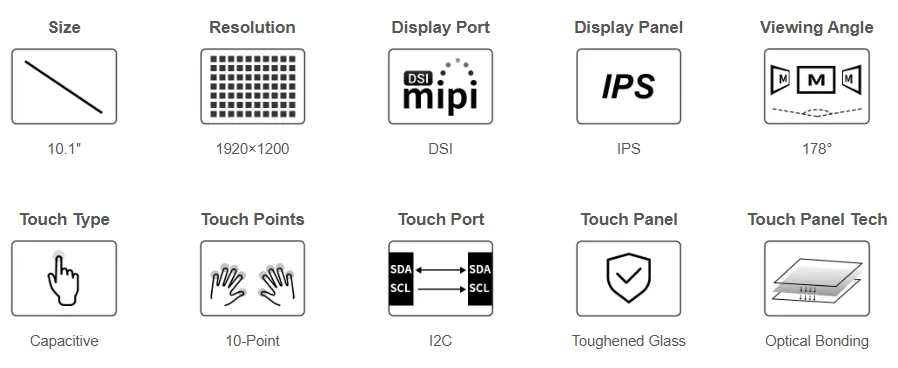
Product Specifications
| Item | Parameter |
|---|---|
| Display Size | 10.1 inch |
| Hardware Resolution | 1920 × 1200 |
| Display Panel | IPS |
| Viewing Angle | 178° |
| Brightness | 400 cd/m² |
| Display Colors | 16.7M |
| Color Gamut | 70% NTSC |
| Refresh Rate | 60 Hz (4 lane), 30 Hz (2 lane) |
| Display Interface | DSI |
| Touch Type | 10-point capacitive touch; the actual number of touch points depends on the system and application |
| Touch Interface | I2C |
| Touch Panel | Tempered glass, hardness 6H, optical bonding process |
| Power Supply Specifications | 5 V, 1000 mA |
| Backlight Control | Software and button backlight adjustment |
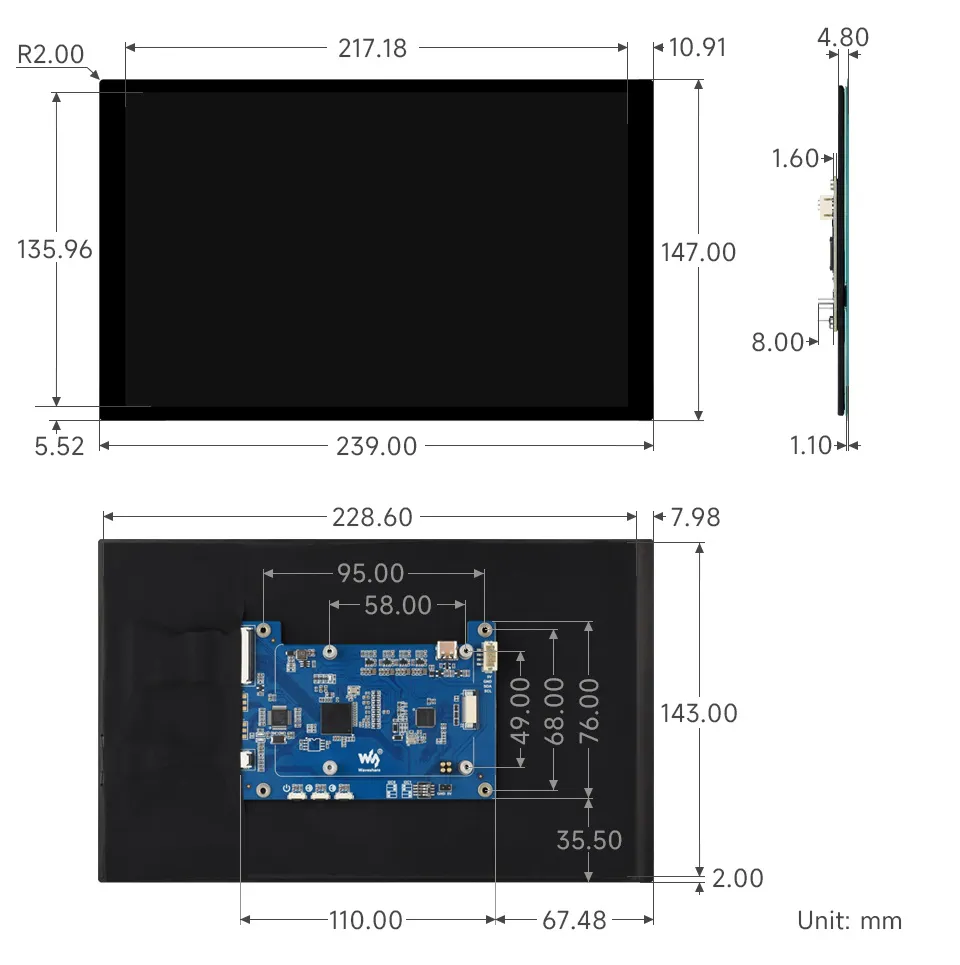
| Overall Dimensions | 239.00 × 147.00 mm |
| Display Area | 216.58 × 135.36 mm |
Interface Introduction
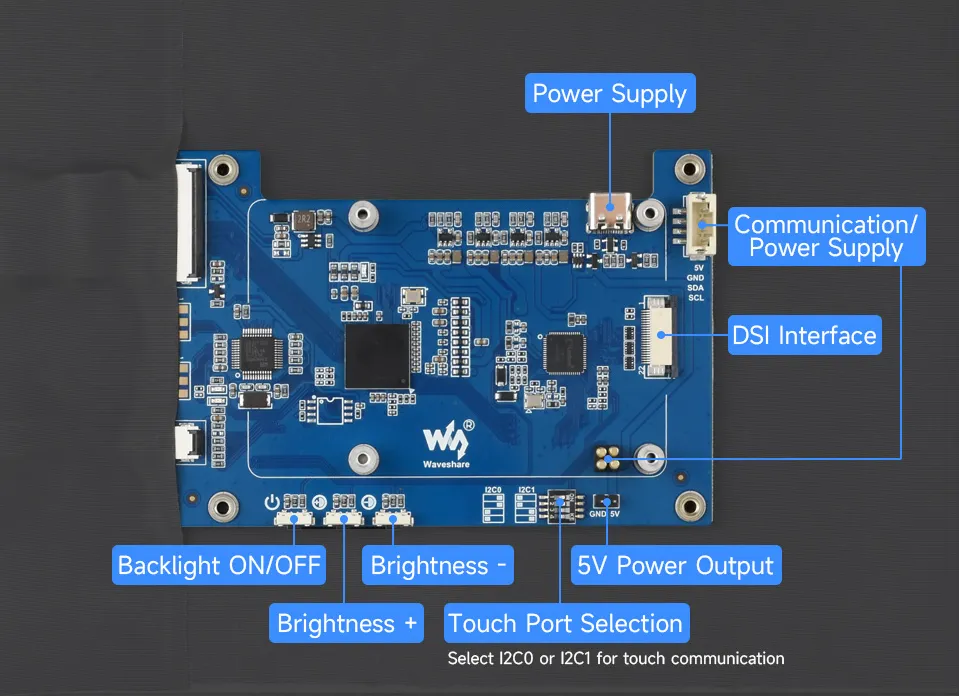
Power Supply and Touch Communication
In the default I2C0 mode, the DSI ribbon cable carries the display and touch signals, and no separate SDA or SCL connection is required.
The screen has relatively high power consumption, and powering it through the DSI ribbon cable alone is insufficient; you must additionally connect a 5 V power supply. Choose any one of the following power supply methods:
| Power Supply Method | Connection Requirements | Notes |
|---|---|---|
| Spring pogo pins | The Raspberry Pi is secured to the back of the screen, and the pogo pins contact the 5V and GND of the GPIO | Installing additional standoffs may leave the pogo pins suspended; in this case, power can be supplied via the 4PIN or Type-C |
| 4PIN Interface | Connect the 5V and GND of the mainboard to the corresponding 5V and GND of the screen | Wire according to the PCB markings, not by wire color |
| Type-C Interface | Connect a 5 V power supply to the screen's Type-C interface | Power supply only; does not transmit touch signals |
Switching to I2C1 Touch Communication
After powering off, switch the DIP position of the "touch interface selection switch" to I2C1.
Connect SDA and SCL to the I2C1 pins of the Raspberry Pi GPIO via the pogo pins or 4PIN. When using pogo pins, ensure proper contact.
Add
,i2c1to the end of the screen'sdtoverlayline inconfig.txt, save, and reboot.
The power supply method is the same as above, and the DSI ribbon cable still carries the display signal. When using Type-C power, you must still connect SDA1 and SCL1 via the pogo pins or 4PIN.
Appearance Dimensions
Working with Raspberry Pi
Hardware Connection
- Before connecting or disconnecting the DSI ribbon cable, shut down the Raspberry Pi and disconnect the power. Make sure the ribbon cable is oriented correctly when connecting.
- When inserting or removing the DSI connector, handle it gently to avoid excessive force or inserting/removing at an angle, which could damage the connector or cause poor contact.
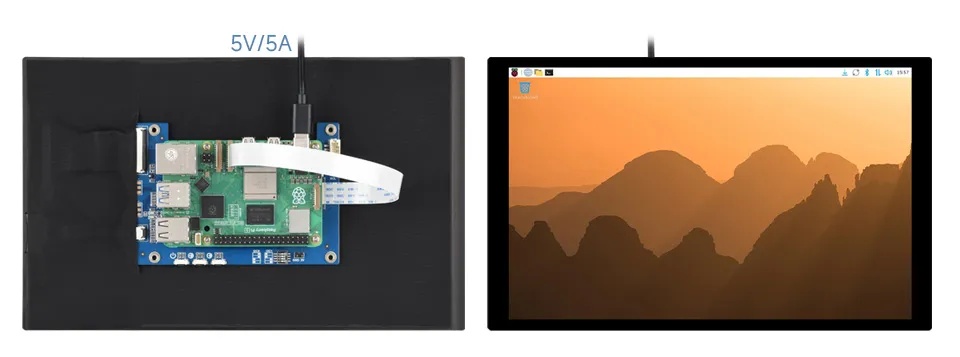
The following uses the default I2C0 touch communication; for dual DSI interface mainboards, DSI1 is used as an example. The screen also needs a 5 V power supply. For power supply methods and the I2C1 wiring, see Power Supply and Touch Communication.
Raspberry Pi 5
- Use a compatible 22PIN DSI ribbon cable to connect the screen's DSI interface to the Raspberry Pi 5's CAM/DISP1 interface.
- Secure the Raspberry Pi to the back of the screen, and confirm that the spring pogo pins make proper contact with the GPIO power contacts.
- Confirm that the touch interface selection switch is set to I2C0, check the ribbon cable orientation and power polarity, and then power on.
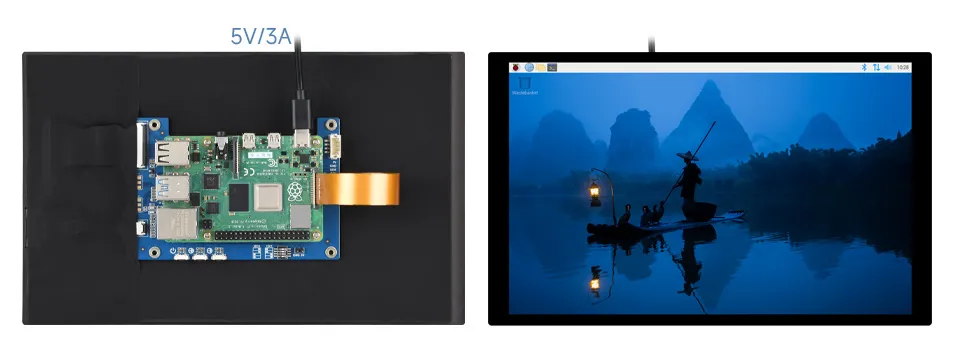
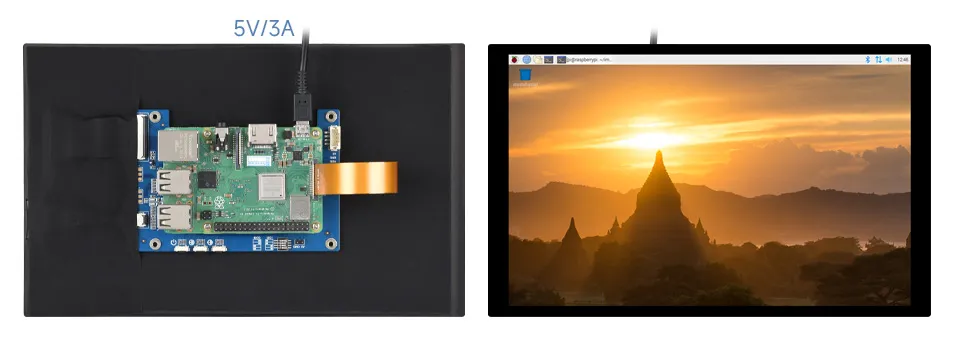
Raspberry Pi 4B / 3B+ / 3A+
- Use a ribbon cable compatible with the Raspberry Pi 15PIN DSI interface to connect the screen's DSI interface to the mainboard's DSI interface.
- Secure the Raspberry Pi to the back of the screen, and confirm that the spring pogo pins make proper contact with the GPIO power contacts.
- Confirm that the touch interface selection switch is set to I2C0, check the ribbon cable orientation and power polarity, and then power on.
Software Settings
Flashing the System
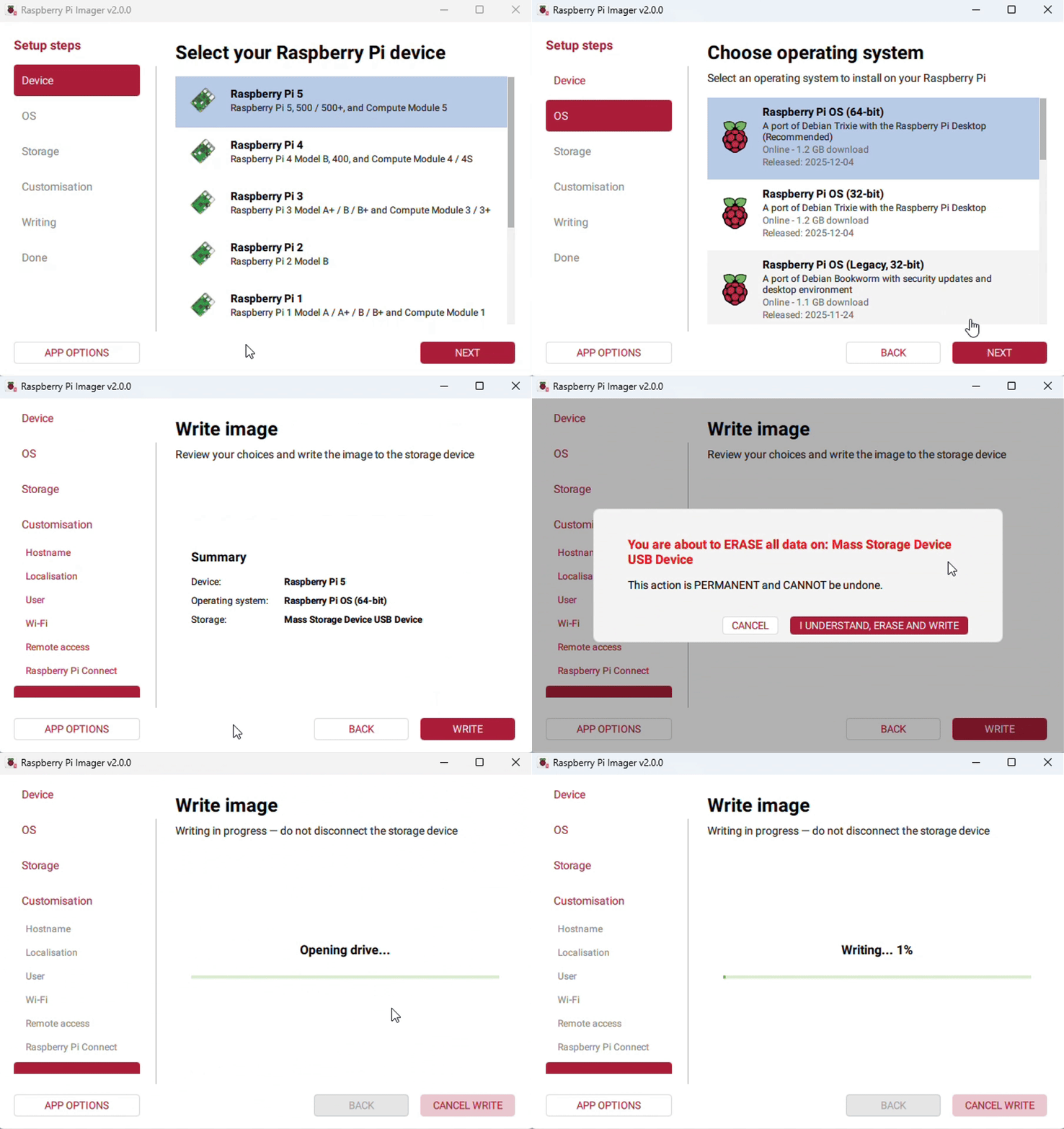
- Install the Raspberry Pi Imager image flashing tool.
- Writing will overwrite the data on the target card. After confirming the target TF card, select the corresponding Raspberry Pi model and the Raspberry Pi OS Trixie or Bookworm desktop system, and complete the flashing.
- Boot the Raspberry Pi and connect to the network. Update the kernel as described in the next section, then configure the screen.
The following animated image demonstrates the Raspberry Pi Imager flashing process; select the system version according to the above requirements.
Update the Kernel
The current kernel version of the official system is 6.18.50, and the screen driver can only be invoked in kernel versions after 6.18.55. Before configuring config.txt, run the following commands in the Raspberry Pi terminal to update the kernel:
sudo apt-get update
sudo rpi-update pulls/7662
DSI Lane Configuration
Only add one set of screen configuration corresponding to the mainboard and the actual interface. If dtoverlay=vc4-kms-v3d already exists in the file, keep just one instance.
Raspberry Pi 4B / 3B+ / 3A+: 2 lane
dtoverlay=vc4-kms-v3d
dtoverlay=vc4-kms-dsi-waveshare-panel,10_1_inchE_2lane
Raspberry Pi 5 / CM5 / CM4 / CM3+ / CM3: 4 lane
The following enables DSI1 by default. If connecting to DSI0, comment out the DSI1 line and uncomment the last line.
dtoverlay=vc4-kms-v3d
#DSI1 Use
dtoverlay=vc4-kms-dsi-waveshare-panel,10_1_inchE_4lane
#DSI0 Use
#dtoverlay=vc4-kms-dsi-waveshare-panel,10_1_inchE_4lane,dsi0
After saving the configuration, run sudo reboot to reboot the Raspberry Pi so that the kernel update and screen configuration take effect, then check the display and touch functions.
Adjusting Backlight Brightness
GUI Brightness Adjustment
The following steps are based on the Trixie system:
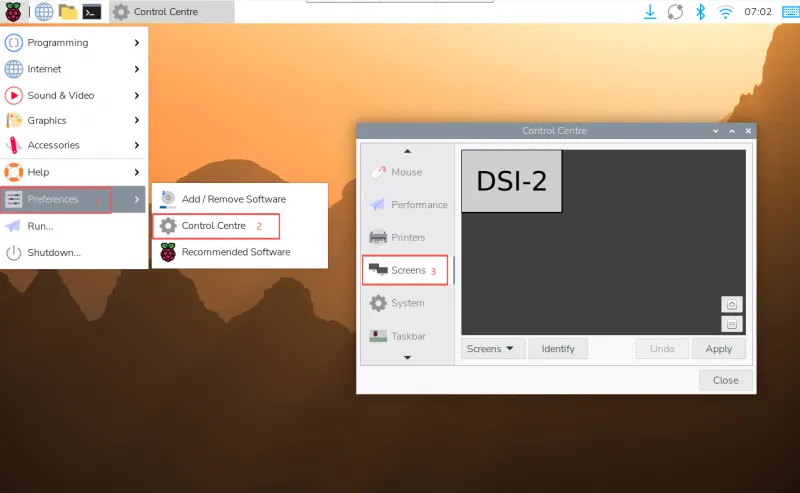
Click the menu in the upper left corner, go to "Preferences" > "Control Center", and select "Screens".
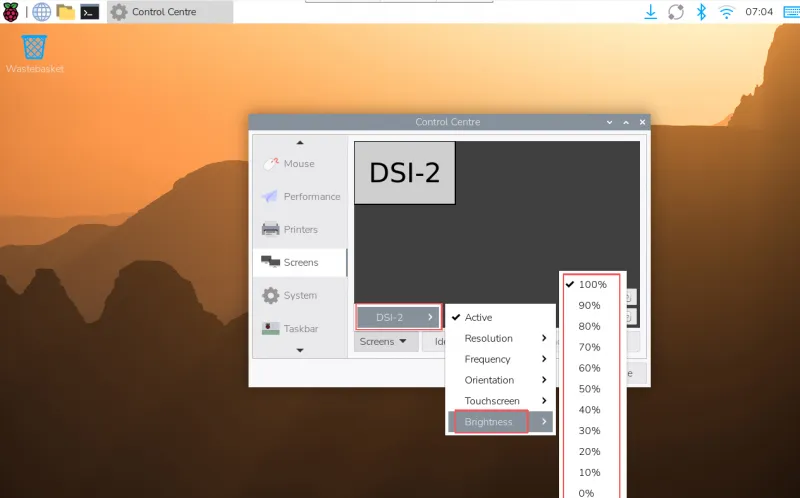
Go to "Screen" > the actually connected DSI monitor > "Brightness", check and adjust the desired backlight brightness, and finally click Apply to save the settings. The DSI number in the screenshot is for example only.
Using the Waveshare Backlight Adjustment Application
wget https://files.waveshare.com/wiki/common/Brightness.zip
unzip Brightness.zip
cd Brightness
sudo chmod +x install.sh
./install.sh
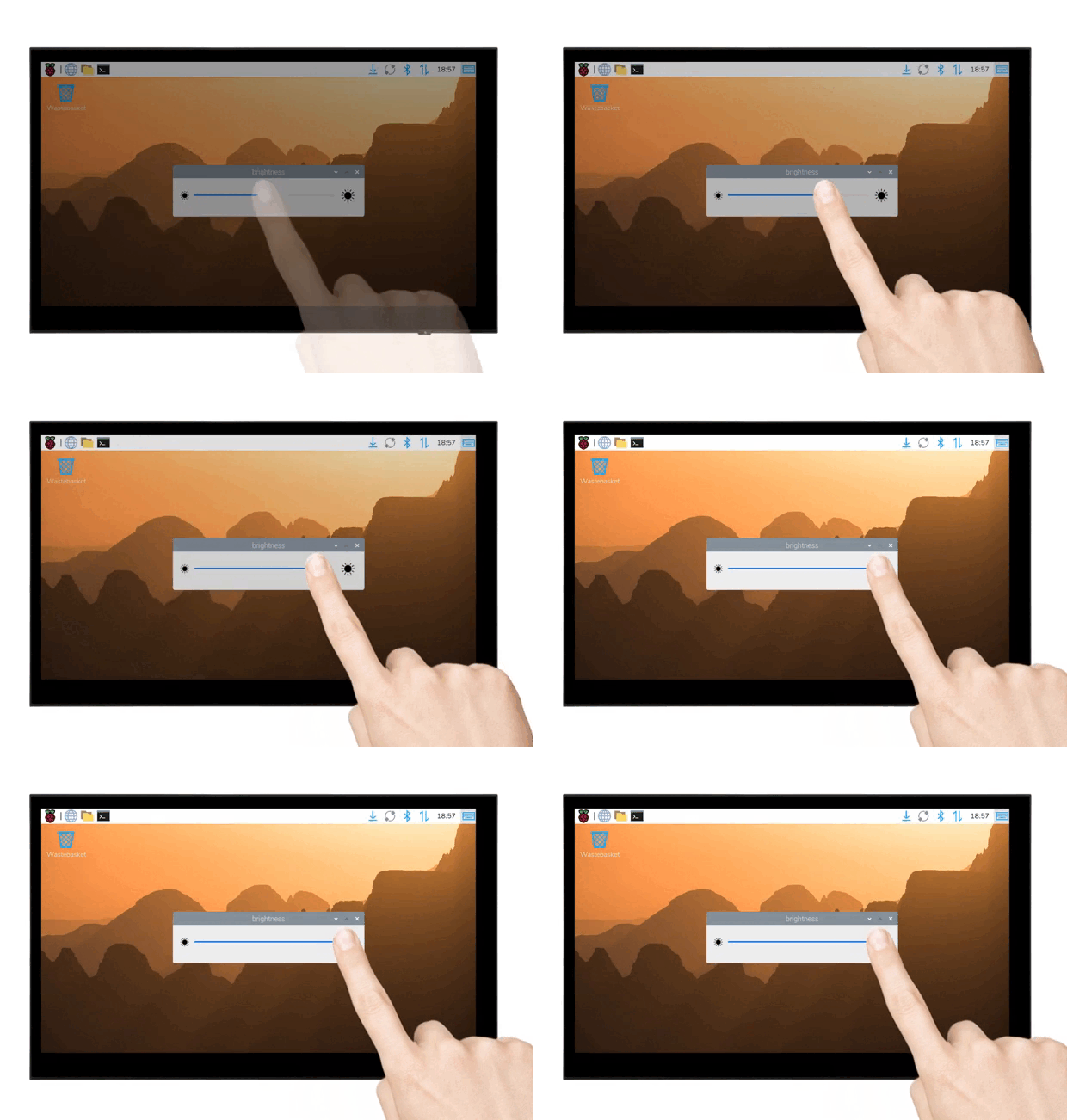
After the installation is complete, you can open the program from the Start menu > "Accessories" > "Brightness", as shown below:
Adjusting Backlight Brightness Using the Terminal
echo X | sudo tee /sys/class/backlight/*/brightness
Where X represents any number from 0 to 255. 0 means the darkest, and 255 means the brightest. For example:
echo 100 | sudo tee /sys/class/backlight/*/brightness
echo 0 | sudo tee /sys/class/backlight/*/brightness
echo 255 | sudo tee /sys/class/backlight/*/brightness
GUI Interface Rotation
Display Rotation on Trixie
The following steps are based on the Trixie system:
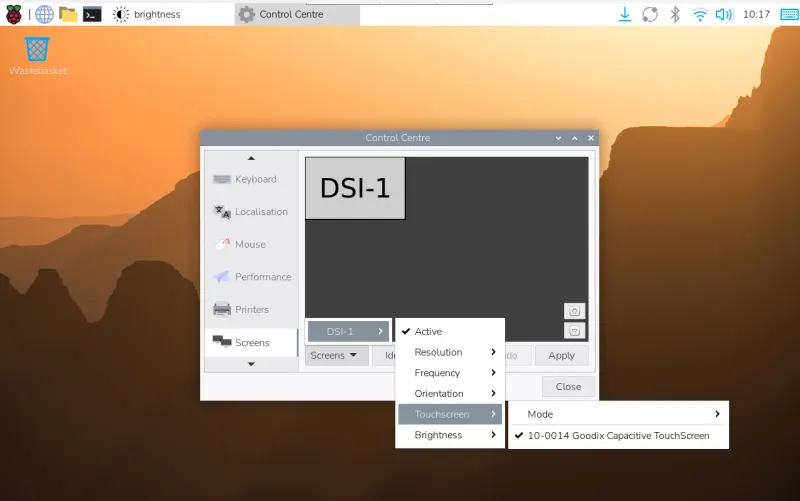
Click the menu in the upper left corner, go to "Preferences" > "Control Center", and select "Screens".
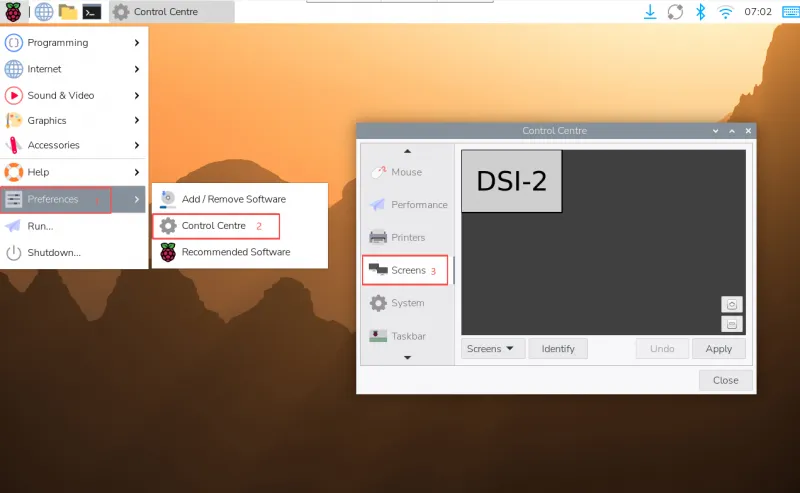
Go to "Screen" > the actually connected DSI monitor > "Touchscreen", and check the corresponding Goodix Capacitive TouchScreen. The bus number in the device name is based on the system recognition result.
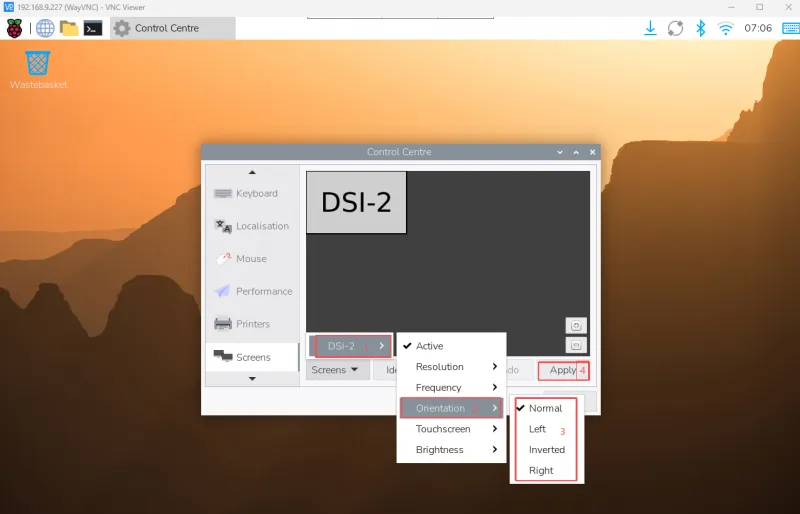
Select the desired rotation direction in the Orientation of the same DSI monitor, and finally click Apply to complete synchronized display and touch rotation.
Lite Version Display Rotation
sudo nano /boot/firmware/cmdline.txt
Append a display rotation command for the corresponding angle to the end of the existing content in the cmdline.txt file, separated by a space, keeping the entire file on one line. The changes take effect after saving and rebooting. The following commands use this screen's native resolution of 1920 × 1200. Do not add multiple angles at the same time.
Rotation commands
# Display rotated 90 degreesvideo=DSI-1:1920x1200e,rotate=90# Display rotated 270 degreesvideo=DSI-1:1920x1200e,rotate=270# Display rotated 180 degreesvideo=DSI-1:1920x1200e,rotate=180
- If using Pi5/CM5, use the actual detected DSI display identifier, e.g., "DSI-2".
- You cannot rotate the DSI display separately from the HDMI display using cmdline.txt. When you use both DSI and HDMI simultaneously, they share the same rotation value.
Touch Rotation
If you rotate using the GUI, you can check the "Touchscreen" option in the screen layout editor window to synchronize touch rotation. Please refer to the previous introduction for how to rotate the screen. For command-line rotation, refer to the following:
Create the touch rotation rules file
/etc/udev/rules.d/99-waveshare-touch.rules.sudo nano /etc/udev/rules.d/99-waveshare-touch.rulesAccording to the display orientation, select one of the following three rules and write it into the file; do not add multiple angles at the same time. These rules match all touchscreens; in multi-touchscreen environments, first confirm the applicable scope.
# Touch rotated 90 degreesENV{ID_INPUT_TOUCHSCREEN}=="1", ENV{LIBINPUT_CALIBRATION_MATRIX}="0 -1 1 1 0 0"# Touch rotated 270 degreesENV{ID_INPUT_TOUCHSCREEN}=="1", ENV{LIBINPUT_CALIBRATION_MATRIX}="0 1 0 -1 0 1"# Touch rotated 180 degreesENV{ID_INPUT_TOUCHSCREEN}=="1", ENV{LIBINPUT_CALIBRATION_MATRIX}="-1 0 1 0 -1 1"After saving and exiting, run the reboot command in the terminal; do not write this command into the rules file.
sudo reboot
Touch Mode Selection
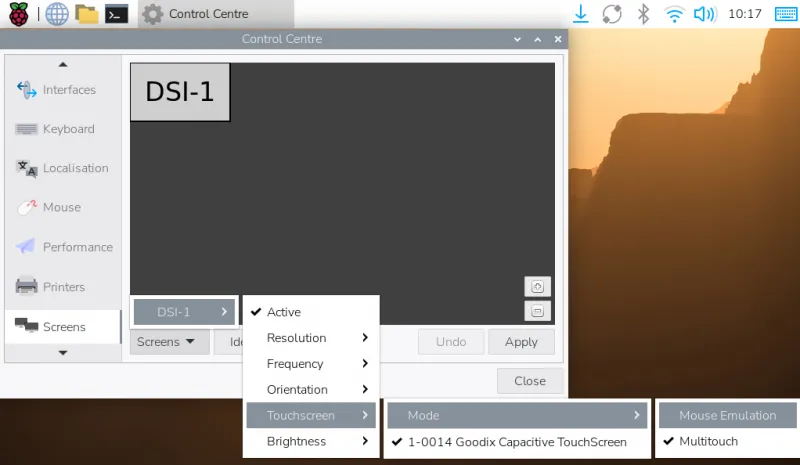
Mouse Emulation (default)
- Click = Left mouse button function
- Long press = Right mouse button function
- Supports double-click
- Does not support swiping pages or multi-touch
Note: This mode is suitable for mouse-oriented scenarios, such as double-clicking to open the file manager, or long-pressing for right-click functions.
Multitouch
- Supports multi-touch
- Supports page swiping
- Does not support double-click or long-press for right-click
Note: This mode is suitable for touch-optimized scenarios, such as web browsing and scrolling lists.
Using the Touchscreen Virtual Keyboard
It automatically appears when text input is possible and hides when not.
You can also manually show or hide it using the keyboard icon in the top-right corner of the taskbar.
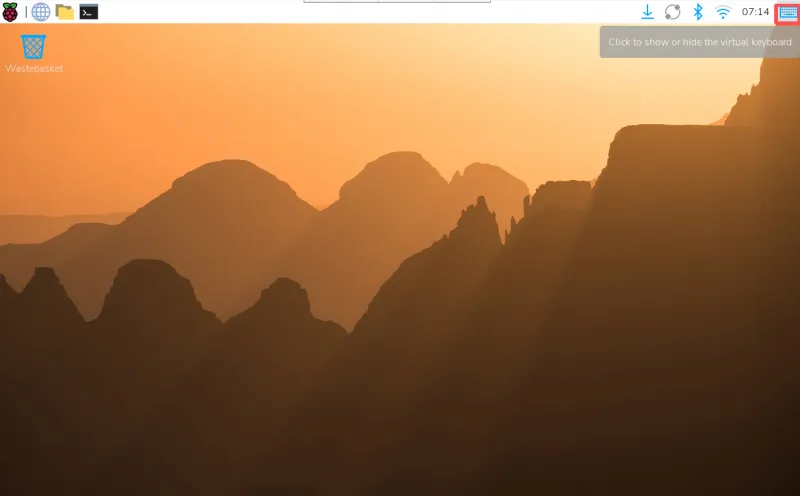
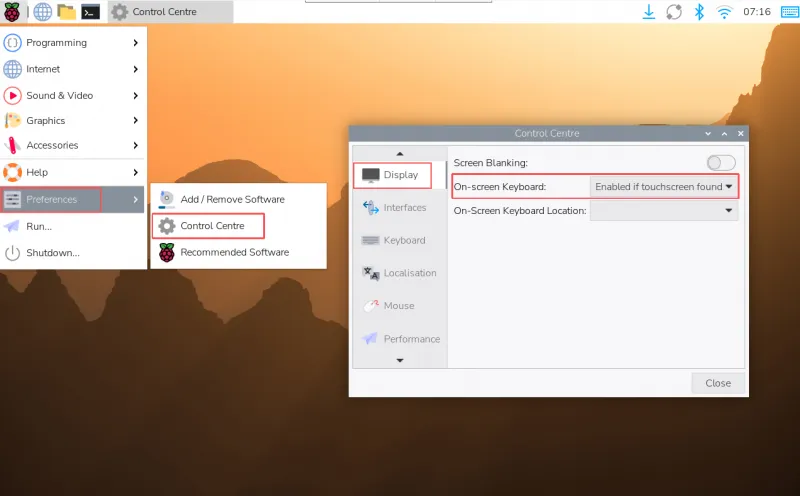
You can also permanently set the on-screen keyboard to show or hide via the upper left corner menu "Preferences" > "Control Centre" > "Display".
Resources
1. Hardware Resources
- 10.1inch DSI LCD (E) 2D Drawing (PDF) (GitHub)
- 10.1inch DSI LCD (E) 2D Drawing (DXF) (GitHub)
- 10.1inch DSI LCD (E) 3D Drawing (STP) (GitHub)
Support
Monday-Friday (9:30-6:30) Saturday (9:30-5:30)
Email: services01@spotpear.com
[Tutorial Navigation]
- Features
- Product Specifications
- Interface Introduction
- Appearance Dimensions
- Working with Raspberry Pi
- Hardware Connection
- Software Settings
- Adjusting Backlight Brightness
- GUI Brightness Adjustment
- Using the Waveshare Backlight Adjustment Application
- Adjusting Backlight Brightness Using the Terminal
- GUI Interface Rotation
- Touch Rotation
- Touch Mode Selection
- Using the Touchscreen Virtual Keyboard
- Resources
- Support