- sales/support
Google Chat:---
- sales
+86-0755-88291180
- sales01
sales@spotpear.com
- sales02
dragon_manager@163.com
- support
tech-support@spotpear.com
- CEO-Complaints
zhoujie@spotpear.com
- Only Tech-Support
WhatsApp:13246739196
- Purchase/Shipping/Refund
WhatsApp:13424403025
- HOME
- >
- ARTICLES
- >
- Raspberry Pi
- >
- Raspberry Pi LCD
- >
- e-Paper
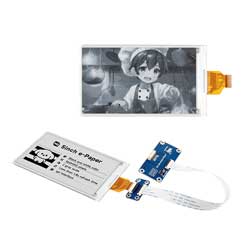
5inch e-Paper User Guide
Features
- No backlight required; can retain the last displayed content for a long time after power-off
- Very low power consumption, mainly only consumes power during refresh
- Provides comprehensive supporting documentation: driver board schematic, Raspberry Pi / Jetson Nano / Arduino / STM32 / ESP32 example programs, etc.
- The following applies only to the module version (with driver HAT)
- Designed based on the Raspberry Pi 40PIN GPIO interface, suitable for Raspberry Pi, Jetson Nano
- Reserved SPI communication interface for easy connection to master controllers such as Raspberry Pi / Arduino / STM32 / ESP32
- Onboard level shifter chip, compatible with 3.3V and 5V logic levels
Specifications
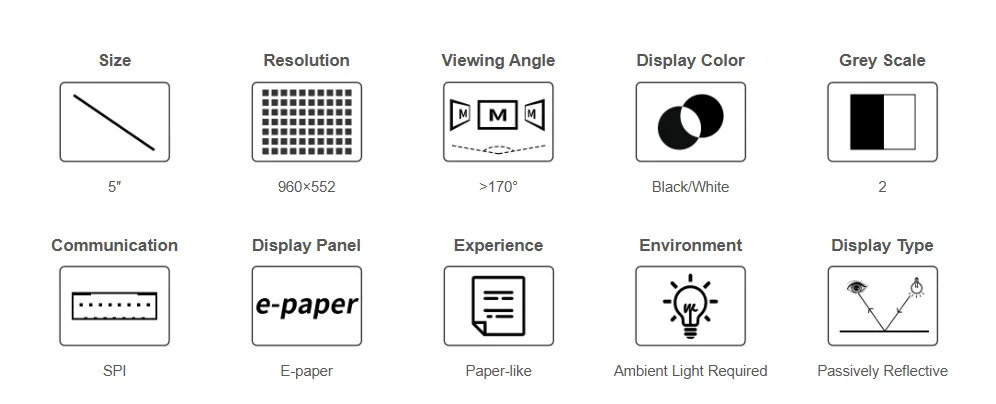
| Parameter | Value |
|---|---|
| Operating Voltage | Raw Screen Version: 3.3V Module Version: 3.3V/5V |
| Communication Interface | 3-wire SPI, 4-wire SPI |
| Physical Dimensions | Raw Screen Version: 126.38 × 71.19 × 0.795 (mm) Module Version: 30.5 × 65 (mm) |
| Active Area | 110.592 × 62.652 (mm) |
| Dot Pitch | 0.1833 × 0.1833 (mm) |
| Resolution | 960 × 552 pixels |
| Display Color | Black, White |
| Gray Scale | 2 |
| Partial Refresh Time | 0.7 |
| Full Refresh Time | 1.8s |
| Refresh Power Consumption | < 50mW |
| Sleep Current | < 0.01uA (near 0) |
| Viewing Angle | > 170° |
| Operating Temperature | 0 ~ 50 ℃ |
| Storage Temperature | -25 ~ 60 ℃ |
- Refresh Time: The refresh time is based on experimental test data. The actual refresh time may vary; please refer to the actual performance. Flickering during the full refresh process is normal.
- Refresh Power Consumption: Power consumption data is based on experimental test data. Actual power consumption may vary due to the presence of the driver board and different usage conditions; please refer to the actual performance.
- Refreshing in low-temperature environments may cause color shift. The screen should be left stationary for 6 hours at 25°C before refreshing.
Communication Interface
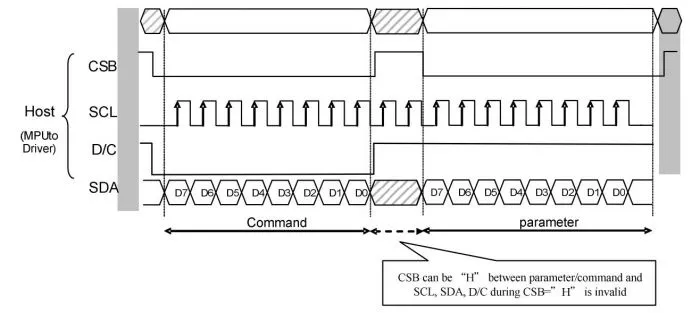
- CSB (CS): Slave chip select signal, active low. The chip is enabled when this signal is low.
- SCL (SCK/SCLK): Serial clock signal.
- D/C (DC): Data/Command control signal. A low level indicates a command is being written; a high level indicates data/parameters are being written.
- SDA (DIN): Serial data signal.
- Timing: CPOL=0, CPHA=0, i.e., SPI mode 0.
- Note: For specific information regarding SPI communication, you can search online for more details.
Working Principle
The e-Paper used in this product employs "Microencapsulated Electrophoretic Display" technology for image display. The basic principle involves charged nanoparticles suspended in a liquid migrating under the influence of an electric field. The e-Paper display relies on reflecting ambient light to show patterns and does not require a backlight. Under ambient light, the e-Paper display is clearly visible, with a viewing angle approaching 180°. Therefore, e-Paper displays are ideal for reading.
Programming Principle
- For black and white images, we can define black as 0 and white as 1. Thus, we have a way to represent colors:
- White: □, corresponds to 1
- Black: ■: corresponds to 0
- A point on an image is generally called a pixel. Since the color is either 1 or 0, 1 bit can represent a pixel: 1 Pixel = 1 bit. Therefore, one byte contains 8 pixels.
- Take 16 pixels as an example. Suppose the first 8 pixels are black and the last 8 pixels are white. We can consider pixels 1-16 correspond to bits 0 to 15, where 0 represents black and 1 represents white:For computers, data storage is typically Most Significant Bit (MSB) first, and one byte consists of only 8 bits. So, there is a slight adjustment:
 In this way, only 2 bytes are required to represent 16 pixels.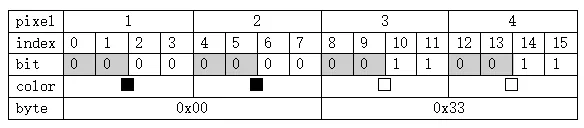
Working with Raspberry Pi
Hardware Connection
- When connecting to the Raspberry Pi, you can directly plug the board onto the 40PIN header, ensuring the pins are aligned correctly.
- If using a 9PIN cable, please refer to the pin mapping table below:
- Raspberry Pi pin mapping
e-Paper Raspberry Pi Pin Mapping BCM2835 Pin Board Physical Pin Number VCC 3.3V 3.3V GND GND GND DIN MOSI 19 CLK SCLK 23 CS CE0 24 DC 25 22 RST 17 11 BUSY 24 18 PWR 18 12
- Raspberry Pi pin mapping
Enabling the SPI Interface
Open the Raspberry Pi terminal and enter the following command to access the configuration interface:
sudo raspi-configSelect Interfacing Options -> SPI -> Yes to enable the SPI interface
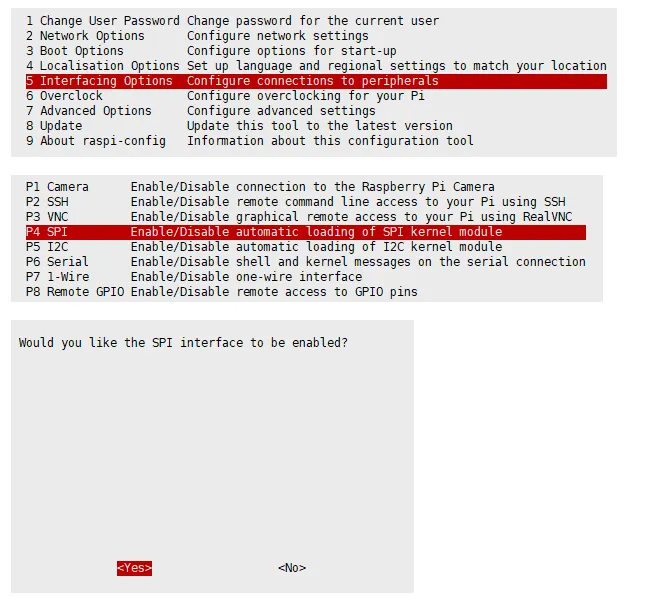
Reboot the Raspberry Pi:
sudo rebootCheck
/boot/config.txt, you should see thatdtparam=spi=onhas been written
To ensure SPI is not occupied, it is recommended to temporarily disable other driver overlays. Use
ls /dev/spi*to check the SPI occupancy. The terminal output/dev/spidev0.0and/dev/spidev0.1indicates that SPI is functioning normally.
Running the C Example
Install the lg library
#Open the Raspberry Pi terminal and run the following commands:wget https://github.com/joan2937/lg/archive/master.zipunzip master.zipcd lg-mastermakesudo make install# For more information, please refer to the source code: https://github.com/gpiozero/lgInstall gpiod library (optional)
#Open the Raspberry Pi terminal and run the following commands:sudo apt-get updatesudo apt install gpiod libgpiod-devInstall BCM2835 (optional)
#Open the Raspberry Pi terminal and run the following commands:wget http://www.airspayce.com/mikem/bcm2835/bcm2835-1.71.tar.gztar zxvf bcm2835-1.71.tar.gzcd bcm2835-1.71/sudo ./configure && sudo make && sudo make check && sudo make install# For more information, please refer to the official website: http://www.airspayce.com/mikem/bcm2835/Install wiringPi (optional)
#Open the Raspberry Pi terminal and run the following commands:sudo apt-get install wiringpi#For Raspberry Pi systems after May 2019 (those earlier may not require execution), an upgrade may be necessary:wget https://files.waveshare.com/wiki/common/wiringpi-latest.debsudo dpkg -i wiringpi-latest.debgpio -v# Run gpio -v and version 2.52 will appear. If it does not appear, there is an installation error.#Bullseye branch system uses the following command:git clone https://github.com/WiringPi/WiringPicd WiringPi./buildgpio -v# Run gpio -v and version 2.60 will appear. If it does not appear, there is an installation error.Download the demo (skip if already downloaded)
wget https://files.waveshare.com/wiki/5inch_e-Paper/5inch_e-Paper.zipunzip 5inch_e-Paper.zip -d 5inch_e-Papercd 5inch_e-Paper/RaspberryPi_JetsonNano/Alternative extraction method
git clone https://github.com/waveshare/e-Paper.gitcd e-Paper/E-paper_Separate_Program/5inch_e-Paper/RaspberryPi_JetsonNanoDownload the program via GitHub (alternative method, skip if already downloaded)
- Accessing GitHub may not be very smooth at present. It is recommended to use the above method to download from our official website.sudo apt-get install p7zip-full7z x 5inch_e-Paper.zip -O./5inch_e-Papercd 5inch_e-Paper/RaspberryPi_JetsonNano/
- Accessing GitHub may not be very smooth at present. It is recommended to use the above method to download from our official website.
Compile the program (Note:
-j4uses 4 threads for compilation; you can modify the number)# It is now in 5inch_e-Paper/RaspberryPi_JetsonNano positioncd csudo make cleansudo make -j4Run the program
sudo ./epd
Running the Python Example
Install libraries
sudo apt-get updatesudo apt-get install python3-pipsudo apt-get install python3-pilsudo apt-get install python3-numpysudo pip3 install spidevInstall libraries (python2)
sudo apt-get updatesudo apt-get install python-pipsudo apt-get install python-pilsudo apt-get install python-numpysudo pip install spidevInstall gpiozero library (pre-installed by default, if not, install using the following commands)
sudo apt-get update# python3sudo apt install python3-gpiozero# python2sudo apt install python-gpiozeroDownload the demo (skip if already downloaded)
wget https://files.waveshare.com/wiki/5inch_e-Paper/5inch_e-Paper.zipunzip 5inch_e-Paper.zip -d 5inch_e-Papercd 5inch_e-Paper/RaspberryPi_JetsonNano/Alternative extraction method
sudo apt-get install p7zip-full7z x 5inch_e-Paper.zip -O./5inch_e-Papercd 5inch_e-Paper/RaspberryPi_JetsonNano/Download the program via GitHub (alternative method, skip if already downloaded)
- Accessing GitHub may not be very smooth at present. It is recommended to use the above method to download from our official website.git clone https://github.com/waveshare/e-Paper.gitcd e-Paper/E-paper_Separate_Program/5inch_e-Paper/RaspberryPi_JetsonNano
- Accessing GitHub may not be very smooth at present. It is recommended to use the above method to download from our official website.
Run the program
# Make sure it is in 5inch_e-Paper/RaspberryPi_JetsonNano/ positioncd python/examples/python3 epd_5in0_test.py
Working with Arduino
Hardware Connection
- Connect using the 9PIN cable. Refer to the pin mapping table below:
- Arduino pin mapping
e-Paper Arduino UNO Mega2560 VCC 5V 5V GND GND GND DIN D11 D51 CLK D13 D52 CS D10 D10 DC D9 D9 RST D8 D8 BUSY D7 D7 PWR D6 D6
- Arduino pin mapping
Installing the IDE
Arduino IDE Windows Installation Tutorial
Run the Demo
- In the Resources section download the example package, then unzip it and enter the
5inch_e-Paperdirectory to see the following contents: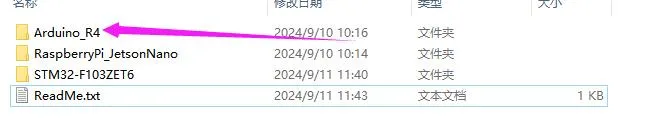
- Open the demo:
5inch_e-Paper\Arduino_R4\Arduino_R4.ino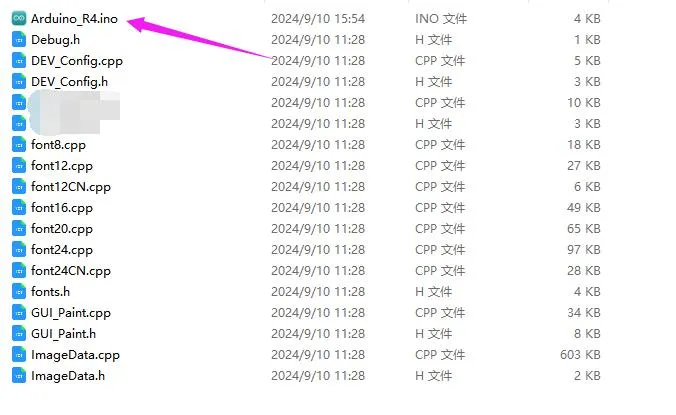
- In the Arduino IDE toolbar (Tools), select the corresponding Board and Port:
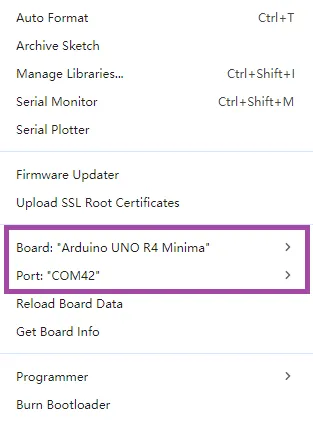
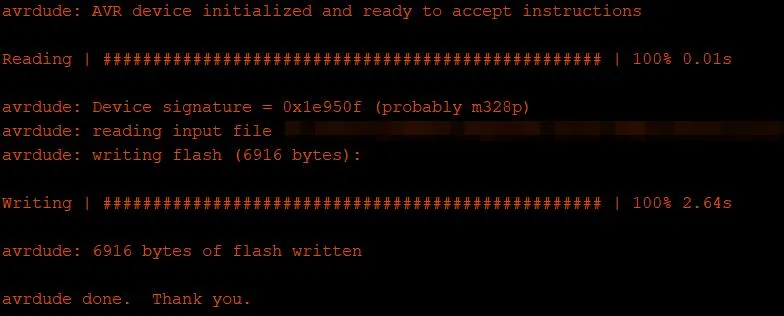
- Finally, click Upload. A successful upload is shown below (Arduino 1.8.13):
Working with Jetson Nano
Hardware Connection
- The 40PIN header on the Jetson Nano is compatible with the Raspberry Pi's 40PIN header, and it provides a Jetson.GPIO library whose API is consistent with the Raspberry Pi's RPI.GPIO library. Therefore, the pin numbers used here are the same as those for the Raspberry Pi. When using the 40PIN interface, you can directly plug the module into the 40PIN header of the Jetson Nano.
- If using a 9PIN cable, please refer to the pin mapping table below:
- Jetson Nano pin mapping
e-Paper Jetson Nano Developer Kit BCM2835 Pin Board Physical Pin Number VCC 3.3V 3.3V GND GND GND DIN 10(SPI0_MOSI) 19 CLK 11(SPI0_SCK) 23 CS 8(SPI0_CS0) 24 DC 25 22 RST 17 11 BUSY 24 18 PWR 18 12
- Jetson Nano pin mapping
Running the C Example
Download the demo (skip if already downloaded)
wget https://files.waveshare.com/wiki/5inch_e-Paper/5inch_e-Paper.zipunzip 5inch_e-Paper.zip -d 5inch_e-Papercd 5inch_e-Paper/RaspberryPi_JetsonNano/Alternative extraction method
sudo apt-get install p7zip-full7z x 5inch_e-Paper.zip -O./5inch_e-Papercd 5inch_e-Paper/RaspberryPi_JetsonNano/Download the program via GitHub (alternative method, skip if already downloaded)
- Accessing GitHub may not be very smooth at present. It is recommended to use the above method to download from our official website.git clone https://github.com/waveshare/e-Paper.gitcd e-Paper/E-paper_Separate_Program/5inch_e-Paper/E-RaspberryPi_JetsonNano
- Accessing GitHub may not be very smooth at present. It is recommended to use the above method to download from our official website.
Compile the program (Note: -j4 uses 4 threads for compilation; you can modify the number)
# It is now in 5inch_e-Paper/RaspberryPi_JetsonNano positioncd csudo make cleansudo make JETSON -j4Run the program
sudo ./epd
Running the Python Example
Install libraries
sudo apt-get updatesudo apt-get install python3-numpysudo apt-get install python3-pipsudo pip3 install Jetson.GPIODownload the demo (skip if already downloaded)
wget https://files.waveshare.com/wiki/5inch_e-Paper/5inch_e-Paper.zipunzip 5inch_e-Paper.zip -d 5inch_e-Papercd 5inch_e-Paper/RaspberryPi_JetsonNano/Alternative extraction method
sudo apt-get install p7zip-full7z x 5inch_e-Paper.zip -O./5inch_e-Papercd 5inch_e-Paper/RaspberryPi_JetsonNano/Download the program via GitHub (alternative method, skip if already downloaded)
- Accessing GitHub may not be very smooth at present. It is recommended to use the above method to download from our official website.git clone https://github.com/waveshare/e-Paper.gitcd e-Paper/E-paper_Separate_Program/5inch_e-Paper/E-RaspberryPi_JetsonNano
- Accessing GitHub may not be very smooth at present. It is recommended to use the above method to download from our official website.
Run the program
# Make sure it is in 5inch_e-Paper/RaspberryPi_JetsonNano/ positioncd python/examples/python3 epd_5in0_test.py
Working with STM32
Hardware Connection
- Connect using the 9PIN cable. Refer to the pin mapping table below:
- STM32 Pin Mapping
e-Paper STM32 VCC 3.3V GND GND DIN PA7 CLK PA5 CS PA4 DC PA2 RST PA1 BUSY PA3 PWR PA6
- STM32 Pin Mapping
Running the Program
- In the Resources section download the example package, then unzip it and enter the
5inch_e-Paperdirectory to see the following contents: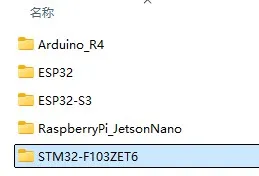
- Use Keil to open epd-demo.uvprojx in the 5inch_e-Paper\STM32-F103ZET6\MDK-ARM directory
- Open the Keil compile toolbar (usually already open):
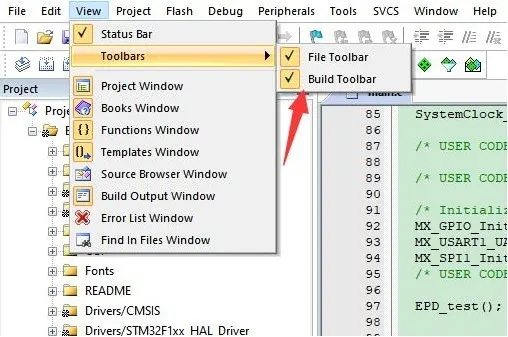
- Click Build.

- Ensure a suitable programmer is connected, then click Load to download the program to the microcontroller.
Working with ESP32
Hardware Connection
- ESP32 Pin Mapping
e-Paper ESP32 ESP32-S3 VCC 3.3V 3.3V GND GND GND DIN IO14 IO11 CLK IO13 IO12 CS IO15 IO10 DC IO27 IO13 RST IO26 IO14 BUSY IO25 IO4 PWR IO33 IO5
Environment Configuration
Online installation requires the use of VPN software, while offline installation does not require the use of VPN software
Running the Program
- In the Resources section download the example package, then unzip it and enter the
5inch_e-Paperdirectory to see the following contents: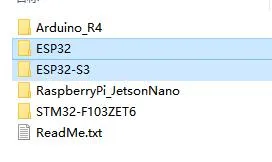
- Open the demo:
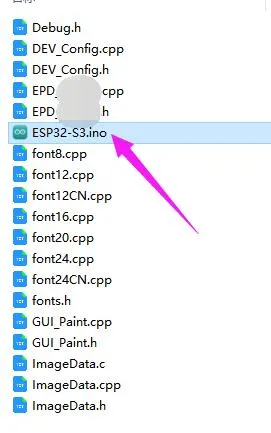
5inch_e-Paper\ESP32\ESP32.inoor5inch_e-Paper\ESP32\ESP32-S3.ino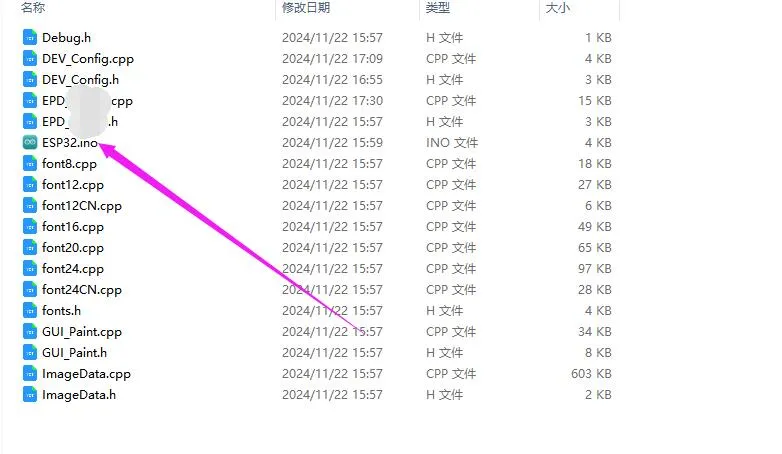
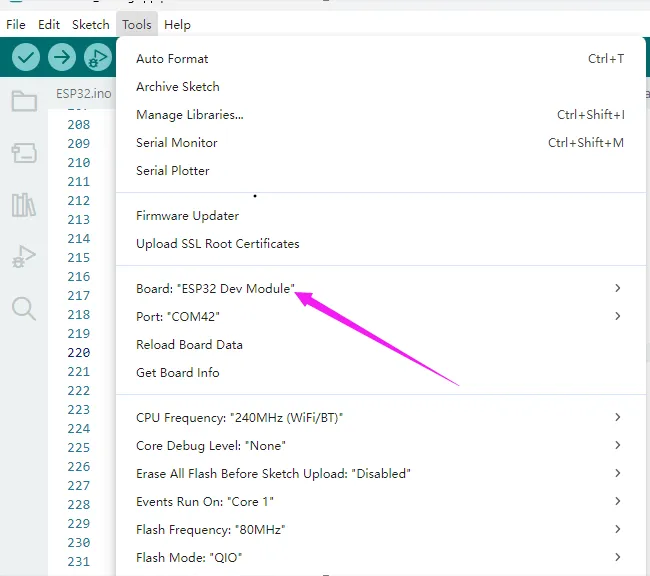
- In the Arduino IDE toolbar (Tools), select the corresponding Board and Port:
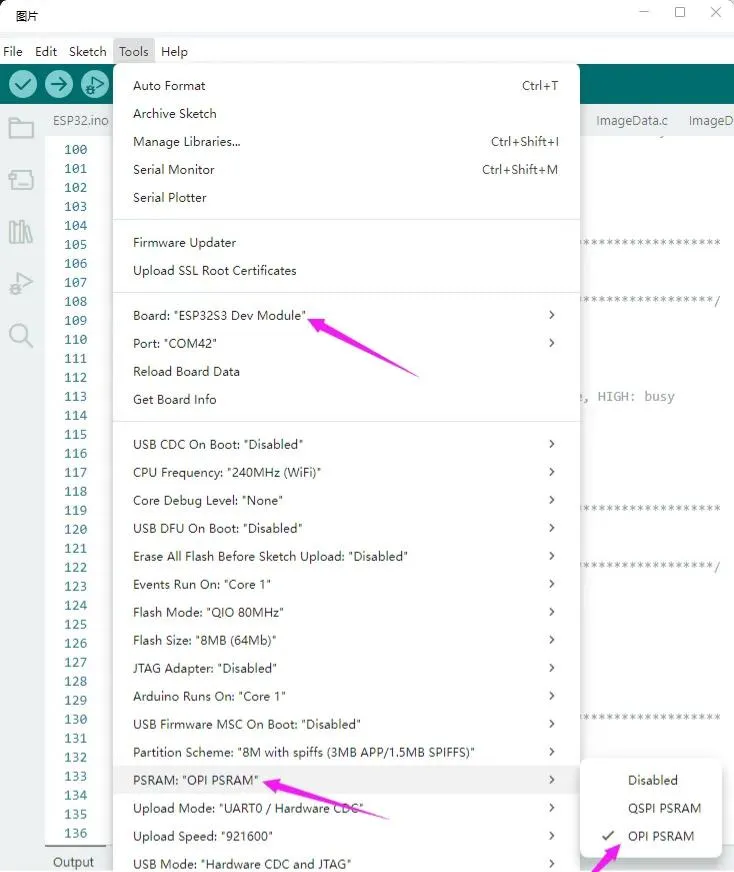
- If using a core like the ESP32-S3 with PSRAM, please enable PSRAM
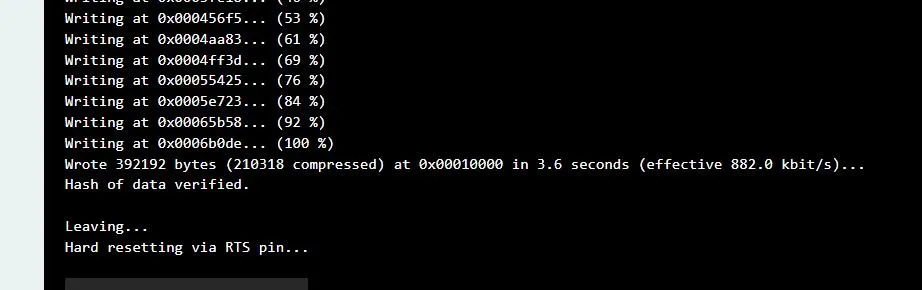
- Finally, click Upload. A successful upload is shown below (Arduino 2.2.1):
Resources
1. Hardware Resources
Driver Board Design Files
2. Technical Manuals
3. Example
4. Software Tools
5. Other Resource Links
Development Resources:
Related Links:
Support
Monday-Friday (9:30-6:30) Saturday (9:30-5:30)
Email: services01@spotpear.com